
Comprehensive Introduction to Embodied Navigation Navigation
Have you completed the basic tutorial and understood embodied navigation, but are still confused about how to apply it in practice? Have you reproduced cutting-edge code, but it is too complex, making it unclear about the specific algorithm implementation steps? Or are you unable to use large models and other algorithms due to a complicated environment, a large dataset, or a complex download process?
In this course, the basic testing environment is strictly maintained. Each algorithm is isolated into a separate file, and is combined and called by the main function. Various modules can be freely replaced (by understanding their input and output). This makes it convenient for continued use in the future. Moreover, each module is largely independent of the environment, allowing it to be replaced with other simulation environments or even deployed in a real navigation environment. Additionally, using a zero-sample navigation approach, embodied navigation can be achieved without any fine-tuning.
This course provides detailed explanations on everything from basic environment installation to obtaining and downloading model weights, as well as the explanation and integration of various algorithms. It takes just “half a day” to master all the algorithms from perception and decision-making to planning and control. You can refer to the algorithms in the course for both getting started with embodied navigation and further in-depth research. I hope this can offer you a little bit of help in your research and academic life. Let’s get started~
1. Start from setting up the environment
If you do not want to configure the environment, this course also provides image support. You can go to the following address on Autodl: https://www.autodl.art/i/datawhalechina/every-embodied/datawhale-navigation
The navigation README for the Autodl image contains detailed instructions for running the image. The gpu-free option also supports the image, allowing you to search for datawhale within the image and select the loading avatar navigation comprehensive introductory practice image.
1. Configure the conda environment
Create a navigation environment and activate it
pythonconda create -n navigation python=3.9 cmake=3.14.0
conda activate navigation
Install habitat-sim=0.2.5
pythonconda install habitat-sim=0.2.5 withbullet headless -c conda-forge -c aihabitat
Install habitat-lab=0.2.5 (It has already been deployed in the cloud. If you want to run it on your own computer, please follow the following steps. Note: You must install habitat-lab of the same version as habitat-sim).
-
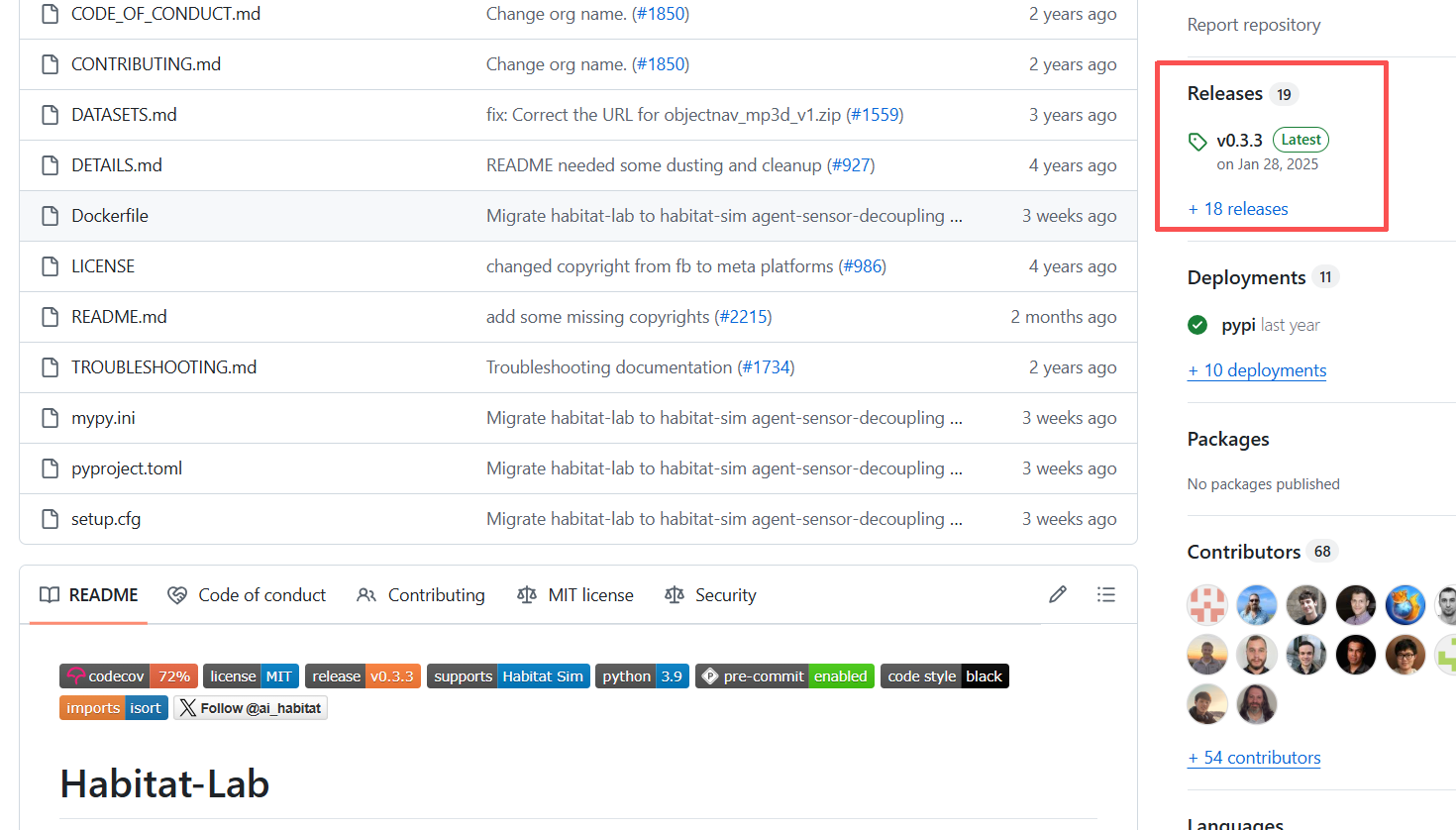
Access the github website of habitat-lab: https://github.com/facebookresearch/habitat-lab.git
-
Find his Releases
-
Select version v0.2.5, and download the Source code (zip) from Assets below and unzip it.
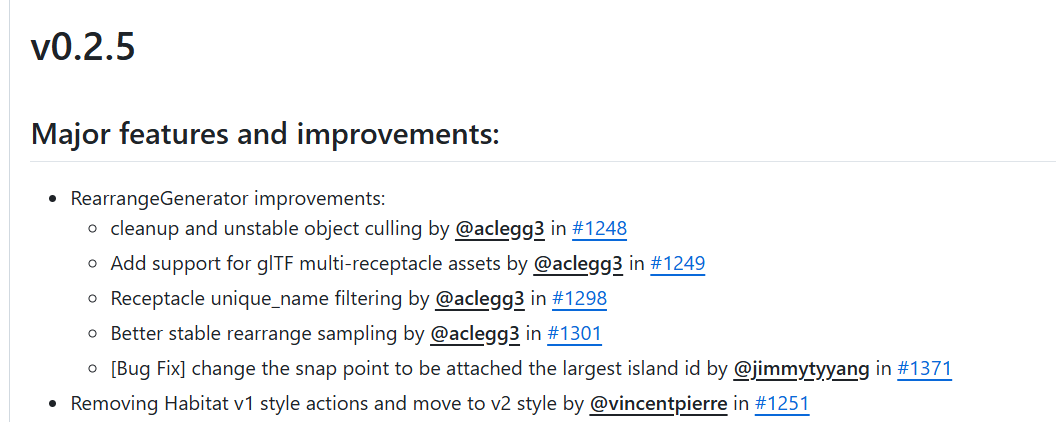
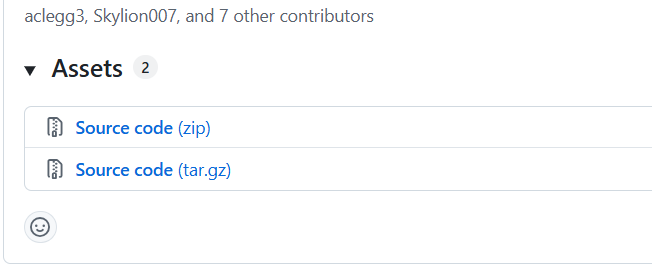
- After downloading, you should get a file named habitat-lab-0.2.5. Enter this folder to start the installation of habitat-lab.
pythoncd habitat-lab-0.2.5
pip install -e habitat-lab
If there are issues such as “no model named ‘torch’” during installation, you can try other solutions.
pythonpip install -e habitat-lab --no-build-isolation
2. Configure the algorithm environment
- Install the visual perception algorithm module
pythonpip install ultralytics
- Install the relevant components required for the large model
pythonpip install openai
pip install transformers
- Simulation environment for running the download algorithm
pythonpython -m habitat_sim.utils.datasets_download --uids habitat_test_scenes --data-path /data
Here, if you only want to use the API call, all the algorithm environment configurations are completed.
Some students might ask, classmates! Do there exist local deployment versions? Some students do have them. Those who want to use local deployment can continue with the following environment configuration. Those who prefer to use the API can skip the following content and directly refer to Part 2. Of course, local deployment isn’t very complicated either~
- Dependency installation
pythonpip install accelerate
pip install modelscope
- Download model weights
pythonmodelscope download --model Qwen/Qwen3-VL-4B-Instruct --local_dir /root/every_embodied_navigation/Qwen3-VL-4B-Instruct/
The path here can be modified as needed. For example, if my main function is located in the every_embodied_navigation folder, I also need to create a new folder called Qwen3-VL-4B-Instruct under every_embodied_navigation to store the model weights. If this folder is not created, all the model weight files will be downloaded into the main function’s folder. Due to cloud memory limitations, the Qwen3-VL-4B model has been downloaded. You can download Qwen3-VL-8B or other models for testing from Modelscope. Only the files in the vlm folder, namely navigator.py and config.py, need to be modified.
After the download is completed, the complete directory structure is as follows:
every_embodied_navigation/
├── main.py                    # 主函数入口(支持 --mode local/api)
├── navigator.py               # EmbodiedNavigator 主导航器
│
├── config/
│   └── config.py              # 统一配置
│
├── utils/
│   ├── simulator.py           # habitat-sim 初始化 & 相机内参
│   └── geometry.py            # 四元数旋转、深度反投影
│
├── perception/
│   └── detector.py            # YOLODetector(YOLOv8 检测 & 可视化)
│
├── mapping/
│   └── map_utils.py           # 战争迷雾、前沿点检测、坐标转换
│
├── planning/
│   └── planner.py             # PathPlanner(路径规划 & 导航执行)
│
├── vlm/
│   ├── base_engine.py         # BaseVLMDecisionEngine(prompt/解析/降级/日志)
│   ├── local_engine.py        # LocalVLMDecisionEngine(本地 Qwen3-VL)
│   ├── api_engine.py          # APIVLMDecisionEngine(OpenAI兼容 API)
│   └── __init__.py            # create_vlm_engine()
│
└── output/
│   └── visualizer.py          # VisualOutput(HUD / 地图面板 / 视频保存)
│
└── Qwen3-VL-4B-Instruct/      # 权重文件
At this point, all the parts that need to be installed are completed. Isn’t it quick~
Some students might ask here: “Classmate, your code framework is really convenient—each module can be replaced independently. But with so many folders, it’s a bit beyond my level as a beginner. Is there a simpler and easier-to-use code? Yes! For those who don’t need the physical navigation framework yet, this course also provides two files: navigation_api.py and navigation_local.py. They allow calling the large model via API or locally, and no additional dependencies are required for running them.”
II. File Paths and Related Instructions
- Modify the large model invocation format
- In the main function, by modifying the
modeparameter, you can choose whether the large model is deployed locally or via API calls.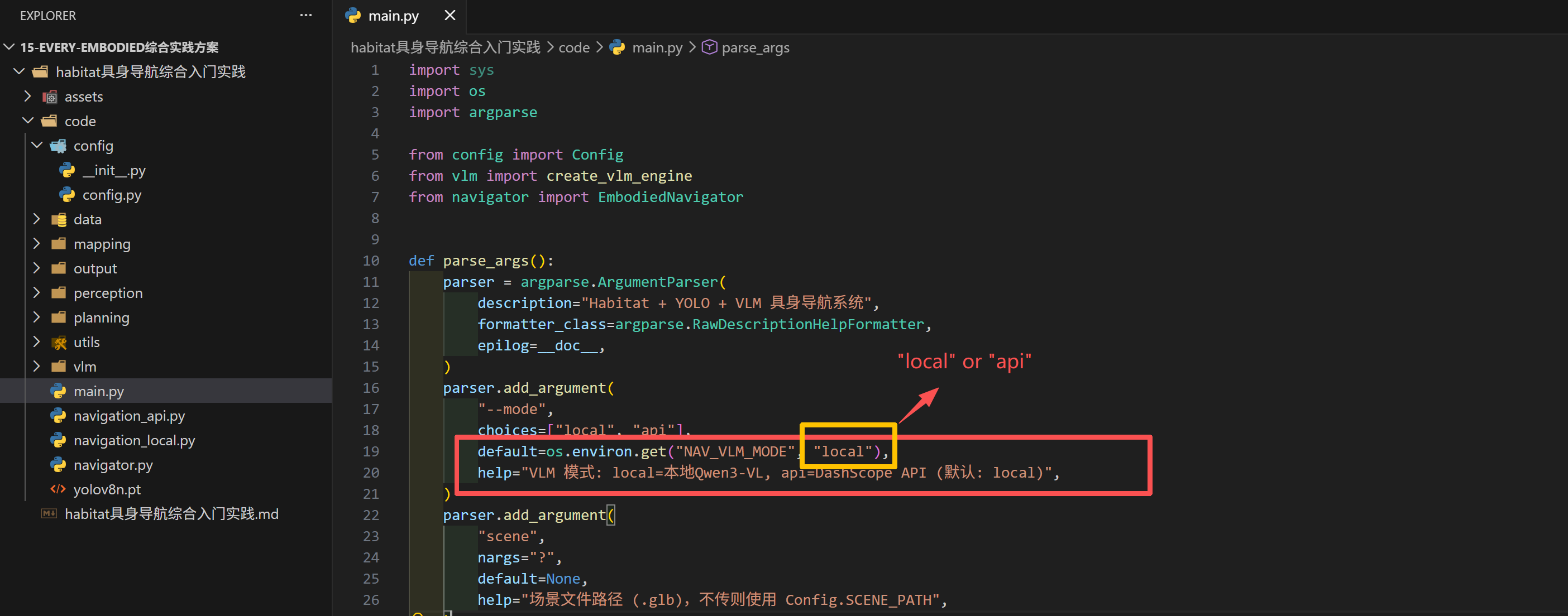
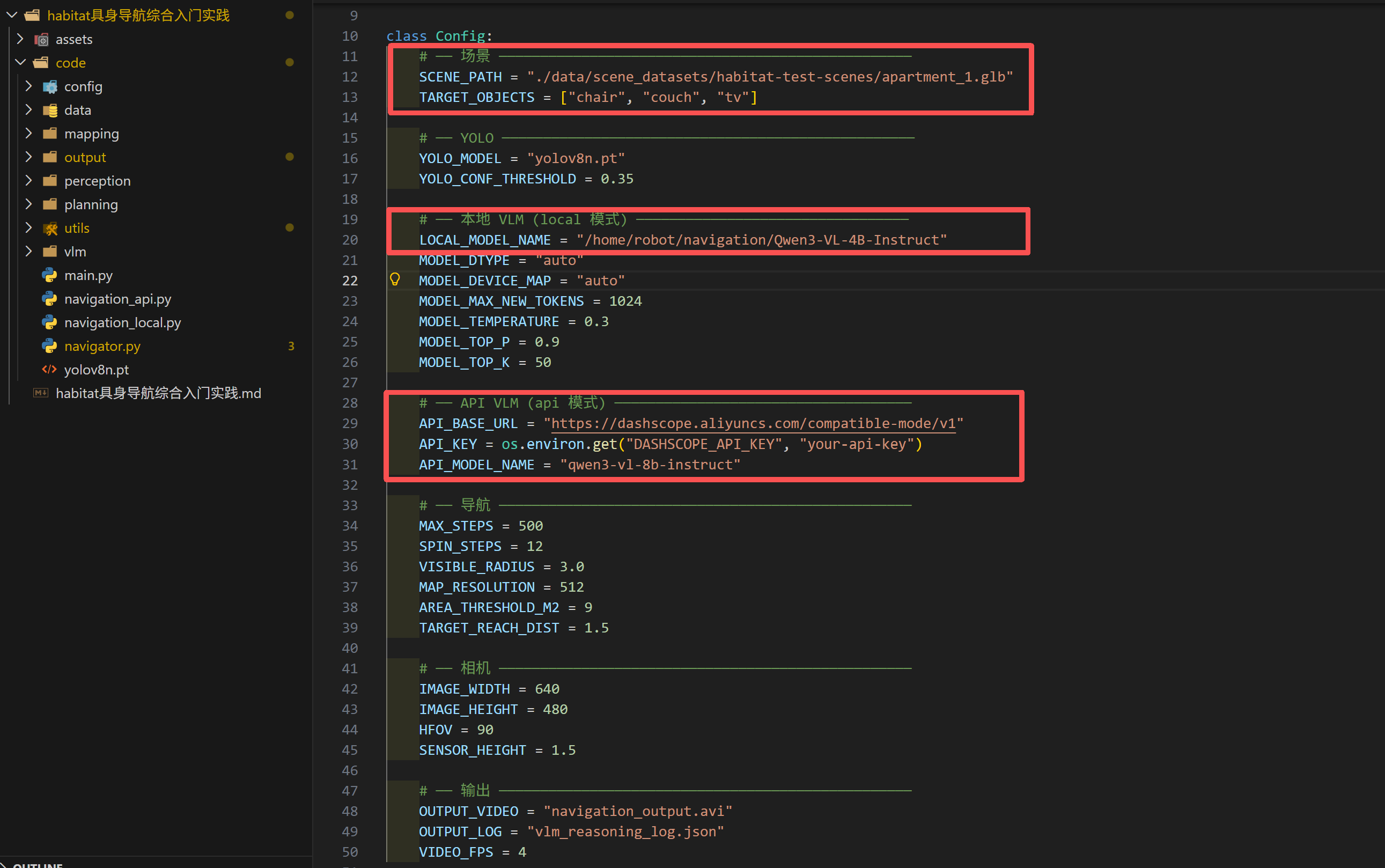
- Modification of the config parameter path
-
The scene file uses relative paths, and generally no modification is required.
-
The local VLM file is the path where the locally deployed model is stored. It is recommended to use an absolute path; otherwise, the model might be identified as being in the cache file. If there are issues with connecting to Hugging Face, it is often because this path is not set properly, causing the system to assume that the model weights have not been downloaded, and thus it tries to download the model weights from the Hugging Face official website.
-
API_BASE_URL is the address of the proxy model platform. Here, it refers to the Alibaba Cloud Bailian platform. If using Qwen models, this address does not need to be modified. For other models, please modify it accordingly. API_KEY is the key obtained from the platform, and API_MODEL_NAME is the name of the model you select, which can be obtained from the Alibaba Cloud Bailian platform or other platforms.
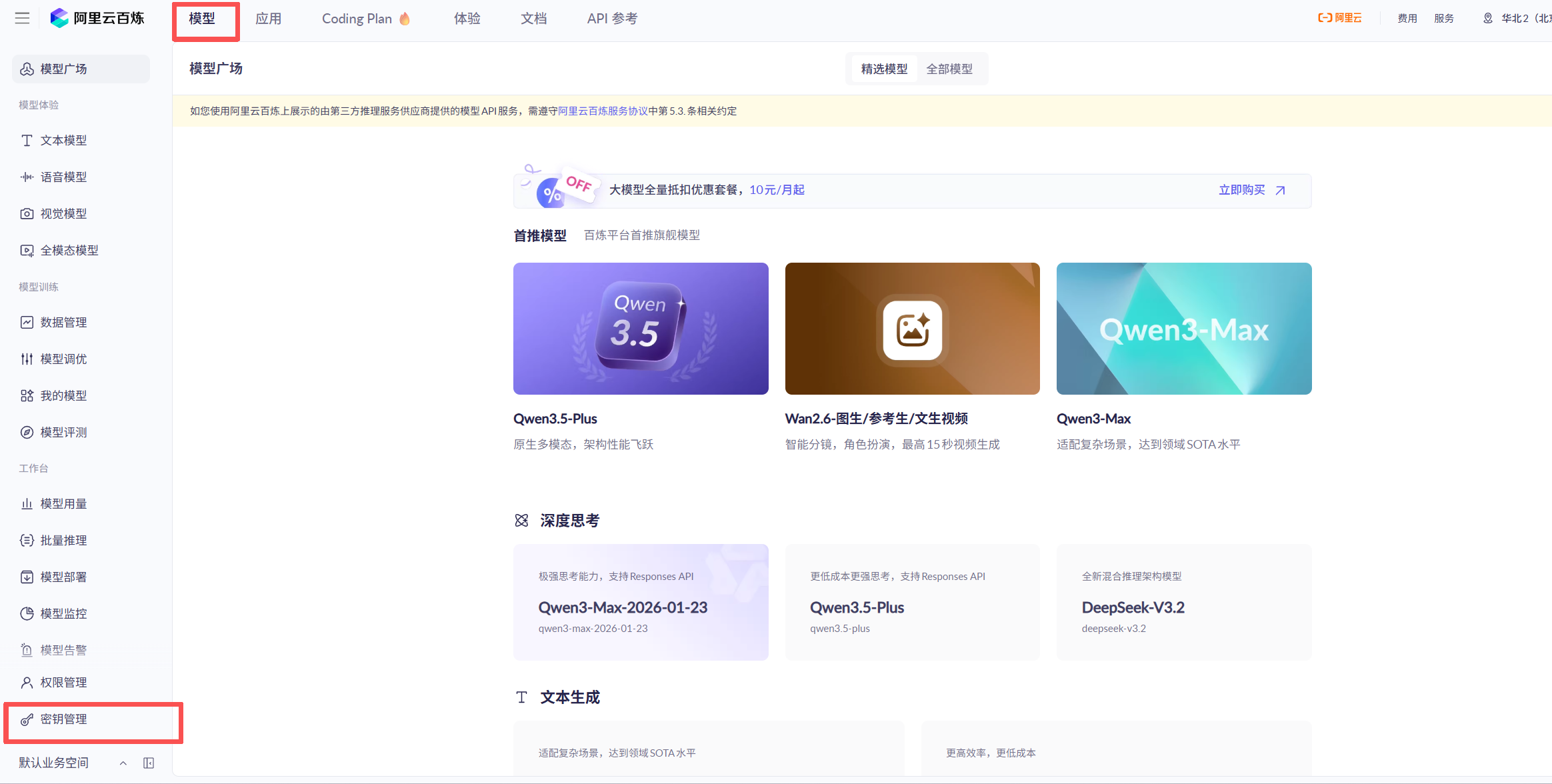
For obtaining the API, take Alibaba Cloud Bailian platform as an example: https://bailian.console.aliyun.com/
After logging in on the webpage, click the model in the upper left corner and then click Key Management in the lower left corner.
Then click “Create API Key” in the upper right corner to create an API key.

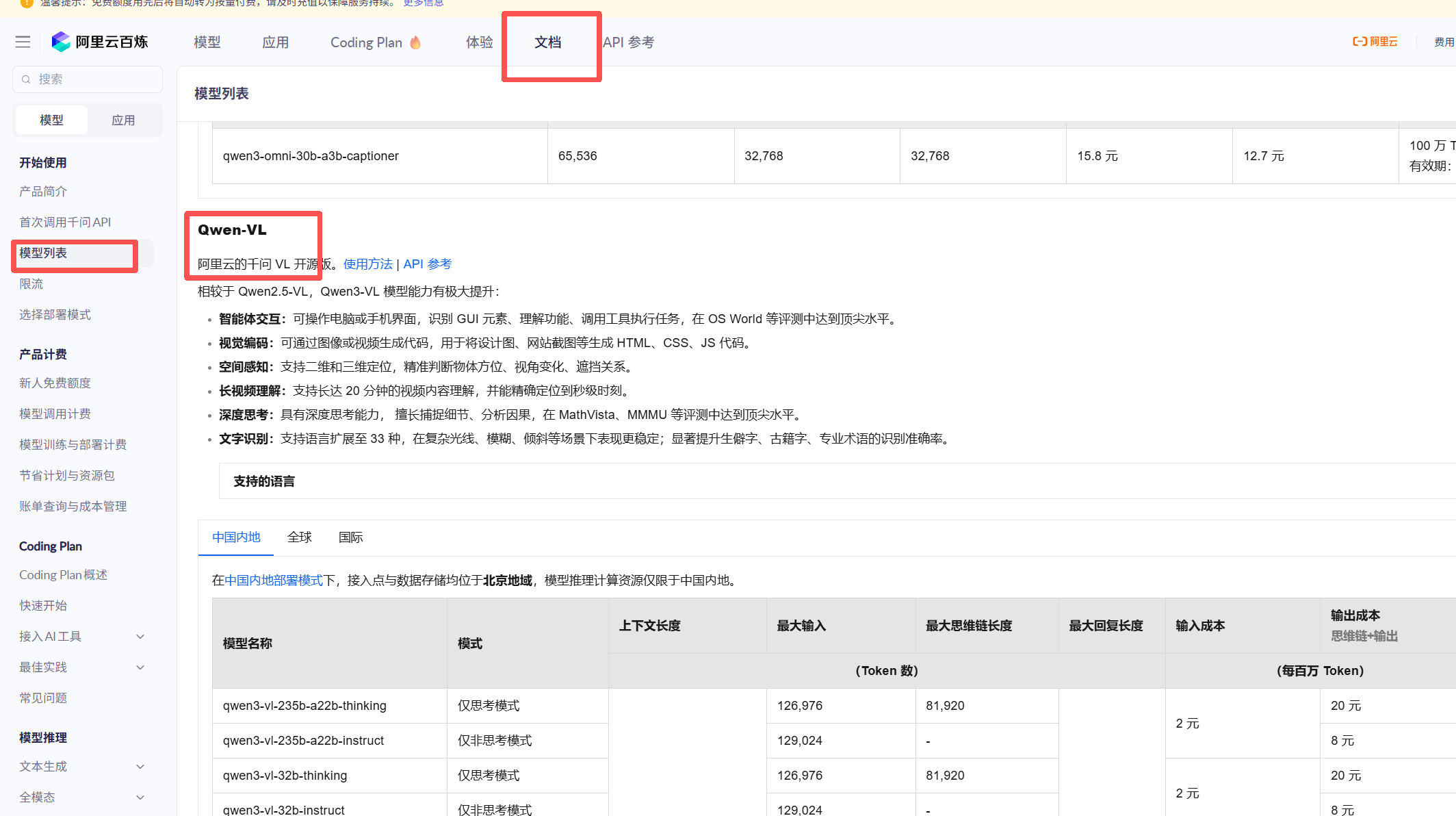
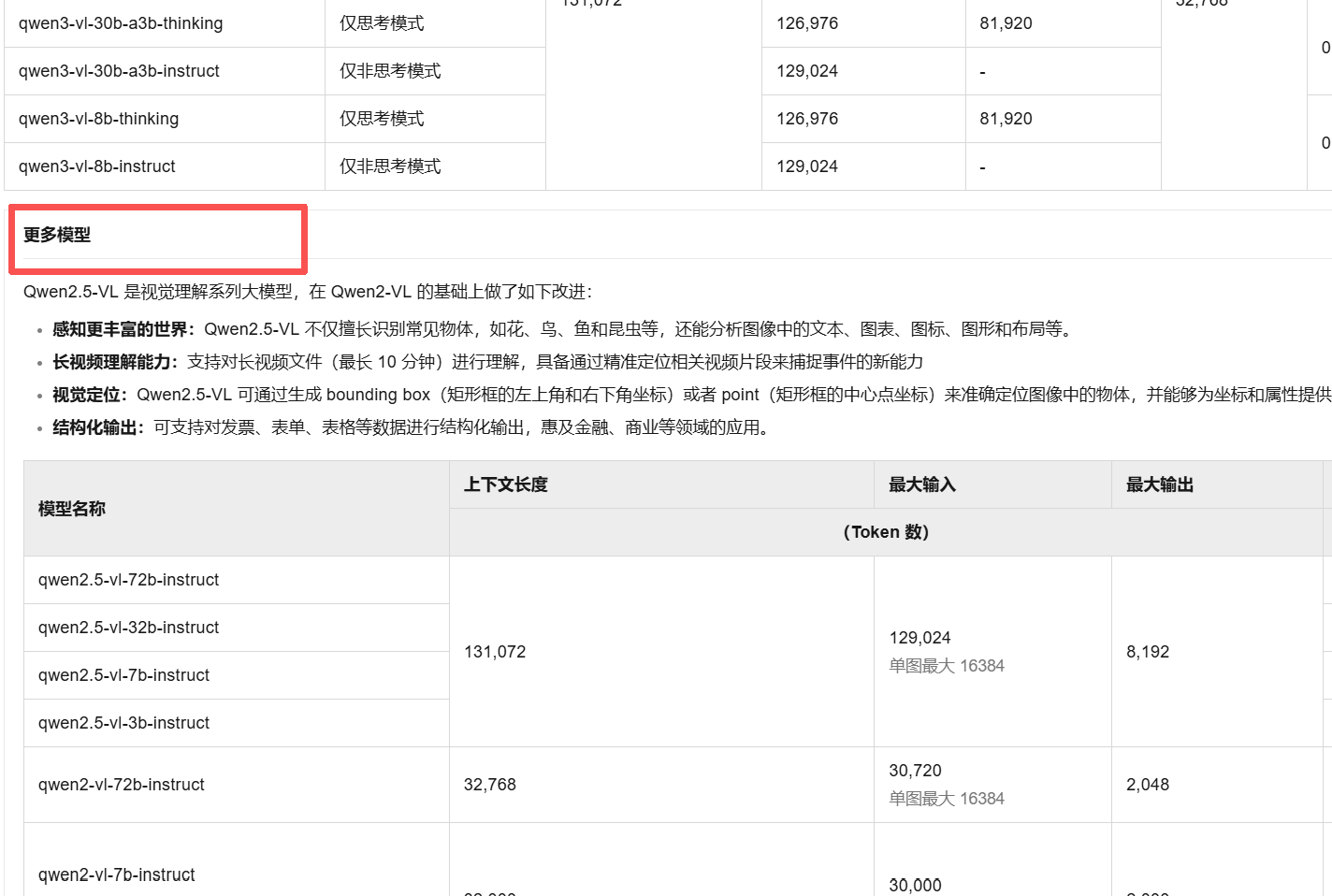
Click on the document and select the model list to view the models that can be selected via API. In this course, Qwen-VL is used. Click “More Models” below to select various parameter versions of qwen2.5-vl.
At this point, the adaptation of all parameters and paths is complete. Now, you can run it directly~
III. Code Execution
After completing all configurations, run the code using python main.py. If any bugs occur, refer to Section 6 “Avoiding Bugs” first. If other issues arise, feel free to point them out~
We can see the entire thinking process of the large model, and it will be saved in vlm_reasoning_log.json.
python============================================================
  📝 大模型完整思考过程
============================================================

--- 决策 #1 ---
  位置: [0.9390037655830383, -1.5215539932250977, -2.021697998046875]
  检测: 13 物体,  前沿: 1 个
  动作: go_to_object
  置信: 0.85
  思考: 当前图像显示的是百叶窗,未发现目标物体。YOLO检测结果显示有多个沙发(couch)目标,但距离较远(3.94m至4.00m),且未访问过。根据规则,应优先选择最近的未访问目标。最近的沙发在索引9,距离2.36m,符合优先导航条件。因此,应导航至该沙发。

--- 决策 #2 ---
  位置: [2.7892143726348877, -1.600250005722046, -0.646697998046875]
  检测: 17 物体,  前沿: 3 个
  动作: explore_frontier
  置信: 0.85
  思考: 当前检测到的目标物体中,'couch'已访问,待寻找的'chair'未被检测到。YOLO结果中未出现'chair'的检测结果,因此无法直接导航到目标。根据规则3,应选择最优前沿点进行探索。可选前沿点中,[1]位置[2.44, -1.60, 2.33]距离3.00m,朝向未探索区域,且距离适中,符合探索优先级。因此选择该前沿点进行探索。

--- 决策 #3 ---
  位置: [2.423809766769409, -1.600250005722046, 2.2950756549835205]
  检测: 8 物体,  前沿: 5 个
  动作: go_to_object
  置信: 0.81
  思考: 我看到了多个椅子目标,其中最近的椅子在[4.55, -2.64, 3.86],距离2.84米,置信度0.81,符合优先导航到最近目标的规则。虽然有多个椅子,但最近的未访问目标是当前最优选择。因此,我决定导航到最近的椅子。
The program will also save a navigation_output.avi video file. The left side of the video shows the robot’s real-time image, the upper left corner indicates the current position, and the objects that have been found and those still to be found are displayed. On the left is a 2D map, including yellow and green front markers, a dark blue circle represents the robot itself, a light blue area shows the robot’s movement path, and purple indicates the current planning path of the robot:
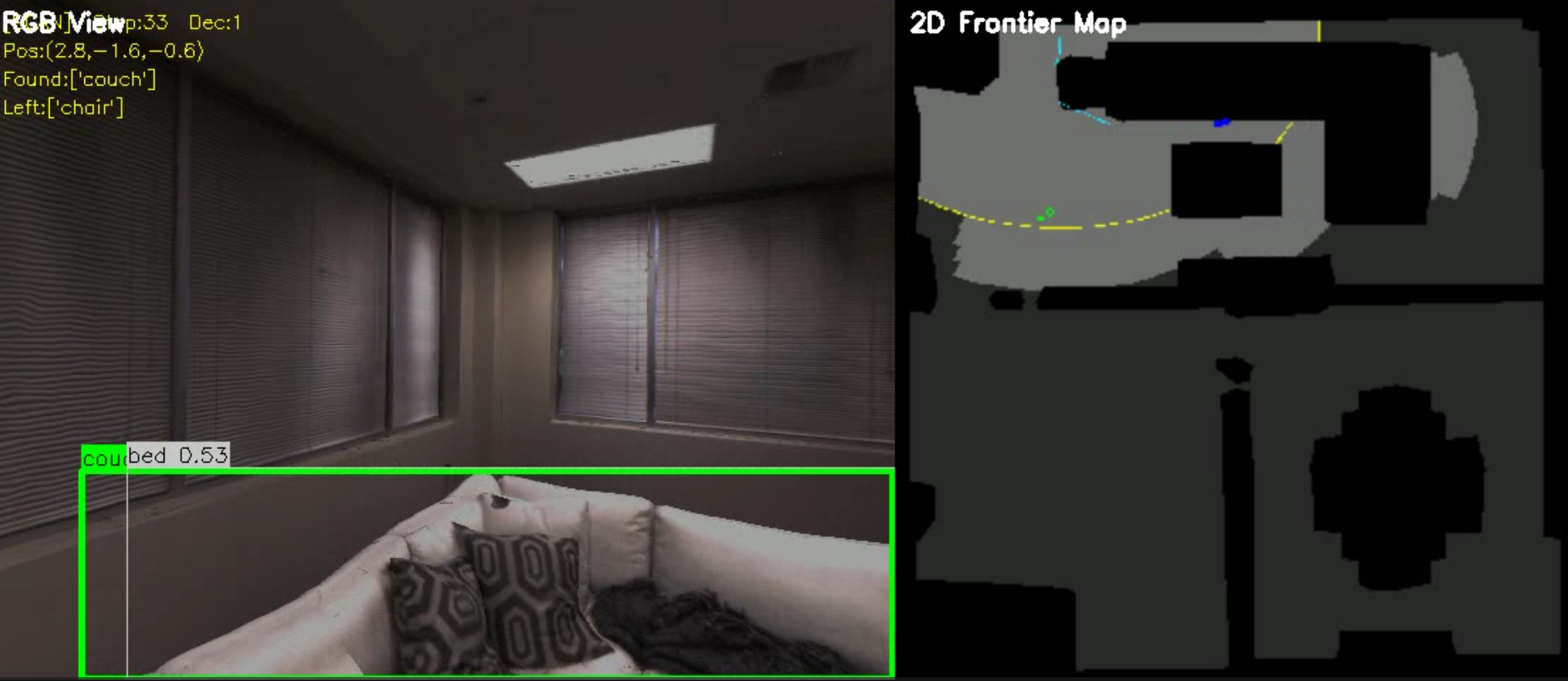
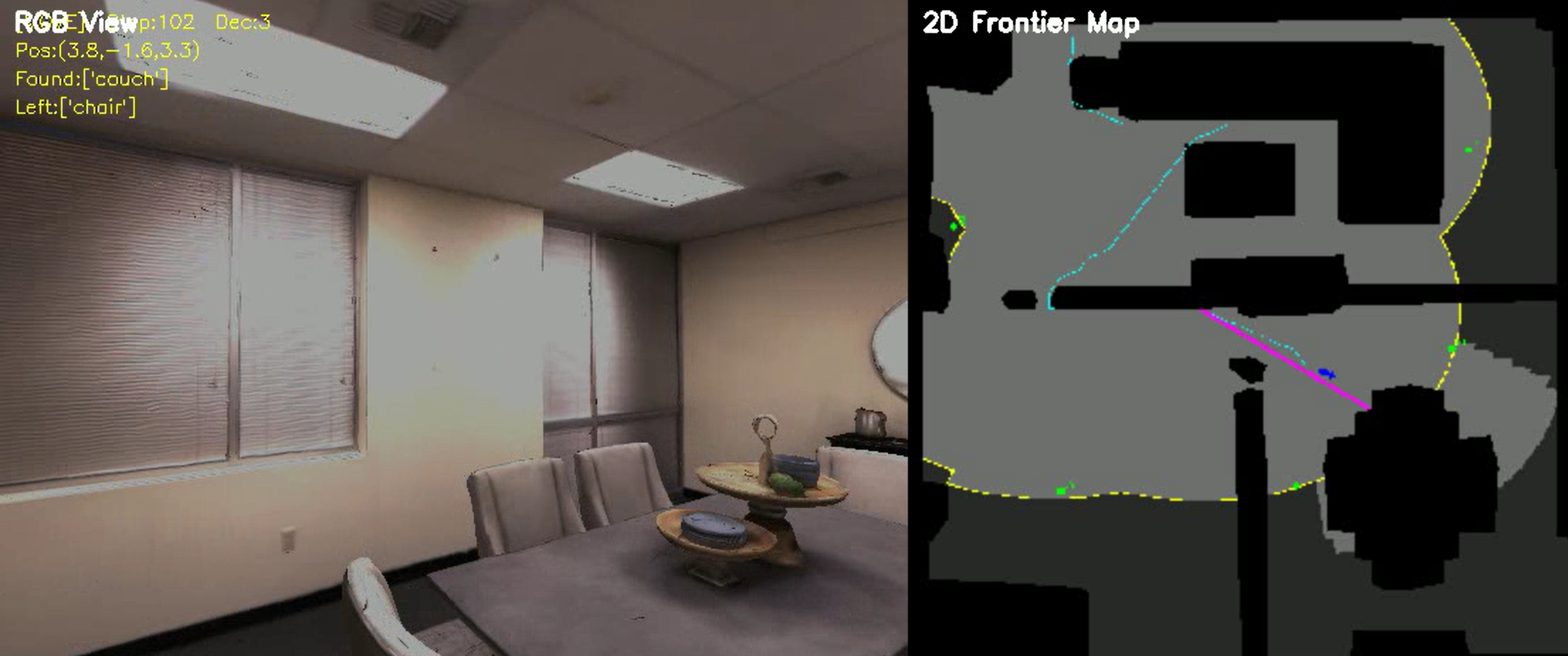
Meanwhile, to facilitate learning, we have also prepared files for standalone execution and debugging. There is no need to download any dependencies; simply run the files independently. The details are as follows:
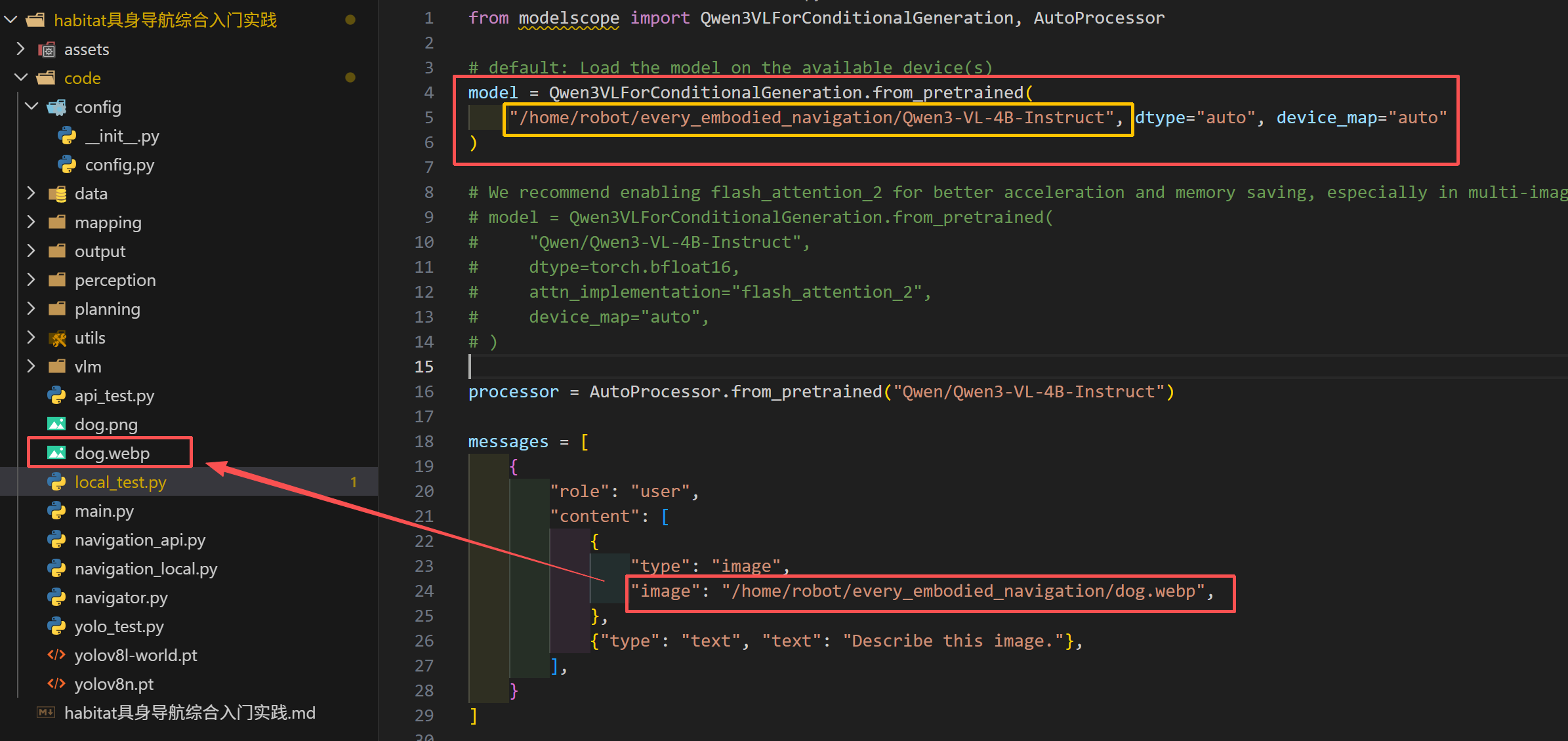
- local_test.py: The local deployment files called by the transformers library are used in the code of the embodied navigation framework. The standalone test file local_test.py provides another method for local deployment: using modelscope for local deployment. In this file, only the path to the downloaded model weight file and the image path need to be modified, and the images have already been prepared for you.
The execution output of the code is as follows:
python['This is a close-up, eye-level photograph of a small, fluffy white dog, likely a Samoyed or a similar breed like a Pomeranian, sitting indoors on a light-colored wooden floor.\n\nThe dog has a thick, luxurious coat of pure white fur that looks soft and voluminous, especially around its neck and chest. Its ears are pointed and erect, with a slightly pinkish inner lining visible. The dog’s face is round and expressive, featuring large, dark, round eyes that look directly at the camera with an innocent and curious gaze. It has a small, black nose and a gentle, slightly open mouth that gives']
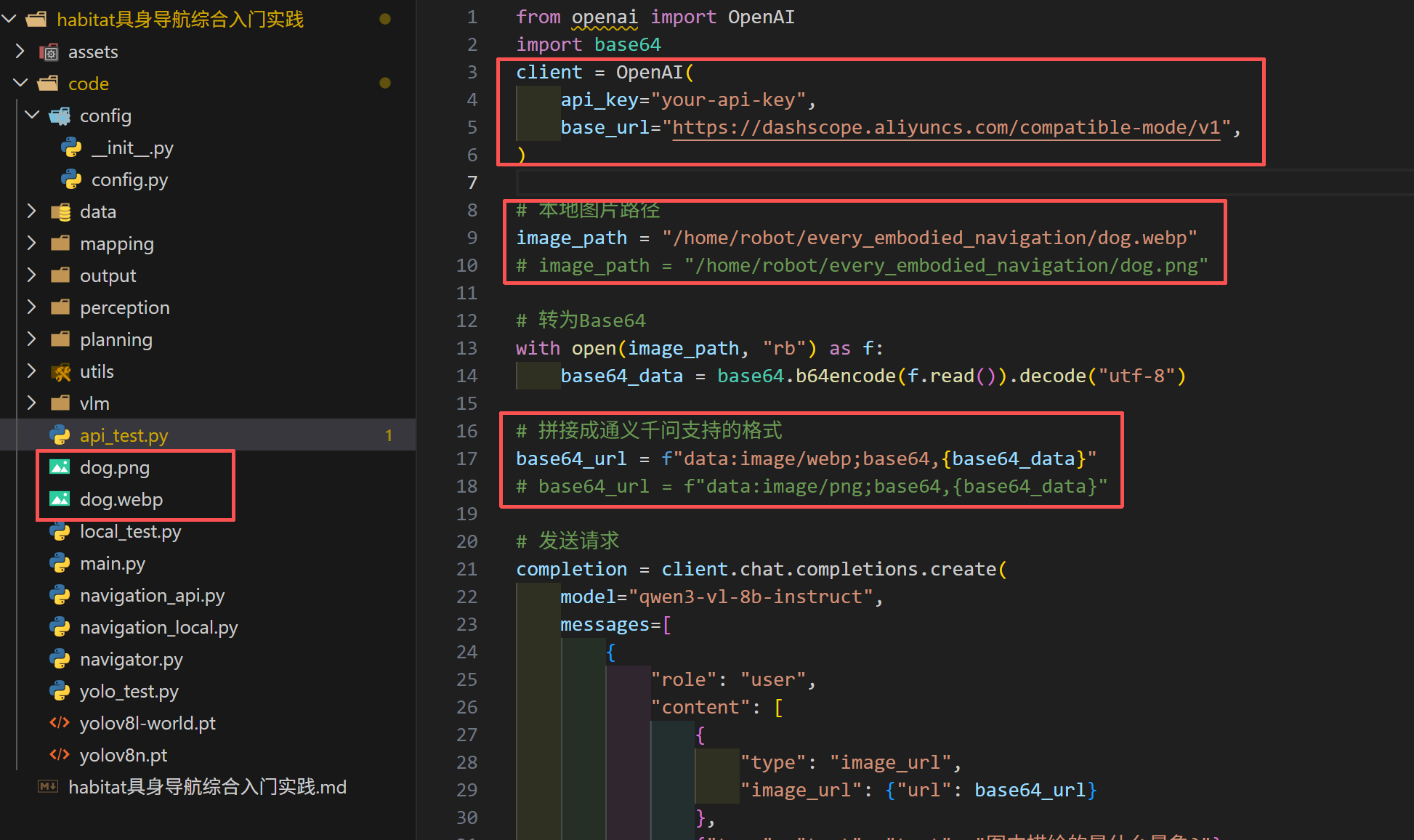
- api_test.py: This is a large model file that runs using the API. You only need to fill in the API obtained above and modify the image path. Note that the API call in the original official website code does not support direct input of images; conversion is required. This has been provided here. For ease of understanding, two formats of image files are offered: png images and webp files. As can be seen, in addition to the path, the format in base64_url also needs to be changed, which is consistent with the image conversion content in the embodied navigation framework.
The execution output of the code is as follows:
python图中描绘的是一只可爱的白色小狗,它正坐在室内木地板上,面向镜头。小狗毛发蓬松洁白,眼睛乌黑明亮,鼻子是黑色的,表情显得非常温顺和呆萌。背景较为模糊,可以看到部分家具或装饰物,整体氛围温馨舒适。这只小狗看起来像一只萨摩耶犬或类似品种的小型犬。
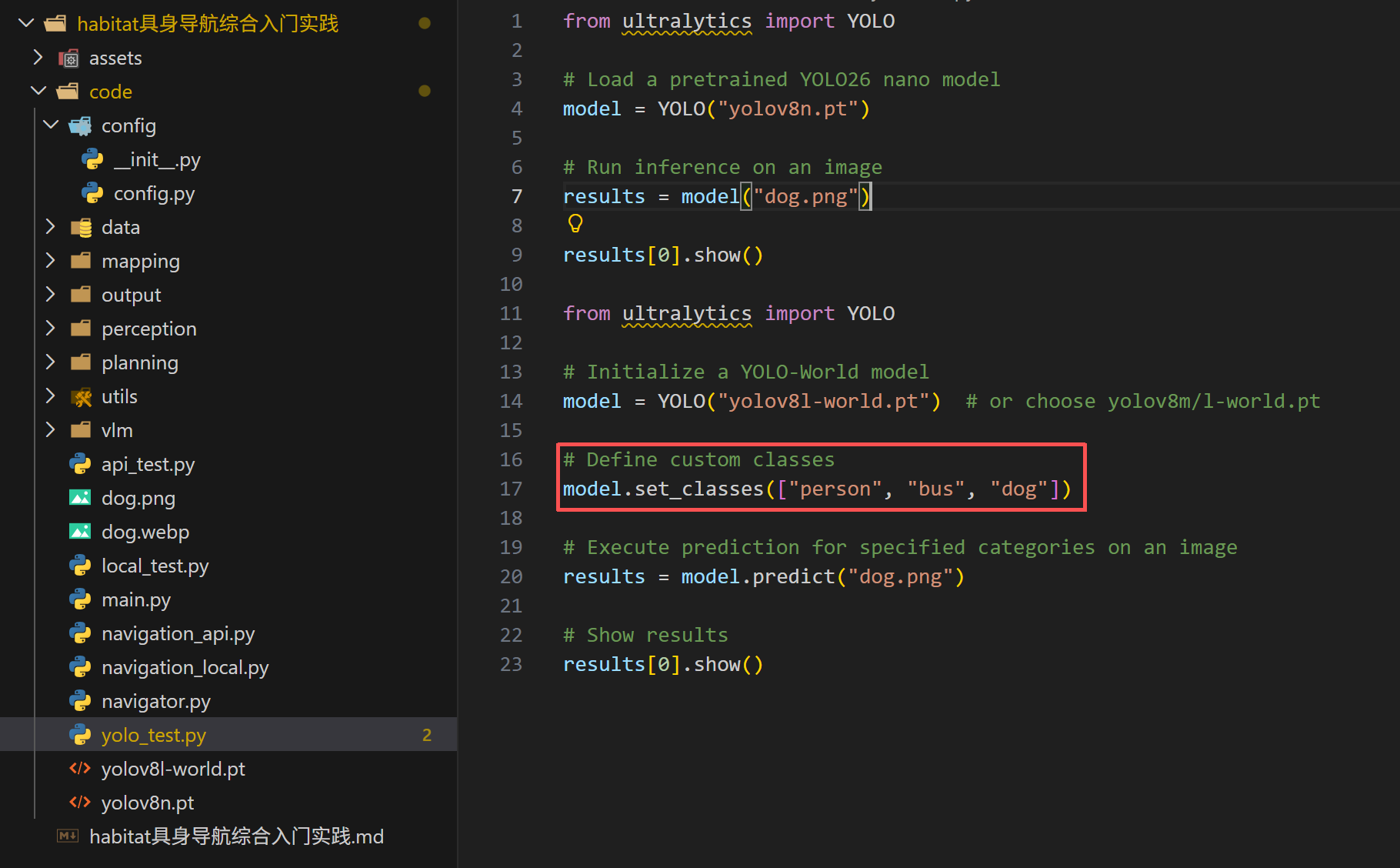
- yolo_test.py: In addition to yolov8 in the embodied navigation framework, it also provides testing for yolo-world. Visual detection can be completed with just a few lines of code. It should be noted that for yolo-world to perform visual detection, the types of classes need to be defined in advance. (yolov8l-world.pt) Due to its large size, please visit and use to download it.
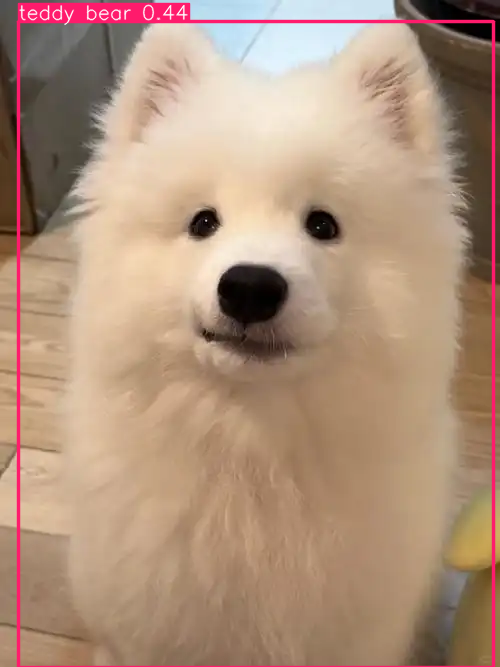
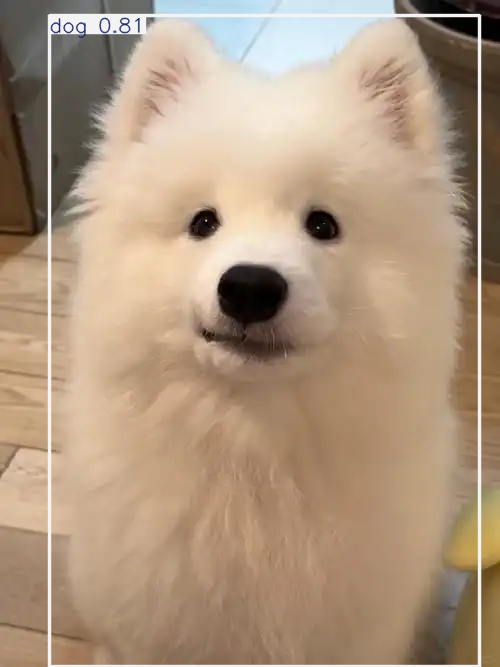
The detection results of the two YOLO models are as follows. It can be seen that after YOLO-World is defined in advance, Samoyed puppies can be clearly identified~
IV. Code Explanation
Most algorithms in embodied navigation are well-known, such as the YOLO visual algorithm, large language models, and planning algorithms. How to apply these algorithms to embodied navigation is what we need to explore and learn. This course aims mainly to help everyone understand and get familiar with the entire process of embodied navigation. It will explain the common pitfalls encountered during learning, providing some assistance for future research. That’s all I want~
Now, let’s begin the detailed explanation of the algorithms. The discussion will focus on the integration of various navigation algorithms and the code sections that require additional learning for embodied navigation. For the principles of these algorithms, you can refer to other tutorials on datawhale, such as YOLO and large language model algorithms, which provide excellent explanations.
First, let me show you the overall VLM decision process for the code:
-
Rotational observation: 12 steps left turn, YOLO detection + 3D back projection + fog update
-
Deduplication and merging: Combine the 12-frame results, and select the highest confidence value for the same position and category.
-
Obtain the frontier points: Detect the frontiers, filter the visited frontier points, and select the top 8 based on distance.
-
Construct VLM input: organize detection summary, frontier summary, historical records, and key figures of 4 frames sampled.
-
VLM decision: Call the large model to parse JSON and output the decision.
-
Execute decision: Move the action toward the target object, front point, or random point.
-
Arrival judgment: If the distance is less than the distance for target detection, it is recorded as having found the target.
-
Termination check: Exit the loop when all targets are found or the number of steps is exhausted.
This is the complete process of a decision-making step in embodied navigation. I believe everyone has a preliminary understanding of the entire code. Next, we will provide a detailed explanation of each module in the code file.
1. config
python# ── YOLO ──────────────────────────────────────────────────
YOLO_MODEL = "yolov8n.pt"
YOLO_CONF_THRESHOLD = 0.35

# ── 本地 VLM (local 模式) ─────────────────────────────────
LOCAL_MODEL_NAME = "/home/robot/navigation/Qwen3-VL-4B-Instruct"
MODEL_DTYPE = "auto"
MODEL_DEVICE_MAP = "auto"
MODEL_MAX_NEW_TOKENS = 1024
MODEL_TEMPERATURE = 0.3
MODEL_TOP_P = 0.9
MODEL_TOP_K = 50

# ── 导航 ──────────────────────────────────────────────────
MAX_STEPS = 500
SPIN_STEPS = 12
VISIBLE_RADIUS = 3.0
MAP_RESOLUTION = 512
AREA_THRESHOLD_M2 = 9
TARGET_REACH_DIST = 1.5
In addition to some parameters in the previous configuration file, let’s discuss the debugging basis for each parameter here.
-
YOLO_CONF_THRESHOLD: A value of 0.35 is an empirical value. If it is too low (0.1), shadows on the wall will also be detected as chairs; if it is too high (0.6), targets will be missed in dim lighting conditions.
-
TARGET_REACH_DIST is set to 1.5 meters. If it is too small (0.5m), the robot will hit the wall; if it is too large (3m), the VLM will misjudge that the robot has reached its destination.
-
MODEL_TEMPERATURE has a significant impact on decision quality. 0.3 is a more conservative choice, resulting in more stable output. When increased to above 0.8, the model may produce hallucinations, showing some objects that do not exist.
2. utils
This file is mainly used to create the habitat environment. If you have questions, you can refer to Chapter 8 in the [every-embodied] project , which provides a solid explanation.
pythondef depth_to_3d_world(depth_map: np.ndarray, bbox, agent_state, K: np.ndarray):
    x1, y1, x2, y2 = [int(v) for v in bbox]
    mx = max(1, (x2 - x1) // 4)
    my = max(1, (y2 - y1) // 4)
    region = depth_map[y1 + my:y2 - my, x1 + mx:x2 - mx]
    if region.size == 0:
        return None
    valid = region[region > 0]
    if valid.size == 0:
        return None
    d = float(np.median(valid))
    if d <= 0 or d > 10.0:
        return None

    cx_px = (x1 + x2) / 2.0
    cy_px = (y1 + y2) / 2.0
    fx, fy = K[0, 0], K[1, 1]
    cx_c, cy_c = K[0, 2], K[1, 2]

    point_cam = np.array([
        (cx_px - cx_c) * d / fx,
        -(cy_px - cy_c) * d / fy,
        -d,
        1.0,
    ])

    rot = agent_state.rotation
    q = np.array([rot.w, rot.x, rot.y, rot.z])
    R = quaternion_to_rotation_matrix(q)
    T = np.eye(4)
    T[:3, :3] = R
    T[:3, 3] = np.array(agent_state.position)
    return (T @ point_cam)[:3]
The depth_to_3d_world function primarily converts the detected pixels into world coordinates. Specifically, YOLO only provides image coordinates (pixel positions), while we need 3D world coordinates (where the robot is and where the object is). The depth map tells us the distance of each pixel, and combined with the camera intrinsic parameters, it allows the 2D detection box to be backprojected into 3D space. This process is called depth backprojection, which serves as a key link connecting visual perception and spatial navigation.
3. perception
The perception module is not described in detail. The code is simple; it uses YOLO for visual detection.
4. mapping
pythondef detect_frontiers(full_map: np.ndarray, explored_mask: np.ndarray,
                     min_area: int = 8):
    navigable = (full_map > 0).astype(np.uint8)
    explored = (explored_mask > 0).astype(np.uint8)
    unexplored_nav = (navigable & (1 - explored)).astype(np.uint8)

    border = cv2.morphologyEx(explored, cv2.MORPH_GRADIENT, np.ones((3, 3), np.uint8))
    frontier_mask = (border & unexplored_nav).astype(np.uint8)

    n, labels, stats, centroids = cv2.connectedComponentsWithStats(frontier_mask, 8)
    pts = []
    for i in range(1, n):
        if stats[i, cv2.CC_STAT_AREA] >= min_area:
            c = centroids[i]
            pts.append(np.array([int(c[1]), int(c[0])]))  # row, col
    return pts, frontier_mask
The most important aspect of mapping mapping is the front edge detection, which is also a module used in most navigation papers for unknown environments. However, the principle is not complicated.
python    border = cv2.morphologyEx(explored, cv2.MORPH_GRADIENT, np.ones((3, 3), np.uint8))
    frontier_mask = (border & unexplored_nav).astype(np.uint8)
These two lines of code identify the edge lines of the explored area. The edge lines and the unexplored traversable areas = the front line.
python n, labels, stats, centroids = cv2.connectedComponentsWithStats(frontier_mask, 8)
Then, take the centroid of each independent front region, which is a front point. Isn’t it simple~
5. vlm
Traditional navigation makes decisions based on rules (going to the nearest target, otherwise exploring the nearest frontier), while we use a multimodal large model to understand the scenario and make more intelligent decisions.
1)base_engine.py
The main function of base_engine.py is prompt construction, user text formatting, JSON parsing, rule downgrading, and logging. The same logic is used for both API and local deployment, which serves as the input shared by multimodal large models.
python    def _build_system_prompt(self) -> str:
        return f"""你是一个具身智能导航机器人的决策大脑。你的任务是在室内环境中找到以下全部目标物体: {self.targets}

你需要根据当前观察到的图像、YOLO检测结果(含物体3D坐标和距离)、可探索的前沿点,做出导航决策。

决策规则:
1. 如果检测到了目标物体且距离合理(< 8米), 优先导航到目标物体
2. 如果检测到多个目标物体, 选择最近的未访问目标
3. 如果没有检测到目标物体, 选择最优的前沿点进行探索
4. 选择前沿点时, 优先选择距离适中、朝向较大未探索区域的方向
5. 如果所有目标都已访问, 返回 "task_complete"

严格以以下JSON格式回复, 不要输出其他内容:
{{
    "thinking": "你的详细思考过程: 1)看到了什么 2)分析各选项 3)做出决策的理由",
    "action": "go_to_object" 或 "explore_frontier" 或 "task_complete",
    "target_index": 选择的目标在对应列表中的索引(从0开始),
    "confidence": 0到1之间的置信度
}}"""
The system_prompt mainly tells the large model who it is and which rules must be strictly followed. Specifically:
-
Clear role: You are the decision-making brain of the embodied AI navigation robot
-
Provide 5 clear decision rules, with priority from high to low
-
Forced output format: strict JSON, to prevent the model from acting freely.
python    def _build_user_text(self, agent_pos, visited_targets,
                         detection_summary, frontier_info, nav_history) -> str:
        text = f"""## 第 {self.count} 次决策

### 当前状态
- Agent位置: [{agent_pos[0]:.2f}, {agent_pos[1]:.2f}, {agent_pos[2]:.2f}]
- 已访问目标: {visited_targets if visited_targets else '无'}
- 待寻找目标: {[t for t in self.targets if t not in visited_targets]}

### YOLO 检测结果 (原地旋转360°汇总)
"""
        if detection_summary:
            for i, d in enumerate(detection_summary):
                p = (f"[{d['world_pos'][0]:.2f}, {d['world_pos'][1]:.2f}, {d['world_pos'][2]:.2f}]"
                     if d.get("world_pos") else "未知")
                dist = f"{d['distance']:.2f}m" if d.get("distance") is not None else "未知"
                tag = "目标" if d["is_target"] else "非目标"
                text += f"  [{i}] {d['class']} (置信度:{d['confidence']:.2f}) 3D位置:{p} 距离:{dist} {tag}\n"
        else:
            text += "  当前旋转一圈未检测到任何物体\n"

        text += "\n### 可用前沿点\n"
        if frontier_info:
            for i, f in enumerate(frontier_info):
                text += (f"  [{i}] 位置:[{f['position'][0]:.2f}, {f['position'][1]:.2f}, "
                         f"{f['position'][2]:.2f}] 距离:{f['distance']:.2f}m\n")
        else:
            text += "  无可用前沿点\n"

        text += f"\n### 导航历史\n{nav_history}\n"
        return text
The user_prompt mainly contains the information fed to the large model, including:
-
Visual image: 4 key frames are evenly sampled during one rotation and compressed into JPEG base64.
-
Summary of test result text: category, confidence, 3D coordinates, distance, whether it is a target
-
Frontier point information: up to 8 candidate frontier points with their positions and distances
-
Navigation history: The last 5 decision records, allowing the model to know where it has been.
pythondef _fallback(self, dets, fronts, visited) -> dict:
    """VLM 调用失败时的规则降级策略。"""
    if dets:
        tgts = [d for d in dets if d["is_target"] and d["class"] not in visited
                and d.get("distance") is not None and d["distance"] < 8]
        if tgts:
            tgts.sort(key=lambda x: x["distance"])
            idx = dets.index(tgts[0])
            return {"action": "go_to_object", "target_index": idx,
                    "reasoning": f"[降级] 检测到 {tgts[0]['class']}", "confidence": 0.6}
    if fronts:
        return {"action": "explore_frontier", "target_index": 0,
                "reasoning": "[降级] 无目标, 探索前沿", "confidence": 0.3}
    return {"action": "explore_frontier", "target_index": 0,
            "reasoning": "[降级] 随机探索", "confidence": 0.1}
The last one is to ensure that there is a fallback code in case of network disruption or model failure during actual deployment, so the system can still operate normally.
6. planning
This part primarily uses the habitat_sim.GreedyGeodesicFollower from habitat-sim, and outputs the action execution. After reaching the target point, this can be modified according to the simulation environment. Users can also add and replace the planner, as well as the controller, to achieve better results.
7. output
This part is the visual content, which can also be modified by yourself.
Congratulations on completing the reading of the code explanation! I believe you now have a deeper understanding of the code and are very familiar with each module. Finally, navigator.py combines all the modules and runs them in main.py. As mentioned earlier, this course includes two individual navigation files for API calls and local deployment. If you don’t understand the interactions between the modules, you can also run and study using a single file directly. The purpose of this course is to help you easily and clearly learn the basic process of embodied navigation, and to provide some small assistance for your future research or studies. I hope it hasn’t disappointed you~
The following are suggestions for improving the issues in the current code and some cutting-edge approaches. Since this tutorial aims to explain the entire basic embodied navigation framework process with minimal code and installation steps, and there are limitations on the memory available for cloud uploading, some complex topics such as image segmentation, 3D mapping, and VLLM deployment have not been included. You can learn and add these elements on your own.
5. Problems and Pursuits
I need to explain the issues in this embodied navigation framework to you all. It is not flawless, and I hope these problems can provide some ideas for your future research. It is my honor and the original intention of this course to help everyone.
The two main issues with the code are as follows:
- False detection problem in the perception module:
In the results of running yolo as a single file, it can be seen that yolov8 has issues with false positives during detection. Some people say that using yolo-world open detection with self-defined rules should not cause problems. However, my actual testing shows that even with yolo-world open detection, the problem of false positives cannot be completely resolved. For objects that are not very common, detection still fails. Therefore, it is necessary to improve the perception module.
- Problem of converting 2D to 3D:
When only executing the two objects, the chair and the couch, I found no major issues and it even worked perfectly. I was very happy at that time. This issue was discovered accidentally while trying to test it multiple times when the system tried to find the TV. Do you think I was very troubled at that moment? No! I was still happy when I discovered this problem~ After all, in research, being able to identify a problem means there is a need to solve it. In this way, I can make even a slight contribution in this field~
python============================================================
  📝 大模型完整思考过程
============================================================

--- 决策 #1 ---
  位置: [0.9390037655830383, -1.5215539932250977, -2.021697998046875]
  检测: 13 物体,  前沿: 1 个
  动作: go_to_object
  置信: 0.63
  思考: 当前检测到多个目标物体,包括tv(距离4.56m)、couch(距离3.94m)和bed(非目标)。根据规则2,应选择最近的未访问目标。couch在3.94m处,tv在4.56m处,因此优先选择couch。前沿点距离2.86m,但目标优先级更高,故不选择探索。置信度基于检测结果,选择couch的置信度0.63较高。

--- 决策 #2 ---
  位置: [3.9896955490112305, -1.600250005722046, -0.521697998046875]
  检测: 14 物体,  前沿: 4 个
  动作: go_to_object
  置信: 0.61
  思考: 当前检测到两个目标物体:tv(距离2.64m)和未访问的chair。但检测结果中未出现chair,因此无法直接导航到chair。根据规则,应优先选择最近的未访问目标。tv距离最近(2.64m),且在待寻找目标中,因此选择tv作为目标。置信度为0.61,表明识别可靠。

--- 决策 #3 ---
  位置: [3.0499484539031982, -1.600250005722046, 2.3973488807678223]
  检测: 14 物体,  前沿: 3 个
  动作: go_to_object
  置信: 0.85
  思考: 当前检测到多个椅子目标,且距离均在8米内,符合优先导航到目标物体的规则。已访问'couch'和'tv',剩余目标为'chair'。检测到的椅子中,距离最近的是[12],位置[4.61, -2.42, 3.64],距离2.16米,置信度0.79,是当前最优选择。因此应导航到最近的未访问椅子。
为什么这个全是前往物体的思考过程,我看大模型也有前往前沿点的过程啊
Please take a look. Have you noticed that the large model always goes directly to the object without exploring new frontiers? My chair is clearly in another room, so how can it not explore new frontiers? Has it really grown into a super artificial intelligence? No! Look here.
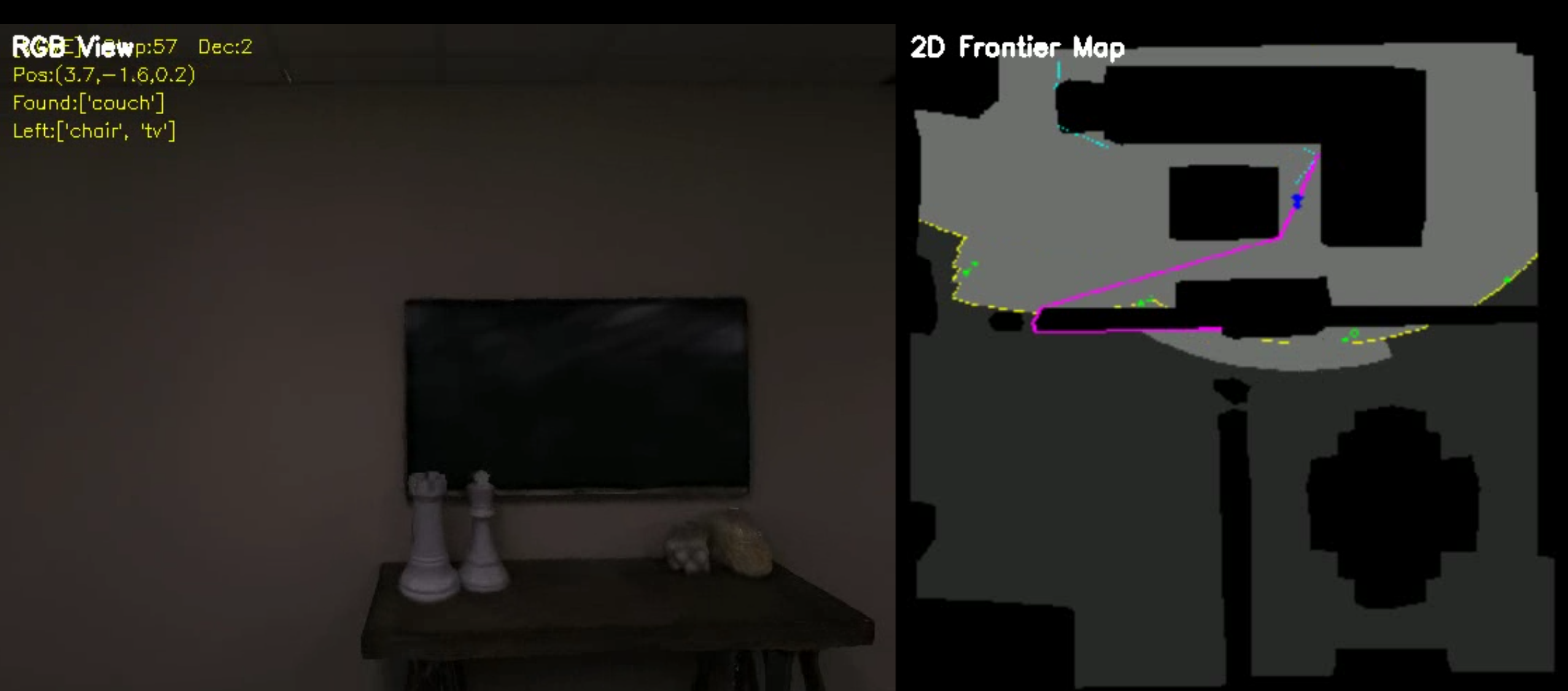
In this image, after the robot arrives near the couch, it discovers a TV hanging on the wall and navigates to its vicinity. The problem arises here: during the conversion from 2D to 3D coordinates, due to the thinness of the TV and its proximity to the wall, the algorithm incorrectly places the coordinates behind the wall. This is caused by the algorithm’s conversion error. As a result, the robot directly moves behind the wall, which is where the chair is located. You can refer to the following image.
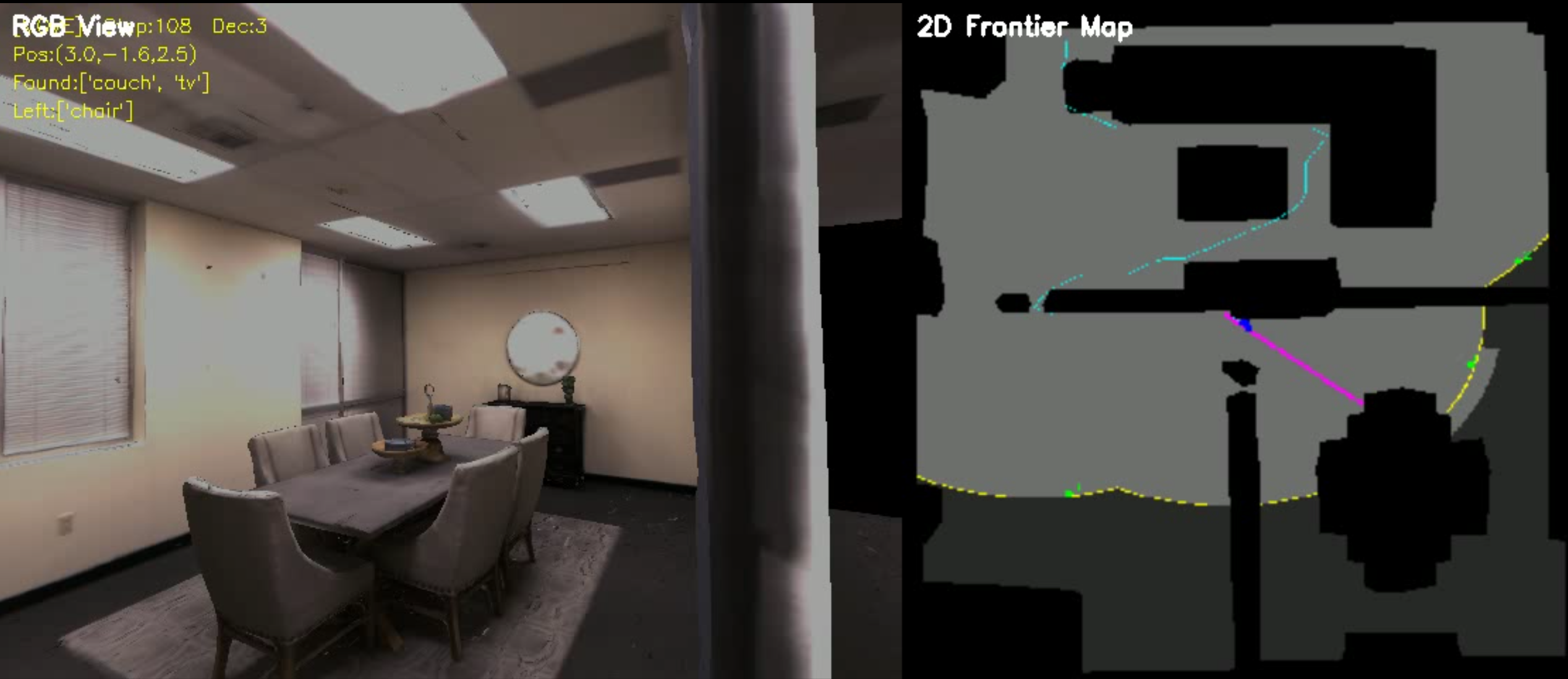
It can be seen that after the navigation to the room with the chair, due to it being attached to the wall, the system determined that the robot had reached near the tv. Thus, in the upper-left corner of the video, it was indicated that the tv was found, and the detection resumed. When the chair was also detected in this room, a large-scale decision-making process was initiated, resulting in only three issues related to go_to_object.
So how to solve it?
I recommend several articles with code for your reference, which will help you learn better.
1)GaussNav: Gaussian Splatting for Visual Navigation
Unit: University of Science and Technology of China
Project homepage: https://xiaohanlei.github.io/projects/GaussNav/
Code link: https://github.com/XiaohanLei/GaussNav
Solution approach: It mainly achieves object instance-level 3D positioning and navigation through 3DGS.
2)Towards Physically Executable 3D Gaussian for Embodied Navigation
Unit: Zhejiang University
Project homepage: https://sage-3d.github.io
Code link: https://github.com/Galery23/SAGE-3D_Official?tab=readme-ov-file
Solution approach: Create a 3DGS environment with semantic and physical alignment for VLN, providing executable 3D positioning and interaction for objects.
3)EmbodiedSAM: Online Segment Any 3D Thing in Real Time
Unit: Tsinghua University
Project homepage: https://xuxw98.github.io/ESAM/
Code link: https://github.com/xuxw98/ESAM?tab=readme-ov-file
Solution approach: Real-time online 3D instance segmentation, using SAM’s 2D Mask to convert to 3D point cloud Mask, providing 3D coordinates of objects for embodied navigation.
If there are any other issues, feel free to raise them~
VI. Stay Away from BUGs
May we all stay away from BUGs, and may everyone fix the bugs easily~
- BUG-1
pythonImportError: libEGL.so.1: cannot open shared object file: No such file or directory
When encountering the BUG of libEGL.so.1, simply update and install the following libraries.
pythonapt update
apt install -y libegl1-mesa libegl1-mesa-dev libgl1-mesa-glx
- BUG-2
pythonGL::Context: cannot retrieve OpenGL version: GL::Renderer::Error::InvalidValue
When encountering the GL bug, you can avoid it by running the following code.
pythonexport LD_PRELOAD=/lib/x86_64-linux-gnu/libGLX_nvidia.so.0:/lib/x86_64-linux-gnu/libGLdispatch.so.0
If you encounter any other BUGs, feel free to point them out~
VII. Acknowledgments
This course is built on the foundation of habitat-sim, habitat-lab, 3D-Mem, vlfm, Alibaba Cloud BaLian Platform, yolo algorithm, 魔搭 Community. I am very grateful to the authors of these excellent works for their open source contributions. I also thank DouBao, Claude opus4.6, and Gemini 3.1pro for their optimizations and contributions to this course.