
04-Locate Anything: Convert natural language into visual positioning boxes usable by robots
Locate Anything is a visual language localization model released by NVIDIA. It addresses a straightforward problem: given a picture and a natural language sentence, the model can output a 2D box or point of the target. For embodied AI, it is neither a VLA policy nor a grasping planner, but rather a language condition-aware front-end that is well-suited to be connected before VLA, SAM, depth estimation, and grasping modules.
After completing this chapter, you can finish three tasks:
- Download and run
nvidia/LocateAnything-3Blocally. - Compare the output and speed of Locate Anything and YOLO26n using the same diagram.
- Understand why it uses Parallel Box Decoding, and where it should be placed in the robot pipeline.
This chapter places the environment, model weights, and runtime output in the main directory
$DATA_ROOT. The tutorial repository only retains the Markdown format and lightweight result charts. Model weights, HF cache, pip cache, and runtime logs should not be submitted to the repository.
1. Where is it suitable to be placed in the embodied system?
The input of Locate Anything is images and text, and the output is a structured text similar to the following:
text<ref>bus</ref><box><0><211><997><681></box>
The coordinate is a normalized integer ranging from 0 to 1000. It is then mapped back to the original pixels during post-processing. It is suitable for:
| Task | Role of Locate Anything | Subsequent Modules |
|---|---|---|
| Language-conditioned Object Localization | Convert “person wearing a cream-colored coat”, “drawer handle”, and “top-right button” into 2D boxes | crop, SAM, depth estimation |
| Automatic Data Annotation | Generate candidate boxes for real robot images in batches | manual review, training set cleaning |
| VLA/VLM Perception Enhancement | Provide task-related regions for the policy model | VLA policy, memory writer |
| GUI/OCR/Document Locating | Locate button, text, table, and title regions | multi-modal agent, RPA |
It does not directly output 6D pose, grasping pose, contact status, path planning, or closed loop control signals. If you want to use it for robotic arm grasping, a more reasonable workflow would be:
mermaidflowchart LR
  A["RGB 图像 + 语言任务"] --> B["Locate Anything<br/>box / point"]
  B --> C["SAM / SAM2<br/>mask"]
  B --> D["Depth / RGB-D<br/>深度"]
  C --> E["2D mask + 深度融合"]
  D --> E
  E --> F["3D 点云 / 目标中心"]
  F --> G["抓取检测 / 位姿估计 / VLA policy"]
II. Local Validation Environment
This chapter runs successfully in the following environment:
| Item | Local verification value |
|---|---|
| GPU | NVIDIA RTX PRO 6000 Blackwell Workstation Edition 96GB |
| Driver / CUDA | NVIDIA Driver 580.159.03, nvidia-smi indicates CUDA 13.0 |
| PyTorch | torch==2.11.0+cu128 |
| Locate Anything | NVlabs/Eagle Embodied directory, nvidia/LocateAnything-3B |
| Transformers | transformers==4.57.1 |
| YOLO reference | ultralytics==8.4.80, yolo26n.pt |
During this machine’s smoke test, flash_attn or MagiAttention was not installed. The log shows that the model automatically falls back to PyTorch SDPA:
textflash_attn is not available for MoonViT inference; falling back to sdpa.
magi_attention not available, falling back to sdpa.
Therefore, the speed in this chapter is only a record of “the basic environment being functional”, not an official peak benchmark. The official README reports that Locate Anything-3B achieves 12.7 BPS in Hybrid Mode on a single H100; the speed measured in this chapter is obtained under SDPA fallback and with other tasks running on the GPU.
III. Environment and Model Preparation
Define several directories first. You can replace $DATA_ROOT with your own dashboard path; do not include model weights in the tutorial repository.
bashexport DATA_ROOT=/path/to/large_disk/locate-anything
export ENV_ROOT=/path/to/large_disk/envs/locate-anything
export HF_HOME=/path/to/large_disk/cache/huggingface
export PIP_CACHE_DIR=/path/to/large_disk/cache/pip
export UV_CACHE_DIR=/path/to/large_disk/cache/uv
export TORCH_EXTENSIONS_DIR=/path/to/large_disk/cache/torch_extensions

mkdir -p "$DATA_ROOT" "$HF_HOME" "$PIP_CACHE_DIR" "$UV_CACHE_DIR" "$TORCH_EXTENSIONS_DIR"
If /data/Data14TB is used as the dashboard just like on this machine, you can set it up as follows:
bashexport DATA_ROOT=/data/Data14TB/01Proj/locate-anything
export ENV_ROOT=/data/Data14TB/envs/locate-anything
export HF_HOME=/data/Data14TB/cache/huggingface
export PIP_CACHE_DIR=/data/Data14TB/cache/pip
export UV_CACHE_DIR=/data/Data14TB/cache/uv
export TORCH_EXTENSIONS_DIR=/data/Data14TB/cache/torch_extensions
Clone the official repository:
bashcd "$DATA_ROOT"
git clone --depth 1 https://github.com/NVlabs/Eagle.git
cd "$DATA_ROOT/Eagle/Embodied"
Create a Python 3.11 environment:
bashuv venv "$ENV_ROOT" --python 3.11
"$ENV_ROOT/bin/python" -m ensurepip --upgrade
"$ENV_ROOT/bin/python" -m pip install --upgrade pip wheel setuptools
Install the PyTorch CUDA 12.8 wheel. The local Driver shows CUDA 13.0, but the cu128 wheel works properly:
bash"$ENV_ROOT/bin/python" -m pip install torch torchvision \
  --index-url https://download.pytorch.org/whl/cu128
Verify CUDA:
bash"$ENV_ROOT/bin/python" - <<'PY'
import torch
print("torch", torch.__version__)
print("cuda available", torch.cuda.is_available())
print("cuda version", torch.version.cuda)
if torch.cuda.is_available():
    print("device", torch.cuda.get_device_name(0))
PY
Output of this machine:
texttorch 2.11.0+cu128
cuda available True
cuda version 12.8
device NVIDIA RTX PRO 6000 Blackwell Workstation Edition
Install the dependencies for Locate Anything:
bashcd "$DATA_ROOT/Eagle/Embodied"
"$ENV_ROOT/bin/python" -m pip install -e .
Key dependencies of the official project include transformers==4.57.1, tokenizers==0.22.0, deepspeed==0.15.4, accelerate==1.5.2, timm>=1.0.11, liger_kernel==0.3.1, peft==0.12.0, and decord.
Download model:
bashexport MODEL_DIR="$DATA_ROOT/models/LocateAnything-3B"
mkdir -p "$DATA_ROOT/models"

"$ENV_ROOT/bin/hf" download nvidia/LocateAnything-3B \
  --local-dir "$MODEL_DIR"
After this machine downloads, the model directory is approximately 7.3GB, and the two main weight files are:
textmodel-00001-of-00002.safetensors  4.7G
model-00002-of-00002.safetensors  2.6G
If the download is interrupted, simply run the same hf download command again to resume the download at the breakpoint.
IV. Locate Anything smoke test
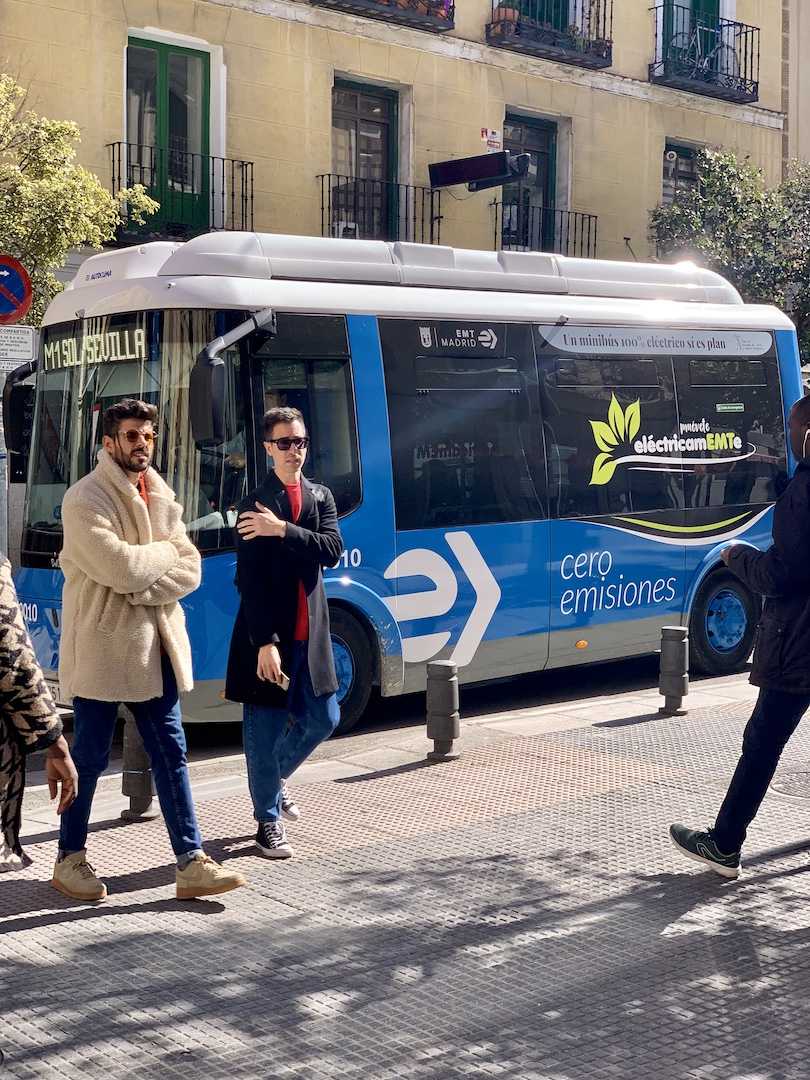
We first use the official example image of Ultralytics bus.jpg for a smoke test, so as to compare it with YOLO26 later.
bashexport IMAGE_PATH="$DATA_ROOT/bus.jpg"
curl -L https://ultralytics.com/images/bus.jpg -o "$IMAGE_PATH"
Figure 1 is the input image.
Run Locate Anything:
bashcd "$DATA_ROOT/Eagle/Embodied"

HF_HOME="$HF_HOME" \
TORCH_EXTENSIONS_DIR="$TORCH_EXTENSIONS_DIR" \
PYTORCH_CUDA_ALLOC_CONF=expandable_segments:True \
MODEL_DIR="$MODEL_DIR" \
IMAGE_PATH="$IMAGE_PATH" \
DATA_ROOT="$DATA_ROOT" \
"$ENV_ROOT/bin/python" - <<'PY'
import json, os, time
from pathlib import Path
from PIL import Image, ImageDraw
from locateanything_worker import LocateAnythingWorker

model_path = Path(os.environ["MODEL_DIR"])
image_path = Path(os.environ["IMAGE_PATH"])
out_dir = Path(os.environ["DATA_ROOT"]) / "runs/bus_locateanything"
out_dir.mkdir(parents=True, exist_ok=True)

img = Image.open(image_path).convert("RGB")
worker = LocateAnythingWorker(str(model_path), use_batch_runtime=False)

queries = [
    ("bus", "Locate a single instance that matches the following description: bus."),
    ("persons", "Locate all the instances that matches the following description: person."),
    (
        "front_person",
        "Locate a single instance that matches the following description: "
        "the man in the cream coat standing in front of the bus.",
    ),
]

summary = []
for name, prompt in queries:
    t0 = time.time()
    result = worker.predict(
        img,
        prompt,
        generation_mode="hybrid",
        max_new_tokens=512,
        temperature=0.2,
        top_p=0.9,
        verbose=True,
    )
    wall = time.time() - t0
    boxes = LocateAnythingWorker.parse_boxes(result["answer"], *img.size)

    vis = img.copy()
    draw = ImageDraw.Draw(vis)
    for i, b in enumerate(boxes):
        draw.rectangle([b["x1"], b["y1"], b["x2"], b["y2"]], outline="red", width=4)
        draw.text((b["x1"] + 4, max(0, b["y1"] - 20)), f"{name}-{i}", fill="red")

    vis_path = out_dir / f"{name}_locateanything_result.jpg"
    vis.save(vis_path)
    summary.append(
        {
            "name": name,
            "prompt": prompt,
            "answer": result["answer"],
            "stats": result.get("stats"),
            "wall_infer_seconds": round(wall, 4),
            "boxes": boxes,
            "image": str(vis_path),
        }
    )
    print(name, round(wall, 4), result["answer"])

(out_dir / "summary.json").write_text(
    json.dumps(summary, ensure_ascii=False, indent=2), encoding="utf-8"
)
PY
The results of the three queries by this machine are as follows:
| Prompt | Output Summary | Local Time |
|---|---|---|
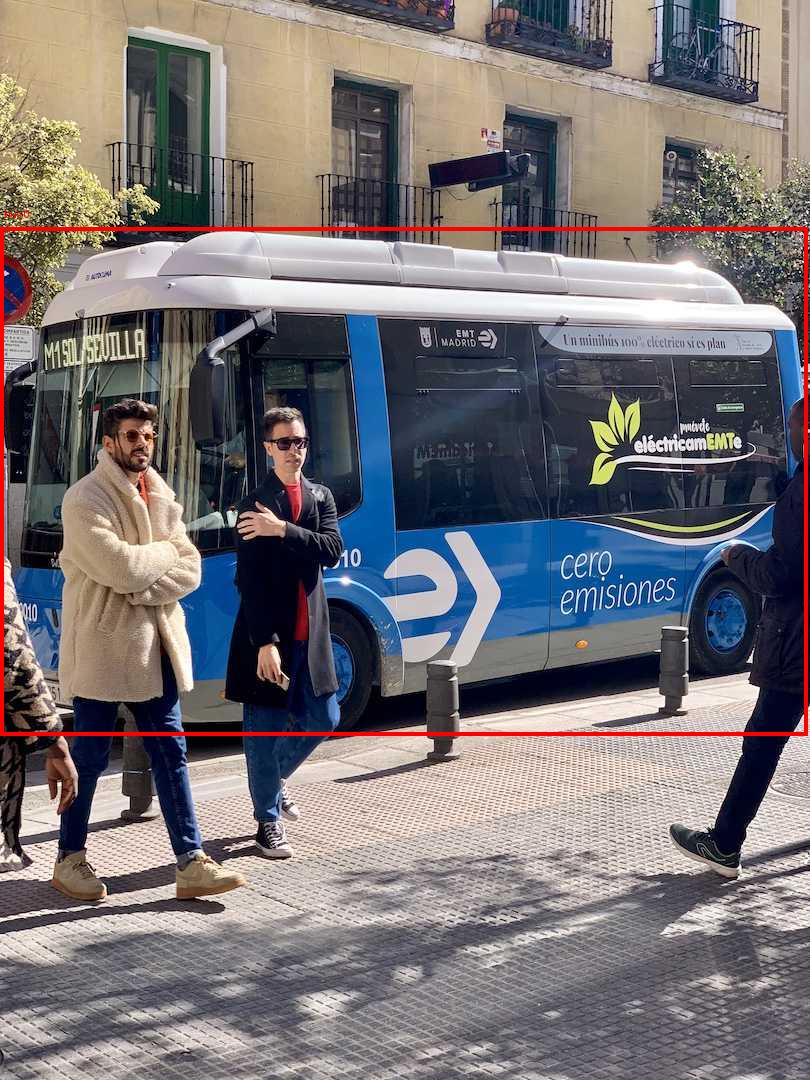
bus |
1 bus frame | ~1.00s |
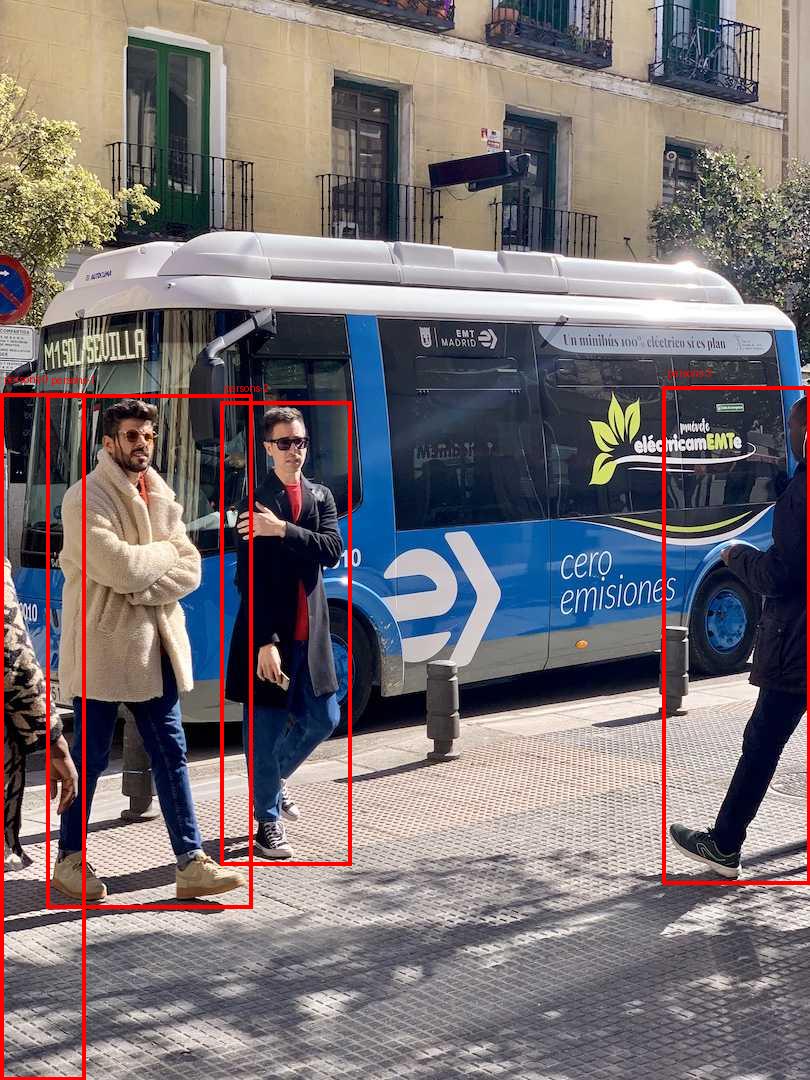
person |
4 pedestrians frames | ~0.63s |
the man in the cream coat standing in front of the bus |
A person referred to by natural language | ~0.63s |
Bus positioning results:
Pedestrian multi-object positioning results:
Natural language refers to the expression of positioning results:
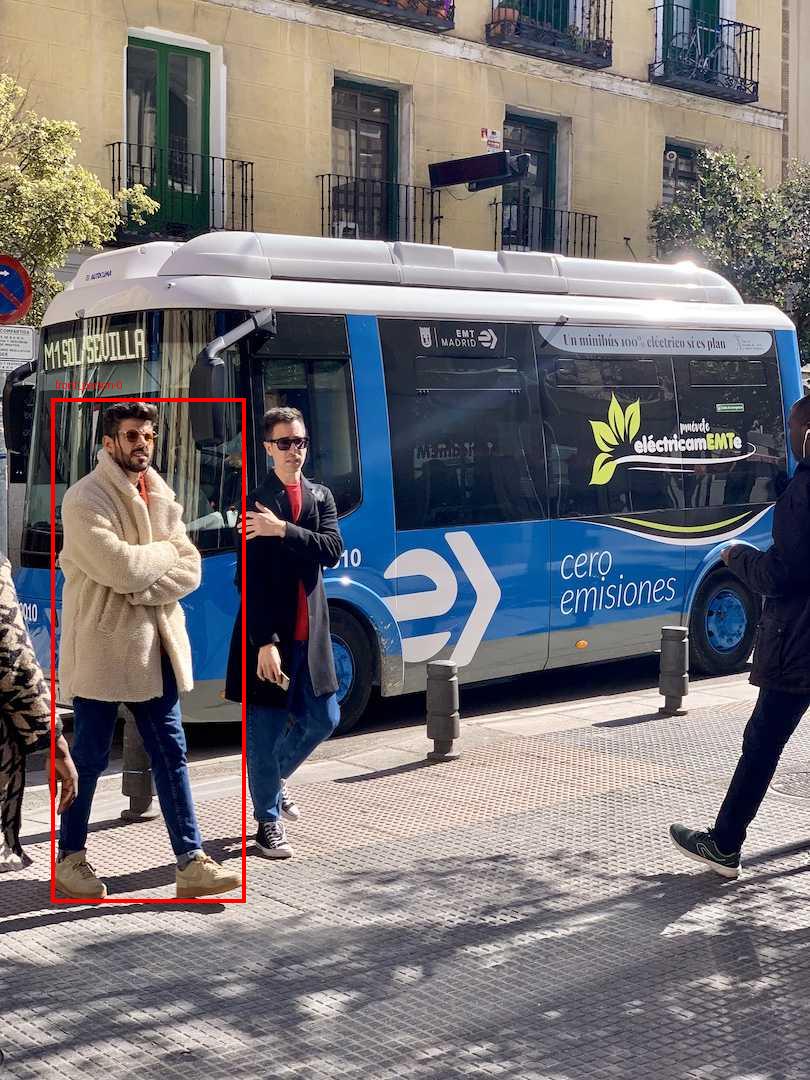
Please pay special attention to Figure 4: Here, it is not just about detecting person types, but rather identifying “people wearing cream-colored coats standing in front of buses” among multiple pedestrians. This is exactly why Locate Anything is more valuable than ordinary fixed category detectors.
5. Compare with YOLO26n using the same images
YOLO26 is a real-time visual model family released by Ultralytics. The official documentation states that it supports tasks such as detection, segmentation, pose, classification, and oriented detection. The detection model covers 80 pre-trained categories on COCO, and it emphasizes low-latency deployment without NMS.
To avoid disrupting the numpy<2 constraints of Locate Anything, this chapter uses --no-deps when installing Ultralytics in the same environment, and manually adds a few dependencies. A cleaner approach is to create a separate environment for YOLO.
bash"$ENV_ROOT/bin/python" -m pip install --no-deps \
  ultralytics polars polars-runtime-32 nvidia-ml-py ultralytics-thop
Run YOLO26n:
bashexport YOLO_CONFIG_DIR=/path/to/large_disk/cache/ultralytics
mkdir -p "$YOLO_CONFIG_DIR/Ultralytics"

cd "$DATA_ROOT"

YOLO_CONFIG_DIR="$YOLO_CONFIG_DIR" \
DATA_ROOT="$DATA_ROOT" \
"$ENV_ROOT/bin/python" - <<'PY'
import json, os, time
from pathlib import Path
from PIL import Image as PILImage
from ultralytics import YOLO

data_root = Path(os.environ["DATA_ROOT"])
image = data_root / "bus.jpg"
out_dir = data_root / "runs/bus_yolo26n"
out_dir.mkdir(parents=True, exist_ok=True)

model = YOLO("yolo26n.pt")

# 先跑一次预热,再记录第二次速度。
model.predict(str(image), imgsz=640, conf=0.25, device=0, verbose=False)
t0 = time.time()
results = model.predict(str(image), imgsz=640, conf=0.25, device=0, verbose=False)
wall = time.time() - t0

r = results[0]
items = []
for b in r.boxes:
    cls_id = int(b.cls[0])
    items.append(
        {
            "class": model.names[cls_id],
            "confidence": round(float(b.conf[0]), 4),
            "xyxy": [float(x) for x in b.xyxy[0].cpu().tolist()],
        }
    )

plot = r.plot()
plot_path = out_dir / "bus_yolo26n_result.jpg"
PILImage.fromarray(plot[..., ::-1]).save(plot_path)
(out_dir / "bus_yolo26n_result.json").write_text(
    json.dumps(
        {
            "model": "yolo26n.pt",
            "wall_infer_seconds": round(wall, 4),
            "speed_ms": r.speed,
            "boxes": items,
        },
        ensure_ascii=False,
        indent=2,
    ),
    encoding="utf-8",
)

print("wall seconds", round(wall, 4))
print("speed ms", r.speed)
print("boxes", items)
PY
This machine’s YOLO26n outputs 5 boxes: 1 bus and 4 person. The internal processing time after preheating is:
textpreprocess: 2.38 ms
inference: 4.12 ms
postprocess: 0.80 ms
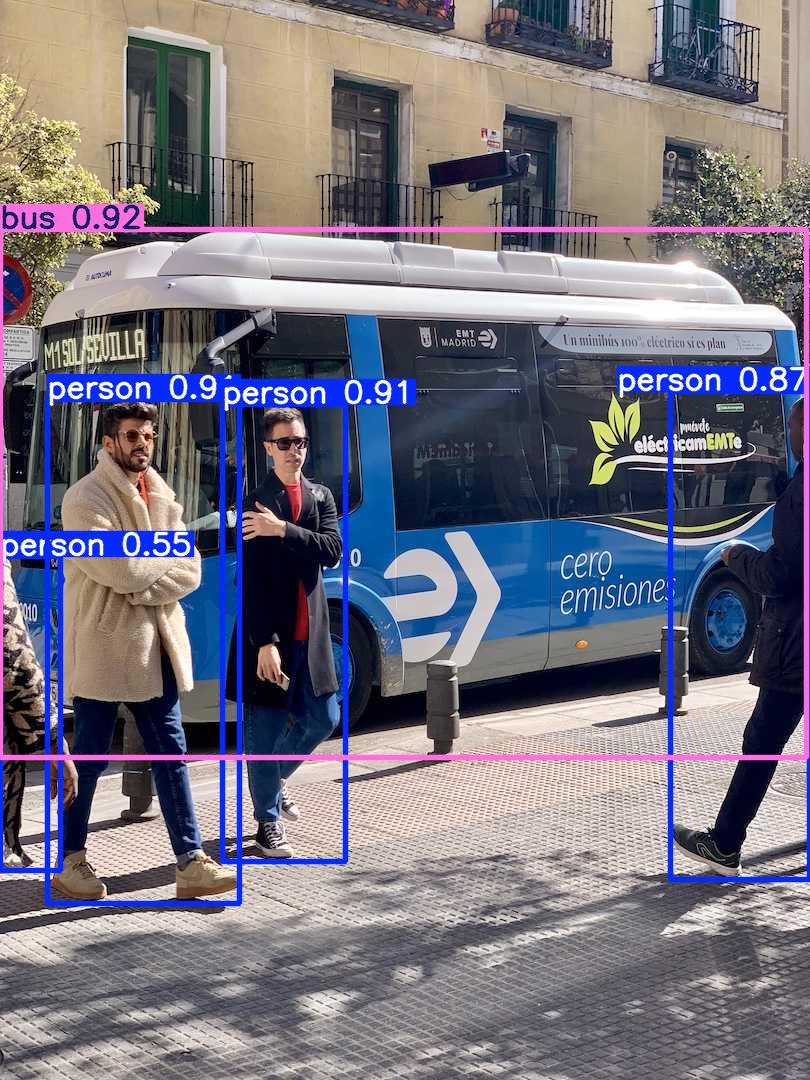
Comparison Conclusion
| Dimension | YOLO26n | Locate Anything-3B |
|---|---|---|
| Core Function | Real-time fixed category detector | Visual language grounding model |
| Input | Image, default output: COCO categories | Image + natural language prompt |
| Output | Categories, confidence scores, boxes | <ref>...</ref><box>...</box> or points |
| Local inference speed | Approximately 4.12 ms for model inference | Approximately 0.63 s to 1.00 s for generative positioning |
| Parameter scale | YOLO26n official table: 2.4M parameters; YOLO26x: 55.7M | Model card indicates 3B parameters |
| Advantageous tasks | Fixed categories, real-time video streams, edge deployment | Referring, GUI, OCR, layout, open vocabulary positioning |
| Robot applications | Quick detection of common categories such as people, vehicles, cups, bottles, etc. | Finding target regions based on task-specific language, e.g., “the red cup handle on the left” |
If the task is simply “is there anyone, a car, or a cup in the camera”, YOLO26n is clearly faster and uses less memory, making it more suitable for real-time deployment. If the task is “find someone wearing a cream-colored coat standing in front of a bus”, or “find the download button in the upper right corner of a web page”, “the first paragraph under the document summary title”, or “a transparent cup near the gripper on the desktop”, Locate Anything is more appropriate for the task.
It should be noted that Ultralytics also released YOLOE-26, which supports open vocabulary detection and segmentation of text prompts and visual prompts. YOLOE-26 is closer to a “real-time open vocabulary detector”, but Locate Anything has a positioning range that is more aligned with VLM grounding, covering structured scenarios such as GUI, OCR, layout, referring, and pointing. When working on academic paper-related tasks, do not simply treat them as interchangeable; a more accurate description is:
textYOLO26 / YOLOE-26:实时检测与分割模型族,重部署速度和检测任务。
Locate Anything:通用视觉语言定位器,重自然语言 grounding 和多域结构化定位。
VI. Why PBD / MTP is Faster
Traditional generative grounding can output coordinates as ordinary text tokens:
text<box> <x1> <y1> <x2> <y2> </box>
If using NTP, that is, Next Token Prediction, the model must first generate x1, then y1, then x2, and finally y2. There are two issues:
- The coordinate generation process is complex and slow.
- The four coordinates of a box form a geometric whole. When generated token by token, the structure may become inconsistent.
The core concept of Locate Anything is Parallel Box Decoding, abbreviated as PBD. It treats a box or point as a fixed-length atomic unit, allowing the complete coordinates to be predicted in a parallel step. The official README describes it as box-aligned multi-token prediction: Fast Mode uses MTP, Slow Mode uses NTP, and Hybrid Mode defaults to MTP. If there are format errors or spatial ambiguities, it locally reverts to NTP.
You can understand it like this:
| Decoding Method | Approach | Suitable Scenario |
|---|---|---|
| NTP / Slow | Generate one token at a time | Prioritize stability, offline annotation |
| MTP / Fast | Predict multiple tokens simultaneously | Prioritize speed |
| PBD / Hybrid | Parallel prediction using boxes as geometric blocks, with fallback when needed | Default inference |
When this machine runs person multiple frames on bus.jpg, the Hybrid Mode log shows:
textnum_tokens=28
generate_time(s)=0.6157
forward_step=9
num_boxes=4
bps=6.4966
switch_to_ar=1
Here, switch_to_ar=1 indicates that an autoregressive fallback was indeed triggered in the Hybrid Mode. When running a single bus:
textnum_tokens=10
generate_time(s)=0.9805
forward_step=3
num_boxes=1
bps=1.0199
switch_to_ar=0
These numbers only indicate that the local smoke test is completed; they should not be directly compared with the official H100 benchmark.
VII. Common Questions
1. Can consumer or workstation cards like the RTX 4090 and RTX PRO 6000 run?
It can run. The compatible architectures listed for NVIDIA model cards include Ampere, Hopper, Blackwell, and Lovelace. The Lovelace example includes the RTX 4090. The local RTX PRO 6000 Blackwell with 96GB of memory can run BF16 with a single image without memory issues. A 4090 with 24GB of memory is more suitable for batch=1, low concurrency, offline annotation, or demos; for 4K high resolution, dense targets, and server-based batch processing, a larger amount of memory is recommended.
2. Why was MagiAttention not installed in this chapter?
The goal of this chapter is to ensure the basic reasoning works properly first. The official README states that MagiAttention is designed for long context training and reasoning with Hopper / Blackwell. If you want to use long contexts of 16K to 32K or pursue batch throughput, install it separately and verify it later. In the basic tutorial, keep SDPA fallback for easier troubleshooting.
3. Locate Anything returning to <box>None</box> is the model broken?
Not necessarily. It may be that the prompt is unclear, the image is a puzzle/table causing ambiguity, or the target is not in the image. In this chapter, when trying to find car on the official teaser.jpg, None was returned. However, finding ship and crop tool icon in the same image can yield reasonable boxes. During replication, verify first with a clean image and a clear target, and then test complex scenarios.
4. Can it replace YOLO26?
Do not use this way. If the task is real-time fixed-category detection, YOLO26 is more appropriate. If the task involves natural language, GUI/OCR/document layout, complex gesture expressions, or robot task semantics, Locate Anything is more valuable. A common combination is: YOLO handles high-speed security detection of common categories, while Locate Anything focuses on target localization related to task language.
5. How to grasp the robot in the next step?
First, use the 2D box of Locate Anything as a prompt for SAM/SAM2 to obtain the mask. Then, deeply fuse the mask region with RGB-D to form 3D point clouds. Subsequently, GraspNet, 6D pose, traditional grasping detection, or VLA policy can be applied. By breaking it down this way, each layer has clear input and output, making troubleshooting easier.
VIII. Reference Links
- NVIDIA Locate Anything project page: https://research.nvidia.com/labs/lpr/locate-anything/
- NVlabs/Eagle
Embodiedcode: https://github.com/NVlabs/Eagle/tree/main/Embodied - Hugging Face model card: https://huggingface.co/nvidia/LocateAnything-3B
- Ultralytics YOLO26 documentation: https://docs.ultralytics.com/models/yolo26/