
Habitat-lab Basic Practices
After understanding the basic environment of habitat_lab, its YAML configuration, and basic tests of habitat_lab, this chapter will achieve the goal of getting started with habitat-lab. Using Habitat-lab 0.2.5 version (the most widely used stable version at present) as a reference, we will cover navigation from a complete agent Point-NAV to intelligent agent navigation with an RL framework. (In the following, a large language model will be used for navigation, without using RL algorithms. The RL framework is only used for environment construction, as some projects use the RL framework but do not perform RL training. Therefore, an explanation will also be provided on creating task execution environments using RLEnv.)
1. Full-automatic navigation of Habitat-lab Agent
In the setup and configuration of the habitat_lab environment, habitatlab_test.py manually controls the agent via the keyboard to complete the PointNav task, allowing real-time monitoring of the navigation status. However, when the agent performs the navigation task, it usually operates fully automatically, serving as a foundation for subsequent large-scale model navigation. Therefore, this section introduces the habitatlab_example.py file, which enables the agent to automatically complete the PointNav task and generate navigation videos containing rich visual information.
Overall logic of the code:
- Customize the ShortestPathFollowerAgent class (implementing the Agent interface of Habitat). The ShortestPathFollower tool is used internally to automatically calculate the shortest path to the target point, without any manual intervention.
- Configure measurement items such as TopDownMap and Collisions. This allows visualization of key information like the agent’s path, target points, and the FogOfWar range.
- Combine the RGB-D observations, top-down view, and quantitative metrics (such as distance to the target and number of collisions) for each step into a frame, and finally generate a video file for storage/display.
Manipulation method: Fully automated. Navigation and video generation are completed automatically after the code runs, without any manual intervention.
Output format: Save the navigation video at the specified path. The video includes visual observations, top views, and overlayed quantitative metrics.
Here is a detailed explanation of the code
The yaml file used in habitatlab_example.py is the same as that in habitatlab_test.py, which is still pointnav_habitat_test.yaml. If you have any doubts about the yaml file, you can refer to the previous chapter: Habitat Lab Environment Setup and Configuration.
The biggest difference from habitatlab_test.py is that habitatlab_example.py uses ShortestPathFollowerAgent.
pythonclass ShortestPathFollowerAgent(Agent):
    r"""Implementation of the :ref:`habitat.core.agent.Agent` interface that
    uses :ref`habitat.tasks.nav.shortest_path_follower.ShortestPathFollower` utility class
    for extracting the action on the shortest path to the goal.
    """

    def __init__(self, env: habitat.Env, goal_radius: float):
        self.env = env
        self.shortest_path_follower = ShortestPathFollower(
            sim=cast("HabitatSim", env.sim),
            goal_radius=goal_radius,
            return_one_hot=False,
        )

    def act(self, observations: "Observations") -> Union[int, np.ndarray]:
        return self.shortest_path_follower.get_next_action(
            cast(NavigationEpisode, self.env.current_episode).goals[0].position
        )

    def reset(self) -> None:
        pass
In the initialization method, it accepts a habitat.Env environment object and a target radius goal_radius, and creates an instance of ShortestPathFollower. The act method is the core of the Agent interface. It retrieves the target position from the current episode and calls the get_next_action method of ShortestPathFollower to determine the next action.
Among them, the most important one is ShortestPathFollower. It is located at habitat_lab/habitat-lab/habitat/tasks/nav/shortest_path_follower.py in the habitat_lab library. It is not an independent agent, but a core dependency for implementing navigation of the shortest path, encapsulating the underlying path planning logic. Below is an explanation of ShortestPathFollower.
There are two components in ShortestPathFollower.get_next_action: build_follower and get_return_value.
- _build_follower
pythondef _build_follower(self):
    if self._current_scene != self._sim.habitat_config.scene:
        self._follower = self._sim.make_greedy_follower(
            0,
            self._goal_radius,
            stop_key=HabitatSimActions.stop,
            forward_key=HabitatSimActions.move_forward,
            left_key=HabitatSimActions.turn_left,
            right_key=HabitatSimActions.turn_right,
        )
        self._current_scene = self._sim.habitat_config.scene
_build_follower is used to initialize/rebuild the underlying path planner based on the current scenario, ensuring that the path planning matches the scenario. It calls sim.make_greedy_follower to create an instance of GreedyGeodesicFollower, and binds action mappings (forward, left turn, right turn, stop) and target radius.
- _get_return_value
pythondef _get_return_value(self, action) -> Union[int, np.ndarray]:
    if self._return_one_hot:
        return action_to_one_hot(action)
    else:
        return action
It is mainly used to convert the action output format based on the return_one_hot parameter, adapting to different usage scenarios. However, it is set to False in this task, so it is not used.
Ultimately, the shortest_path_follower.get_next_action from the shortest_path_follower call in habitatlab_example.py is as follows:
pythondef get_next_action(
    self, goal_pos: Union[List[float], np.ndarray]
) -> Optional[Union[int, np.ndarray]]:
    """Returns the next action along the shortest path."""
    self._build_follower()
    assert self._follower is not None
    try:
        next_action = self._follower.next_action_along(goal_pos)
    except habitat_sim.errors.GreedyFollowerError as e:
        if self._stop_on_error:
            next_action = HabitatSimActions.stop
        else:
            raise e

    return self._get_return_value(next_action)
Call process and logic breakdown:
-
Scene adaptation: First call
_build_followerto ensure the planner matches the current scene; -
Path planning invocation: Calculate the action through
_follower.next_action_along(goal_pos). The underlyingGreedyGeodesicFollowerwill compute the geodetic shortest path from the agent’s current pose to the target point based on the geometric information of the simulator scene, and return the first action on the path; -
Exception handling: Capture path planning exceptions and return an action according to the
stop_on_errorpolicy, or throw an exception; -
Action format conversion: Call
_get_return_valueto convert the action format (original value) and return it to the upper layer.
The remaining code is used to complete the visualization tasks. The implementation result of the final code is as follows:
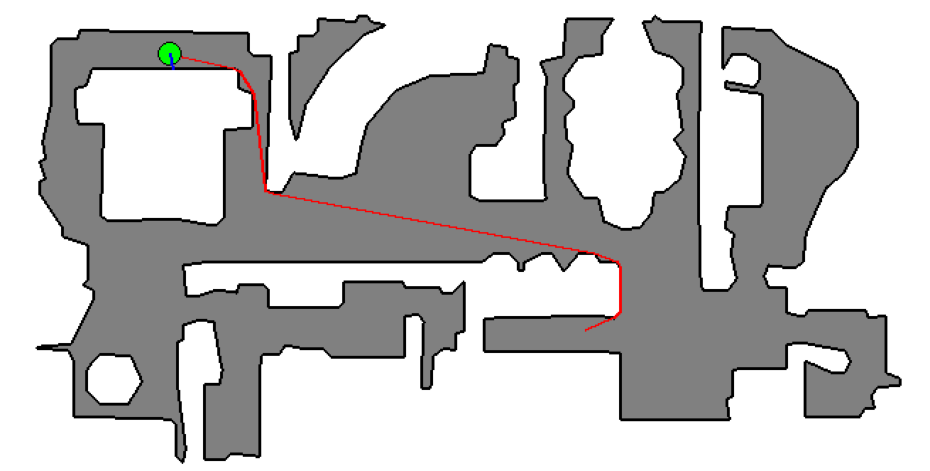
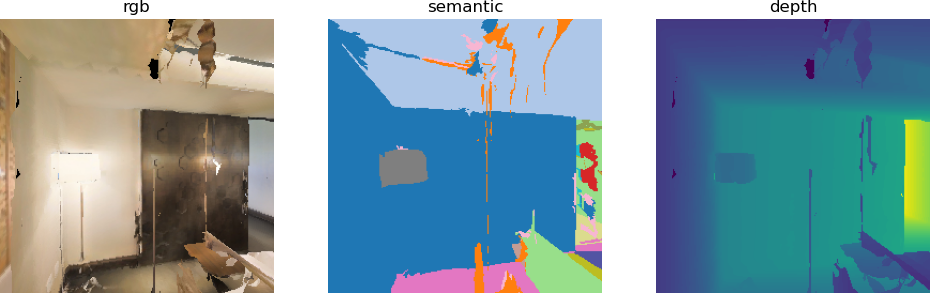
In fact, the final output is a video. The output path for the generated video in the code output_path = "examples/tutorials/habitat_lab_visualization/" can be modified as needed.
II. Full-automatic navigation of Agent based on RLEnv framework in Habitat-lab
According to habitat_rl.py, the task completed by this code is the same as that in habitat_example.py. However, it uses habitat.RLEnv (a reinforcement learning environment wrapper class), encapsulating the native environment within the RL framework interface.
pythonclass SimpleRLEnv(habitat.RLEnv):
    def get_reward_range(self):
        return [-1, 1]

    def get_reward(self, observations):
        return 0

    def get_done(self, observations):
        return self.habitat_env.episode_over

    def get_info(self, observations):
        return self.habitat_env.get_metrics()
Meanwhile, in RLEnv, instead of using the Agent class encapsulation, you can directly create ShortestPathFollower instances in the loop and manually call get_next_action(). This allows for direct action execution by providing the action input to the env environment.
pythonwhile not env.habitat_env.episode_over:
    best_action = follower.get_next_action(
        env.habitat_env.current_episode.goals[0].position
    )
    if best_action is None:
        break

    observations, reward, done, info = env.step(best_action)
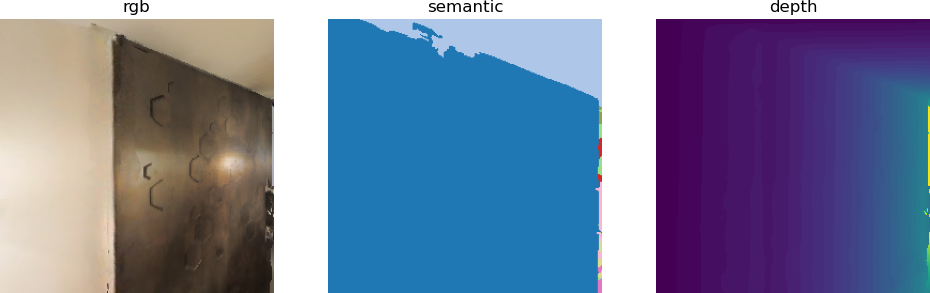
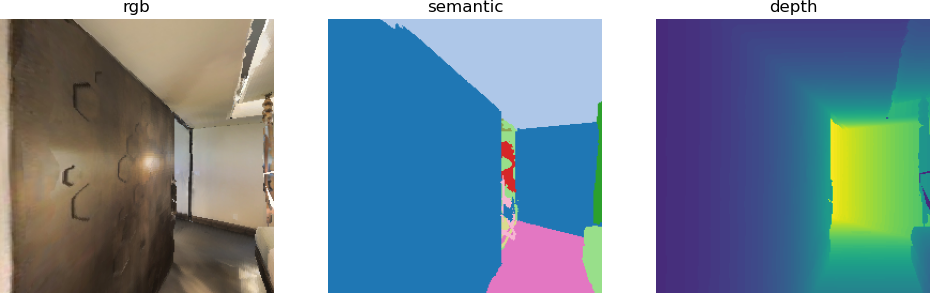
The final visualization result is consistent with that of habitatlab_example.py. (There are some inconsistencies in the visualization; you can add them as needed.)
References: