
Basic Practices of Habitat-sim
This chapter will achieve the goal of progressing from basic Habitat-Sim knowledge to practical application. Based on Habitat-Sim 0.2.5 version (the most widely used stable version at present), we will cover the basic usage of core modules and the implementation of basic simulation tasks. We will avoid pure theoretical buildup and adopt a “problem-driven” approach — each practice step corresponds to common requirements in actual development (such as how to quickly load Matterport3D scenes, how to configure RGB-D sensors, etc.), thus laying a solid foundation for subsequent advanced embodied navigation algorithm implementations.
1. Hello World of Habitat-sim
1. Download the example scenario data for MP3D
pythonconda activate habitat
pythonpython -m habitat_sim.utils.datasets_download --uids mp3d_example_scene --data-path data/
2. Habitat-sim Basic Function Testing
Run the habitat_test.py file
pythonpython habitat_test.py
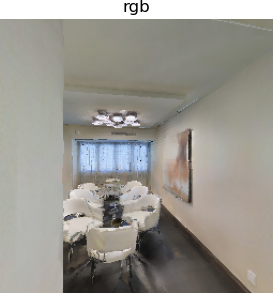
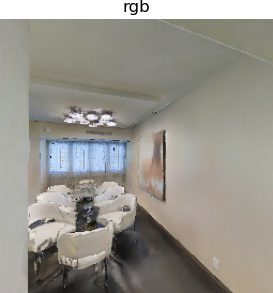
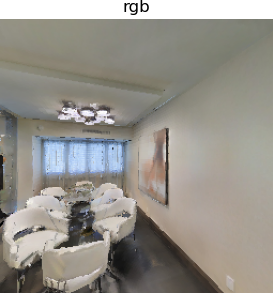
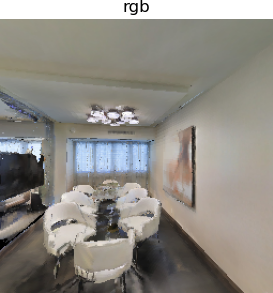
3. Detailed Explanation of Code
First is the environment configuration settings. The core function is make_simple_cfg(), which is used to configure the environment and the robot’s sensors, where test_scene is the path for storing the environment data.
pythontest_scene = "./data/scene_datasets/mp3d_example/17DRP5sb8fy/17DRP5sb8fy.glb"
sim_settings = {
    "scene": test_scene,
    "default_agent": 0,
    "sensor_height": 1.5,
    "width": 256,
    "height": 256,
}

def make_simple_cfg(settings):
    sim_cfg = habitat_sim.SimulatorConfiguration()
    sim_cfg.scene_id = settings["scene"]


    agent_cfg = habitat_sim.agent.AgentConfiguration()
    rgb_sensor_spec = habitat_sim.CameraSensorSpec()
    rgb_sensor_spec.uuid = "color_sensor"
    rgb_sensor_spec.sensor_type = habitat_sim.SensorType.COLOR
    rgb_sensor_spec.resolution = [settings["height"], settings["width"]]
    rgb_sensor_spec.position = habitat_sim.geo.UP * settings["sensor_height"]
    rgb_sensor_spec.position = [0.0, settings["sensor_height"], 0.0]

    agent_cfg.sensor_specifications = [rgb_sensor_spec]

    return habitat_sim.Configuration(sim_cfg, [agent_cfg])
Then, the agent is initialized, the robot’s initial state is set, and the robot’s status information is published.
pythonagent = sim.initialize_agent(sim_settings["default_agent"])

agent_state = habitat_sim.AgentState()
agent_state.position = np.array([-0.6, 0.0, 0.0])
agent.set_state(agent_state)

agent_state = agent.get_state()
print("agent_state: position", agent_state.position, "rotation", agent_state.rotation)

action_names = list(cfg.agents[sim_settings["default_agent"]].action_space.keys())
print("Discrete action space: ", action_names)
Define the robot’s movement function navigateAndSee() and execute the action. Set display to True to save the image after each step.
pythondef navigateAndSee(action=""):
    if action in action_names:
        observations = sim.step(action)
        print("action: ", action)
        if display:
            display_sample(observations["color_sensor"])


action = "turn_right"
navigateAndSee(action)

action = "turn_right"
navigateAndSee(action)

action = "move_forward"
navigateAndSee(action)

action = "turn_left"
navigateAndSee(action)
The following is the display_sample() display function, which can be used to save the images after each step of the robot execution.
pythondef display_sample(rgb_obs, semantic_obs=np.array([]), depth_obs=np.array([])):
    from habitat_sim.utils.common import d3_40_colors_rgb

    rgb_img = Image.fromarray(rgb_obs, mode="RGBA")
    global img_counter

    arr = [rgb_img]
    titles = ["rgb"]
    if semantic_obs.size != 0:
        semantic_img = Image.new("P", (semantic_obs.shape[1], semantic_obs.shape[0]))
        semantic_img.putpalette(d3_40_colors_rgb.flatten())
        semantic_img.putdata((semantic_obs.flatten() % 40).astype(np.uint8))
        semantic_img = semantic_img.convert("RGBA")
        arr.append(semantic_img)
        titles.append("semantic")

    if depth_obs.size != 0:
        depth_img = Image.fromarray((depth_obs / 10 * 255).astype(np.uint8), mode="L")
        arr.append(depth_img)
        titles.append("depth")

    plt.figure(figsize=(12, 8))
    for i, data in enumerate(arr):
        ax = plt.subplot(1, 3, i + 1)
        ax.axis("off")
        ax.set_title(titles[i])
        plt.imshow(data)

    image_name = f"observation_{img_counter}.png"
    plt.savefig(image_name, bbox_inches='tight', pad_inches=0)
    img_counter +=1

    plt.show(block=False)
    plt.pause(3)  # 显示3秒(可修改秒数)
    plt.close()
II. Advanced Configuration for Habitat-sim (see habitat_random.py file)
1. Explanation of Sensor Configuration
In the Hello World of Habitat-sim, we used a Color Sensor, an RGB color sensor. Other commonly used sensors include Depth Sensor and Semantic Sensor.
- Color Sensor (RGB color sensor)
Simulates human vision / ordinary RGB camera. It captures color, texture, and appearance information of the scene. It is the most basic visual perception sensor, corresponding to habitat_sim.SensorType.COLOR in the code.
Key configuration code is as follows:
pythoncolor_sensor_spec = habitat_sim.CameraSensorSpec()
color_sensor_spec.uuid = "color_sensor"
color_sensor_spec.sensor_type = habitat_sim.SensorType.COLOR
color_sensor_spec.resolution = [settings["height"], settings["width"]]
color_sensor_spec.position = [0.0, settings["sensor_height"], 0.0]
color_sensor_spec.sensor_subtype = habitat_sim.SensorSubType.PINHOLE
sensor_specs.append(color_sensor_spec)
The output format is as follows:
- Data type: uint8 (0-255), 4-channel array (RGBA, A is the opacity, usually 255);
- Shape: [height, width, 4] (e.g., 256×256×4);
- Numerical meaning: The red, green, blue, and opacity values of each pixel (for example, (255,0,0,255) corresponds to pure red).
Core function: Provides intuitive visual features of the scene, such as identifying object appearance, scene layout, and texture differences.
- Depth Sensor(Depth Sensor)
Simulates a real depth camera, capturing the physical distance of each pixel (in meters), and reflecting the 3D spatial structure of the scene. This corresponds to habitat_sim.SensorType.DEPTH in the code.
Key configuration code is as follows:
pythondepth_sensor_spec = habitat_sim.CameraSensorSpec()
depth_sensor_spec.uuid = "depth_sensor"
depth_sensor_spec.sensor_type = habitat_sim.SensorType.DEPTH
depth_sensor_spec.resolution = [settings["height"], settings["width"]]
depth_sensor_spec.position = [0.0, settings["sensor_height"], 0.0]
depth_sensor_spec.sensor_subtype = habitat_sim.SensorSubType.PINHOLE
sensor_specs.append(depth_sensor_spec)
The output format is as follows:
- Data type: float32 (floating-point), single-channel array;
- Shape: [height, width] (e.g., 256×256);
- Numerical meaning: The straight-line distance from each pixel to the camera in meters. For example, a value of 0.5 indicates a distance of 0.5 meters from the camera, and 5.0 indicates a distance of 5 meters.
Core function: It supplements 3D spatial information, compensating for the limitation of RGB which only provides a 2D appearance, and restores the geometric structure of the scene. Numerical conversion: By using depth values and camera parameters, pixel coordinates are converted into 3D coordinates in the real world.
- Semantic Sensor(语义传感器)
Simulates a semantic perception camera to capture the object semantic ID corresponding to each pixel (bound to objects in the 3D scene), indicating which object/category each pixel belongs to. This corresponds to habitat_sim.SensorType.SEMANTIC in the code.
Key configuration code is as follows:
pythonsemantic_sensor_spec = habitat_sim.CameraSensorSpec()
semantic_sensor_spec.uuid = "semantic_sensor"
semantic_sensor_spec.sensor_type = habitat_sim.SensorType.SEMANTIC
semantic_sensor_spec.resolution = [settings["height"], settings["width"]]
semantic_sensor_spec.position = [0.0, settings["sensor_height"], 0.0]
semantic_sensor_spec.sensor_subtype = habitat_sim.SensorSubType.PINHOLE
sensor_specs.append(semantic_sensor_spec)
The output format is as follows:
- Data type: uint32/int32, single-channel array;
- Shape: [height, width] (e.g., 256×256);
- Numerical meaning: The object semantic ID corresponding to each pixel (e.g., 1 = wall, 5 = bed, 8 = table). It must be mapped to a human-readable category name through the JSON configuration file (mp3d.scene_dataset_config.json). (The mp3d.scene_dataset_config.json will be explained later.)
Core function: High-level semantic understanding. From pixel values to object categories, it enables semantic recognition of the scene (e.g., identifying which pixels are walls and which are beds); it also analyzes the distribution of objects in the scene (e.g., there is 1 bed and 2 chairs in the bedroom).
In the habitat_random.py file, for the simplicity and ease of modification of the code, the code for the above sensors has been integrated into a consistent format, but the functionality remains the same.
pythonsensors = {
    "color_sensor": {
        "sensor_type": habitat_sim.SensorType.COLOR,
        "resolution": [settings["height"], settings["width"]],
        "position": [0.0, settings["sensor_height"], 0.0],
    },
    "depth_sensor": {
        "sensor_type": habitat_sim.SensorType.DEPTH,
        "resolution": [settings["height"], settings["width"]],
        "position": [0.0, settings["sensor_height"], 0.0],
    },
    "semantic_sensor": {
        "sensor_type": habitat_sim.SensorType.SEMANTIC,
        "resolution": [settings["height"], settings["width"]],
        "position": [0.0, settings["sensor_height"], 0.0],
    },
}

sensor_specs = []
for sensor_uuid, sensor_params in sensors.items():
    if settings[sensor_uuid]:
        sensor_spec = habitat_sim.CameraSensorSpec()
        sensor_spec.uuid = sensor_uuid
        sensor_spec.sensor_type = sensor_params["sensor_type"]
        sensor_spec.resolution = sensor_params["resolution"]
        sensor_spec.position = sensor_params["position"]

        sensor_specs.append(sensor_spec)
2. Explanation of Action Configuration
In the habitat_test.py file, we have not defined the robot’s action space. However, AgentConfiguration() will automatically load the default action space. If we want to customize the distance of forward movement and the turning angle, we need to define the robot’s action space as follows:
pythonagent_cfg = habitat_sim.agent.AgentConfiguration()
agent_cfg.sensor_specifications = sensor_specs
agent_cfg.action_space = {
    "move_forward": habitat_sim.agent.ActionSpec(
        "move_forward", habitat_sim.agent.ActuationSpec(amount=0.25)
    ),
    "turn_left": habitat_sim.agent.ActionSpec(
        "turn_left", habitat_sim.agent.ActuationSpec(amount=30.0)
    ),
    "turn_right": habitat_sim.agent.ActionSpec(
        "turn_right", habitat_sim.agent.ActuationSpec(amount=30.0)
    ),
}
3. Code Execution Results and JSON File Analysis
Run habitat_random.py
pythonpython habitat_random.py
After running this file, we will get the following results:
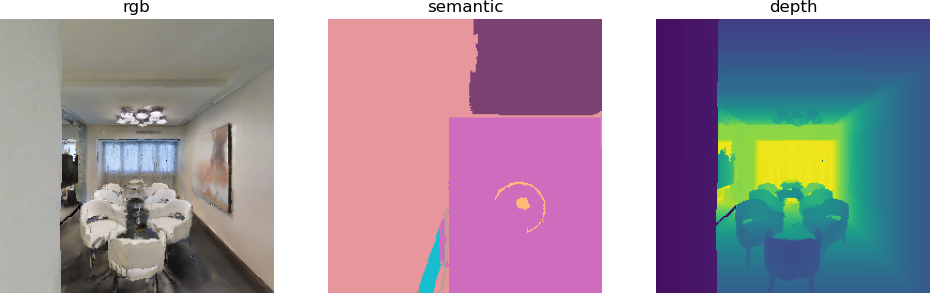
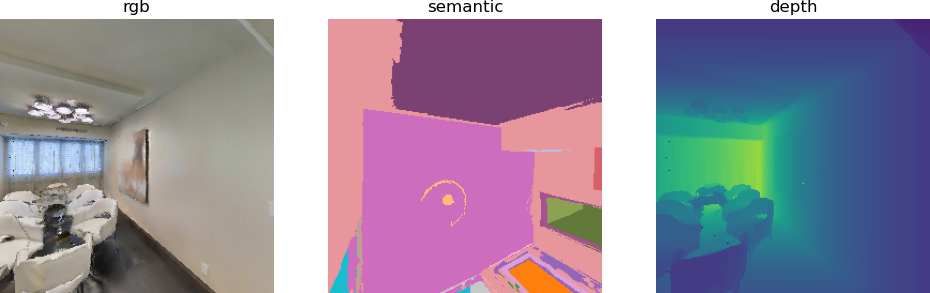
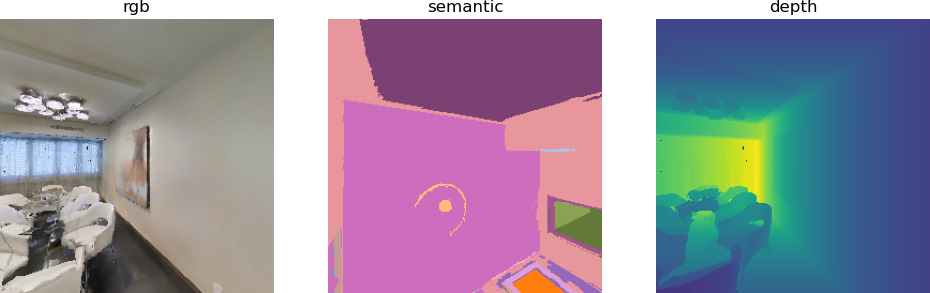
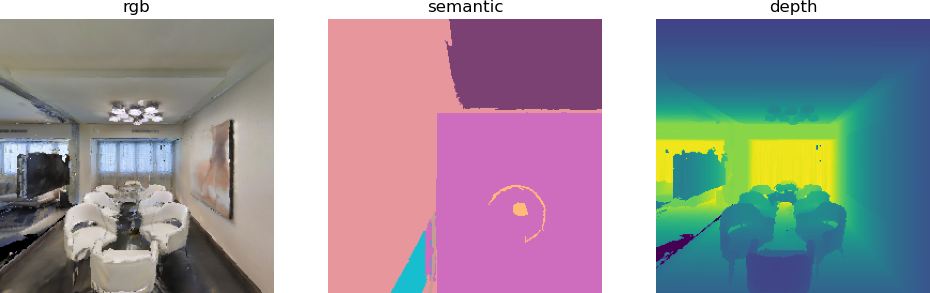
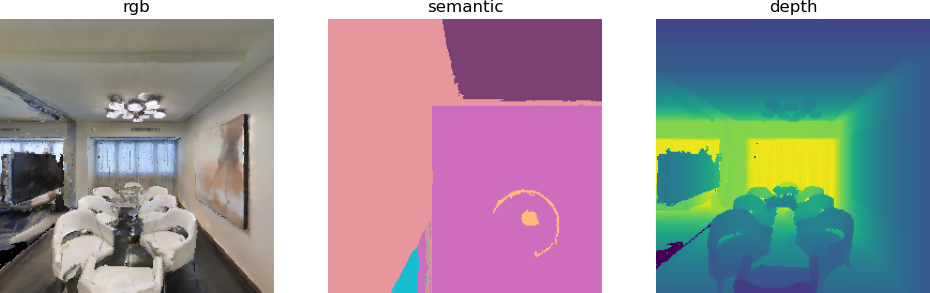
We can see that both the rgb image and the depth image are normal, but the semantic image does not display properly. This is mainly because we did not load the mp3d.scene_dataset_config.json file. This file can load the pixel-semantic correspondence we need, map it to specific object categories, and also load the mesh map file. (Details about the mesh map are provided in the navmesh explanation of habitat_sim).
In the habitat_random.py code, we remove these two lines of comments, and then the mp3d.scene_dataset_config.json file can be loaded.
python# mp3d_scene_dataset = "./data/scene_datasets/mp3d_example/mp3d.scene_dataset_config.json"

# "scene_dataset": mp3d_scene_dataset,

# sim_cfg.scene_dataset_config_file = settings["scene_dataset"]
After the comment is removed, the code becomes:
pythontest_scene = "./data/scene_datasets/mp3d_example/17DRP5sb8fy/17DRP5sb8fy.glb"
mp3d_scene_dataset = "./data/scene_datasets/mp3d_example/mp3d.scene_dataset_config.json"

rgb_sensor = True  # @param {type:"boolean"}
depth_sensor = True  # @param {type:"boolean"}
semantic_sensor = True  # @param {type:"boolean"}

sim_settings = {
    "width": 256,  # Spatial resolution of the observations
    "height": 256,
    "scene": test_scene,  # Scene path
    "scene_dataset": mp3d_scene_dataset,
    "default_agent": 0,
    "sensor_height": 1.5,  # Height of sensors in meters
    "color_sensor": rgb_sensor,  # RGB sensor
    "depth_sensor": depth_sensor,  # Depth sensor
    "semantic_sensor": semantic_sensor,  # Semantic sensor
    "seed": 1,  # used in the random navigation
    "enable_physics": False,  # kinematics only
}
At this point, the output we can obtain is:
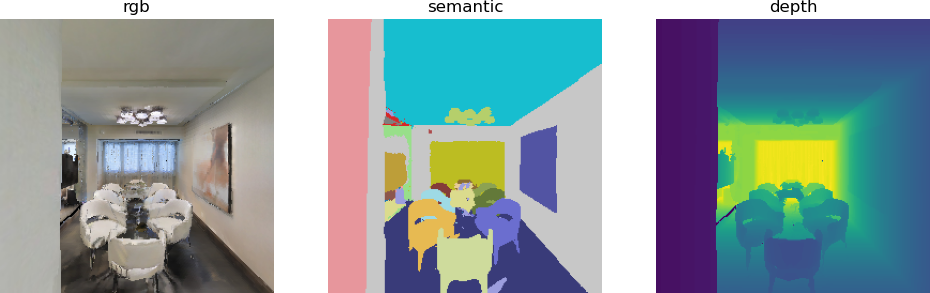
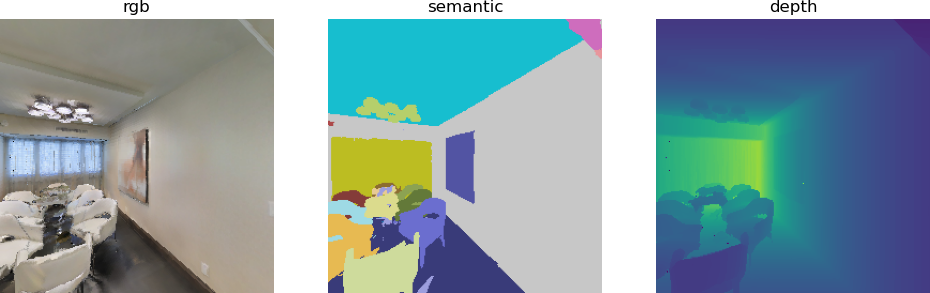
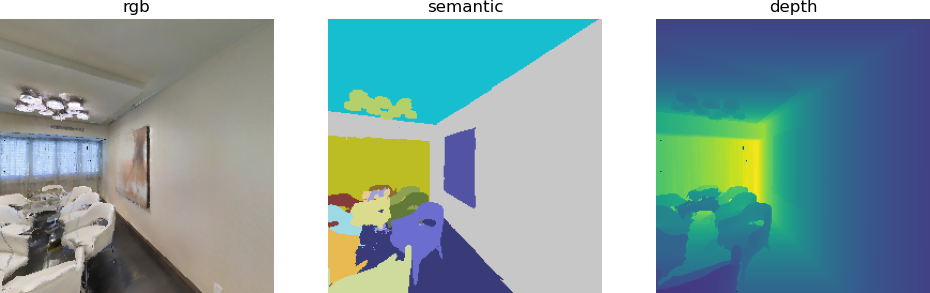
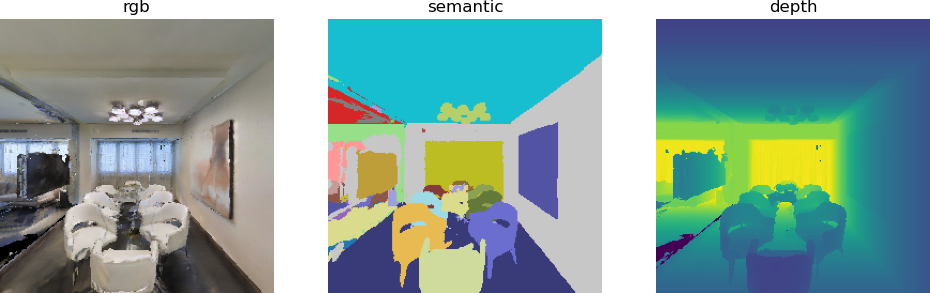
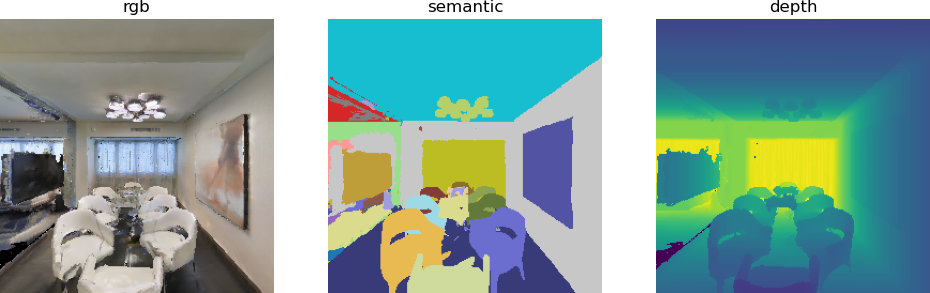
It can be seen that the semantic images display properly.
III. Detailed Explanation of NavMesh in Habitat-sim
1. Introduction to NavMesh
NavMesh (Navigation Mesh) is the core spatial representation for scene navigation and motion planning in Habitat-Sim. It is essentially a polygon mesh that covers the traversable area of the agent in the scene, and serves as the foundation for agent movement, path finding, and collision avoidance.
Core function:
- Navigation area determination: Mark the areas where the agent can walk in the scene (such as the ground and corridors), excluding obstacles (walls, furniture, floating areas, etc.).
- Path planning foundation: Habitat’s PathFinder quickly calculates the optimal feasible path between two points based on NavMesh.
- Movement合法性 verification: When the agent performs movement and turning actions, NavMesh is used to check whether the target position is traversable, preventing wall penetration or getting stuck in obstacles.
- Spatial abstraction dimensionality reduction: The complex 3D scene geometry is abstracted into a 2D navigation grid, significantly reducing the computational complexity of motion planning.
2. Detailed Explanation of habitat_mesh.py Code
habitat_mesh.py is primarily used to generate NavMesh and visualize the top view of the scene.
The previous simulation environment and robot initialization sections are consistent with the code in the habitat_random.py part of this chapter. There are mainly two differences.
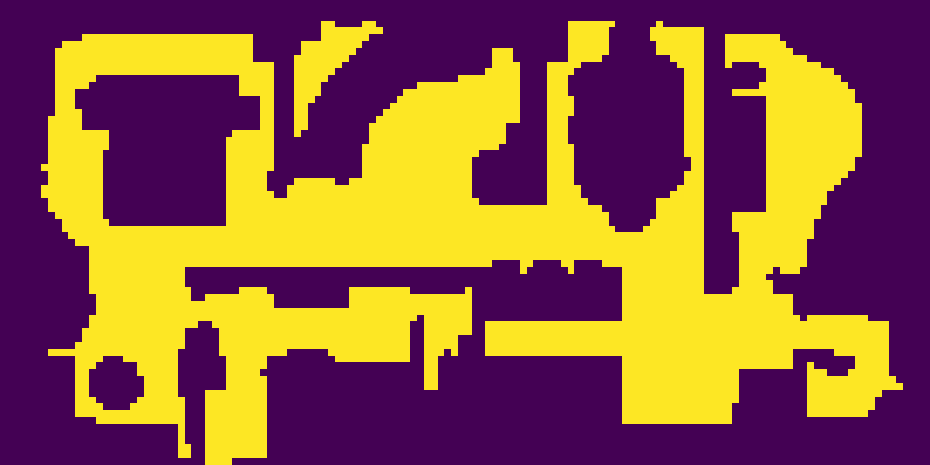
One is the top-down view generated using the API in Habitat_sim.
pythonsim_topdown_map = sim.pathfinder.get_topdown_view(meters_per_pixel, height)
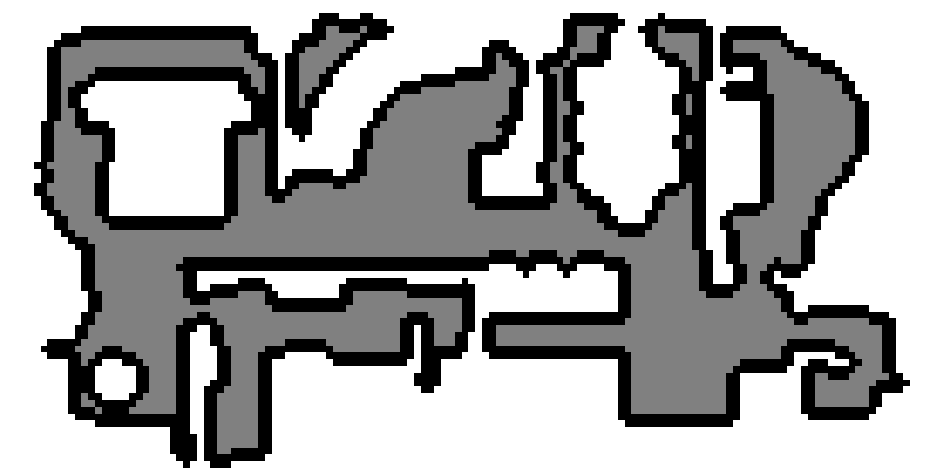
One is the top view generated using the get_topdown_map function.
pythondef get_topdown_map(pathfinder, height, meters_per_pixel) -> np.ndarray:
    # 获取场景的导航边界(x, z轴,忽略y轴高度)
    bounds = pathfinder.get_bounds()
    min_x, _, min_z = bounds[0]
    max_x, _, max_z = bounds[1]

    # 计算地图的像素尺寸(x对应宽度,z对应高度)
    map_width = int(np.ceil((max_x - min_x) / meters_per_pixel))
    map_height = int(np.ceil((max_z - min_z) / meters_per_pixel))

    # 初始化地图:0=不可导航,1=可导航
    topdown_map = np.zeros((map_height, map_width), dtype=np.uint8)

    # 遍历每个像素,判断是否可导航(优化:用向量化操作替代双重循环,提升速度)
    x_coords = np.linspace(min_x, max_x, map_width, endpoint=False)
    z_coords = np.linspace(min_z, max_z, map_height, endpoint=False)
    x_grid, z_grid = np.meshgrid(x_coords, z_coords)
    # 构造(x, height, z)的坐标数组
    world_coords = np.stack([x_grid.ravel(), np.full_like(x_grid.ravel(), height), z_grid.ravel()], axis=1)
    # 批量判断是否可导航
    navigable = np.array([pathfinder.is_navigable(coord) for coord in world_coords])
    # 重塑为地图尺寸
    topdown_map = navigable.reshape((map_height, map_width)).astype(np.uint8)

    # 计算边界(可选,匹配旧版本的2值)
    edges = ndimage.laplace(topdown_map) != 0
    topdown_map[edges] = 2

    return topdown_map
The get_topdown_view() function returns a custom array of 0/1/2 with boundary markers, using a color remapping: 0→white (non-navigable), 1→gray (navigable), 2→black (boundary).
pythonhablab_topdown_map = get_topdown_map(
    sim.pathfinder, height, meters_per_pixel=meters_per_pixel
)
recolor_map = np.array(
    [[255, 255, 255], [128, 128, 128], [0, 0, 0]], dtype=np.uint8
)
hablab_topdown_map = recolor_map[hablab_topdown_map]
For the custom get_topdown_view() function here, it can be used directly. However, the maps in this case require downloading Habitat_lab. For those who want to use habitat_sim to complete the entire tutorial, they can directly use the custom function above, and the results will be the same.
pythonfrom habitat.utils.visualizations import maps
hablab_topdown_map = maps.get_topdown_map(
    sim.pathfinder, height, meters_per_pixel=meters_per_pixel
)
The final mesh diagram result is as follows:
- Use the top-down view generated by sim.pathfinder.get_topdown_view.
- Use the top-down view generated by get_topdown_map
3. Detailed Explanation of habitat_pathfind.py Code
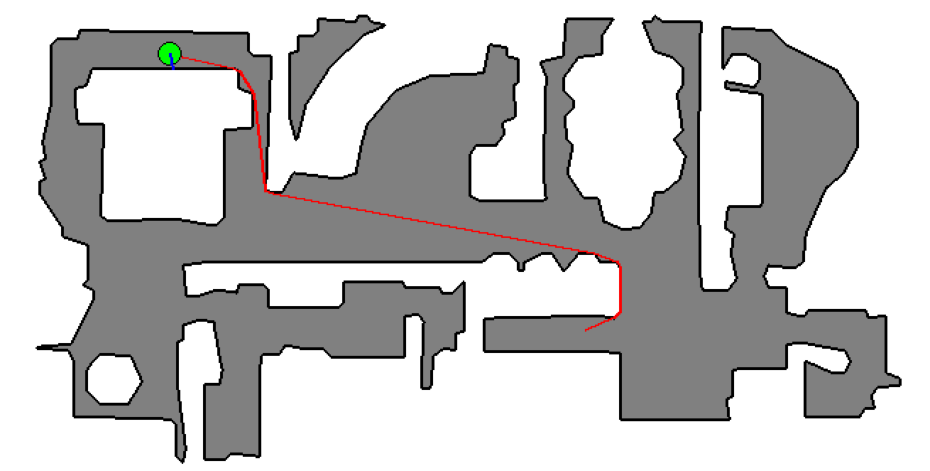
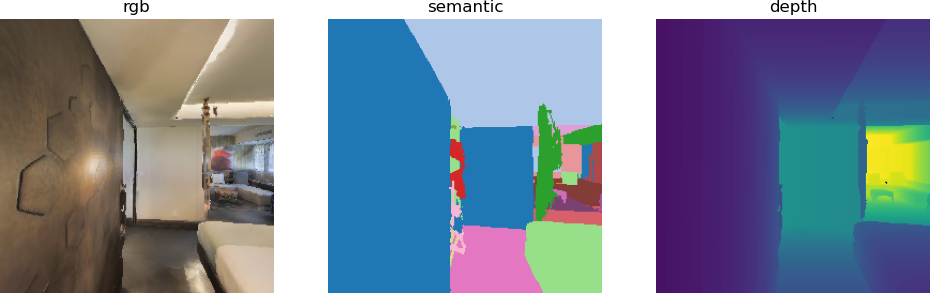
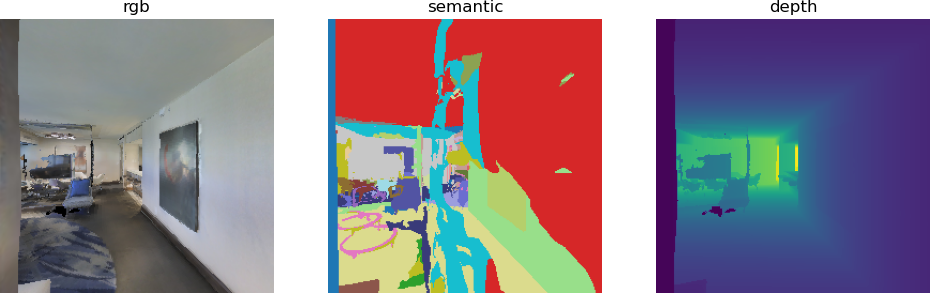
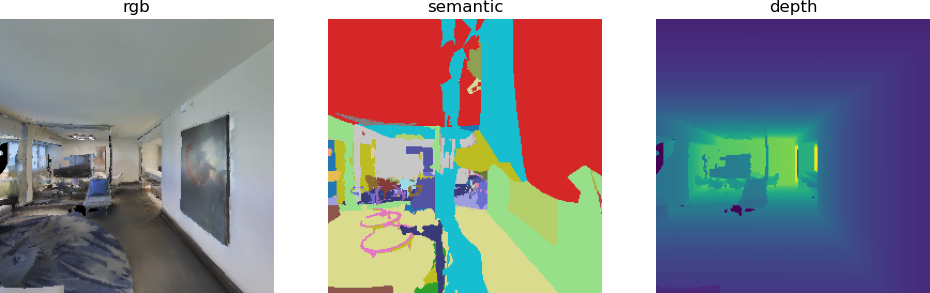
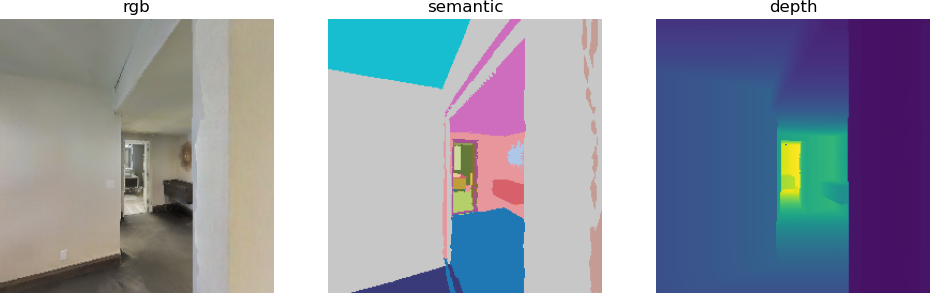
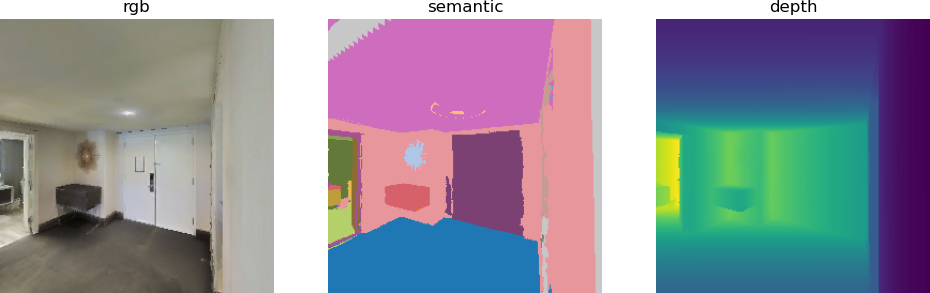
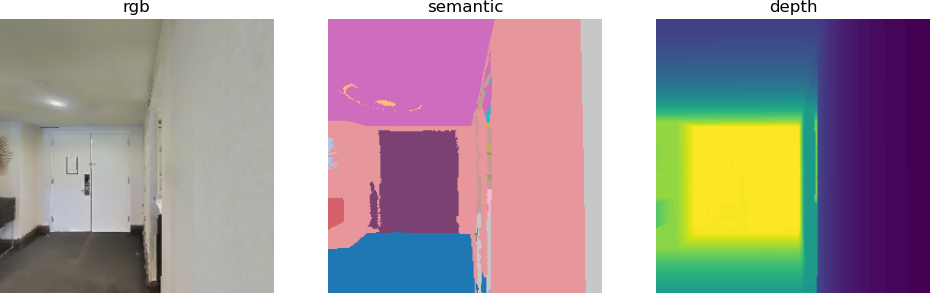
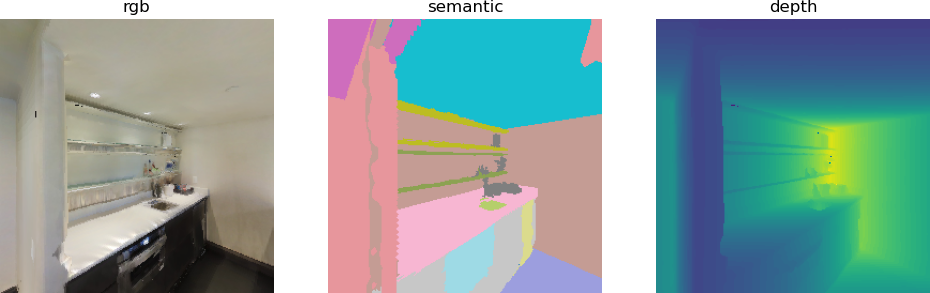
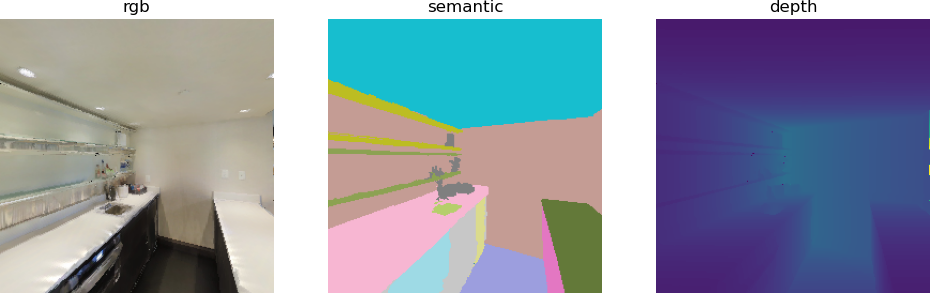
habitat_pathfind.py builds on the scene overhead view generation of habitat_mesh.py and adds three core functions: finding the shortest path within the scene, visualizing the path and the agent, and rendering sensor observations at path points. It implements a complete process from generating the scene map to planning and visualizing navigation paths.
Reused the make_cfg, get_topdown_map, and display_map functions in habitat_mesh.py, and added the following core functions to implement coordinate conversion, visual rendering, and sensor observation rendering related to the path:
- to_grid function: Convert world coordinates to map pixel grid coordinates
This function replaces the maps.to_grid function of Habitat-Lab, solving the mapping problem from 3D world coordinates to 2D map pixel coordinates, and provides a foundation for path drawing.
Parameter description:
- z: The z-value of the world coordinate (path_point[2])
- x: The x-value of the world coordinate (path_point[0])
- grid_dimensions: The size of the map (height, width) (corresponding to top_down_map.shape[0], shape[1])
- pathfinder: sim.pathfinder instance
pythondef to_grid(z, x, grid_dimensions, pathfinder):
    # 获取导航网格的边界(min_x, _, min_z)和(max_x, _, max_z)
    min_bounds = pathfinder.get_bounds()[0]
    max_bounds = pathfinder.get_bounds()[1]
    min_x, _, min_z = min_bounds
    max_x, _, max_z = max_bounds

    # 归一化x到[0, grid_width-1],z到[0, grid_height-1]
    grid_height, grid_width = grid_dimensions
    px = (x - min_x) / (max_x - min_x) * (grid_width - 1)
    py = (z - min_z) / (max_z - min_z) * (grid_height - 1)

    # 限制坐标在地图范围内,避免越界
    px = np.clip(px, 0, grid_width - 1)
    py = np.clip(py, 0, grid_height - 1)

    # 转换为整数像素坐标
    return int(round(py)), int(round(px))
- draw_path function: Draws path segments on the top view
This function replaces the maps.draw_path function of Habitat-Lab, drawing red path segments on a RGB perspective view to visually display the shortest path.
Parameter description:
- top_down_map: Array of maps in RGB format (np.ndarray, shape=(H, W, 3))
- trajectory: List of grid coordinates, each element is (py, px) (row, column)
- color: Path color, default red (255,0,0)
- thickness: Line thickness, default 2 pixels
pythondef draw_path(top_down_map, trajectory, color=(255, 0, 0), thickness=2):
    # 转换为PIL Image以便绘制线段(也可用OpenCV)
    img = Image.fromarray(top_down_map)
    draw = ImageDraw.Draw(img)

    # 遍历轨迹点,绘制线段
    for i in range(len(trajectory) - 1):
        # PIL的坐标是(x, y),对应网格坐标的(px, py)
        start = (trajectory[i][1], trajectory[i][0])
        end = (trajectory[i+1][1], trajectory[i+1][0])
        draw.line([start, end], fill=color, width=thickness)

    # 转换回numpy数组
    top_down_map[:] = np.array(img)
- draw_agent function: Draws the agent on the top view.
This function replaces Habitat-Lab’s maps.draw_agent function, marking the position and orientation of agents on a top-down view to clearly display the starting state of navigation.
Parameter descriptions:
- top_down_map: Array of maps in RGB format (np.ndarray, shape=(H, W, 3))
- agent_pos: Grid coordinates of the agent (py, px) (row, column)
- angle: Orientation angle of the agent (radians)
- agent_radius_px: Circular radius of the agent, default 8 pixels
- agent_color: Color of the agent’s circle, default green (0,255,0)
- arrow_color: Color of the orientation arrow, default blue (0,0,255)
pythondef draw_agent(top_down_map, agent_pos, angle, agent_radius_px=8, agent_color=(0, 255, 0), arrow_color=(0, 0, 255)):
    # 转换为PIL Image以便绘制
    img = Image.fromarray(top_down_map)
    draw = ImageDraw.Draw(img)
    py, px = agent_pos  # 网格坐标(行,列)
    x, y = px, py  # PIL坐标(x=列,y=行)

    # 1. 绘制智能体的圆形身体
    # PIL的椭圆绘制需要左上角和右下角坐标
    bbox = (x - agent_radius_px, y - agent_radius_px, x + agent_radius_px, y + agent_radius_px)
    draw.ellipse(bbox, fill=agent_color, outline=(0, 0, 0), width=1)

    # 2. 绘制朝向箭头(根据角度计算箭头终点)
    arrow_length = agent_radius_px * 1.5
    # 角度转换:math.atan2的角度是从x轴逆时针,这里调整为地图的朝向
    end_x = x + arrow_length * math.cos(angle)
    end_y = y + arrow_length * math.sin(angle)
    draw.line([(x, y), (end_x, end_y)], fill=arrow_color, width=2)

    # 转换回numpy数组
    top_down_map[:] = np.array(img)
Meanwhile, similar to the get_topdown_map function in habitat_mesh.py, the to_grid, draw_path, and draw_agent functions in habitat_pathfind.py can be replaced by maps.to_grid, maps.draw_path, and maps.draw_agent.
Detailed Explanation of the Main Logical Flow
The main function section is implemented mainly using the Habitat-Sim path lookup API. In addition to detailed tutorials, the code also contains detailed comments.
Step 1: Simulation environment initialization (reused logic)
habitat_pathfind.py is consistent with habitat_mesh.py. It configures the simulator’s scenario, sensors, and agent action space through make_cfg, and initializes the Simulator instance.
Step 2: Generate random navigable points and find the shortest path (core step)
pythonseed = 4
sim.pathfinder.seed(seed)
# 生成两个随机可导航点(场景内可行走的位置)
sample1 = sim.pathfinder.get_random_navigable_point()
sample2 = sim.pathfinder.get_random_navigable_point()

# 初始化最短路径对象
path = habitat_sim.ShortestPath()
path.requested_start = sample1  # 路径起点
path.requested_end = sample2    # 路径终点
# 查找最短路径
found_path = sim.pathfinder.find_path(path)
# 获取路径信息:geodesic距离(地面真实距离)、路径点列表
geodesic_distance = path.geodesic_distance
path_points = path.points
Key function descriptions:
- get_random_navigable_point(): Randomly samples a navigable 3D coordinate from the scene NavMesh;
- ShortestPath: The ShortestPath class of Habitat-Sim, requiring a specified start / end point;
- find_path(): Performs path search and returns a boolean value (indicating whether a valid path is found);
- geodesic_distance: The real ground distance of the path (in meters);
- path_points: A list of 3D coordinates for the path (all path points from start to end are stored in order).
Step 3: Path Visualization (Draw the path in a top view + Agent)
pythonif found_path:
    meters_per_pixel = 0.025  # 更高分辨率(0.025米/像素)
    # 获取场景最低高度(匹配NavMesh高度)
    scene_bb = sim.get_active_scene_graph().get_root_node().cumulative_bb
    height = scene_bb.y().min
    # 生成带边界的俯视图(复用get_topdown_map)
    top_down_map = get_topdown_map(sim.pathfinder, height, meters_per_pixel)
    # 颜色重映射(0→白,1→灰,2→黑)
    recolor_map = np.array([[255,255,255],[128,128,128],[0,0,0]], dtype=np.uint8)
    top_down_map = recolor_map[top_down_map]

    # 路径坐标转换:世界坐标→像素网格坐标
    grid_dimensions = (top_down_map.shape[0], top_down_map.shape[1])
    trajectory = [to_grid(p[2], p[0], grid_dimensions, sim.pathfinder) for p in path_points]

    # 计算路径起点的朝向角度(基于路径第二个点)
    grid_tangent = mn.Vector2(trajectory[1][1]-trajectory[0][1], trajectory[1][0]-trajectory[0][0])
    path_initial_tangent = grid_tangent / grid_tangent.length()
    initial_angle = math.atan2(path_initial_tangent[0], path_initial_tangent[1])

    # 绘制路径(红色)和智能体(绿色圆形+蓝色箭头)
    draw_path(top_down_map, trajectory)
    draw_agent(top_down_map, trajectory[0], initial_angle)
    # 显示并保存带路径的俯视图
    display_map(top_down_map)
Key details:
- Increase map resolution (meters_per_pixel=0.025): make the paths more detailed;
- Orientation angle calculation: calculate the initial orientation of the agent based on the pixel coordinate difference between the starting point and the second point;
- Color mapping: maintain the visual style consistent with habitat_mesh.py, and the paths are highlighted in red.
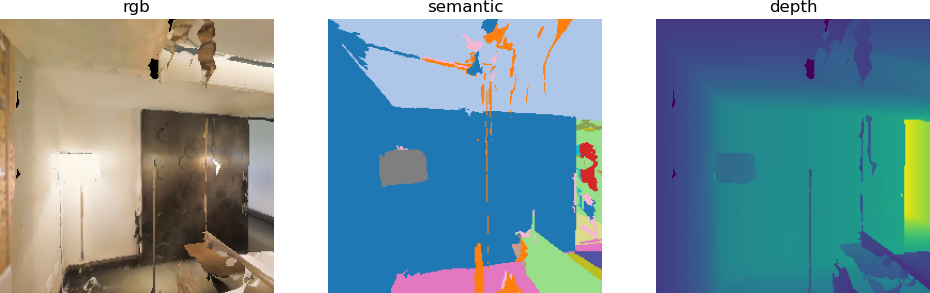
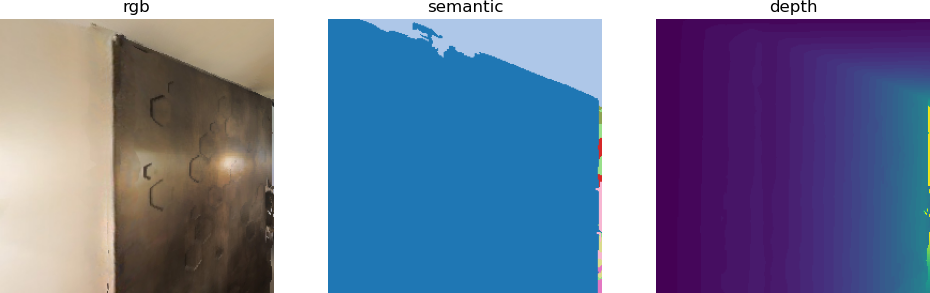
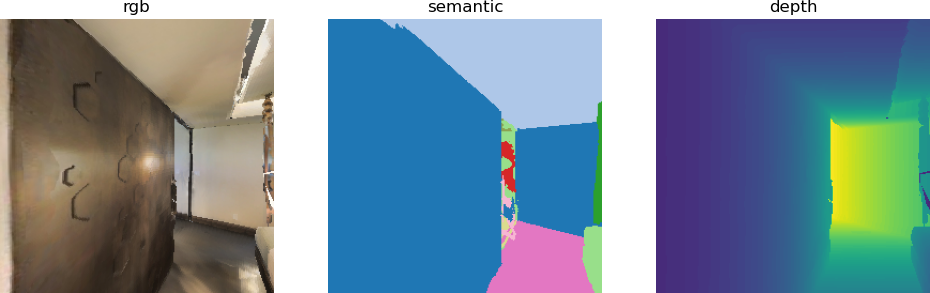
Step 4: Path point sensor observation and rendering
Traverse each point on the path, set the intelligent pose (position + orientation), obtain sensor observations, and visualize them:
pythondisplay_path_agent_renders = True
if display_path_agent_renders:
    print("Rendering observations at path points:")
    tangent = path_points[1] - path_points[0]
    agent_state = habitat_sim.AgentState()
    for ix, point in enumerate(path_points):
        if ix < len(path_points) - 1:
            # 更新朝向:指向当前点到下一个点的方向
            tangent = path_points[ix + 1] - point
            agent_state.position = point  # 设置智能体位置
            # 计算朝向矩阵(look_at:从当前点看向下一个点)
            tangent_orientation_matrix = mn.Matrix4.look_at(point, point + tangent, np.array([0, 1.0, 0]))
            # 转换为四元数(Habitat-Sim智能体旋转格式)
            tangent_orientation_q = mn.Quaternion.from_matrix(tangent_orientation_matrix.rotation())
            agent_state.rotation = utils.quat_from_magnum(tangent_orientation_q)
            agent.set_state(agent_state)  # 应用智能体位姿

            # 获取传感器观测
            observations = sim.get_sensor_observations()
            rgb = observations["color_sensor"]
            semantic = observations["semantic_sensor"]
            depth = observations["depth_sensor"]

            # 渲染并显示观测结果
            if display:
                display_sample(rgb, semantic, depth)
Core logic:
- Traverse the path points (except the last one), and set the agent position for each point;
- Calculate the orientation: ensure the agent always faces the next point on the path (generate the orientation matrix using mn.Matrix4.look_at);
- Convert the orientation matrix into quaternions (the standard format for Habitat-Sim agent rotation);
- After applying the pose, obtain RGB, depth, and semantic sensor data, and call display_sample to render the display.
The final top view and first-person perspective results are as follows:
The top view is as follows:
The first-person view of the robot operation is as follows:
References: