
RDK X5 Beginner’s Guide: From System Burning to YOLO Object Recognition
Table of Contents
- RDK X5 Super Beginner Tutorial: From System Flashing to YOLO Object Recognition
How to Purchase
The first step is to buy the board! You can go to the RDK official website to make a purchase.
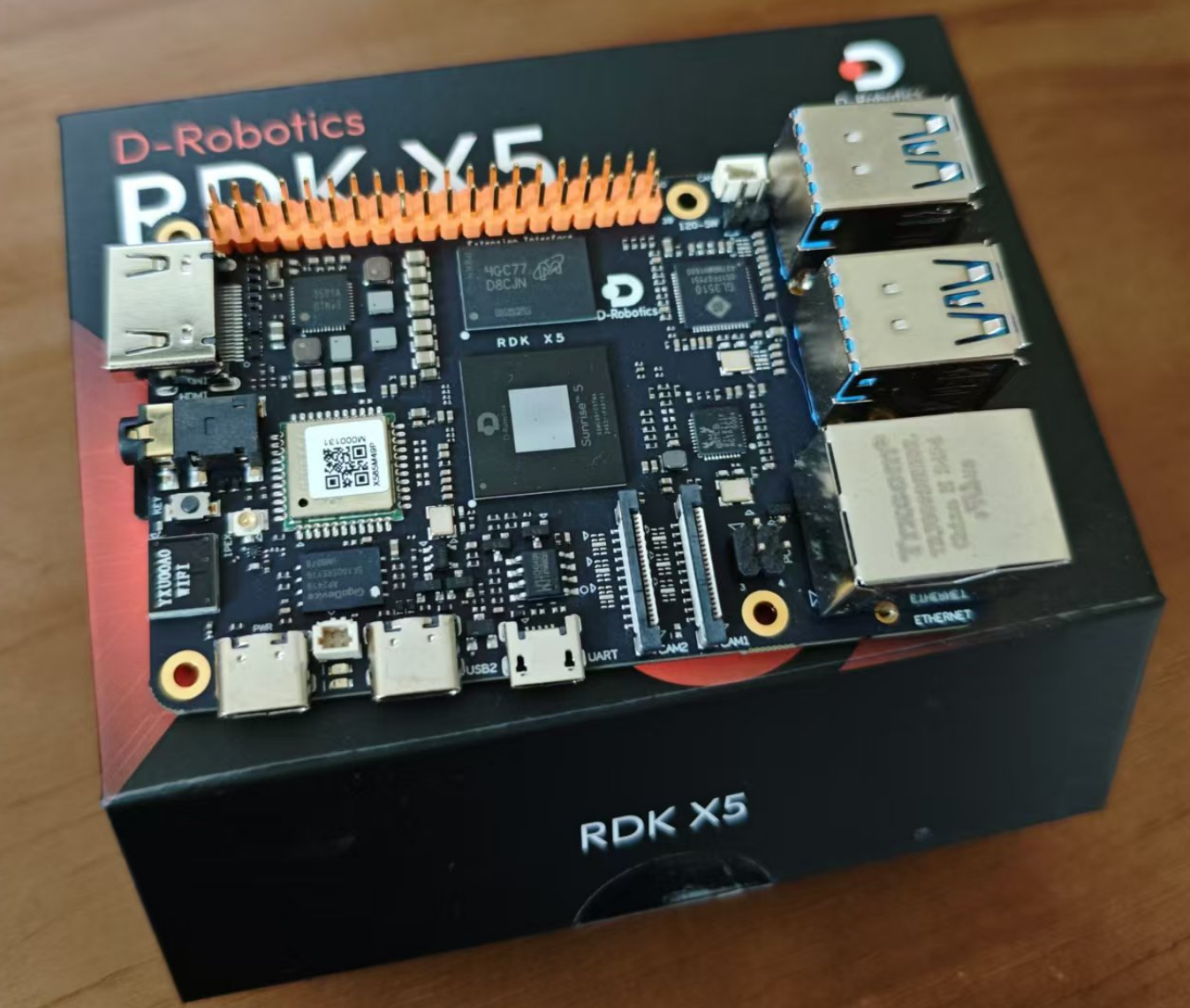
The boards received will come with a box, which is very beautiful:
RDK X5 Specifications
| Component | Parameter |
|---|---|
| CPU | 8x A55 @ 1.5GHz |
| RAM | 4GB / 8GB LPDDR4 |
| BPU | 10 TOPS |
| GPU | 32 GFlops |
| Storage | Use an external Micro SD card for storage (to be purchased separately) |
| Multimedia | H.265 (HEVC) Main Profile @ L5.1, H.264 (AVC) Baseline/Constrained Baseline/Main/High Profiles @ L5.2 with SVC-T encoding, H.265/H.264 encoding and decoding up to 3840x2160@60fps |
RDK X5 provides function interfaces such as network ports, USB, cameras, LCD, HDMI, CANFD, and 40PIN, which facilitate users in developing and testing applications like image multimedia and deep learning algorithms. The interface layout of the development board is as follows:
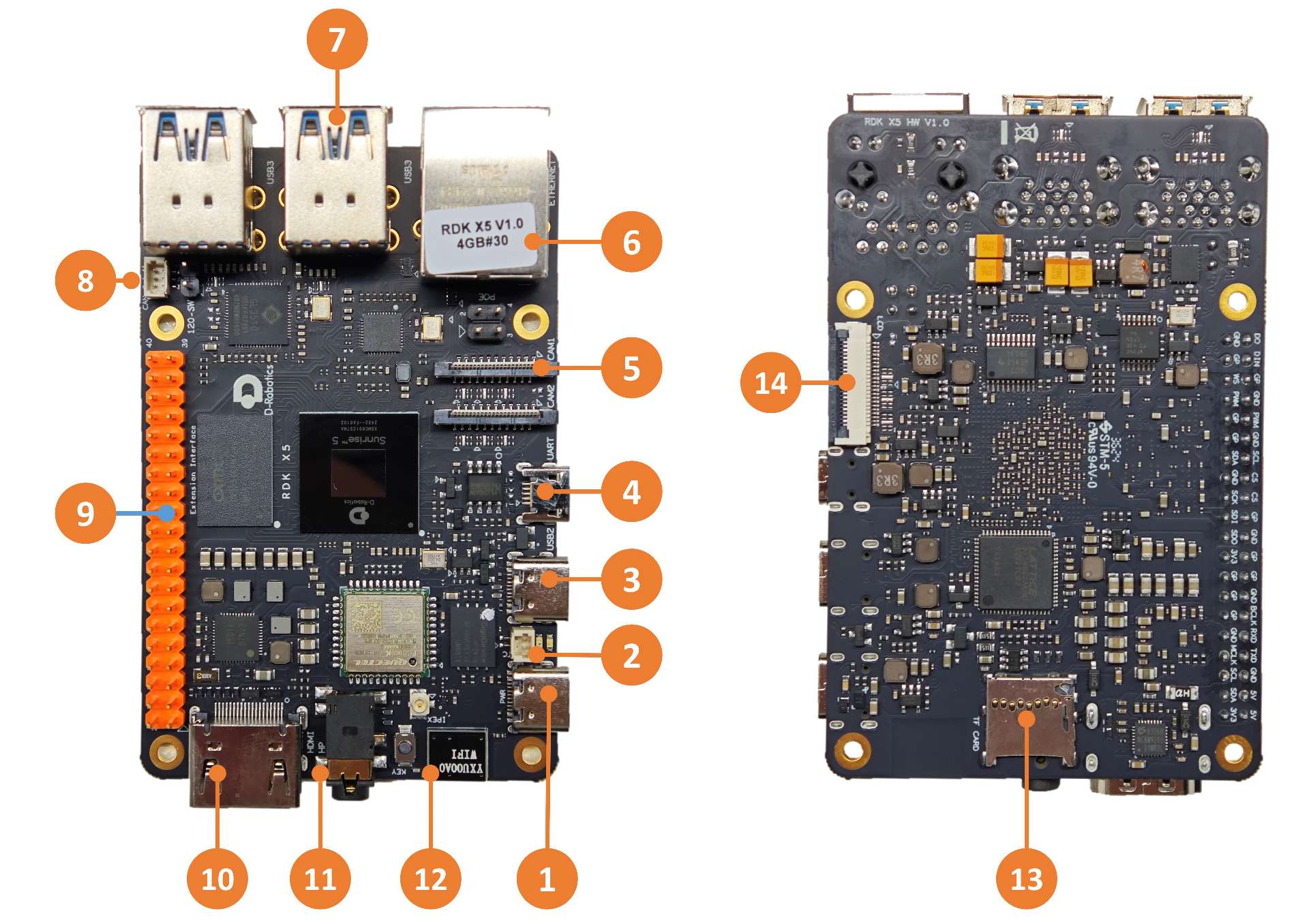
| Serial No. | Function | Serial No. | Function | Serial No. | Function |
|---|---|---|---|---|---|
| 1 | Power interface (USB Type-C) | 2 | RTC battery interface | 3 | Easy connection port (USB Type-C) |
| 4 | Debug serial port (Micro USB) | 5 | 2-channel MIPI Camera interface | 6 | Gigabit Ethernet port, supports POE |
| 7 | 4-channel USB 3.0 Type A interface | 8 | CAN FD high-speed interface | 9 | 40PIN interface |
| 10 | HDMI display interface | 11 | Multi-standard compatible headphone jack | 12 | On-board Wi-Fi antenna |
| 13 | TF card interface (bottom) | 14 | LCD display interface (MIPI DSI) |
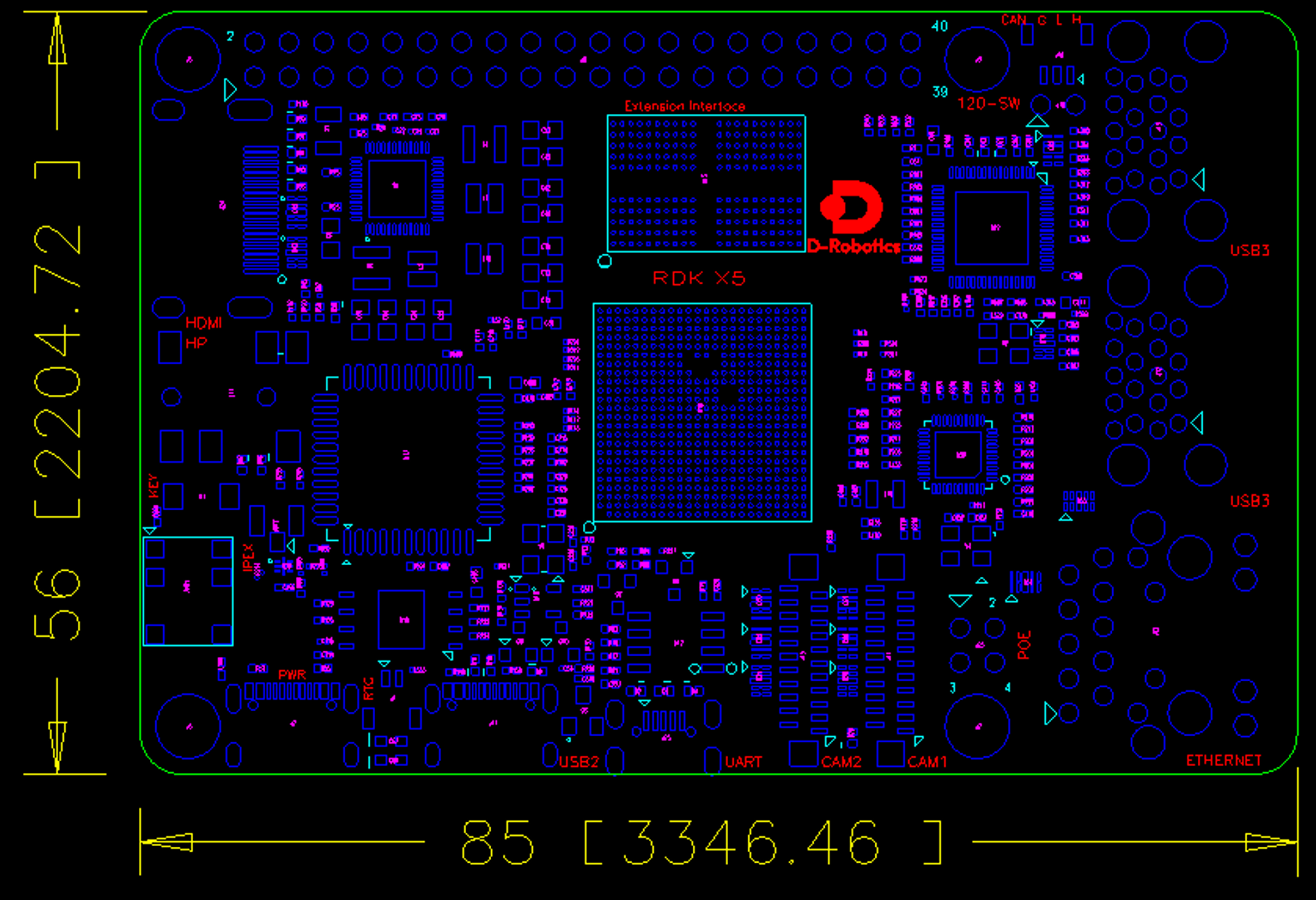
Mechanical dimensions:
System Burning In
Burn-in Preparation
Power Supply
The RDK X5 development board is powered via the USB Type-C interface. A power adapter supporting 5V/3A is required to supply power to the board.
[!NOTE]
Do not use the computer USB port to power the development board, otherwise insufficient power supply may cause abnormal conditions such as abrupt power off and repeated restarts of the development board.
Storage
The RDK X5 development board uses a Micro SD memory card as the system boot medium. It is recommended to use a memory card with a capacity of at least 8GB to meet the storage requirements of the Ubuntu system and application software.
[!IMPORTANT]
For the model of the SD card selected, refer to the price of 1 yuan/1G. I have encountered cases where buying a cheaper one caused system startup failures!
Display
The RDK X5 development board supports the HDMI display interface. By connecting the development board and monitor with an HDMI cable, a graphical desktop display can be achieved.
Network Connection
The RDK X5 development board supports two network interfaces: Ethernet and Wi-Fi. Users can achieve network connection via either interface.
System burning
The RDK suite currently provides an Ubuntu 22.04 system image, which supports desktop graphical interaction.
[!NOTE]
The RDK X5 Module is pre-burned with a test version of the system image. To ensure you use the latest version of the system, recommends referring to this document to burn the latest version of the system image .
Image Download
Click to download the image, then enter the version selection page. Select the corresponding version directory, and go to the 3.1.0 version system download page.
After the download is completed, extract the Ubuntu system image file, such as rdk-x5-ubuntu22-preinstalled-desktop-3.1.0-arm64.img.
[!TIP]
desktop: Ubuntu system with a desktop, allowing external screen and mouse manipulationserver: Ubuntu system without a desktop, which can be operated remotely via serial port or network
System Burning In
Before burning the Ubuntu system image, the following preparations are required:
- Prepare at least
8GBMicro SD card capacity - SD card reader
- Download image burning toolbalenaEtcher,balenaEtcher It is a PC-based boot disk creation tool that supports multiple platforms such as Windows/Mac/Linux. It uses a lightweight image burning tool. Rufus It’s also acceptable.
The process of creating an SD boot card is as follows:
- Open the balenaEtcher tool, click the
Flash from filebutton, and select therdk-x5-ubuntu22-preinstalled-desktop-3.1.0-arm64.imgfile extracted for use as the burning image.
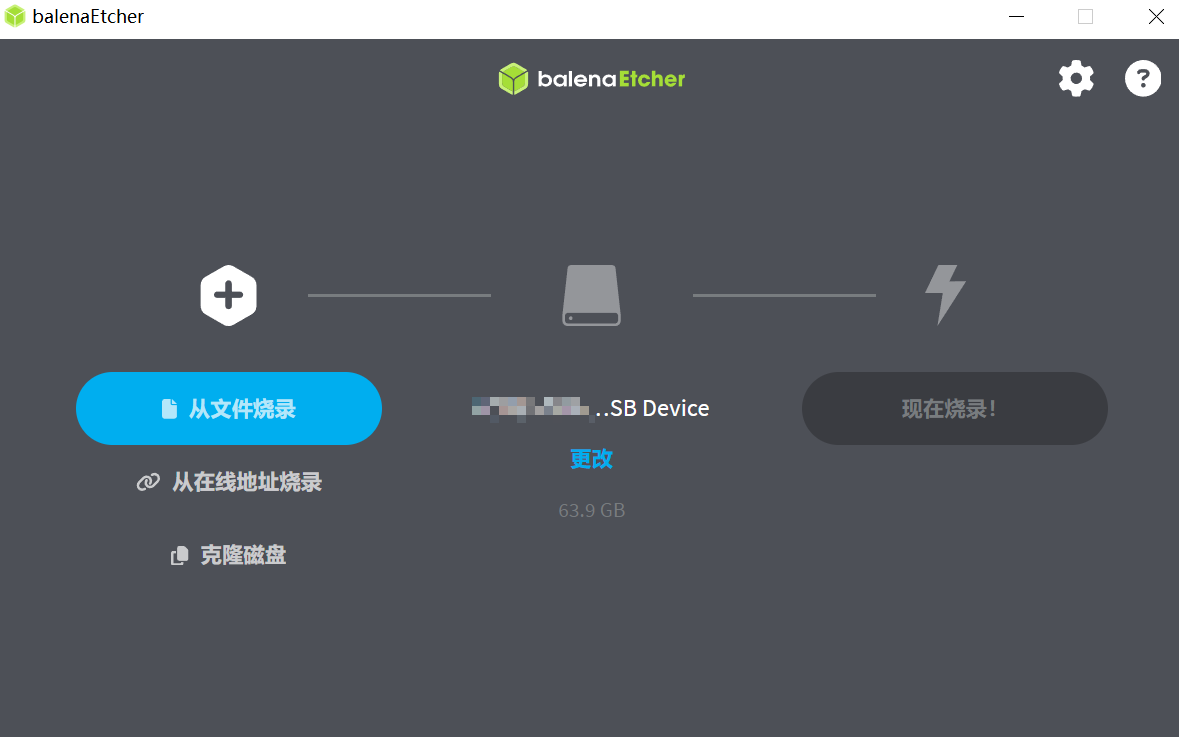
- Click the
Select targetbutton and select the corresponding Micro SD card as the target storage device.
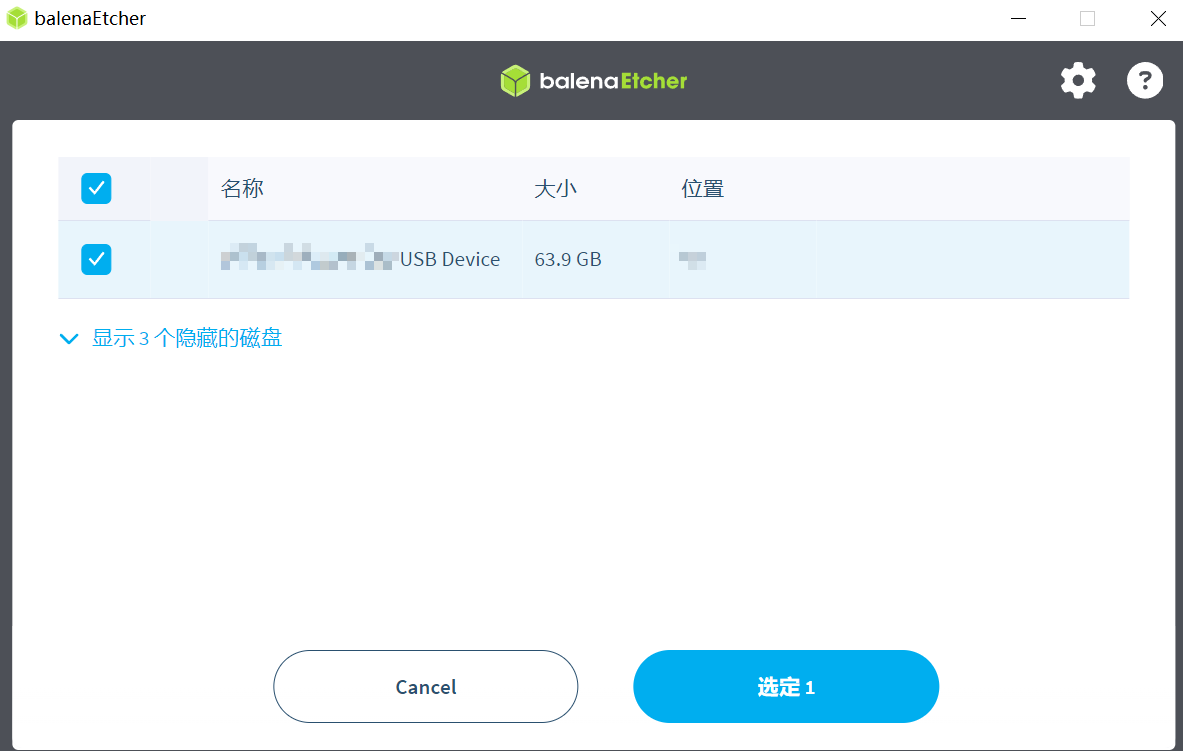
- Click the
现在烧录button to start burning.
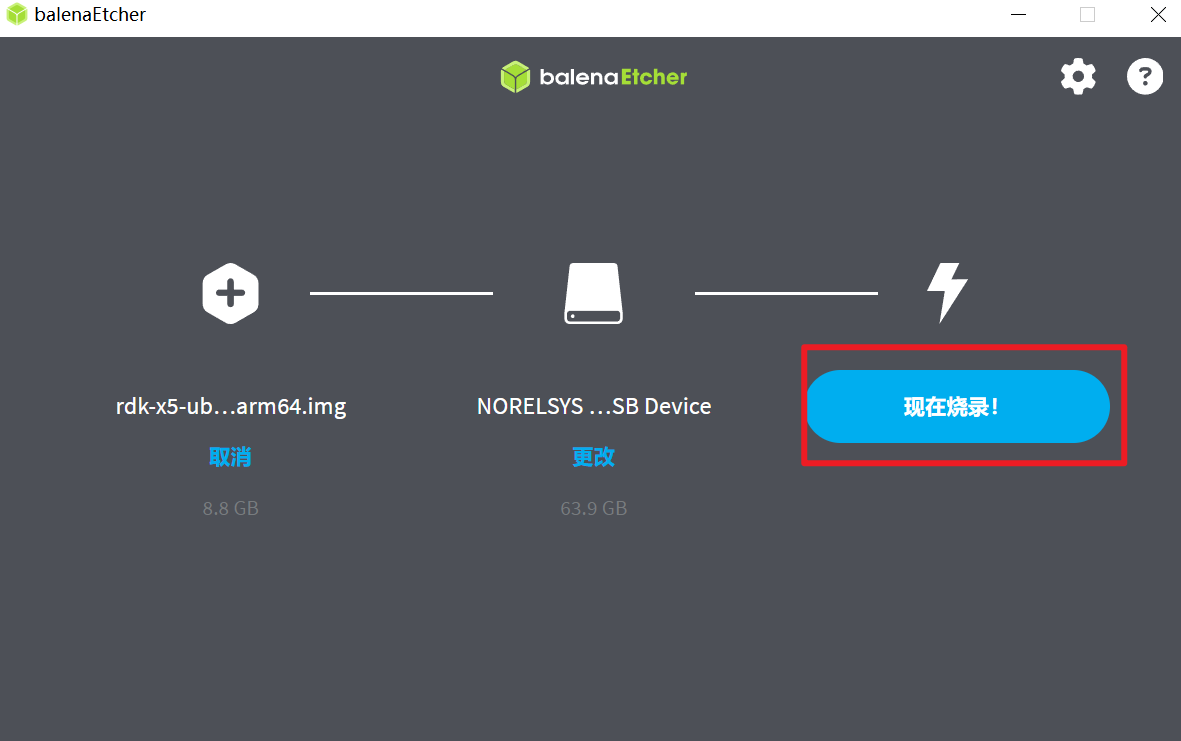
- Wait for the burning and verification to complete.
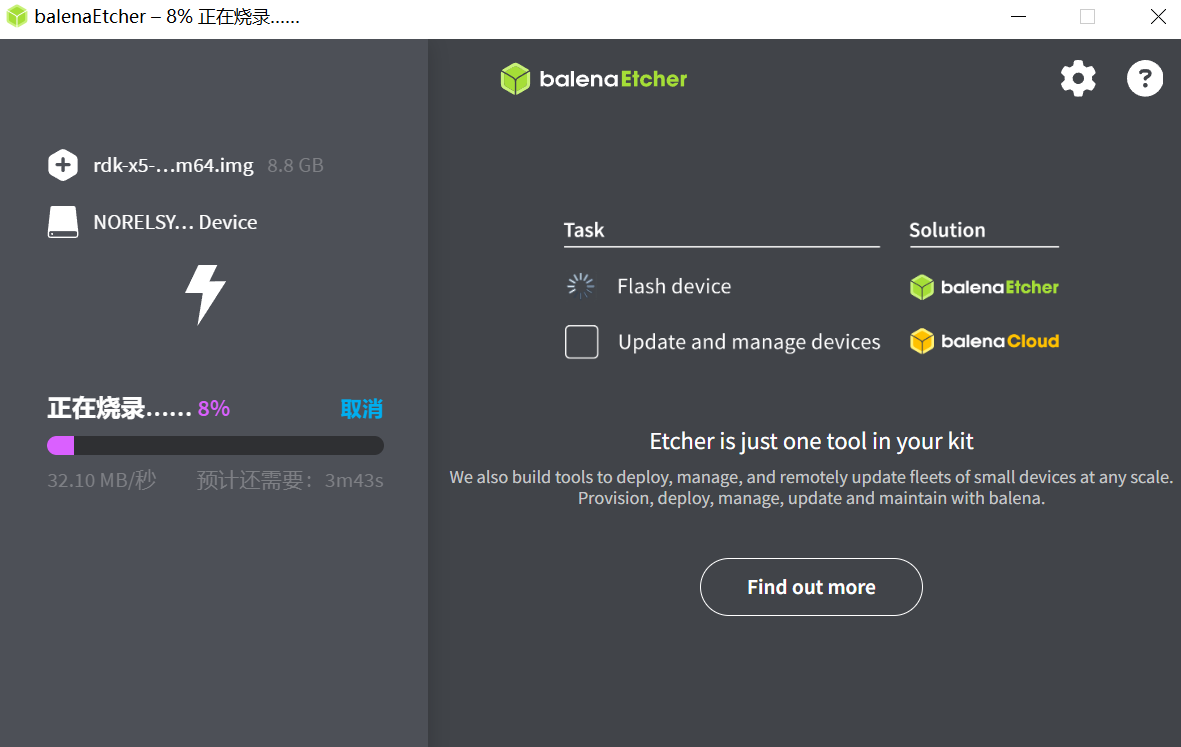
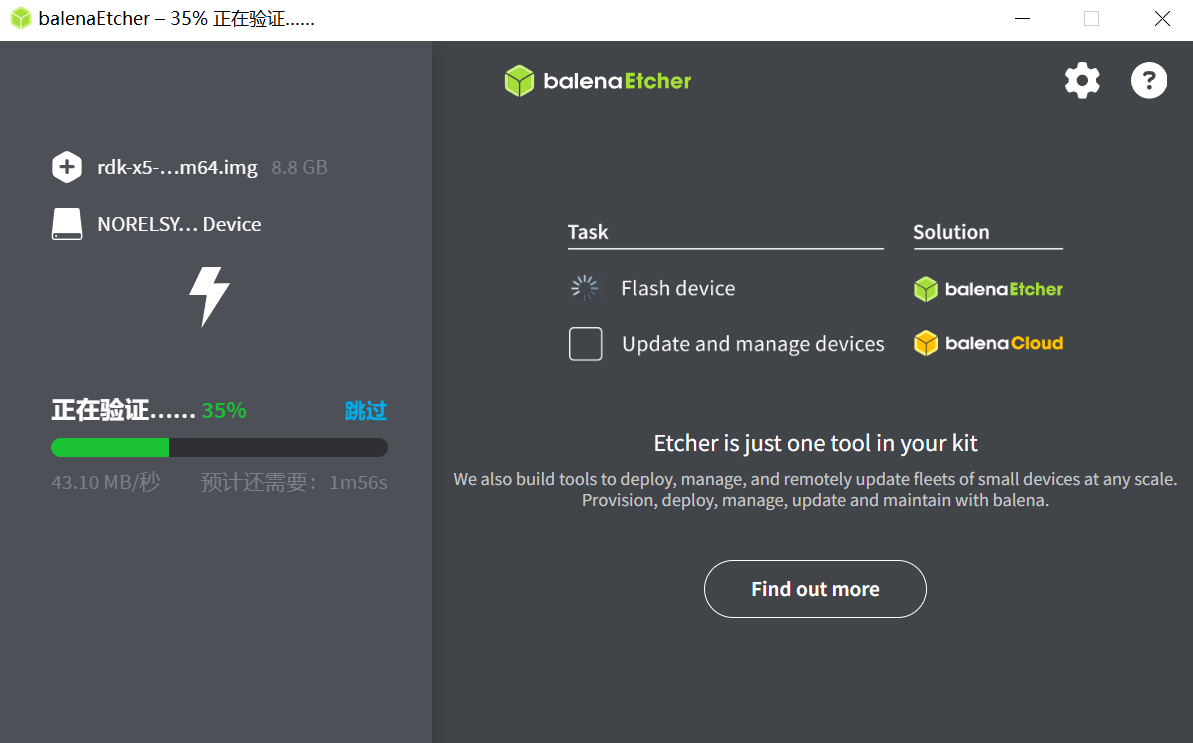
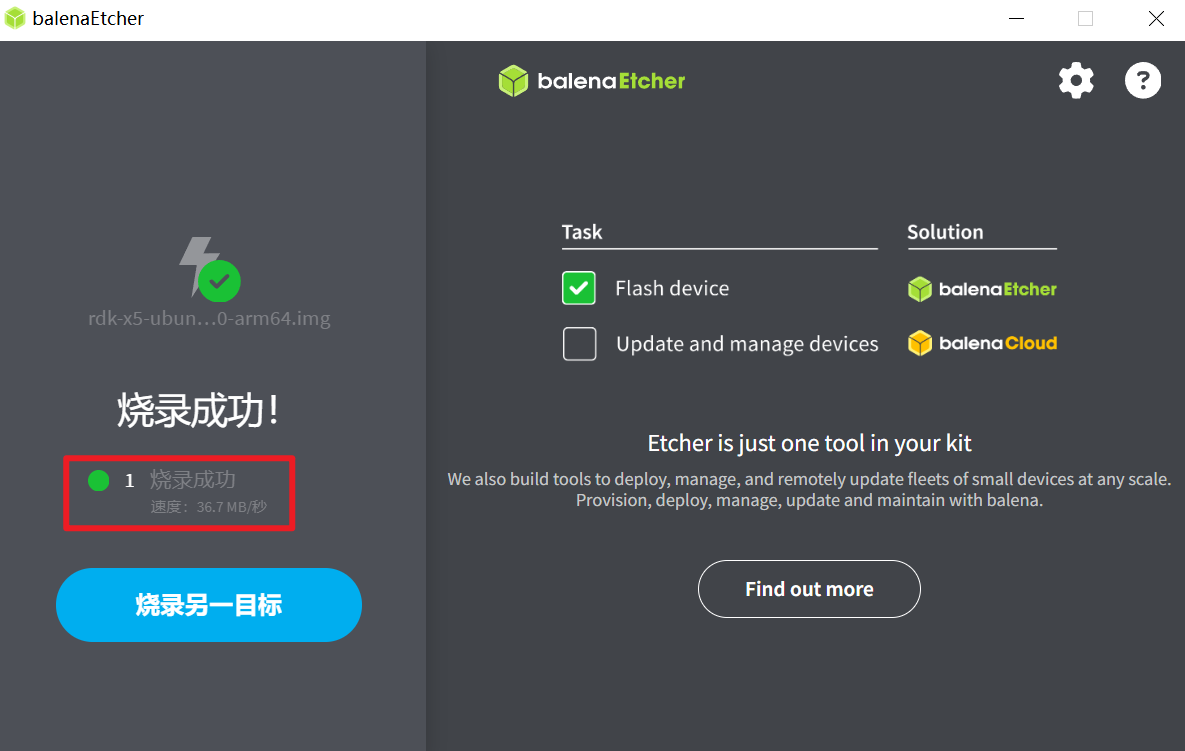
- When the tooltip
烧录成功appears, it indicates that the image burning is complete. You can turn offbalenaEtcherand remove the memory card.
Startup System
First, keep the development board off power. Then insert the prepared memory card into the Micro SD slot of the development board, connect the development board to the monitor via the HDMI cable, and finally power on the development board.
When the system is started for the first time, the default environment configuration is performed. The entire process takes about 45 seconds. After the configuration is complete, the Ubuntu system desktop will be displayed on the monitor, as shown in the following figure:
[!TIP] Explanation of LED indicators on the development board green indicator light: On indicates that the hardware is powered on properly.
If the output does not appear after the development board is powered on for a long time (more than 2 minutes), it means the board started abnormally. Debugging is required via the serial line to check if the board is functioning correctly.
If no monitor is connected, check whether there is an orange light near the green power light. If it is on, it means the system is up and you can start using it!
Common Questions
Common issues when using the development board for the first time are as follows:
- does not power on upon connection : Please ensure that the adapter recommended in is used to supply power ; also, make sure the Micro SD card of the development board has been burned with the Ubuntu system image.
- uses a hot-plug Micro SD card : The development board does not support hot-plugging of Micro SD cards. If an error occurs, please restart the development board.
[!WARNING] Precautions
- Prohibited to plug or unplug any device except USB, HDMI, and network cables when the device is powered on
- The Type-C USB port of RDK X5 is used only for power supply
- Use a USB Type-C power cable from a reputable brand; otherwise, abnormal power supply may occur, leading to system power loss
YOLO Algorithm Testing
This example mainly implements the following functions:
- Load the
yolov5s_672x672_nv12object detection model. - Read the
kite.jpgstatic image as input for the model. - Analyze the algorithm results and render the detection outcomes.
Running Method
The complete code and test data for this example are installed in the /app/pydev_demo/07_yolov5_sample/ directory. Run it by executing the following command:
shellcd /app/pydev_demo/07_yolov5_sample/
sudo python3 ./test_yolov5.py
After successful execution, the target detection result will be output.
bashbbox: [593.949768, 80.819038, 672.215027, 147.131607], score: 0.856997, id: 33, name: kite
bbox: [215.716019, 696.537476, 273.653442, 855.298706], score: 0.852251, id: 0, name: person
bbox: [278.934448, 236.631256, 305.838867, 281.294922], score: 0.834647, id: 33, name: kite
bbox: [115.184196, 615.987, 167.202667, 761.042542], score: 0.781627, id: 0, name: person
bbox: [577.261719, 346.008453, 601.795349, 370.308624], score: 0.705358, id: 33, name: kite
bbox: [1083.22998, 394.714569, 1102.146729, 422.34787], score: 0.673642, id: 33, name: kite
bbox: [80.515938, 511.157104, 107.181572, 564.28363], score: 0.662, id: 0, name: person
bbox: [175.470078, 541.949219, 194.192871, 572.981812], score: 0.623189, id: 0, name: person
bbox: [518.504333, 508.224396, 533.452759, 531.92926], score: 0.597822, id: 0, name: person
bbox: [469.970398, 340.634796, 486.181305, 358.508972], score: 0.5593, id: 33, name: kite
bbox: [32.987705, 512.65033, 57.665741, 554.898804], score: 0.508812, id: 0, name: person
bbox: [345.142609, 486.988464, 358.24762, 504.551331], score: 0.50672, id: 0, name: person
bbox: [530.825439, 513.695679, 555.200256, 536.498352], score: 0.459818, id: 0, name: person
And output the rendering result to the output_image.jpg file, as shown in the following figure:
Camera Applications
Local storage of camera images
This example vio_capture implements MIPI camera image capture and the function of locally saving images in RAW and YUV formats. The flowchart of the example is as follows:
Environment Preparation
- When the development board is powered off, connect the
MIPIcamera to the development board. - Connect the development board and monitor via HDMI cable.
- Power on the development board and log in via command line.
Running Method
The sample code is provided in source code format. It needs to be compiled using the make command and then run. The steps are as follows:
bashsunrise@ubuntu:~$ cd /app/cdev_demo/vio_capture/
sunrise@ubuntu:/app/cdev_demo/vio_capture$ sudo make
sunrise@ubuntu:/app/cdev_demo/vio_capture$ sudo ./capture -b 16 -c 10 -h 1080 -w 1920
Parameter descriptions:
-b: Number of RAW imagesbit,IMX219/IMX477/OV5647are set to16, and only a very small number of Camera Sensors require being set to8-c: Number of saved images-w: Width of the saved image-h: Height of the saved image
Expected Results
After the program runs correctly, a specified number of image files are saved in the current directory. Files in RAW format are named in raw_*.raw format, and those in YUV format are named in yuv_*.yuv format. The running log is as follows:
bashsunrise@ubuntu:/app/cdev_demo/vio_capture$ sudo ./capture -b 16 -c 10 -h 1080 -w 1920
Camera 0:
        i2c_bus: 6
        mipi_host: 0
Camera 1:
        i2c_bus: 4
        mipi_host: 2
Camera 2:
        i2c_bus: 0
        mipi_host: 0
Camera 3:
        i2c_bus: 0
        mipi_host: 0
mipi mclk is not configed.
Searching camera sensor on device: /proc/device-tree/soc/cam/vcon@0 i2c bus: 6 mipi rx phy: 0
INFO: Found sensor name:imx219-30fps on mipi rx csi 0, i2c addr 0x10, config_file:linear_1920x1080_raw10_30fps_2lane.c
2024/12/14 12:38:17.478 !INFO [CamInitParam][0279]Setting VSE channel-0: input_width:1920, input_height:1080, dst_w:1920, dst_h:1080
2024/12/14 12:38:17.479 !INFO [CamInitParam][0279]Setting VSE channel-1: input_width:1920, input_height:1080, dst_w:1920, dst_h:1080
2024/12/14 12:38:17.479 !INFO [vp_vin_init][0041]csi0 ignore mclk ex attr, because mclk is not configed at device tree.
... 省略 ...
capture time :0
temp_ptr.data_size[0]:4147200
capture time :1
temp_ptr.data_size[0]:4147200
capture time :2
temp_ptr.data_size[0]:4147200
capture time :3
temp_ptr.data_size[0]:4147200
capture time :4
temp_ptr.data_size[0]:4147200
... 省略 ...
Saved files:
bash-rw-r--r-- 1 root video 4147200 Dec 14 12:38 raw_0.raw
-rw-r--r-- 1 root video 4147200 Dec 14 12:38 raw_1.raw
-rw-r--r-- 1 root video 4147200 Dec 14 12:38 raw_2.raw
-rw-r--r-- 1 root video 4147200 Dec 14 12:38 raw_3.raw
-rw-r--r-- 1 root video 4147200 Dec 14 12:38 raw_4.raw
-rw-r--r-- 1 root video 4147200 Dec 14 12:38 raw_5.raw
-rw-r--r-- 1 root video 4147200 Dec 14 12:38 raw_6.raw
-rw-r--r-- 1 root video 4147200 Dec 14 12:38 raw_7.raw
-rw-r--r-- 1 root video 4147200 Dec 14 12:38 raw_8.raw
-rw-r--r-- 1 root video 4147200 Dec 14 12:38 raw_9.raw
-rw-r--r-- 1 root video 3110400 Dec 14 12:38 yuv_0.yuv
-rw-r--r-- 1 root video 3110400 Dec 14 12:38 yuv_1.yuv
-rw-r--r-- 1 root video 3110400 Dec 14 12:38 yuv_2.yuv
-rw-r--r-- 1 root video 3110400 Dec 14 12:38 yuv_3.yuv
-rw-r--r-- 1 root video 3110400 Dec 14 12:38 yuv_4.yuv
-rw-r--r-- 1 root video 3110400 Dec 14 12:38 yuv_5.yuv
-rw-r--r-- 1 root video 3110400 Dec 14 12:38 yuv_6.yuv
-rw-r--r-- 1 root video 3110400 Dec 14 12:38 yuv_7.yuv
-rw-r--r-- 1 root video 3110400 Dec 14 12:38 yuv_8.yuv
-rw-r--r-- 1 root video 3110400 Dec 14 12:38 yuv_9.yuv
ROS Applications
Feature Introduction
In this example, the YOLOv8 object detection algorithm is used to subscribe to images published by the MIPI camera. After algorithmic inference, the algorithm msg is generated, and through the WebSocket package, the published images and corresponding algorithm results are rendered and displayed in a browser on the PC.
The model is trained using the COCO dataset . The supported object detection types include 80 categories such as humans, animals, fruits, and vehicles.
Code repository: https://github.com/D-Robotics/hobot_dnn
Implementation Steps
bash# 配置tros.b环境
source /opt/tros/humble/setup.bash

# 配置MIPI摄像头
export CAM_TYPE=mipi

# 启动launch文件
ros2 launch dnn_node_example dnn_node_example.launch.py dnn_example_config_file:=config/yolov8workconfig.json dnn_example_image_width:=640 dnn_example_image_height:=640
The terminal will output the following log:
bash[example-3]  model_name:
[example-3] [WARN] [1734150496.829080954] [dnn_example_node]: model_file_name_: /opt/hobot/model/x5/basic/yolov8_640x640_nv12.bin, task_num: 4
[example-3] [BPU_PLAT]BPU Platform Version(1.3.6)!
[example-3] [HBRT] set log level as 0. version = 3.15.54.0
[example-3] [DNN] Runtime version = 1.23.10_(3.15.54 HBRT)
[example-3] [A][DNN][packed_model.cpp:247][Model](../../03-机器人硬件、lerobot及地瓜RDK-X5开发板控制教程/2024-12-14,12:28:16.917.894) [HorizonRT] The model builder version = 1.23.6
[example-3] [WARN] [1734150497.032746099] [dnn_example_node]: Get model name: yolov8n_640x640_nv12 from load model.
[example-3] [WARN] [1734150497.032959099] [dnn_example_node]: Create ai msg publisher with topic_name: hobot_dnn_detection
[example-3] [WARN] [1734150497.046993438] [dnn_example_node]: Create img hbmem_subscription with topic_name: /hbmem_img
[mipi_cam-1] [WARN] [1734150499.038839668] [mipi_cam]: [init]->cap F37 init success.
[mipi_cam-1]
[mipi_cam-1] [WARN] [1734150499.039121668] [mipi_cam]: Enabling zero-copy
[example-3] [WARN] [1734150499.136643335] [dnn_example_node]: Loaned messages are only safe with const ref subscription callbacks. If you are using any other kind of subscriptions, set the ROS_DISABLE_LOANED_MESSAGES environment variable to 1 (the default).
[hobot_codec_republish-2] [WARN] [1734150499.136643251] [hobot_codec]: Loaned messages are only safe with const ref subscription callbacks. If you are using any other kind of subscriptions, set the ROS_DISABLE_LOANED_MESSAGES environment variable to 1 (the default).
[hobot_codec_republish-2] [WARN] [1734150499.136958250] [HobotVenc]: init_pic_w_: 640, init_pic_h_: 640, alined_pic_w_: 640, alined_pic_h_: 640, aline_w_: 16, aline_h_: 16
[example-3] [WARN] [1734150499.136956459] [dnn_example_node]: Recved img encoding: nv12, h: 640, w: 640, step: 640, index: 0, stamp: 1734150499_136107128, data size: 614400, comm delay [0.8273]ms
[example-3] [WARN] [1734150500.175391091] [dnn_example_node]: Sub img fps: 31.25, Smart fps: 31.25, pre process time ms: 3, infer time ms: 8, post process time ms: 4
[hobot_codec_republish-2] [WARN] [1734150500.259715501] [hobot_codec]: sub nv12 640x640, fps: 34.0136, pub jpeg, fps: 34.0136, comm delay [2.5714]ms, codec delay [4.4857]ms
[example-3] [WARN] [1734150501.195177356] [dnn_example_node]: Sub img fps: 30.36, Smart fps: 30.42, pre process time ms: 1, infer time ms: 7, post process time ms: 4
[hobot_codec_republish-2] [WARN] [1734150501.285234834] [hobot_codec]: sub nv12 640x640, fps: 30.2439, pub jpeg, fps: 30.2439, comm delay [0.0000]ms, codec delay [1.5806]ms
[example-3] [WARN] [1734150502.140048396] [dnn_example_node]: Recved img encoding: nv12, h: 640, w: 640, step: 640, index: 91, stamp: 1734150502_139378439, data size: 614400, comm delay [0.6543]ms
The output log shows that the topic representing the reasoning result of the publishing algorithm is hobot_dnn_detection, and the topic representing the subscribed image is /hbmem_img.
Enter http://IP:8000/TogetheROS/ in the browser on the PC to view the image and algorithm rendering results (IP is the IP address of RDK).
Conclusion
That’s all for this tutorial. Feel free to continue exploring 😁