
LeRobot Dual-Robot Remote Control System (Windows Main Arm + Linux Slave Arm)
This project provides a web-based SO-101 dual-arm remote manipulation system: the main arm (Leader) is connected to a Windows computer, and the local follower arm (Follower) is connected to a Linux server. The system utilizes the official HuggingFace LeRobot driver, supporting port detection, camera selection, CLI calibration, remote data upload of the main arm, and web-based remote manipulation.
Table of Contents
- System Composition and Dependencies
- Linux Server Environment Configuration
- Windows Main Arm Environment Configuration
- Startup and Web Interface Operations
- Calibration Instructions
- Remote Main Arm Data Upload
- Remote Operation Steps
- Common APIs
- Common Issues and Troubleshooting
System Composition and Dependencies
| Role | Content |
|---|---|
| Linux Server | Connect two SO-101 slave arms; run FastAPI + LeRobot; requires a Python environment (mamba/conda recommended). |
| Windows Host | Connect the two main arms; run the LeRobot CLI calibration/data upload script; requires Python3 + LeRobot source code. |
| Network | Windows and Linux must be on the same network segment or communicate with each other; web pages can be accessed via http://<Linux_IP>:8000. |
| Camera | Optional 3 channels (left wrist/right wrist/head), read using OpenCV. |
Note: Since the main arm is actually connected to Windows, if it is marked as “Remote”, the LeRobot environment needs to be configured separately on Windows, and calibration and data push scripts must be run.
Linux Server Environment Configuration
-
Prepare the LeRobot source code
bashgit clone https://github.com/huggingface/lerobot.git /home/sunrise/17robo/250602/lerobot pip install -e ".[feetech]" # 或使用已有版本,注意与 Windows 侧保持一致 -
Create and activate the Python environment (mamba is used in this example)
bashmamba create -n lerobot-latest python=3.10 -y mamba activate lerobot-latest pip install -r requirements.txt # 本仓库依赖 -
Start server script
bashcd /home/sunrise/lerobot_bimanual_remote
export LEROBOT_SRC=/home/sunrise/17robo/250602/lerobot  # 如路径不同请自行修改
./start_server.sh

#可以先找到bus位置,需要修改配置文件
#python lerobot/scripts/find_motors_bus_port.py
python lerobot/scripts/control_robot.py \
  --robot.type=so101 \
  --robot.cameras='{}' \
  --control.type=calibrate \
  --control.arms='["main_follower"]'
- The script will ask for the calibration folder (default:
.cache/calibration/so101_bimanual). - It automatically adds
LEROBOT_SRCtoPYTHONPATH, ensuring that LeRobot can be imported. - After starting, the terminal will display the access address, such as
http://192.168.1.100:8000.
Windows Main Arm Environment Configuration
- Install Python 3.10+. It is recommended to use Anaconda / Miniconda.
- Clone the LeRobot source code that is consistent with Linux:
powershell
git clone https://github.com/huggingface/lerobot.git C:\lerobot # 可以考虑git checkout user/michel-aractingi/2025-06-02-docs-for-hil-serl cd C:\lerobot pip install -e ".[feetech]" - Prepare the main arm connection according to the actual serial ports (
COM3,COM4, etc.). - The calibration and data push scripts are executed locally on Windows (see below for details).
Launch and Web Interface Operation Process
- Access the web page: Open
http://<Linux_IP>:8000in any browser. - Port identification:
- Windows main arm: Use Device Manager or PowerShell
Get-WmiObject Win32_SerialPortto findCOMx. - Linux slave arm: Perform plug/unplug identification in the web page “🔍 USB Port Detection”.
- Windows main arm: Use Device Manager or PowerShell
- Manual configuration: Fill in the four serial ports in “Manual Configuration” and click
Configure Ports. - Camera: If needed, click
Scan Cameras, select the corresponding index, andConfigure Cameras.
The status bar displays the connection status, calibration directory, and the current main arm source (Local / Remote).
Calibration Instructions
The system has a built-in LeRobot official calibration process, and the web button only triggers CLI commands.
-
Linux arm:
- In the “Calibration” section of the web page, click
CLI: Left Follower/CLI: Right Follower. - Immediately switch to the terminal running
start_server.sh, follow the prompts, and press Enter to confirm (Middle → Zero → Rotated → Rest, etc.). - After completion, files such as
left_follower.jsonwill be generated inCALIBRATION_DIR, and they will be automatically loaded into the bus.
- In the “Calibration” section of the web page, click
-
Windows main arm (Remote mode):
- Run in a Windows terminal:
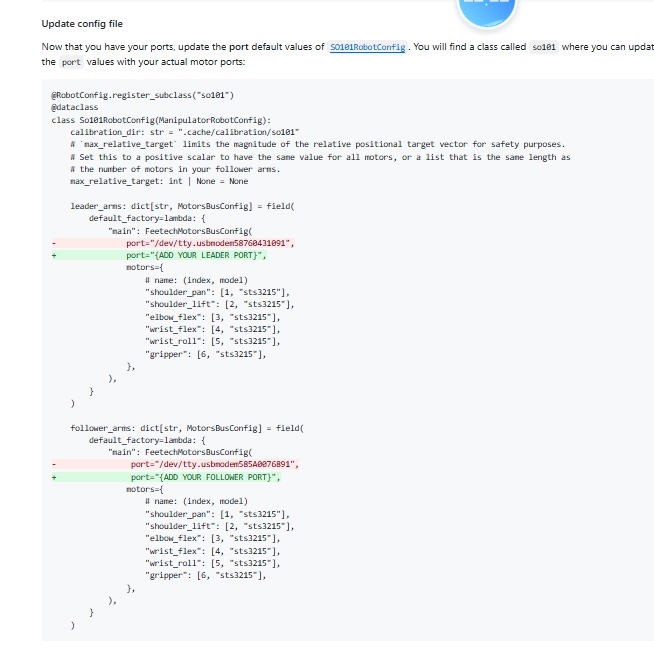
- The code needs to be modified at this point:
- After modifying the code for each calibration, there is no need to re-pip install:

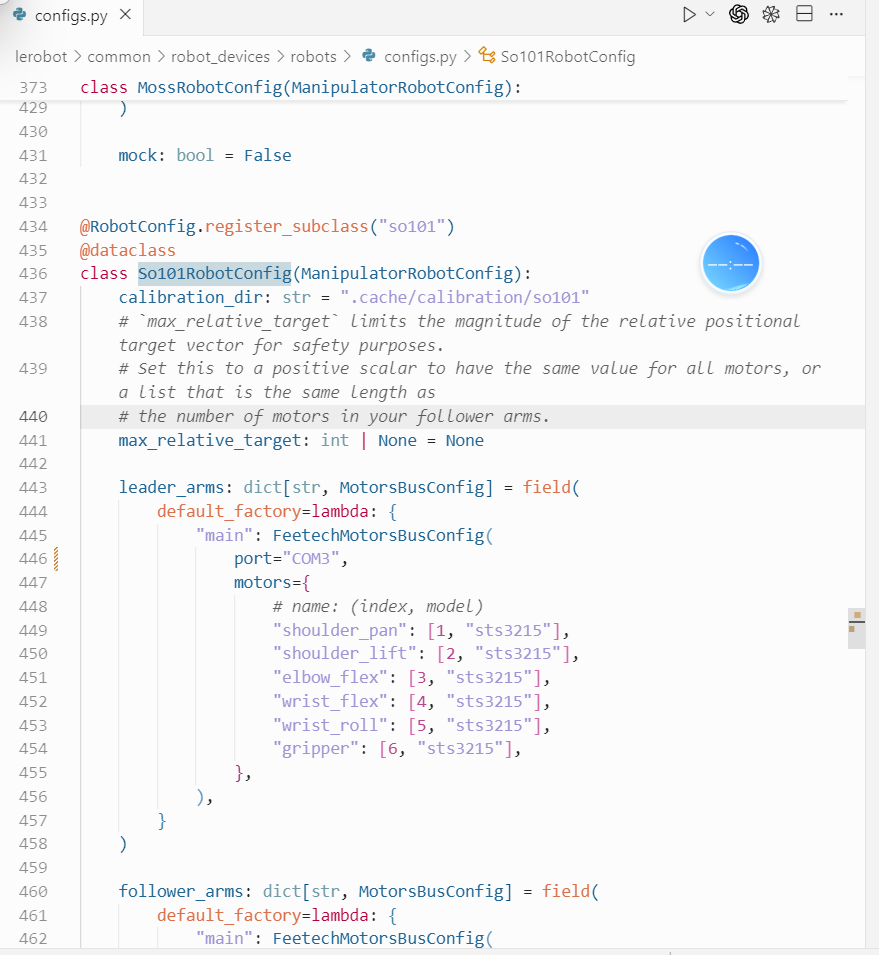
Here, we have two main arms: COM3 on the left and COM4 on the right. Therefore, it needs to be changed twice.

My configuration is:
Left COM3, Right COM4 From left arm: left/dev/ttyACM1, right/dev/ttyACM0

 ```powershell
 1 file changed
 +24
 -4
 control_configs.py
 +24
 -4

 # See the License for the specific language governing permissions and
 # limitations under the License.
 - from dataclasses import dataclass, field
 + import json
 + from dataclasses import dataclass
 from pathlib import Path
 import draccus
 @ControlConfig.register_subclass("calibrate")
 @dataclass
 - class CalibrateControlConfig(ControlConfig):
 -     # List of arms to calibrate (e.g. `--arms='["left_follower","right_follower"]' left_leader`)
 -     arms: list[str] | None = field(default=None, metadata={"nargs": "*"})
 class CalibrateControlConfig(ControlConfig):
     # List of arms to calibrate (e.g. `--arms='["left_follower","right_follower"]' left_leader`)
     arms: list[str] | str | None = None
     def __post_init__(self):
         if self.arms is None:
             return
         if isinstance(self.arms, str):
             arm_spec = self.arms.strip()
             if arm_spec.startswith("[") and arm_spec.endswith("]"):
                 try:
                     parsed = json.loads(arm_spec)
                 except json.JSONDecodeError:
                     items = [s.strip().strip('"').strip("'") for s in arm_spec[1:-1].split(",")]
                 else:
                     items = parsed if isinstance(parsed, list) else [parsed]
                 self.arms = [str(item) for item in items if str(item)]
             else:
                 self.arms = [arm_spec]
         else:
             self.arms = list(self.arms)
 @ControlConfig.register_subclass("teleoperate")

 ```
- After completing the calibration as prompted, copy the generated
main_leader.jsontoCALIBRATION_DIRon the Linux server (the name should correspond toleft_leader.json/right_leader.json). - If the main arm is marked as local (not Remote), you can directly run the corresponding button on the Linux side.
Summary: As long as the main arm is actually connected to Windows, the above Windows CLI calibration is essential; otherwise, the secondary arm cannot correctly follow the zero position of the main arm.
Remote main arm data upload
During remote manipulation, it is necessary to continuously upload the real-time joint angles of the main arm (unit: degrees). Common practice:
-
HTTP loop push
pythonimport requests LINUX_SERVER = "http://192.168.1.100:8000" def push_leader(side, positions): requests.post( f"{LINUX_SERVER}/api/leader/update", json={"arm": f"{side}_leader", "positions": positions}, timeout=1.0, ) # 示例(请替换为实际编码器读取值) push_leader("left", { "shoulder_pan": 10.5, "shoulder_lift": -20.3, "elbow_flex": 45.0, "wrist_flex": 5.0, "wrist_roll": 0.0, "gripper": 20.0, }) -
WebSocket push (connecting to
ws://<Linux_IP>:8000/ws/control):json{"type": "leader_state", "arm": "left_leader", "positions": {"shoulder_pan": 10.5, ...}}
No matter which method is used, it is necessary to maintain synchronization with the main arm hardware for reading. It is recommended to refer to the implementation of control_robot.py --control.type=teleoperate on Windows side and directly obtain Present_Position.
Remote Manipulation Steps
- Complete the calibration of the four arms (and ensure the calibration file exists in
CALIBRATION_DIR). - Launch the main arm data push script (HTTP or WebSocket) on Windows.
- Click
Connect Robot→Start Teleoperationon the web page. - After the status changes to “Teleoperation: Active”, move the main arm to observe the synchronized motion of the slave arm; the video area displays images from three cameras.
- At the end, click
Stop Teleoperation, thenDisconnect Robot.
Common APIs
http# 相机
GET  /api/list_cameras              # 扫描可用相机
POST /api/configure/cameras         # 设置相机索引

# 端口检测
POST /api/detect_port/start
POST /api/detect_port/check_unplug
POST /api/detect_port/check_plug
POST /api/detect_port/cancel

# 校准
POST /api/calibrate/{arm}           # 触发 CLI 校准(阻塞直到完成)
GET  /api/motor_positions/{arm}     # 查询当前关节角(用于调试)

# 机器人控制
POST /api/connect
POST /api/disconnect
POST /api/teleoperate/start
POST /api/teleoperate/stop
GET  /api/status                    # 查询连接/校准/主臂来源状态

# 主臂数据接入
POST /api/leader/update             # HTTP 推送主臂角度
WS   /ws/control                    # WebSocket(支持 teleoperate_step、leader_state、get_state)
Common Issues and Troubleshooting
| Issue | Handling Suggestions |
|---|---|
ImportError: No module named lerobot |
Verify that the LEROBOT_SRC path is correct, and run export LEROBOT_SRC=/path/to/lerobot before starting start_server.sh. |
| Web page calibration has no response | The web page indicates it is deprecated—use the CLI button instead and follow the prompts in the terminal. |
| Main arm movement from no motion | Check: Has the four-arm calibration been completed? Is the main arm push script running? Does /api/status display Leader Source: Left Remote and other information? |
| Data push anomaly | Review /api/leader/update or WebSocket errors in the server logs, and confirm that the JSON fields arm/positions are correct. |
| Camera black screen | Confirm the camera index, resolution, and USB bandwidth; enable only the necessary cameras if needed. |
| Port access denied | Execute sudo chmod 666 /dev/ttyACM* on Linux or add to the dialout group; ensure the serial port is not occupied by other programs on Windows. |
If further debugging is needed, you can directly run the LeRobot CLI command (e.g., control_robot.py --control.type=teleoperate) to verify whether the hardware communication is normal.
After completing the above steps, you can use a web interface to perform SO-101 dual-arm remote teleoperation: the Windows master arm is responsible for collecting and pushing status, while the Linux slave arm follows in real time via LeRobot driver.