
# create conda env
conda create -n py310-robosuite python=3.10
conda activate py310-robosuite

# install robosuite
git clone https://github.com/box2ai-robotics/robosuite-joycon.git
cd robosuite-joycon
pip3 install -r requirements.txt
pip3 install -r requirements-extra.txt

# install joycon-robotics
cd ..
git clone https://github.com/box2ai-robotics/joycon-robotics.git
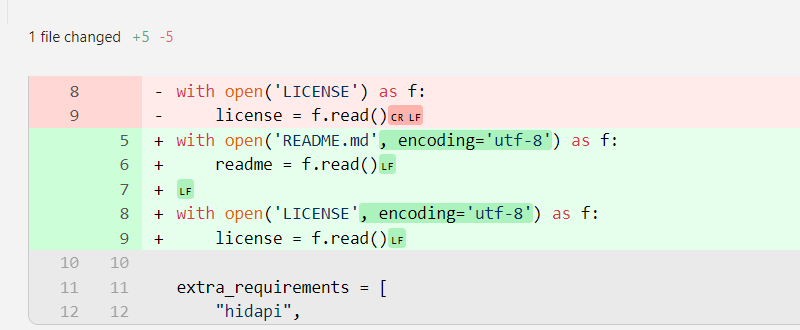
cd joycon-robotics # 需要修改setup.py
pip install -e .
# sudo apt install dkms
# make install

---

cd ..
cd robosuite-joycon
pip install -r robosuite-joycon/requirements-extra.txt

# defualt for keyboard control
python robosuite/demos/demo_device_control.py


sudo apt install libhidapi-dev
# Single joycon(R) controller
python robosuite/demos/demo_device_control_joycon_single.py

# Bimanual with two joycon controller
python robosuite/demos/demo_device_control_joycon_bimanual.py
Keyboard Control Scheme
Control of Robotic Arm End effector (Gripper)
Position Movement (Position)
-
Move forward and backward (X-axis):
-
↑ (up arrow): Move in the negative direction of the X axis (forward)
-
↓ (down arrow): Move in the positive X-axis direction (backward)
-
Move left and right (Y-axis):
-
← (left arrow): Move in the negative Y-axis direction (left)
-
→ (right arrow): Move in the positive Y direction (to the right)
-
Move up and down (Z axis):
-
. (period): Move in the negative direction along the Z axis (downward)
-
; (semicolon): Move in the positive direction of the Z axis (upward)
Rotation (Rotation)
-
Roll:
-
e: Rotate in the positive X-axis direction
-
r: Rotate in the negative direction along the X axis
-
Pitch:
-
y: Rotate in the positive Y-axis direction
-
h: Rotate in the negative direction along the Y axis
-
Yaw:
-
o: Rotate in the negative direction along the Z axis
-
p: Rotate in the positive Z-axis direction
Gripper Control (Gripper)
- Spacebar: Switches the gripper between closed and open states. Press once to close, and press again to open.
Simulation and Environmental Control
-
Ctrl + q: Reset the current simulation environment.
-
s: (only effective in multi-armed robot environment) switch the arm that is currently controlling.
-
=: (only effective in a multi-robot environment) switch the robot currently under control.
-
b: (applies only to mobile chassis robots) switch between arm/chassis control modes.
After you run the script, make sure the simulation window is the currently active window, so that keyboard input will be received by the program. I hope this detailed instructions will help you operate smoothly!
sudo snap install bun-js
Problem Troubleshooting
- If the relevant dependencies are missing
The Python hid package (also called hidapi) cannot find the core library files it needs to call on your system.
In simple terms, there are two layers:
- Python package (
hid): This is a Python library that you install in themicromambaenvironment. It does not communicate directly with hardware; instead, it acts as a “translator” or “remote control”. - System library (
libhidapi-\*.so): This is a C language library installed at the operating system level. It is the actual “engine” responsible for communicating with USB HID devices (such as Joy-Con).
The error message Unable to load any of the following libraries: libhidapi-hidraw.so ... clearly indicates that the “remote control” of Python cannot find a “engine” to be controlled.
Solution 🛠️
You need to install this missing hidapi engine library for your operating system.
1. Install the hidapi development library
The package name of this library varies across different Linux distributions. Open your terminal and run the following command:
-
For Debian / Ubuntu (as well as Ubuntu in WSL):
Bash
sudo apt update
sudo apt install libhidapi-dev
Installing the -dev version usually includes the runtime library (libhidapi-hidraw0, etc.) as dependencies, and contains the header files needed during compilation. This is the most reliable option.
-
For Arch Linux:
Bash
sudo pacman -S hidapi -
For Fedora / CentOS:
Bash
sudo dnf install hidapi-devel
2. (Important) Configure udev rules
After installing the library, you usually need to grant device permissions to the Joy-Con. Otherwise, ordinary users may not be able to access it, resulting in the Python program being unable to connect to the controller even if the library is available.
-
Create udev rule file: This command will set permissions for all Nintendo devices (Vendor ID
057e), allowing all users to read and write.Bash
echo 'SUBSYSTEM=="hidraw", ATTRS{idVendor}=="057e", MODE="0666"' | sudo tee /etc/udev/rules.d/99-joycon.rules -
Reload udev rules: Make the rules take effect immediately.
Bash
sudo udevadm control --reload-rules
sudo udevadm trigger
3. Reconnect your Joy-Con 🎮
Disconnect the Joy-Con from the Bluetooth connection, then re-pair it to ensure the new udev rules apply to it.
4. Run your Python program again
After completing the above steps, return to your micromamba environment and run your Python script again. This time, it should be able to successfully import the hid module and locate the device.
Bash
python /home/kewei/17robo/robosuite-joycon/robosuite/demos/demo_device_control_joycon_bimanual.py
- mujoco is not installed.
Okay, installing mujoco is very simple. You just need to use pip in your py310-robosuite conda environment to install it.
I can directly execute the installation command for you. This command will use pip to install the mujoco package into the currently activated Python environment.
[1 tool called]
Okay, installing mujoco is very simple. You just need to use the pip Python package manager in your (py310-robosuite) environment to install it.
I have executed the installation command pip install mujoco for you.
Based on the output results, mujoco has been successfully installed.
Now that mujoco has been installed, let’s return to steps 2 and 3 of the previous solution: find mujoco.dll and copy it to the correct location.
I will execute a small piece of Python code to help you find the exact path of mujoco.dll.
[1 tool called]
Great, we have successfully found the mujoco.dll file! Its path is:
C:\Users\kewei\micromamba\envs\py311\Lib\site-packages\mujoco\mujoco.dll
Now, I will copy it to robosuite where it is needed:
C:\Users\kewei\17robo\robosuite-joycon\robosuite\utils\
I will perform the manipulation for you.
[1 tool called]
Okay, the mujoco.dll file has been copied to the target location.
Now, the fundamental dependency issue should have been resolved. Please run the previous command again to see if any errors occur.
powershellpython robosuite/demos/demo_device_control.py
If you have any other questions, feel free to ask me again!