
1. Deploy the server side for openpi
GenieSim One-Click Start Video Tutorial: https://www.datawhale.cn/learn/content/258/6172
bashcd /root/openpi

XLA_PYTHON_CLIENT_MEM_FRACTION=0.7 uv run scripts/serve_policy.py --host='0.0.0.0' --port=8999 policy:checkpoint --policy.config=organize_items --policy.dir ./checkpoints/organize_items/29999
也可以执行
python scripts/serve_policy.py --host='0.0.0.0' --port=8999 policy:checkpoint --policy.config=organize_items --policy.dir ./checkpoints/organize_items/29999
# 原因:启动命令的uv run会重新创建一个虚拟环境而不是使用已经创建的openpi-server虚拟环境。把uv run换成python就可以了,然后这个命令自动下载的openpi相关模型保存在~/.cache/openpi下,如果用户误删再重新下载会很麻烦。所以也需要说明一下,不要随便删文件
# 注意,不要删除~/.cache,重新下载模型非常花时间!
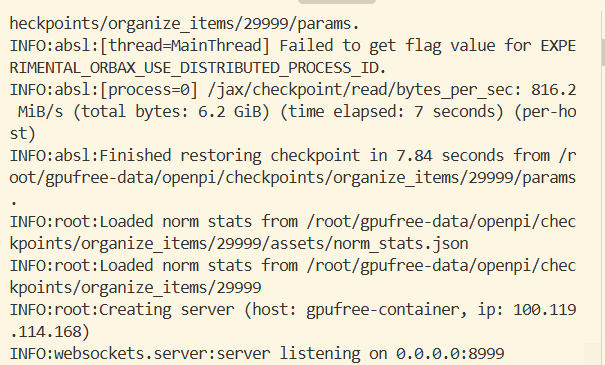
The appearance of this IP means success.
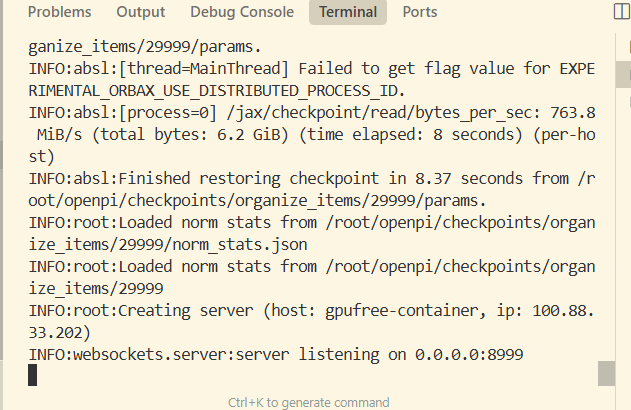
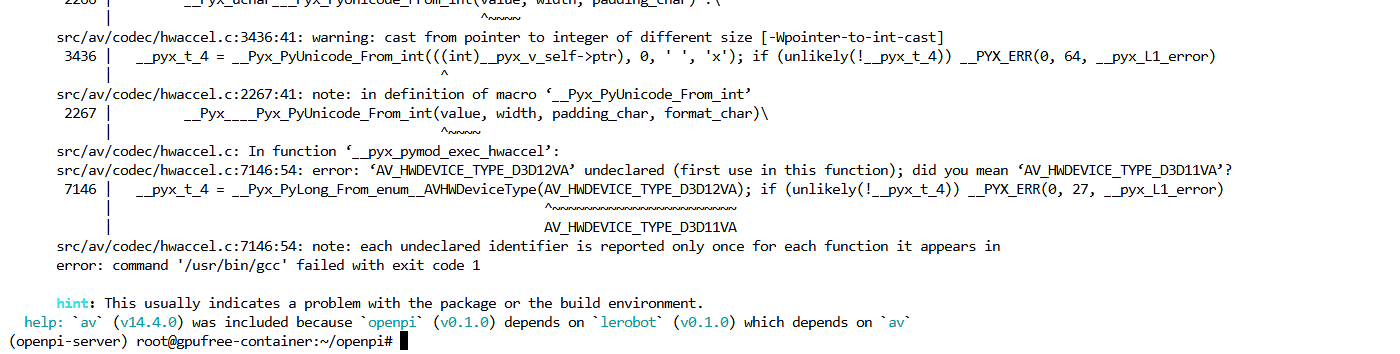
If there is a version error in av, change to pyav according to lerobot’s dependency (this new version of the image has already fixed it for everyone).
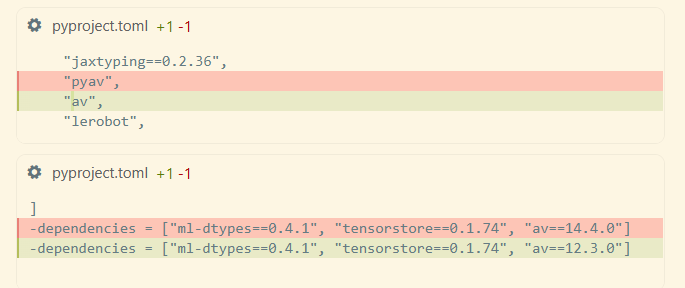
There is one place that needs to be modified.
Need to modify pyproject.toml.
2. GenieSim Client
(isaac) root@gpufree-container:~# ssh -CNg -L 8999:127.0.0.1:8999 root@100.88.33.251
root@100.119.114.168's password:
(需要看下服务端日志显示的ip地址)
密码xxxxx
python -c "import socket; s=socket.socket(); s.connect(('localhost', 8000)); print('OK')"

Download assets (our mirror has been configured for you here; no additional configuration is needed):
clone下载到
genie_sim/source/geniesim/assets
https://modelscope.cn/datasets/agibot_world/GenieSimAssets
Set environment variables (already configured in the server image’s .bashrc, no additional configuration is needed here)
# 1. 设置基础变量
export SIM_REPO_ROOT=/root/genie_sim


# 5. 设置 API Key
export BASE_URL="https://dashscope.aliyuncs.com/compatible-mode/v1"
export API_KEY="sk-"
export MODEL="qwen3-max"
export VL_MODEL="qwen3-vl-plus"

# 6. 设置 Genie Sim 环境变量
export SIM_ASSETS=$SIM_REPO_ROOT/source/geniesim/assets
Then
cd /root/genie_sim

/isaac-sim/python.sh source/geniesim/app/app.py --config source/geniesim/config/organize_items.yaml
或者
omni_python source/geniesim/app/app.py --config source/geniesim/config/organize_items.yaml
You can see the actions being performed by the simulation renderer
3. Record the simulation results
Replace /root/genie_sim/scripts/auto_record_and_extract.py
For auto_record_and_extract.py under the current tutorial folder
修改
/root/genie_sim/scripts/start_auto_record.sh

cd /root/genie_sim

/isaac-sim/python.sh source/geniesim/app/app.py --config source/geniesim/config/organize_items_record.yaml
或者
omni_python source/geniesim/app/app.py --config source/geniesim/config/organize_items_record.yaml
Then open a new terminal.
Wait for the simulation frequency to appear
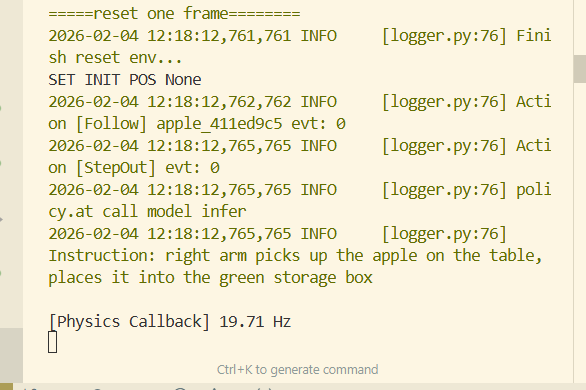
cd /root/genie_sim
bash scripts/start_auto_record.sh
Then the cmap file will be automatically parsed and saved as an mp4 after the simulation ends.
ls /root/genie_sim/output/recording_data/recording_data/place_object_into_box_color/recording_20260204_121814/recording_20260204_121814_0.mcap -lh
If mcap already exists
# 进入项目根目录
cd /root/genie_sim

# 使用新增加的 --bag_path 参数指向你已有的录制文件夹
python3 scripts/auto_record_and_extract.py \
  --bag_path "/root/genie_sim/output/recording_data/recording_data/place_object_into_box_color/recording_20260204_141040"  #--delete_db3_after 可选,决定是否运行后删除mcap文件,因为文件较大