
Motion Planning
ManiSkill provides simple tools to generate robot trajectories using motion planning, primarily through the open-source mplib library. If ManiSkill is installed, mplib will be installed automatically, so no additional installation is required.
For a detailed tutorial on how to use the advanced features of the mplib, please refer to their documentation: https://motion-planning-lib.readthedocs.io/latest/。. Otherwise, this section will introduce some sample code that can be used to modify and generate motion planning demonstrations. The sample code here is written for the Panda robotic arm, but it can be modified to suit other robots.
Motion Planning Using Panda robotic arm
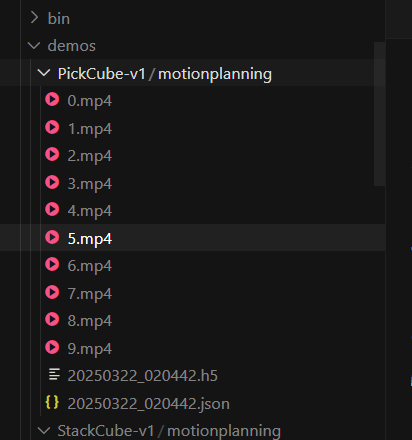
We provide some built-in motion planning solutions for tasks using the Panda robotic arm. Located in https://github.com/haosulab/ManiSkill/tree/main/mani_skill/examples/motionplanning/panda。, the following quick demo can be run. It saves trajectory data as .h5 files to demos/motionplanning/<env_id>, and you can choose to save videos and/or visualize it using a GUI.
bashpython -m mani_skill.examples.motionplanning.panda.run -e "PickCube-v1" --save-video # 以无头模式运行,仅保存视频
python -m mani_skill.examples.motionplanning.panda.run -e "StackCube-v1" --vis # 打开 GUI
python -m mani_skill.examples.motionplanning.panda.run -h # 打开帮助菜单,并显示哪些任务有解决方案


这些任务的解决方案通常涉及将任务分解为一系列简单的拾取、放置和移动。 提供的示例代码控制 Panda 机械臂的末端执行器移动到其工作空间中的任何姿势,以及抓取/释放。

例如,PickCube-v1 任务由以下步骤组成:

1. 将夹爪移动到红色立方体正上方,并调整夹爪方向使其与立方体方向相同
2. 向下移动夹爪,使手指环绕立方体
3. 关闭夹爪
4. 将夹爪移动到目标位置上方,使夹爪的工具中心点 (tcp) 位于目标位置

请注意,虽然运动规划可以生成和解决各种各样的任务,但其主要局限性在于它通常需要人工/工程师进行调整和编写,并且无法为更动态的任务生成解决方案。
(dl) kewei@sxy-gpus3090:~$ python -m mani_skill.examples.motionplanning.panda.run -e “PickCube-v1” --save-video
/home/kewei/micromamba/envs/dl/lib/python3.9/site-packages/torch/random.py:183: UserWarning: CUDA reports that you have 4 available devices, and you have used fork_rng without explicitly specifying which devices are being used. For safety, we initialize every CUDA device by default, which can be quite slow if you have a lot of CUDAs. If you know that you are only making use of a few CUDA devices, set the environment variable CUDA_VISIBLE_DEVICES or the ‘devices’ keyword argument of fork_rng with the set of devices you are actually using. For example, if you are using CPU only, set device.upper()_VISIBLE_DEVICES= or devices=[]; if you are using device 0 only, set CUDA_VISIBLE_DEVICES=0 or devices=[0]. To initialize all devices and suppress this warning, set the ‘devices’ keyword argument to range(torch.cuda.device_count()).
warnings.warn(message)
Motion Planning Running on PickCube-v1
proc_id: 0: 100%|█| 10/10 [00:59<00:00, 5.91s/it, success_rate=1, failed_motion_pla
Generation path
~/demos/PickCube-v1/motionplanning/0.mp4
Remote Control
ManiSkill provides many remote control systems to help collect demonstration data during tasks. Each system is described in detail below, including how to use them, demonstration videos, hardware requirements, availability, and limitations of the systems.
Currently, there is an intuitive click + drag system, such as the system using a space mouse, and VR headsets will be launched soon.
Click+Drag System
Requirements: Monitor, mouse, keyboard
Availability: It is very easy to generate fine-grained demos.
Limitations: It is only suitable for tasks with low dynamics requirements, and uses a two-finger gripper, such as picking up a cube. Tasks like throwing a cube are impossible.
To start the system, you can use -e to specify the task ID and run:
bashpython -m mani_skill.examples.teleoperation.interactive_panda -e "StackCube-v1"
Then, the end effector of the robot arm can be dragged to any position and rotated, and the “n” key on the keyboard can generate a trajectory to that position (via motion planning). The system will also print current information about whether the task has been solved each time.
You can press the “g” key to toggle the gripper on or off.
To collect a trajectory and proceed to the next one, simply press the “c” key, which will save the last trajectory.
To stop data collection, press the “q” key to exit. Then, this will save the trajectory data in the demos/teleop/<env_id> folder. Additionally, it will generate demonstration videos and place them in the same folder. You can stop the script by pressing CTRL+C.
You can press the “h” key at any time to bring up the help menu for keyboard commands.
Wasd and right-click to change perspective; scroll wheel to adjust distance.
Meta Quest 3
Currently in development (WIP)
Apple Vision Pro
Currently in development (WIP)