
Scene Dataset
We provide a command-line tool to download scenario datasets (usually adapted from the raw dataset).
ManiSkill can create any scenario as long as the relevant resources are provided. By default, ManiSkill offers code and download links for using dataset scenarios such as RoboCasa、ReplicaCAD and AI2THOR. These scenarios are selected due to their generally high modeling quality and interactivity.
ManiSkill also supports heterogeneous GPU simulation, where each parallel environment can have different objects and textures. The following is an overhead view example generated by the simulator, showing the RoboCasa kitchen scene
To start using these scenarios, you can use the following command to download them. Note that if you use these scenarios in your work, please cite both ManiSkill3 and the authors of the scenario dataset.
bash# 列出所有可下载的场景数据集
python -m mani_skill.utils.download_asset --list "scene"
python -m mani_skill.utils.download_asset ReplicaCAD # 小场景,下载速度快
python -m mani_skill.utils.download_asset RoboCasa # 大量程序生成的场景,下载速度快
python -m mani_skill.utils.download_asset AI2THOR # 大量场景,下载速度慢
Exploration Scenario Dataset
To explore the scenario dataset, provide the environment ID and seed (if multiple scenarios are available, you can select a different one), and run the random action script. The following shows various configured environments that can be used to interact with RoboCasa, ReplicaCAD, and ArchitecTHOR (a variant of AI2THOR).
bashpython -m mani_skill.examples.demo_random_action \
  -e "ReplicaCAD_SceneManipulation-v1" \
  --render-mode="rgb_array" --record-dir="videos" # 无头模式运行并保存视频

python -m mani_skill.examples.demo_random_action \
  -e "ArchitecTHOR_SceneManipulation-v1" --render-mode="human" \
  -s 3 # 打开 GUI 并使用种子 3 采样一个场景

# 加载 4 个环境并使用种子 0, 1, 2, 3 采样场景
# 使用 fetch 机器人
python -m mani_skill.examples.demo_random_action \
  -e "RoboCasaKitchen-v1" \
  -n 4 -s 0 1 2 3 \
  --render-mode="human" -r "fetch"
You can also pass -r "none" to run the environment without any agent.
Train on the scenario dataset
Large dataset scenarios such as ReplicaCAD and AI2THOR, which contain hundreds of objects, can be used to train more general robots/agents, and can also serve as sources for synthetic data generation. We are still adding more sample code and documentation to help make better use of these dataset scenarios, but we have already provided the code to explore and interact with these datasets.
Reinforcement Learning / Imitation Learning
We are currently developing a task code similar to the ReplicaCAD Rearrange challenge, and will open it for public use after completion. Additionally, there are no training tasks with defined success/failure conditions and/or rewards at this time, and no use of any large-scale scene dataset.
Demo
We provide a command-line tool that allows direct download of demonstrations from our Hugging Face 🤗 dataset using task IDs. This tool downloads the demonstration files into a folder, as well as some videos showing the demo interface. For a list of all supported tasks and their demonstrations, please refer to task.
bash# 下载特定任务的演示数据集
python -m mani_skill.utils.download_demo ${ENV_ID}
python -m mani_skill.utils.download_demo # 没有参数时,这会打印所有可用的数据集
# 下载完整的数据集(可能非常慢)
python -m mani_skill.utils.download_demo all
The demonstration dataset is usually stored in a simplified format (for example, without observation data), but the environment state is stored for compression. We provide a flexible tool that allows replaying and modifying the demonstration dataset, such as adding visual observation data or recording videos. For details, see trajectory replay documentation . If you want to generate the original compressed dataset locally, all scripts used for dataset generation are saved in the data_generation folder. For users who wish to benchmark imitation learning, we strongly recommend following the instructions on imitation learning settings page to learn how to replay the compressed dataset for benchmark testing of the training dataset.
Format
All demonstrations for each task are saved in HDF5 format and can be opened using h5py. Each HDF5 dataset is named trajectory.{obs_mode}.{control_mode}.{sim_backend}.h5, and there is a corresponding JSON metadata file. Unless otherwise specified, trajectory.h5 is an abbreviation for trajectory.none.pd_joint_pos.physx_cpu.h5, which contains the raw demonstrations generated by the pd_joint_pos controller. These demonstrations are produced using the none observation mode (empty observation data) in a CPU-based simulation. However, demonstrations generated by other controllers may also exist. Therefore, please check the associated JSON file to determine which controller was used.
Meta Information (JSON)
Each JSON file contains:
env_info(dictionary): Task (also known as environment) information, used for initializing tasksenv_id(string): Task IDmax_episode_steps(integer)env_kwargs(dictionary): Keyword parameters for initializing the task. These are necessary to recreate the environment.
episodes(list[dictionary]): Round informationsource_type(optional[string]): A simple classification string describing the process of generating trajectory data.source_desc(optional[string]): A longer explanation of the data generation process.
Round information (elements of episodes) includes:
episode_id(integer): Unique ID of the roundreset_kwargs(dictionary): Keyword parameters for resetting tasks. These parameters must be used when reproducing the trajectory.control_mode(string): Control mode used for this round.elapsed_steps(integer): Trajectory lengthinfo(dictionary): Information at the end of the round.
Based solely on the metadata, the task can usually be reconstructed in the same way it was created when collecting the trajectory:
pythonenv = gym.make(env_info["env_id"], **env_info["env_kwargs"])
episode = env_info["episodes"][0] # 选择第一个
env.reset(**episode["reset_kwargs"])
Sometimes the trajectory data is collected in GPU simulation, which means randomization depends not only on the seed but also on the number of parallel environments. To ensure the same initial state, the first environment state data stored in the trajectory can be used, and the environment state can be set accordingly.
Trajectory Data (HDF5)
Each HDF5 demonstration dataset consists of multiple trajectories. The key for each trajectory is traj_{episode_id}, such as traj_0.
Each trajectory is a h5py.Group, which contains:
- actions: [T, A],
np.float32。Tis the number of transitions. - terminated: [T],
np.bool_。Indicates whether the task ends at each time step. - truncated: [T],
np.bool_。Indicates whether the task is truncated at each time step. - env_states: [T+1, D],
np.float32。Environmental states. Can be used to set the environment to a specific state viaenv.set_state_dict. However, this may not be sufficient to reproduce the trajectory. - success (optional): [T],
np.bool_。Indicates whether the task succeeds at each time step. This field is included if the task defines a success condition. - fail (optional): [T],
np.bool_。Indicates whether the task fails at each time step. This field is included if the task defines a failure condition. - obs (optional): [T+1, D] observation data.
Note that env_states is stored in a dictionary format (the observation data may also be in this format, depending on the observation mode), and it is formatted as a list dictionary. For example, the typical environmental status is as follows:
pythonenv_state = env.get_state_dict()
"""
env_state = {
  "actors": {
    "actor_id": [...numpy_actor_state...],
    ...
  },
  "articulations": {
    "articulation_id": [...numpy_articulation_state...],
    ...
  }
}
"""
In the trajectory file, env_states will have the same structure, but each value/leaf node in the dictionary will be a state sequence representing the entity’s changes over time during the simulation.
In practice, using slices (or observed data) of env_states data may be more useful. This can be done in the following ways:
pythonimport mani_skill.trajectory.utils as trajectory_utils
env_states = trajectory_utils.dict_to_list_of_dicts(env_states)
# 现在 env_states[i] 就是 env.get_state_dict() 在第 i 个时间步返回的数据
i = 10
env_state_i = trajectory_utils.index_dict(env_states, i)
# 现在 env_state_i 就是 env.get_state_dict() 在第 i 个时间步返回的数据
These tools are also used for the PyTorch dataset implementations we provide. For details, see the next section.
Load trajectory dataset
PyTorch
We provide an example method to build a PyTorch dataset and easily load trajectory .h5 data. For details, see https://github.com/haosulab/ManiSkill/tree/main/mani_skill/trajectory/datasets.py。虽然它不是超级优化的,但展示了如何灵活地处理我们的数据格式。代码副本已粘贴在下面的下拉框中。
:::{dropdown} dataset.py :color: primary :icon: code
pythonfrom typing import Union
import h5py
import numpy as np
from torch.utils.data import Dataset
from tqdm import tqdm

from mani_skill.utils.io_utils import load_json
from mani_skill.utils import sapien_utils
from mani_skill.utils import common

# loads h5 data into memory for faster access
def load_h5_data(data):
    out = dict()
    for k in data.keys():
        if isinstance(data[k], h5py.Dataset):
            out[k] = data[k][:]
        else:
            out[k] = load_h5_data(data[k])
    return out

class ManiSkillTrajectoryDataset(Dataset):
    """
    一个通用的 PyTorch 数据集,可以立即使用它加载任何由 ManiSkill 生成的轨迹 .h5 数据。
    这个类只是一个简单的起始代码,用于轻松加载轨迹数据,但不做任何数据转换或高级操作
    我们建议直接复制此代码并根据更高级的用例进行修改

    参数:
        dataset_file (str): 要加载的数据 .h5 文件的路径
        load_count (int): 要加载到内存中的轨迹数量。如果为 -1,将加载所有数据
        success_only (bool): 是否跳过最终不成功的轨迹。默认为 False
        device: 数据保存的位置。如果为 None,将以 numpy 格式存储(默认),否则会将数据移动到指定的设备上
    """

    def __init__(self, dataset_file: str, load_count=-1, success_only: bool = False, device = None) -> None:
        self.dataset_file = dataset_file
        self.device = device
        self.data = h5py.File(dataset_file, "r")
        json_path = dataset_file.replace(".h5", ".json")
        self.json_data = load_json(json_path)
        self.episodes = self.json_data["episodes"]
        self.env_info = self.json_data["env_info"]
        self.env_id = self.env_info["env_id"]
        self.env_kwargs = self.env_info["env_kwargs"]

        self.obs = None
        self.actions = []
        self.terminated = []
        self.truncated = []
        self.success, self.fail, self.rewards = None, None, None
        if load_count == -1:
            load_count = len(self.episodes)
        for eps_id in tqdm(range(load_count)):
            eps = self.episodes[eps_id]
            if success_only:
                assert "success" in eps, "episodes in this dataset do not have the success attribute, cannot load dataset with success_only=True"
                if not eps["success"]:
                    continue
            trajectory = self.data[f"traj_{eps['episode_id']}"]
            trajectory = load_h5_data(trajectory)
            eps_len = len(trajectory["actions"])

            # exclude the final observation as most learning workflows do not use it
            obs = common.index_dict_array(trajectory["obs"], slice(eps_len))
            if eps_id == 0:
                self.obs = obs
            else:
                self.obs = common.append_dict_array(self.obs, obs)

            self.actions.append(trajectory["actions"])
            self.terminated.append(trajectory["terminated"])
            self.truncated.append(trajectory["truncated"])

            # handle data that might optionally be in the trajectory
            if "rewards" in trajectory:
                if self.rewards is None:
                    self.rewards = [trajectory["rewards"]]
                else:
                    self.rewards.append(trajectory["rewards"])
            if "success" in trajectory:
                if self.success is None:
                    self.success = [trajectory["success"]]
                else:
                    self.success.append(trajectory["success"])
            if "fail" in trajectory:
                if self.fail is None:
                    self.fail = [trajectory["fail"]]
                else:
                    self.fail.append(trajectory["fail"])

        self.actions = np.vstack(self.actions)
        self.terminated = np.concatenate(self.terminated)
        self.truncated = np.concatenate(self.truncated)

        if self.rewards is not None:
            self.rewards = np.concatenate(self.rewards)
        if self.success is not None:
            self.success = np.concatenate(self.success)
        if self.fail is not None:
            self.fail = np.concatenate(self.fail)

        def remove_np_uint16(x: Union[np.ndarray, dict]):
            if isinstance(x, dict):
                for k in x.keys():
                    x[k] = remove_np_uint16(x[k])
                return x
            else:
                if x.dtype == np.uint16:
                    return x.astype(np.int32)
                return x

        # uint16 dtype is used to conserve disk space and memory
        # you can optimize this dataset code to keep it as uint16 and process that
        # dtype of data yourself. for simplicity we simply cast to a int32 so
        # it can automatically be converted to torch tensors without complaint
        self.obs = remove_np_uint16(self.obs)

        if device is not None:
            self.actions = sapien_utils.to_tensor(self.actions, device=device)
            self.obs = sapien_utils.to_tensor(self.obs, device=device)
            self.terminated = sapien_utils.to_tensor(self.terminated, device=device)
            self.truncated = sapien_utils.to_tensor(self.truncated, device=device)
            if self.rewards is not None:
                self.rewards = sapien_utils.to_tensor(self.rewards, device=device)
            if self.success is not None:
                self.success = sapien_utils.to_tensor(self.terminated, device=device)
            if self.fail is not None:
                self.fail = sapien_utils.to_tensor(self.truncated, device=device)
    def __len__(self):
        return len(self.actions)


    def __getitem__(self, idx):
        action = sapien_utils.to_tensor(self.actions[idx], device=self.device)
        obs = common.index_dict_array(self.obs, idx, inplace=False)

        res = dict(
            obs=obs,
            action=action,
            terminated=self.terminated[idx],
            truncated=self.truncated[idx],
        )
        if self.rewards is not None:
            res.update(reward=self.rewards[idx])
        if self.success is not None:
            res.update(success=self.success[idx])
        if self.fail is not None:
            res.update(fail=self.fail[idx])
        return res
:::
Trajectory Replay/Conversion
ManiSkill provides tools that can not only collect/load trajectories, but also replay trajectories and convert observations/actions.
To replay the demonstration (without changing the observation and control modes):
bash# 通过 sapien viewer 重播并查看轨迹
python -m mani_skill.trajectory.replay_trajectory \
    --traj-path ~/.maniskill/demos/PushCube-v1/motionplanning/trajectory.h5 \
    --vis

# 保存轨迹的视频(保存到与轨迹相同的目录)
python -m mani_skill.trajectory.replay_trajectory \
    --traj-path ~/.maniskill/demos/PushCube-v1/motionplanning/trajectory.h5 \
    --save-video

# 查看所有可用选项
python -m mani_skill.trajectory.replay_trajectory -h
The results are as follows:
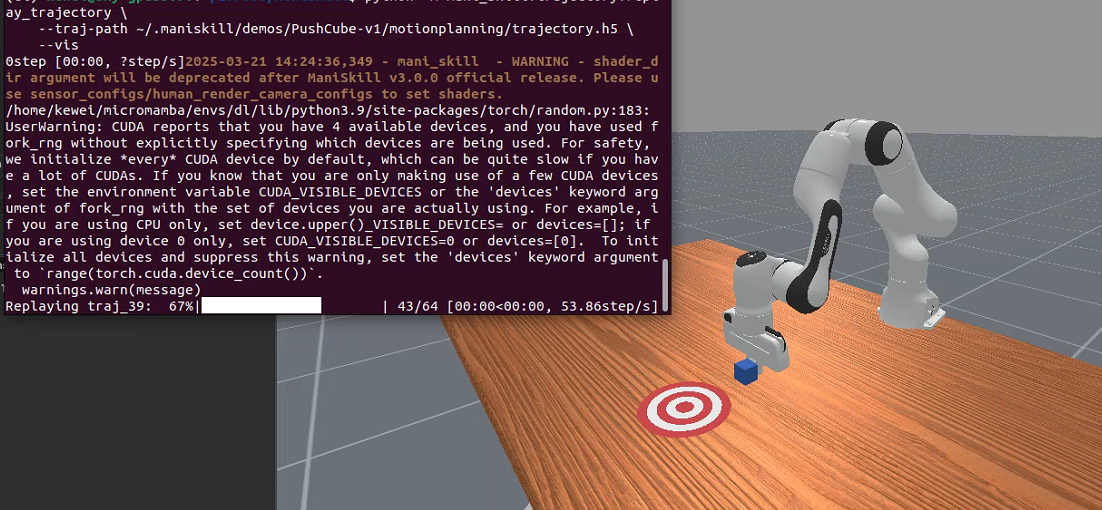
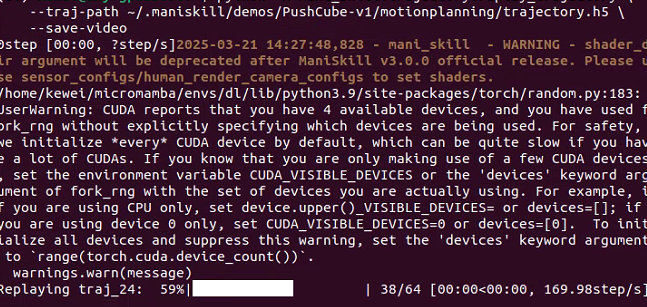
:::{note}
This script requires the trajectory.h5 and trajectory.json files to be in the same directory.
:::
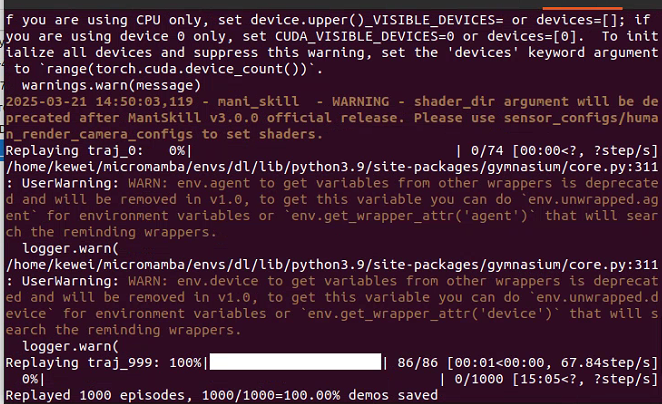
By default, the original demo file contains all the necessary information for reproducing the trajectory (such as initial state, actions, and seeds). Since there is no post-processing, the observation data is usually not included, as it may result in a large file size. Additionally, the actions in these files do not cover all control modes. Therefore, it is necessary to convert the original file into the desired observation and control modes. We provide a practical script for use as follows:
bash# 重播演示,控制模式为 pd_joint_delta_pos
python -m mani_skill.trajectory.replay_trajectory \
  --traj-path ~/.maniskill/demos/PickCube-v1/motionplanning/trajectory.h5 \
  --save-traj --target-control-mode pd_joint_delta_pos \
  --obs-mode none #--num-procs 10
:::{dropdown} Click to view the trajectory replay tool options
╭─ options ──────────────────────────────────────────────────────────────────────────────────────────────────────────────────────────────────────╮
│ -h, --help              显示此帮助信息并退出                                                                                                      │
│ --traj-path STR         要重播的轨迹 .h5 文件路径(必需)                                                                                         │
│ --sim-backend {None}|STR, -b {None}|STR                                                                                                          │
│                         使用的仿真后端,可以是 'physx_cpu' 或 'physx_gpu'。如果未指定,默认使用收集轨迹数据时的后端。(默认:None)               │
│ --obs-mode {None}|STR, -o {None}|STR                                                                                                             │
│                         要记录到轨迹中的目标观察模式。请参见                                                                                     │
│                         https://maniskill.readthedocs.io/en/latest/user_guide/concepts/observation.html 获取完整的支持的观察模式列表。(默认:None) │
│ --target-control-mode {None}|STR, -c {None}|STR                                                                                                │
│                         要转换为的目标控制模式。                                                                                               │
│                         注意,并非所有控制模式可以成功转换,且并非所有机器人都有容易转换的控制模式。                                           │
│                         目前 Panda 机器人在控制模式转换方面支持得最好。此外,在 GPU 并行化环境中不支持控制模式转换。(默认:None)            │
│ --verbose, --no-verbose                                                                                                                        │
│                         是否在轨迹重播过程中打印详细信息(默认:False)                                                                       │
│ --save-traj, --no-save-traj                                                                                                                    │
│                         是否保存轨迹到磁盘。这不会覆盖原始轨迹文件。(默认:False)                                                           │
│ --save-video, --no-save-video                                                                                                                  │
│                         是否保存视频(默认:False)                                                                                             │
│ --num-procs INT         用于并行化轨迹重播过程的进程数。对于 CPU 后端,通常通过 Python 多进程并行化。                                               │
│                         对于像 physx_gpu 这样的并行仿真后端,这将在单个 Python 进程内通过利用 GPU 来并行化。(默认:1)                             │
│ --max-retry INT         在任务成功结束前,重播轨迹的最大尝试次数。(默认:0)                                                                  │
│ --discard-timeout, --no-discard-timeout                                                                                                        │
│                         是否丢弃超时并被截断的回合(取决于任务的 max_episode_steps 参数)                                                     │
│                         (默认:False)                                                                                                       │
│ --allow-failure, --no-allow-failure                                                                                                            │
│                         是否包含失败的回合,在保存的视频和轨迹数据中根据环境的评估返回的 "success" 标签决定                                          │
│                         (默认:False)                                                                                                       │
│ --vis, --no-vis         是否通过 GUI 可视化轨迹重播。(默认:False)                                                                            │
│ --use-env-states, --no-use-env-states                                                                                                          │
│                         是否通过环境状态重播,而不是通过动作。这可以保证环境在每个步骤看起来与原始轨迹完全相同。(默认:False)                      │
│ --use-first-env-state, --no-use-first-env-state                                                                                                │
│                         是否使用轨迹中的第一个环境状态来设置初始状态。这对于尝试将收集自 CPU 仿真中的演示重播到 GPU 仿真中非常有用,因为 GPU         │
│                         仿真即使给定相同种子也会以不同的方式随机化初始状态。(默认:False)                                                      │
│ --count {None}|INT      要重播的演示数量,直到退出。默认情况下将重播所有演示(默认:None)                                                    │
│ --reward-mode {None}|STR                                                                                                                       │
│                         指定环境应使用的奖励类型。默认情况下将选择第一个支持的奖励模式。大多数环境支持 'sparse'、'none',有些还支持 'normalized_dense' │
│                         和 'dense' 奖励模式(默认:None)                                                                                       │
│ --record-rewards, --no-record-rewards                                                                                                          │
│                         是否在重播的轨迹中包含奖励(默认:False)                                                                              │
│ --shader {None}|STR     更改所有相机渲染使用的着色器。默认情况下使用原始数据收集时使用的着色器。可以选择 'rt' 进行光线追踪生成逼真的渲染,            │
│                         也可以选择 'rt-fast' 进行更快但质量较低的光线追踪渲染。(默认:None)                                                 │
│ --video-fps {None}|INT  保存视频的 FPS。默认为控制频率(默认:None)                                                                           │
│ --render-mode STR       用于保存视频的渲染模式。通常还包括 'sensors' 和 'all' 渲染模式,进一步渲染所有传感器输出,如相机。(默认:rgb_array)         │
│ --num-envs INT, -n INT  要运行的环境数量以重播轨迹。对于 CPU 后端,通常通过 Python 多进程并行化。                                                 │
│                         对于像 physx_gpu 这样的并行仿真后端,这将在单个 Python 进程内通过利用 GPU 来并行化。(默认:1)                             │
╰────────────────────────────────────────────────────────────────────────────────────────────────────────────────────────────────────────────────╯
However, there have been changes in the latest parameters.
╭─ Options ──────────────────────────────────────────────────────────────────╮ │ -h, --help │ │ Display help information and exit │ │ --traj-path STR │ │ Path to the .h5 file containing the trajectory to replay (required) │ │ -b {None}|STR, --sim-backend {None}|STR │ │ Simulation backend to use. Can be ‘physx_cpu’ or ‘physx_gpu’. If not specified, │ │ the backend used for collecting trajectory data will be used by default. (Default: None) │ │ -o {None}|STR, --obs-mode {None}|STR │ │ Target observation mode for recording observation data in the trajectory. Check │ │ https://maniskill.readthedocs.io/en/latest/user_guide/concepts/observ… │ │ for a complete list of all supported observation modes. (Default: None) │ │ -c {None}|STR, --target-control-mode {None}|STR │ │ Target control mode used to convert demonstration actions into other control modes. Note that │ │ not all control modes can be successfully converted, and not all robots support easy │ │ control mode conversion. Currently, Panda robot supports control mode conversion best. Moreover, │ │ control mode conversion is not supported in a GPU parallel environment. (Default: None) │ │ --verbose, --no-verbose │ │ Print detailed information during trajectory replay. (Default: False) │ │ --save-traj, --no-save-traj │ │ Save the trajectory to disk. This operation does not overwrite the original trajectory file. (Default: False) │ │ --save-video, --no-save-video │ │ Save video data. (Default: False) │ │ --max-retry INT │ │ Maximum number of retries during trajectory replay until the task reaches a successful state. (Default: 0) │ │ --discard-timeout, --no-discard-timeout │ │ Discard expired and truncated episodes (depending on the task’s max_episode_steps parameter). │ │ (Default: False) │ │ --allow-failure, --no-allow-failure │ │ Include failed episodes in the saved video and trajectory data, along with “success” │ │ labels based on environmental evaluation. (Default: False) │ │ --vis, --no-vis │ │ Visualize the trajectory replay via GUI. (Default: False) │ │ --use-env-states, --no-use-env-states │ │ Use environmental states rather than actions for replay. This ensures that each step │ │ of the environment has the same state as the original trajectory. (Default: False) │ │ --use-first-env-state, --no-use-first-env-state │ │ Use the first environmental state in the trajectory to set the initial state. This is very useful for │ │ replaying demonstrations collected in GPU simulation while using the same seed as CPU simulation, as │ │ GPU simulation randomizes the initial state. (Default: False) │ │ --count {None}|INT │ │ Number of demonstrations to replay before exiting. By default, all demonstrations will be replayed. (Default: None) │ │ --reward-mode {None}|STR │ │ Specify the reward type to use for the environment. By default, the first supported reward mode will be selected. Most │ │ environments support ‘sparse’ and ‘none’, and some also support ‘normalized_dense’. │ │ ‘dense’ reward mode. (Default: None) │ │ --record-rewards, --no-record-rewards │ │ Whether to include rewards in the playback trajectory. (Default: False) │ │ --shader {None}|STR │ │ Change the shader used for all camera rendering. The default value is none, │ │ which uses the shader used during raw data collection or the environment default │ │ shader. It can also be set to ‘rt’ to enable ray tracing, producing a │ │ photo-realistic rendering. It can also be set to ‘rt-fast’ to enable a faster │ │ but lower-quality ray tracing renderer. (Default: None) │ │ --video-fps {None}|INT │ │ Frame rate for saving the video. The default is control frequency. (Default: None)│ │ --render-mode STR │ │ Rendering mode used when saving the video. Typically, there are also ‘sensors’ │ │ and ‘all’ rendering modes, which can render output from all sensors, such as │ │ cameras. (Default: rgb_array) │ │ -n INT, --num-envs INT │ │ Number of environments used for playback trajectory. For the CPU backend, it is │ │ usually done via multi-process parallelization in Python. For parallel simulation │ │ backends like physx_gpu, it is usually done using GPU parallelism within a single │ │ Python process. (Default: 1) │ ╰────────────────────────────────────────────────────────────────────────────╯
The following table shows the comparison of parameters between the old and new versions:
| Parameter | Old version description | New version description | Notes |
|---|---|---|---|
| –traj-path STR | Path to the .h5 file of the trajectory to replay (required) | Path to the .h5 file of the trajectory to replay (required) | No change |
| –sim-backend {None}|STR, -b {None}|STR | Simulation backend used; options are ‘physx_cpu’ or ‘physx_gpu’. If not specified, the backend used during trajectory collection is used by default. (Default: None) | Same as old version description | No change |
| –obs-mode {None}|STR, -o {None}|STR | Target observation mode for recording observation data in the trajectory. See the documentation for a list of supported observation modes. (Default: None) | Same as old version description | No change |
| –target-control-mode {None}|STR, -c {None}|STR | Target control mode for converting demonstration actions into other control modes. Note that not all control modes can be successfully converted; currently Panda robot supports the best ones; conversion is not supported in GPU environment. (Default: None) | Same as old version description | No change |
| –verbose, --no-verbose | Whether to print detailed information during trajectory replay. (Default: False) | Whether to print detailed information during replay. (Default: False) | Description slightly different, but same function |
| –save-traj, --no-save-traj | Whether to save the trajectory to disk without overwriting the original file. (Default: False) | Whether to save the trajectory to disk without overwriting the original file. (Default: False) | No change |
| –save-video, --no-save-video | Whether to save video. (Default: False) | Whether to save video. (Default: False) | No change |
| –num-procs INT | Number of processes used for parallelization of trajectory replay. The CPU backend uses Python multi-process parallelism; the physx_gpu backend utilizes GPU parallelism within a single process. (Default: 1) | Deleted | This parameter has been removed in the new version |
| –max-retry INT | Maximum number of retries during trajectory replay until the task reaches a successful state at the end. (Default: 0) | Same as old version description | No change |
| –discard-timeout, --no-discard-timeout | Whether to discard timeout and truncated episodes (depends on the task’s max_episode_steps parameter). (Default: False) | Same as old version description | No change |
| –allow-failure, --no-allow-failure | Whether failed episodes should be included in the saved video and trajectory data, determined by the “success” label returned by the environment assessment. (Default: False) | Same as old version description | No change |
| –vis, --no-vis | Whether to visualize trajectory replay via GUI. (Default: False) | Same as old version description | No change |
| –use-env-states, --no-use-env-states | Whether to use environment states rather than actions for replay, ensuring that the environment matches the original trajectory at each step. (Default: False) | Same as old version description | No change |
| –use-first-env-state, --no-use-first-env-state | Whether to use the first environment state in the trajectory as the initial state for replaying demonstrations collected by the CPU during GPU simulation. (Default: False) | Same as old version description | No change |
| –count {None}|INT | Number of demonstrations to replay before exiting; all demonstrations are replayed by default. (Default: None) | Same as old version description | No change |
| –reward-mode {None}|STR | Specifies the reward type used by the environment. Most environments support ‘sparse’ and ‘none’, while some support ‘normalized_dense’ and ‘dense’. (Default: None) | Same as old version description | No change |
| –record-rewards, --no-record-rewards | Whether to include rewards in the replayed trajectory. (Default: False) | Same as old version description | No change |
| –shader {None}|STR | Changes the shader used for rendering all cameras. The default is the shader used when raw data is collected or the environment’s default shader; options include ‘rt’ (ray tracing) or ‘rt-fast’ (fast ray tracing). (Default: None) | Same as old version description | No change |
| –video-fps {None}|INT | Frame rate for saving the video; the control frequency is used by default. (Default: None) | Same as old version description | No change |
| –render-mode STR | Rendering mode used when saving the video. Supports modes such as ‘rgb_array’, ‘sensors’, and ‘all’; the latter two can render all sensor data. (Default: rgb_array) | Same as old version description | No change |
| –num-envs INT, -n INT | Number of environments used for replaying the trajectory. The CPU backend uses multiple Python processes in parallel; the physx_gpu backend utilizes GPU parallelism within a single process. (Default: 1) | Same as old version description | No change |
As can be seen from the above table, the latest version mainly removes the –num-procs parameter, while all other parameters and their functions remain largely unchanged.
:::
:::{caution}
Since some demonstrations are collected in a non-quasi-static manner (the objects are not fixed on the manipulator during manipulation) or certain challenging tasks (such as PushT-v1 or PickSingleYCB-v1) require high precision, the replay of actions/transitions may fail due to the uncertainty in simulation. Therefore, it is necessary to pass --use-env-states to replay the trajectory and ensure that the replayed state/observation data match the original trajectory.
:::
Example Usage
Due to the rich and complex features of the trajectory replay tool, we recommend several example workflows that are suitable for various use cases.
Replay the trajectory from a control mode to a more accessible control mode
In machine learning workflows, it is sometimes easier to learn from certain control modes (such as end effector control modes). The following example demonstrates this:
bashpython -m mani_skill.trajectory.replay_trajectory \
  --traj-path path/to/trajectory.h5 \
  -c pd_ee_delta_pose -o state \
  --save-traj
Note that due to the inherent differences between controllers and demonstration behaviors, some target control modes may be difficult to switch.
-
PickCube-v1 task: This is a relatively simple task, suitable for initial testing.
~/.maniskill/demos/PickCube-v1/rl/trajectory.none.pd_joint_delta_pos.physx_cuda.h5(Source control mode: joint control)- Conversion target:
pd_ee_delta_pose(End effector pose control)
-
PushCube-v1 task: This is a task that pushes boxes, with relatively simple actions.
~/.maniskill/demos/PushCube-v1/rl/trajectory.none.pd_joint_delta_pos.physx_cuda.h5(Source control mode: joint control)- Conversion target:
pd_ee_delta_pos(end effector position control)
-
StackCube-v1 task: This is a more complex stacking task that requires more precise control.
~/.maniskill/demos/StackCube-v1/rl/trajectory.none.pd_ee_delta_pos.physx_cuda.h5(Source control mode: end effector position control)- Conversion target:
pd_ee_delta_pose(end effector pose control)
To view the testing results, you can:
- Observe the generated trajectory file: A new h5 file will be generated after replaying, and the file name contains the target control mode.
- View the generated video: Using the
--render-mode rgb_array --render-camera third_view --replay-renderparameter, a replay video can be generated. - Compare the original and replayed trajectories: MP4 videos of the original and replayed trajectories can be compared to see if the robot’s behavior is similar.
I recommend starting testing with the PickCube-v1 task, as it is the most basic picking task. You can execute the following command:
bashpython -m mani_skill.trajectory.replay_trajectory \
  --traj-path ~/.maniskill/demos/PickCube-v1/rl/trajectory.none.pd_joint_delta_pos.physx_cuda.h5 \
  -c pd_ee_delta_pose -o state \
  --render-mode rgb_array --render-camera third_view --replay-render \
  --save-traj
This command will:
- Read the source trajectory file (joint control mode)
- Replay to end effector pose control mode
- Save a new trajectory file
- Generate a replay video
After execution, you can compare sample_pd_joint_delta_pos.mp4 with the newly generated video file to observe the differences in robot performance under different control modes.
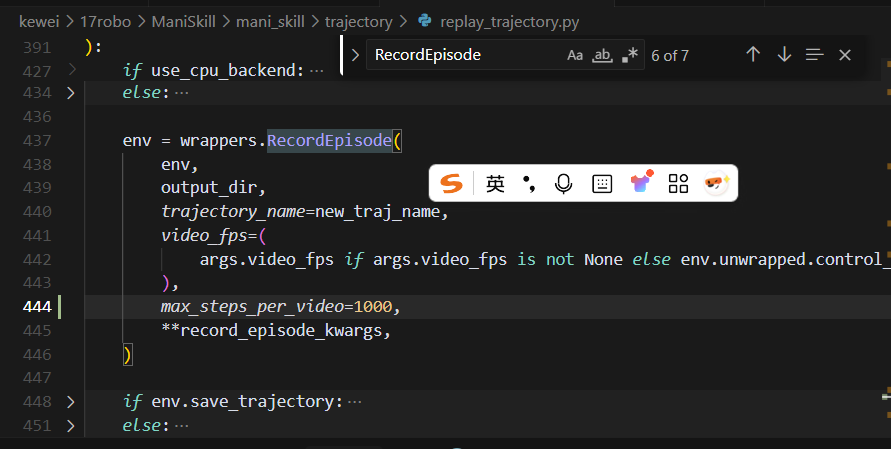
However, if you encounter an error regarding the maximum step count, remember to make the modification.
ManiSkill’s control mode switching has some limitations, especially:
- Only
pd_joint_delta_poscan be converted topd_joint_pos pd_joint_poscan be converted into end effector control (pd_ee_delta_pose, etc.)
To solve this problem, we need to perform two-step conversion:
- First, convert
pd_joint_delta_postopd_joint_pos. - Then, convert
pd_joint_postopd_ee_delta_pose.
Here is the solution:
bash# 第一步:转换为 pd_joint_pos
python -m mani_skill.trajectory.replay_trajectory \
  --traj-path ~/.maniskill/demos/PickCube-v1/rl/trajectory.none.pd_joint_delta_pos.physx_cuda.h5 \
  --target-control-mode pd_joint_pos \
  --obs-mode state \
  --render-mode rgb_array \
  --save-traj \
  --sim-backend physx_cpu \
  --num-envs 1

# 第二步:从 pd_joint_pos 转换为 pd_ee_delta_pose
python -m mani_skill.trajectory.replay_trajectory \
  --traj-path ~/.maniskill/demos/PickCube-v1/rl/trajectory.state.pd_joint_pos.physx_cpu.h5 \
  --target-control-mode pd_ee_delta_pose \
  --obs-mode state \
  --render-mode rgb_array \
  --save-traj \
  --save-video \
  --video-fps 30 \
  --sim-backend physx_cpu \
  --num-envs 1
Additionally, if you want to see the conversion paths supported in the code, you can check the utils/actions/conversion.py file. Based on our inspection, the conversion paths supported by ManiSkill are mainly as follows:
pd_joint_pos→pd_ee_delta_pose(viafrom_pd_joint_pos_to_eefunction)pd_joint_delta_pos→pd_joint_pos(viafrom_pd_joint_delta_posfunction)
Add reward/observation data to the trajectory
To save memory, demonstrations typically do not include observation data and rewards. The following example shows how to add rewards, RGB observation data, and standardized dense rewards (assuming the environment supports dense rewards) back to the trajectory. --use-env-states is added as a way to ensure that the state/observation data for replay is identical to the original trajectory.
bashpython -m mani_skill.trajectory.replay_trajectory \
  --traj-path path/to/trajectory.h5 \
  --record-rewards --reward-mode="normalized_dense" -o rgb \
  --use-env-states \
  --save-traj
例如:
python -m mani_skill.trajectory.replay_trajectory \
  --traj-path ~/.maniskill/demos/PickCube-v1/motionplanning/trajectory.h5 \
  --record-rewards --reward-mode="normalized_dense" -o rgb \
  --use-env-states \
  --save-traj \
  --sim-backend physx_cpu \
  --num-envs 1
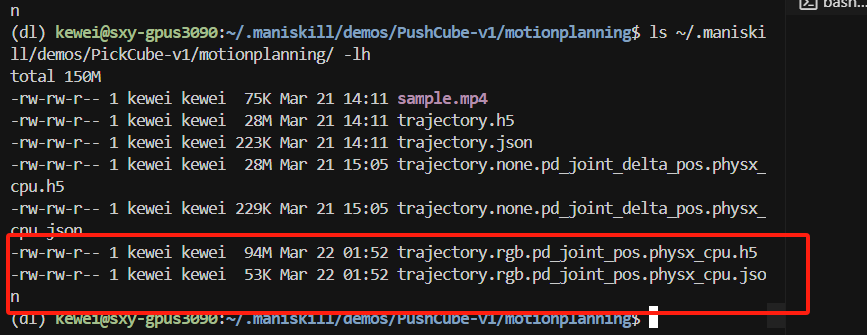
This is the file just generated.
Then comes the visualization stage.
python -m mani_skill.trajectory.replay_trajectory \
  --traj-path ~/.maniskill/demos/PickCube-v1/motionplanning/trajectory.rgb.none.physx_cpu.h5 \
  --vis \
  --sim-backend physx_cpu \
  --num-envs 1
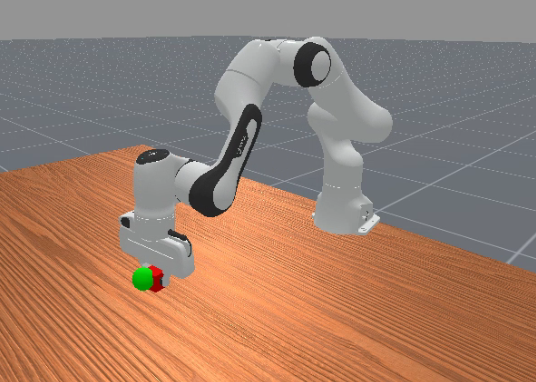
Actually, it is about generating this green dot.
Replay the trajectory collected from CPU/GPU simulation in CPU/GPU simulation
Some demonstrations may be collected during CPU simulation, but it is hoped that they can be used in GPU simulation, and vice versa. Since CPU and GPU simulations behave slightly differently with the same action and initial state, it is necessary to ensure that the demonstrations can be learned.
For example, when using remote manipulation to collect demonstrations, these demonstrations are usually collected in CPU simulation to provide greater flexibility and higher single-thread performance. However, the manipulation/reinforcement learning workflow may be trained in GPU simulation. To ensure that we can learn from the demonstrations, we can replay them into GPU simulation and save those successfully replayed demonstrations. This is achieved by using the first environment state, forcing use of GPU simulation -b "physx_cuda", and setting the required control and observation modes.
bashpython -m mani_skill.trajectory.replay_trajectory \
  --traj-path path/to/trajectory.h5 \
  --use-first-env-state -b "physx_cuda" \
  -c pd_joint_delta_pos -o state \
  --save-traj

例如
python -m mani_skill.trajectory.replay_trajectory \
  --traj-path ~/.maniskill/demos/PushCube-v1/motionplanning/trajectory.h5 \
  --use-first-env-state -b "physx_cuda" \
  -c pd_joint_delta_pos -o state \
  --save-traj

生成
~/.maniskill/demos/PushCube-v1/motionplanning/trajectory.state.pd_joint_delta_pos.physx_cuda.h5

可视化
python -m mani_skill.trajectory.replay_trajectory \
  --traj-path ~/.maniskill/demos/PushCube-v1/motionplanning/trajectory.state.pd_joint_delta_pos.physx_cuda.h5 \
  --vis