Install Vulkan
bashsudo apt-get install libvulkan1
sudo apt-get install vulkan-utils
或者
sudo apt install vulkan-tools
vulkaninfo
If it does not exist, try creating a file containing the following: /usr/share/vulkan/icd.d/nvidia_icd.json
{ “file_format_version” : “1.0.0”, “ICD”: { “library_path”: “libGLX_nvidia.so.0”, “api_version” : “1.2.155” } }
Test Installation
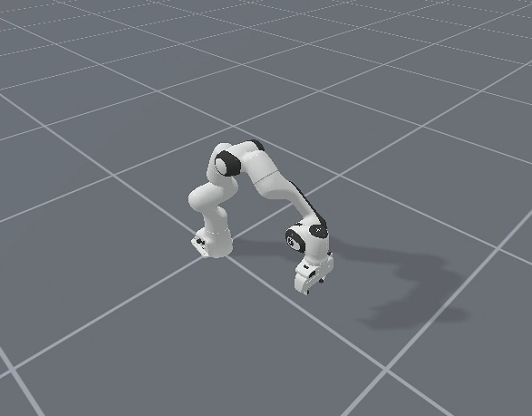
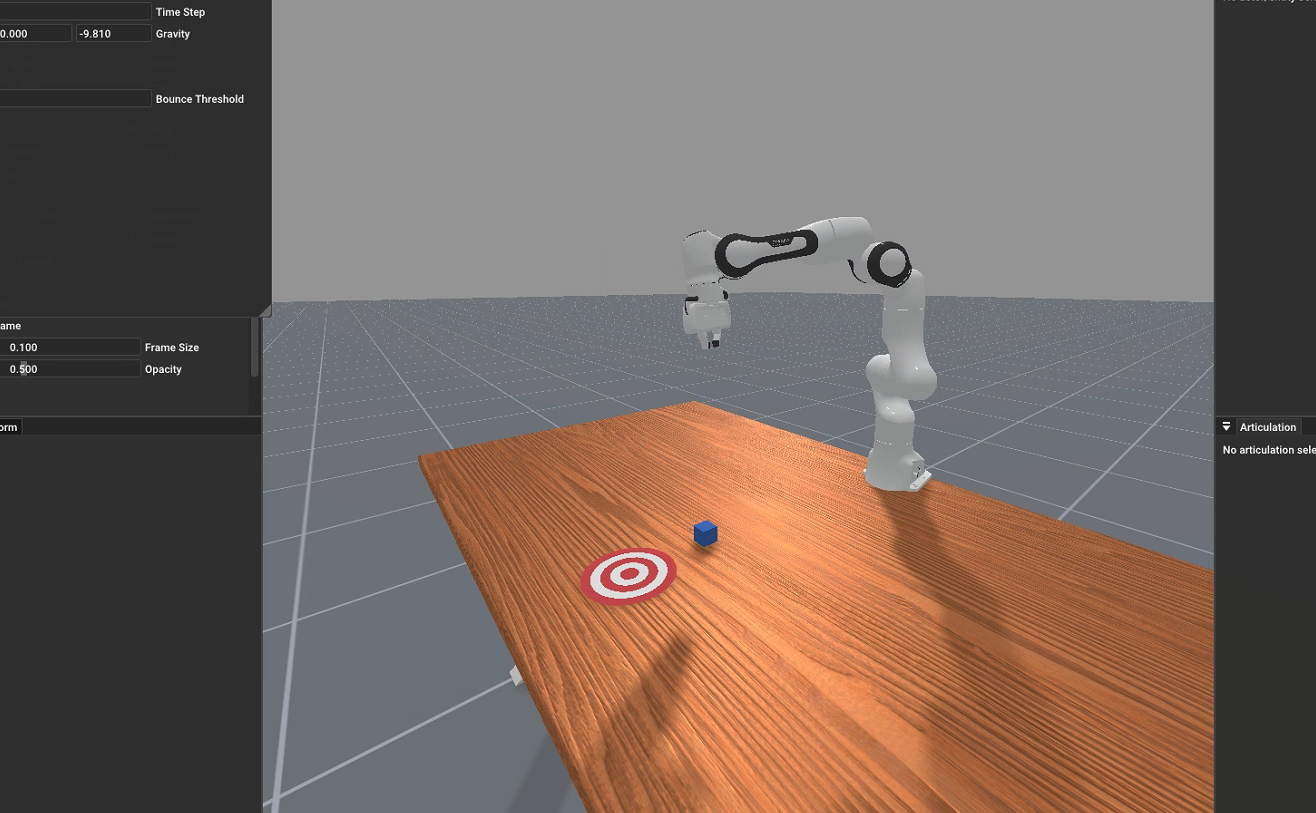
python -m mani_skill.examples.demo_random_action
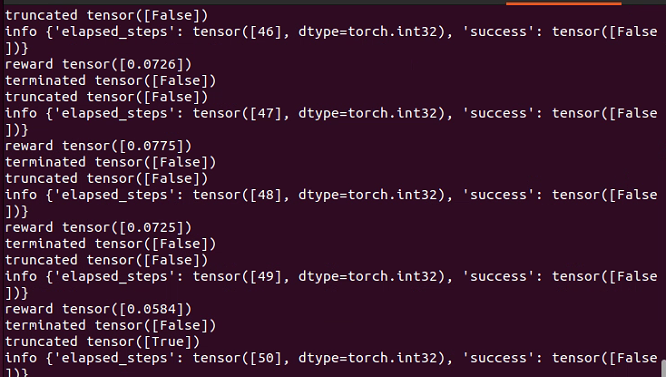
import gymnasium as gym import mani_skill.envs
env = gym.make( “PickCube-v1”, # there are more tasks e.g. “PushCube-v1”, “PegInsertionSide-v1”, … num_envs=1, obs_mode=“state”, # there is also “state_dict”, “rgbd”, … control_mode=“pd_ee_delta_pose”, # there is also “pd_joint_delta_pos”, … render_mode=“human” ) print(“Observation space”, env.observation_space) print(“Action space”, env.action_space)
obs, _ = env.reset(seed=0) # reset with a seed for determinism done = False while not done: action = env.action_space.sample() obs, reward, terminated, truncated, info = env.step(action) done = terminated or truncated env.render() # a display is required to render env.close()
run headless / without a display
python -m mani_skill.examples.demo_random_action -e PickCube-v1
run with A GUI and ray tracing
python -m mani_skill.examples.demo_random_action -e PickCube-v1 --render-mode=“human” --shader=“rt-fast”
python -m mani_skill.examples.benchmarking.gpu_sim --num-envs=1024
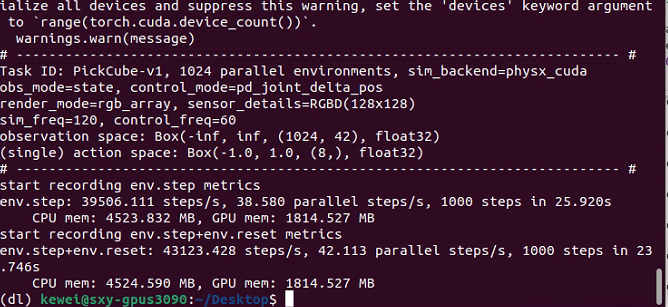
Parallel processing is truly ultra-fast
rendering RGB + Depth data from all cameras
python -m mani_skill.examples.benchmarking.gpu_sim --num-envs=64 --obs-mode=“rgbd”
directly save 64 videos of the visual observations put into one video
python -m mani_skill.examples.benchmarking.gpu_sim --num-envs=64 --save-video
import gymnasium as gym import mani_skill.envs
env = gym.make( “PickCube-v1”, obs_mode=“state”, control_mode=“pd_joint_delta_pos”, num_envs=16, parallel_in_single_scene=True, viewer_camera_configs=dict(shader_pack=“rt-fast”), ) env.reset() while True: env.step(env.action_space.sample()) env.render_human()
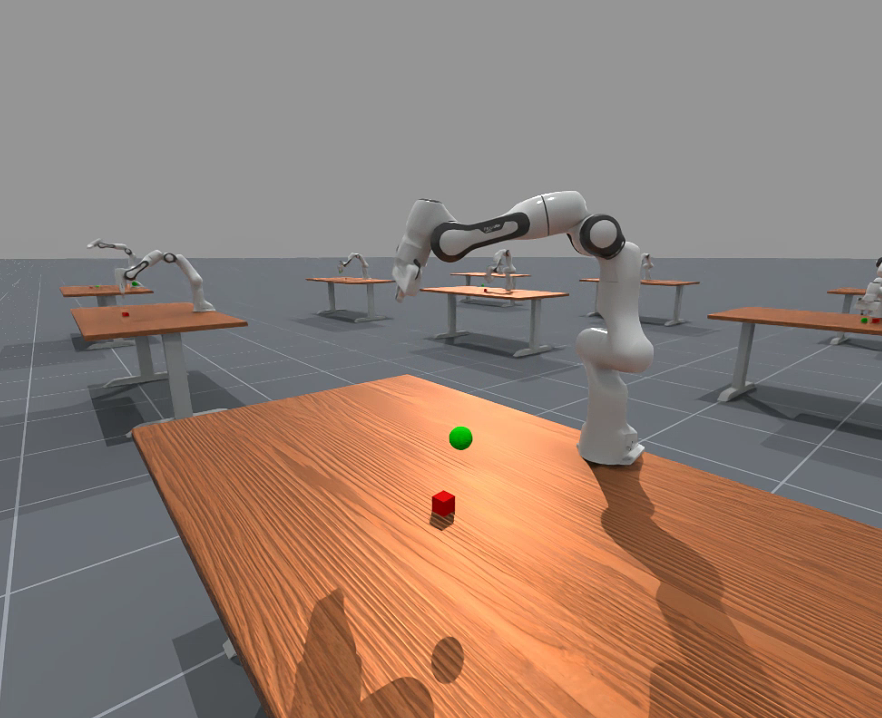
python -m mani_skill.examples.demo_random_action -e PushCube-v1 -b gpu --render-mode human --seed 42
Generate random simulation
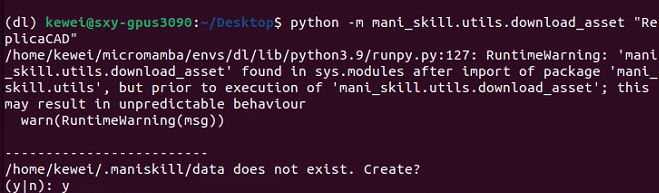
Default path for downloading data
python -m mani_skill.utils.download_asset “ReplicaCAD”
python -m mani_skill.examples.demo_random_action -e “ReplicaCAD_SceneManipulation-v1”
–render-mode=“rgb_array” --record-dir=“videos”
python -m mani_skill.examples.demo_random_action -e “ReplicaCAD_SceneManipulation-v1”
–render-mode=“human” # run with GUI
python -m mani_skill.examples.demo_random_action -e “ReplicaCAD_SceneManipulation-v1”
–render-mode=“human” --shader=“rt-fast” # faster ray-tracing option but lower quality
python -m mani_skill.examples.demo_random_action -e “ReplicaCAD_SceneManipulation-v1”
–render-mode=“human” --shader=“rt”
It is recommended to use medium resolution.
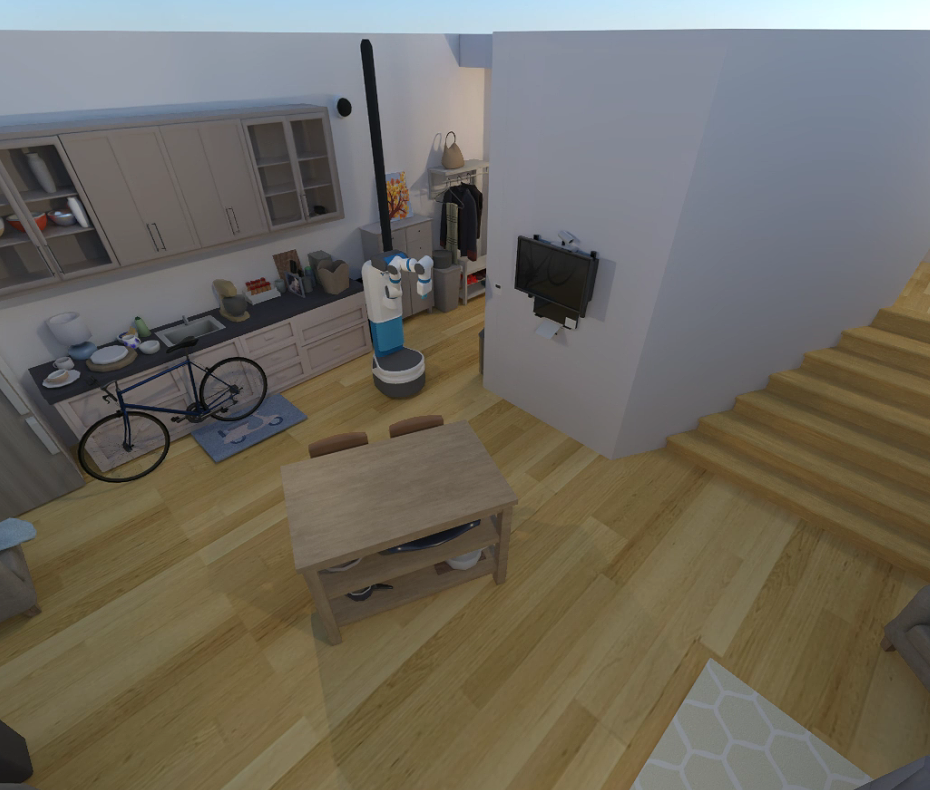
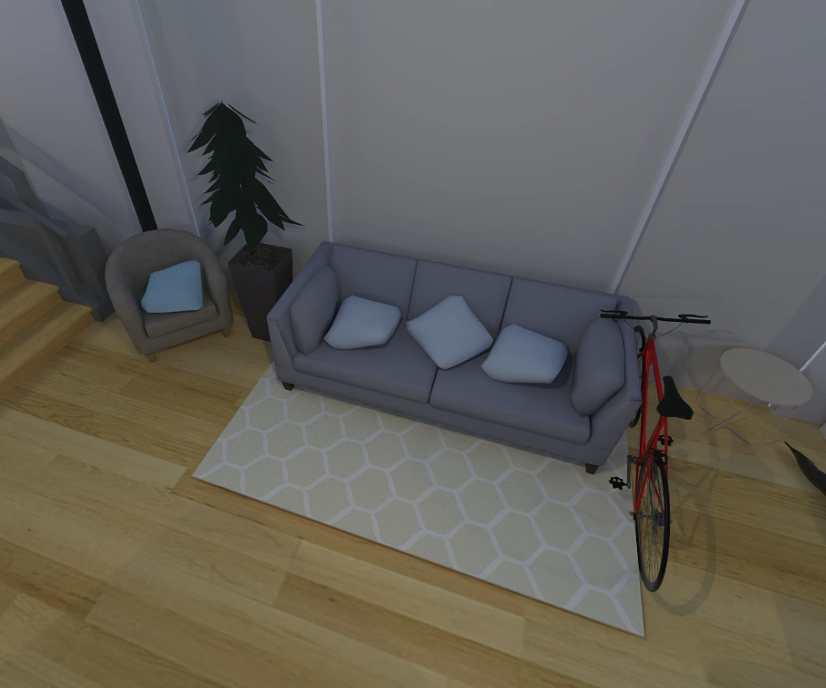
python -m mani_skill.examples.demo_random_action -e “TwoRobotStackCube-v1”
–render-mode=“human”
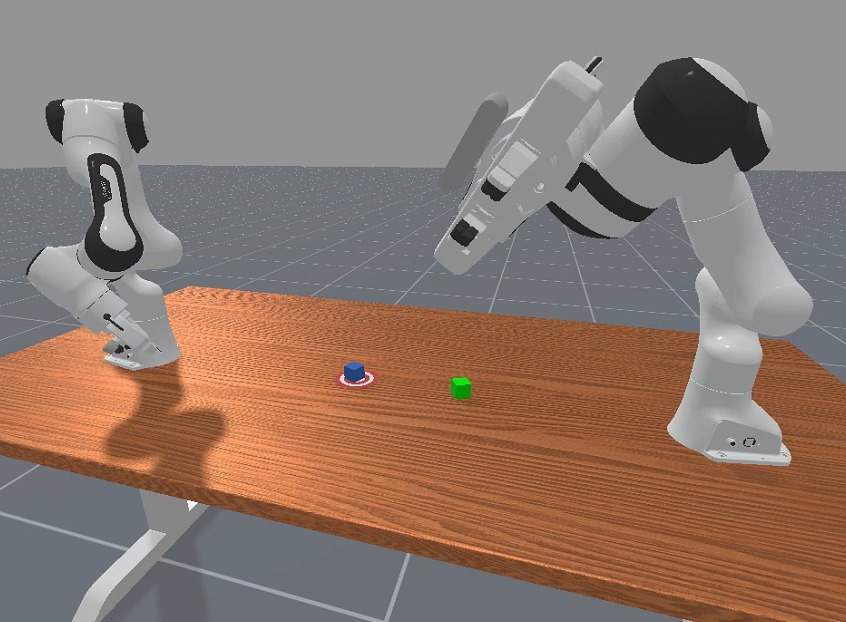
python -m mani_skill.examples.demo_random_action -e “RotateValveLevel2-v1”
–render-mode=“human”
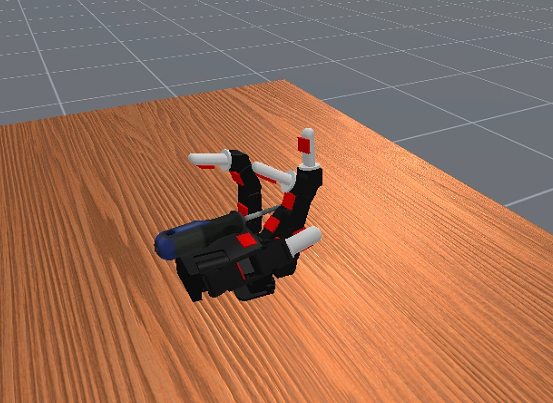
dexterous hand
python -m mani_skill.examples.demo_random_action -e “RotateSingleObjectInHandLevel3-v1”
–render-mode=“human”
Simulate touch sensation
To perform benchmark testing on the GPU simulation on the PickCube-v1 task using 4096 parallel tasks, run
python -m mani_skill.examples.benchmarking.gpu_sim -e “PickCube-v1” -n 4096
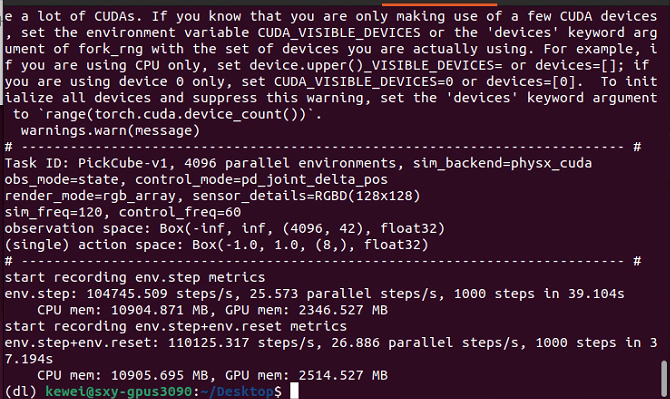
Very fast speed
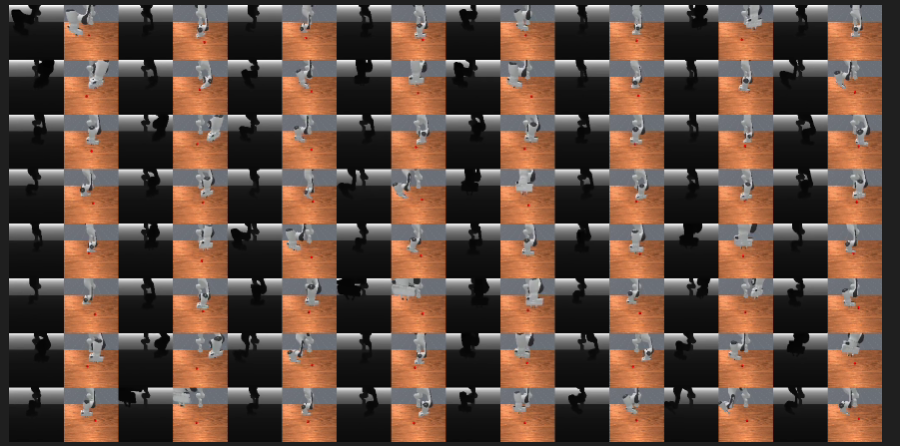
To save the visual observation video obtained by the proxy (in this case, only rgb and depth), run
python -m mani_skill.examples.benchmarking.gpu_sim -e “PickCube-v1” -n 64
–save-video --render-mode=“sensors”
It should run quite quickly! (On the 4090, 3000+ fps is achievable; you can increase the number of environments to get higher FPS). You can replace --render-mode="rgb_array" with rendering from a higher-quality camera.
To try various parallel simulation functions, run
python -m mani_skill.examples.benchmarking.gpu_sim -e “PickSingleYCB-v1” -n 64
–save-video --render-mode=“sensors”
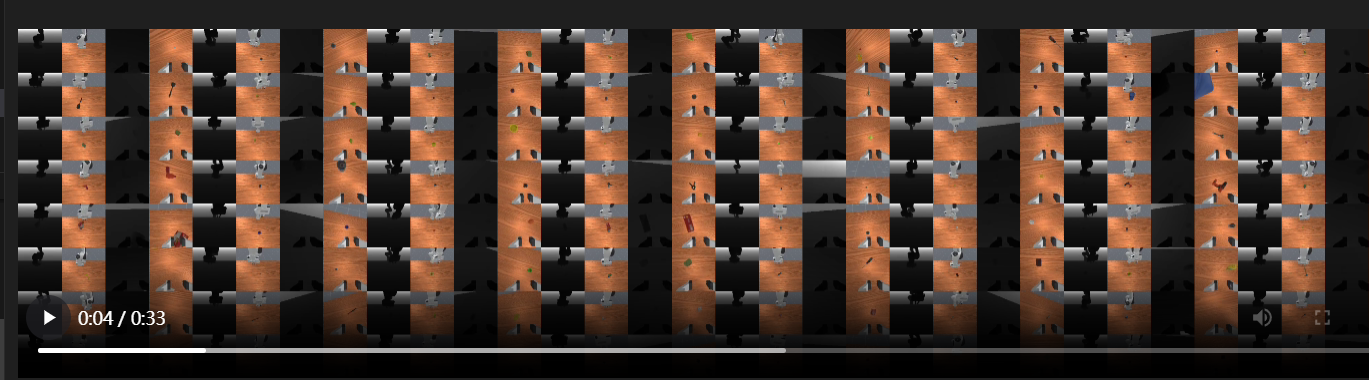
Grabbing different objects during simultaneous training
python -m mani_skill.examples.benchmarking.gpu_sim -e “OpenCabinetDrawer-v1” -n 64
–save-video --render-mode=“sensors”
It shows two tasks with different objects and joints in each parallel environment. Here is an example of the OpenCabinetDrawer task.
More detailed information and performance benchmark results can be found on this page
Interactive Control#
Click and drag for remote manipulation:
Simple tools allow you to click and drag the end effector of the robotic arm Panda to solve various tasks. Just click and drag, press “n” to move to the target position, press “g” to toggle grasping on/off, and repeat. Press “q” to exit and save the result video.
python -m mani_skill.examples.teleoperation.interactive_panda -e “StackCube-v1”
For more detailed information on how to use this tool (for demonstration and data collection), please refer to the homepage . The video below shows the system in operation.
Regarding this, there’s a bug. I have sent a message on Discord.
-
python -m mani_skill.examples.teleoperation.interactive_panda -e “StackCube-v1” Traceback (most recent call last): File “/home/kewei/micromamba/envs/dl/lib/python3.9/runpy.py”, line 197, in _run_module_as_main return _run_code(code, main_globals, None, File “/home/kewei/micromamba/envs/dl/lib/python3.9/runpy.py”, line 87, in _run_code exec(code, run_globals) File “/home/kewei/micromamba/envs/dl/lib/python3.9/site-packages/mani_skill/examples/teleoperation/interactive_panda.py”, line 11, in
from mani_skill.examples.motionplanning.panda_stick.motionplanner import \ ModuleNotFoundError: No module named ‘mani_skill.examples.motionplanning.panda_stick’ hi could anyone help me with this problem? -
[17:36]
ok well I have solved it. Just install from github not pypi helped me out
-
kewei_—_ Today 17:43
it might be a issue in example code. the right should be
from mani_skill.examples.motionplanning.panda.motionplanner_stick import PandaStickMotionPlanningSolver
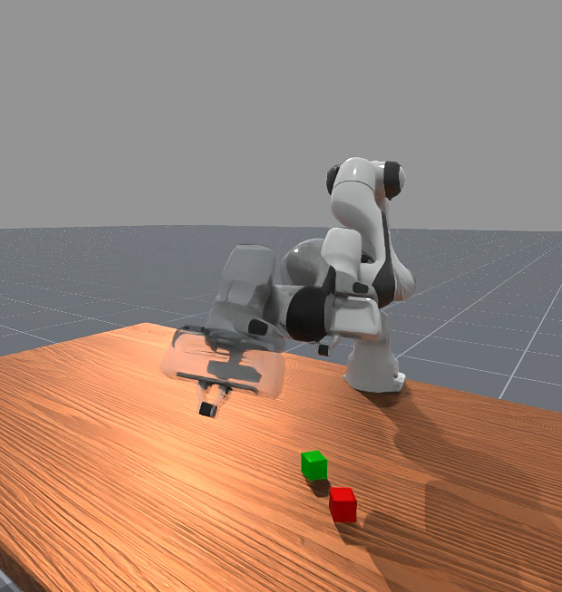
Motion Planning Solution #
We provided motion planning solutions/demos for the panda arm in certain tasks. Now, you can try and use the following content to record the demo:
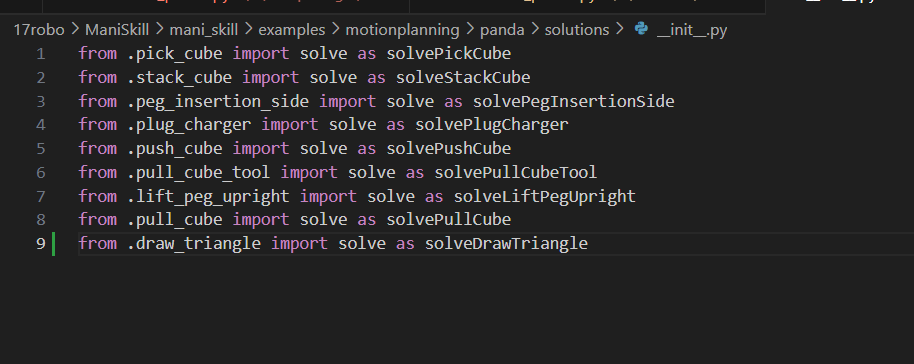
python -m mani_skill.examples.motionplanning.panda.run -e “PickCube-v1” # runs headless and only saves video python -m mani_skill.examples.motionplanning.panda.run -e “StackCube-v1” --vis # opens up the GUI python -m mani_skill.examples.motionplanning.panda.run -h # open up a help menu and also show what tasks have solutions
(dl) kewei@sxy-gpus3090:~/Desktop$ python -m mani_skill.examples.motionplanning.panda.run -h # open up a help menu and also show what tasks have solutions usage: run.py [-h] [-e ENV_ID] [-o OBS_MODE] [-n NUM_TRAJ] [–only-count-success] [–reward-mode REWARD_MODE] [-b SIM_BACKEND] [–render-mode RENDER_MODE] [–vis] [–save-video] [–traj-name TRAJ_NAME] [–shader SHADER] [–record-dir RECORD_DIR] [–num-procs NUM_PROCS]
optional arguments: -h, --help show this help message and exit -e ENV_ID, --env-id ENV_ID Environment to run motion planning solver on. Available options are [‘DrawTriangle-v1’, ‘PickCube-v1’, ‘StackCube-v1’, ‘PegInsertionSide-v1’, ‘PlugCharger-v1’, ‘PushCube-v1’, ‘PullCubeTool-v1’, ‘LiftPegUpright-v1’, ‘PullCube-v1’] -o OBS_MODE, --obs-mode OBS_MODE Observation mode to use. Usually this is kept as ‘none’ as observations are not necesary to be stored, they can be replayed later via the mani_skill.trajectory.replay_trajectory script. -n NUM_TRAJ, --num-traj NUM_TRAJ Number of trajectories to generate. –only-count-success If true, generates trajectories until num_traj of them are successful and only saves the successful trajectories/videos –reward-mode REWARD_MODE -b SIM_BACKEND, --sim-backend SIM_BACKEND Which simulation backend to use. Can be ‘auto’, ‘cpu’, ‘gpu’ –render-mode RENDER_MODE can be ‘sensors’ or ‘rgb_array’ which only affect what is saved to videos –vis whether or not to open a GUI to visualize the solution live –save-video whether or not to save videos locally –traj-name TRAJ_NAME The name of the trajectory .h5 file that will be created. –shader SHADER Change shader used for rendering. Default is ‘default’ which is very fast. Can also be ‘rt’ for ray tracing and generating photo-realistic renders. Can also be ‘rt-fast’ for a faster but lower quality ray-traced renderer –record-dir RECORD_DIR where to save the recorded trajectories –num-procs NUM_PROCS Number of processes to use to help parallelize the trajectory replay process. This uses CPU multiprocessing and only works with the CPU simulation backend at the moment.
Real2Sim Evaluation#
ManiSkill3 supports extremely fast real2sim evaluations using GPU simulation + rendering of policies such as RT-1 and Octo. For details on which environments are supported, please refer to and these pages . To run the inference of RT-1 and Octo, please refer to the branch of the SimplerEnv project maniskill3.
Visualize point cloud data
You can run the following command to visualize the point cloud observation results (requires a monitor to work).
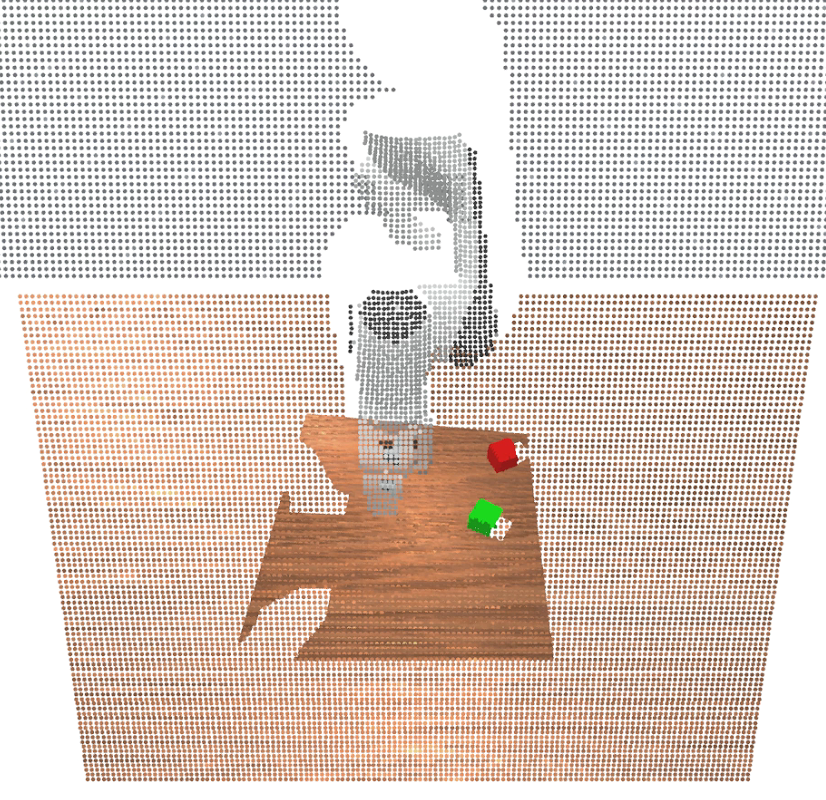
pip install “pyglet<2” # make sure to install this dependency python -m mani_skill.examples.demo_vis_pcd -e “StackCube-v1”
/home/kewei/17robo/ManiSkill/mani_skill/examples/demo_vis_pcd.py This file also needs to be modified.
On line 46 of demo_vis_pcd.py:
pcd = trimesh.points.PointCloud(xyz, colors)
You need to call .cpu().numpy() on the xyz and colors variables to ensure they are NumPy arrays on the CPU, rather than GPU Tensors.
Modify code:
pcd = trimesh.points.PointCloud(xyz.cpu().numpy(), colors.cpu().numpy())
Visualized segmented data #
You can run the following command to visualize segmented data:
python -m mani_skill.examples.demo_vis_segmentation -e “StackCube-v1”
python -m mani_skill.examples.demo_vis_segmentation -e “StackCube-v1”
–id id_of_part # mask out everything but the selected part
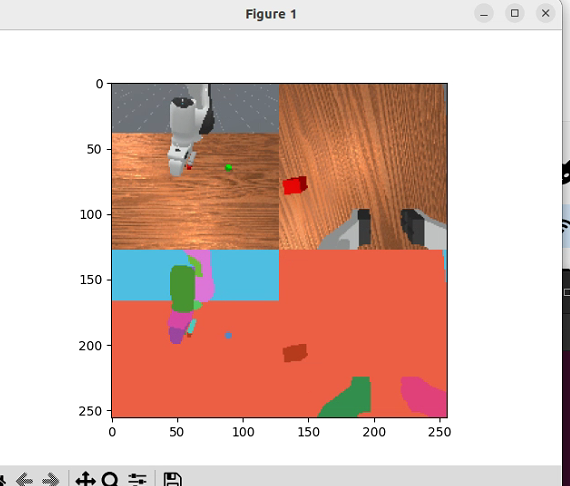
This command currently has an error report.
Visualizing 2 RGBD cameras
ID to Actor/Link name mappings
0: Background
1: Link, name - panda_link0
2: Link, name - panda_link1
3: Link, name - panda_link2
4: Link, name - panda_link3
5: Link, name - panda_link4
6: Link, name - panda_link5
7: Link, name - panda_link6
8: Link, name - panda_link7
9: Link, name - panda_link8
10: Link, name - panda_hand
11: Link, name - panda_hand_tcp
12: Link, name - panda_leftfinger
13: Link, name - panda_rightfinger
14: Link, name - camera_base_link
15: Link, name - camera_link
16: Actor, name - table-workspace
17: Actor, name - ground
18: Actor, name - cubeA
19: Actor, name - cubeB
Traceback (most recent call last):
File “/home/kewei/micromamba/envs/dl/lib/python3.9/runpy.py”, line 197, in _run_module_as_main
return _run_code(code, main_globals, None,
File “/home/kewei/micromamba/envs/dl/lib/python3.9/runpy.py”, line 87, in _run_code
exec(code, run_globals)
File “/home/kewei/17robo/ManiSkill/mani_skill/examples/demo_vis_segmentation.py”, line 144, in
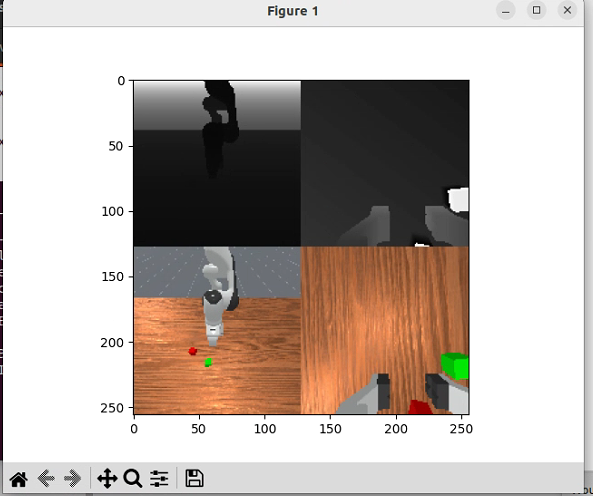
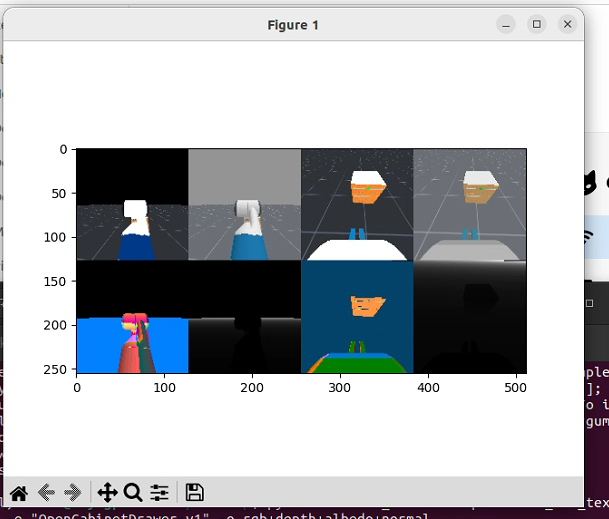
Visualize camera textures (RGB, depth, albedo, etc.) #
You can run the following command to visualize any number of textures generated by the camera. Note that the shader used by default is the “Default” shader, which produces almost all the textures needed. Please refer to the camera and shader page .
python -m mani_skill.examples.demo_vis_textures -e “StackCube-v1” -o rgb+depth python -m mani_skill.examples.demo_vis_textures -e “OpenCabinetDrawer-v1” -o rgb+depth+albedo+normal
Visualize Reset Distribution#
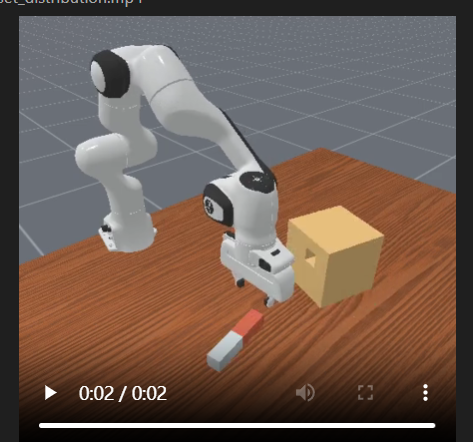
The task difficulty of machine learning algorithms such as reinforcement learning and imitation learning largely depends on the reset distribution of the task. To view the reset distribution of any task (the result of repeated env.reset calls), run the following command to save the video in the videos folder.
python -m mani_skill.examples.demo_reset_distribution -e “PegInsertionSide-v1” --record-dir=“videos”
Visualize any robot #
Run the following command to open the viewer, which displays any robot assigned in a blank scene (only the floor). If you want to visualize any predefined keyframes, you can also specify different keyframes.
python -m mani_skill.examples.demo_robot -r “panda”