
SIM1 Soft Body Simulation and Data Generation: From Remote Manipulation to Filtered Data
SIM1 is an open-source soft body manipulation simulation and data generation project by InternRobotics. The full project name is SIM1: Physics-Aligned Simulator as Zero-Shot Data Scaler in Deformable Worlds. It focuses on dual-arm fabric manipulation, providing a complete pipeline from interactive teleoperation, diffusion policy-based trajectory generation, physical replay, quality filtering, to optional high-fidelity rendering and LeRobot data conversion.
In this chapter, the minimum reproducible path is first verified. After completion, readers can view the interaction window of SIM1 locally, save a replay video, understand why the pipeline filters out a large number of soft body trajectories, and continue to convert a smoke sample into high-fidelity rendering videos, as well as into LMDB and LeRobot datasets.
What will be completed in this chapter
This article uses a Windows + NVIDIA graphics card environment for verification and includes the following tasks:
- Install the
sim1Python environment for SIM1. - Download the Hugging Face assets and example trajectories required for operation.
- Launch the interactive dual-robot manipulation window.
- Save the
.npz,.usd, and.mp4videos using replay. - Run the diffusion policy data generation and full pipeline.
- Explain why the soft robot trajectory acceptance rate is low, and how to interpret the filtering results.
- Run
USD -> Blender -> camera/random scene -> MeisterRender -> LMDB. - Convert the LMDB into a LeRobot v2 dataset.
SIM1 does not rely on Isaac Sim. Its real-time simulation is primarily based on Newton, NVIDIA Warp, MuJoCo-Warp, and PyTorch; the installation of Isaac Sim does not affect the main flow of this tutorial.
Verified Environment
The command in this article works properly in the following environments:
| Item | Local validation configuration |
|---|---|
| System | Windows PowerShell |
| Python | 3.11 |
| Environment management | micromamba, environment name sim1 |
| GPU | NVIDIA GeForce RTX 3060 Laptop GPU, 6 GiB VRAM |
| PyTorch | torch==2.6.0+cu124 |
| Warp | 1.13.0.dev20260417 |
| CUDA | Warp logs indicate CUDA Toolkit 12.9 and Driver 13.0 |
6 GiB of video memory is sufficient to run teleoperation, replay, small-scale data generation, and 97-frame smoke rendering. High-fidelity rendering requires significantly longer frame times; the local Step 4 time is approximately 2.6s/frame, and complete long trajectories should be queued for separate execution.
Project Directory
This article assumes that the SIM1 warehouse is located at:
powershellC:\Users\kewei\Documents\2026\07重要学术项目\16SIM1\SIM1
The Every Embodied tutorial repository is located at:
powershellC:\Users\kewei\Documents\2025\04资料整理\03具身教程编写\every-embodied
If your path is different, simply replace the working directory in the following command with the root directory of your SIM1 repository.
Cloning and Installation
On Windows, it is recommended to use Git Bash to execute the .sh script included in the repository. PowerShell can still be used as the main terminal, but you need to explicitly specify Git Bash when calling the script.
powershellcd C:\Users\kewei\Documents\2026\07重要学术项目\16SIM1
git clone --recurse-submodules https://github.com/InternRobotics/SIM1.git
cd SIM1

micromamba create -n sim1 python=3.11 -y
micromamba run -n sim1 "C:\Program Files\Git\bin\bash.exe" setup.sh
If you only want to run the simulation first and are not ready to perform high-fidelity rendering immediately, you can skip the rendering dependencies during installation:
powershell$env:SIM1_SKIP_RENDER='1'
micromamba run -n sim1 "C:\Program Files\Git\bin\bash.exe" setup.sh
If there are other packages in the local Python user directory under Windows that interfere, it is recommended to add the following before running SIM1:
powershell$env:PYTHONNOUSERSITE='1'
If the repository path contains Chinese characters, and a .pth file or encoding-related error occurs when Python starts up, you can map the SIM1 repository to a pure English path, and then have the editable install point to that path. This issue arises from the combined effect of Windows terminal and Python site-packages path encoding, not a physical simulation error in SIM1 itself.
Download assets and example data
The assets and data of SIM1 are hosted on Hugging Face. Before downloading, you need to log in to a Hugging Face account and obtain a read permission token. Do not write the token into tutorials, code, or submission records.
powershellcd C:\Users\kewei\Documents\2026\07重要学术项目\16SIM1\SIM1
$env:PYTHONNOUSERSITE='1'

micromamba run -n sim1 hf auth login
micromamba run -n sim1 "C:\Program Files\Git\bin\bash.exe" download_assets.sh
After the download is completed, at least these files or directories should be visible:
textassets/acone/acone.urdf
assets/cloth/short-shirt.usdc
assets/model/flow_ckpt_three.pth
assets/sim_teleoperated_npz/npz/*.npz
After this machine downloads and runs the preprocessing once, the size of the main directory is approximately:
| Directory | Machine Size |
|---|---|
assets/acone |
65.87 MB |
assets/cloth |
2.49 MB |
assets/model |
131.11 MB |
assets/sim_teleoperated_npz |
35.74 MB |
If high-fidelity rendering is to be performed later, complete assets/random/ rendering materials are also required. It is much larger than the minimum simulation assets. It is recommended to check the disk space before downloading.
Step 1: Start the interactive teleoperation
Run in the root directory of SIM1 repository:
powershellcd C:\Users\kewei\Documents\2026\07重要学术项目\16SIM1\SIM1
$env:PYTHONNOUSERSITE='1'

micromamba run -n sim1 python apps\teleoperation_app.py --task lift_manip_shirt
After successful startup, the terminal will print similar information:
textWarp initialized
joint dq cnt check: 19 == 19
=== Cloth Information ===
vertices=(7021, 3), faces=(41301,)
=== Keyboard Teleoperation Controls ===
Left gripper:  W/S=front/back, A/D=left/right, Q/E=down/up, X=toggle grip
Right gripper: I/K=front/back, J/L=left/right, U/O=down/up, M=toggle grip
The robotic arm and table in the window are made of white or gray material, which is normal. This window is a real-time debugging viewer for Newton/Warp, not a final high-fidelity renderer. The fabric has colors, and the use of white film for the robotic arm and table does not indicate any asset issues.
After exiting the window, the remote manipulation data will be saved to:
textdataset/lift_manip_shirt/<日期>/<时间>.npz
Step 2: Replay and save the video
replay_app.py will reinsert the existing .npz trajectory into the simulator for execution, and save the enhanced .npz, simulation .usd. If --save_video is added, the .mp4 video of the OpenGL viewer will also be saved.
--save_video requires a real viewer, so --no-headless must be added simultaneously:
powershellcd C:\Users\kewei\Documents\2026\07重要学术项目\16SIM1\SIM1
$env:PYTHONNOUSERSITE='1'

micromamba run -n sim1 python apps\replay_app.py dataset\smoke_00000_8f.npz --folder_name tutorial_smoke --sim_substeps 4 --no-headless --save_video --fps 30
If dataset\smoke_00000_8f.npz is not available, a short test file can be generated by cropping from the downloaded reference trajectory:
powershellcd C:\Users\kewei\Documents\2026\07重要学术项目\16SIM1\SIM1

@'
import numpy as np
from pathlib import Path

src = Path("assets/sim_teleoperated_npz/npz/00000.npz")
dst = Path("dataset/smoke_00000_8f.npz")
dst.parent.mkdir(parents=True, exist_ok=True)

data = np.load(src, allow_pickle=True)
out = {}
for key in data.files:
    value = data[key]
    if hasattr(value, "shape") and len(value.shape) > 0 and value.shape[0] >= 8:
        out[key] = value[:8]
    else:
        out[key] = value

np.savez_compressed(dst, **out)
print(dst)
'@ | micromamba run -n sim1 python -
The video saved by this machine is as follows. It comes from 8-frame smoke replay, mainly used to confirm that the replay, USD recording, and video storage process are working, but it does not represent the final high-fidelity rendering quality.
Corresponding output directory:
textreplay/tutorial_smoke_0001/
  npz/smoke_00000_8f.npz
  usd/smoke_00000_8f.usd
  video/smoke_00000_8f.mp4
If Video saved to: ...\video\smoke_00000_8f.mp4 is seen in the terminal, it means the video has been saved successfully.
Step 3: Generate trajectory with diffusion policy
The data generation of SIM1 is not a new manual teleoperation, but rather extracting the end pose and cutting task from the reference trajectory, and then using the model to generate a new two-armed trajectory. The default checkpoint in the repository is:
textassets/model/flow_ckpt_three.pth
Run 2 trajectories:
powershellcd C:\Users\kewei\Documents\2026\07重要学术项目\16SIM1\SIM1
$env:PYTHONNOUSERSITE='1'

micromamba run -n sim1 python apps\datagen_app.py --data_folder assets\sim_teleoperated_npz --num 2 --use_dp --mode fine
During the first run, the program will first calculate the normalization stats and convert the reference .npz into a end pose representation:
textCalculating normalization stats...
Processing 00000.npz...
Saved: assets\sim_teleoperated_npz\ee_pos\00000.npz
...
Saving normalization stats to: assets\sim_teleoperated_npz\ee_pos
Here, even if --num 2, all reference trajectories will be processed first. --num 2 controls how many new trajectories are generated in the end, not how many reference files are preprocessed.
Then, you will see the number of model parameters and generation progress:
textNumber of parameters: 10279440
[INFO] processed 9 subtasks (each with several records)
[OK] saved assets\sim_teleoperated_npz\temp_trajs\000000.json
[OK] saved assets\sim_teleoperated_npz\temp_trajs\000001.json
Data Generation in Progress: 100%|...
Generated results are written in by default:
textassets/sim_teleoperated_npz/gen/*.npz
Step 4: Run the complete pipeline
It is more recommended to use the run_pipeline.sh provided by the repository. It will concatenate four stages:
textGenerate -> Smooth -> Replay -> Filter
Run in Windows PowerShell:
powershellcd C:\Users\kewei\Documents\2026\07重要学术项目\16SIM1\SIM1
$env:PYTHONNOUSERSITE='1'

micromamba run -n sim1 "C:\Program Files\Git\bin\bash.exe" run_pipeline.sh --num 2 --workers 1
The meanings of each stage are as follows:
| Stage | Call Content | Output |
|---|---|---|
| Generate | apps/datagen_app.py --use_dp --mode fine |
assets/sim_teleoperated_npz/gen/*.npz |
| Smooth | Kalman smoothing | assets/sim_teleoperated_npz/gen/kf/*.npz |
| Replay | apps/replay_app.py Physical execution replay |
replay/pipeline_output_0001/npz and usd |
| Filter | Joint mutation, end-point accessibility, fabric quality filtering | Unqualified files are moved to the bad directory |
In one output of this machine --num 2, the first two replays were executed, but the fabric quality filtering failed completely:
textPassed : 0 / 2
Failed : 2

Moved 2 bad USD  -> replay/pipeline_output_0001/usd_bad_cloth
Moved 2 bad NPZ  -> replay/pipeline_output_0001/npz_bad_cloth

Good trajs    : 0
This is a normal phenomenon in the soft body manipulation pipeline. Tasks such as grasping fabric, lifting, and folding are sensitive to contact, gripper closure, fabric self-collision, and solver stability. The diffusion model generates candidate trajectories, which must also undergo physical replay and quality filtering before they can be used for subsequent rendering or training.
If the pass rate of a single trajectory is less than 10%, then the probability of all failures when only 2 are generated is approximately:
text(1 - 0.1)^2 = 81%
Therefore, --num 2 is more suitable as a functional smoke test and is not suitable for judging the effectiveness of the method. To obtain usable samples, the quantity needs to be increased:
powershellmicromamba run -n sim1 "C:\Program Files\Git\bin\bash.exe" run_pipeline.sh --num 20 --workers 1
If you only want to observe the generated trajectory and do not want the files to be removed during the filtering stage, you can temporarily skip the filtering:
powershellmicromamba run -n sim1 "C:\Program Files\Git\bin\bash.exe" run_pipeline.sh --num 2 --workers 1 --skip_filter
How to read the output directory
A complete pipeline will create a directory-like structure:
textreplay/pipeline_output_0001/
  npz/                    # 通过前仍保留的 replay npz
  usd/                    # 通过前仍保留的 replay usd
  npz_bad_cloth/          # 布料质量不合格 npz
  usd_bad_cloth/          # 布料质量不合格 usd
  npz_unreachable/        # 关节或末端不可达过滤结果
  cloth_filter_summary.txt
After the filtering is completed, the npz/ and usd/ that are actually retained are the inputs for subsequent rendering. If Good trajs is 0, there are no trajectories to process during the rendering stage.
Common Errors When Saving Videos
If this is run:
powershellmicromamba run -n sim1 python apps\replay_app.py dataset\smoke_00000_8f.npz --save_video
An error will be reported because it is set to headless by default:
text--save-video needs an OpenGL viewer; run with --no-headless
The correct command is:
powershellmicromamba run -n sim1 python apps\replay_app.py dataset\smoke_00000_8f.npz --folder_name tutorial_smoke --no-headless --save_video
run_pipeline.sh does not include --save_video by default. Therefore, the complete pipeline generally only stores .npz and .usd. To record a video, you can run replay on a specific .npz separately.
Common Questions
Why is the robotic arm and table covered with white film?
This is a normal phenomenon. The windows opened for teleoperation and replay are for real-time debugging the viewer, not the final rendering results. The white robotic arm and desktop do not affect the physical simulation, and it does not indicate any missing Isaac Sim assets.
Does SIM1 have version requirements for Isaac Sim?
This tutorial’s main process does not require Isaac Sim. SIM1 uses Newton, Warp, MuJoCo-Warp, and PyTorch for simulation and data generation. The subsequent high-fidelity rendering uses the Blender/MeisterRender pipeline from the repository, rather than a version bound to Isaac Sim.
What to do if huggingface-cli is deprecated when downloading from Hugging Face?
The new version of Hugging Face recommends using the hf command. You can confirm first:
powershellmicromamba run -n sim1 hf auth whoami
micromamba run -n sim1 hf download --help
If the old script still prioritizes calling huggingface-cli, the download script needs to be changed to use hf download as the priority, or the content of the corresponding repository can be manually downloaded to assets/.
fatal: expected 'packfile' is what?
This is a network or LFS retrieval issue that may occur during the Hugging Face Git LFS sparse checkout process. Prioritize using the hf download method; if Git LFS is necessary, it is recommended to clean up the temporary directory and try again, and ensure that your current account has access rights to the dataset.
Is the failure of pipeline filtering due to poor diffusion model performance?
You cannot make a judgment like this directly. Filtering failures occur from multiple aspects: diffusion candidate trajectories, inverse kinematics reachability, gripper contact, fabric solver stability, and the final posture threshold of the fabric. The design principle of SIM1 is to generate a large number of candidates first, and then use physical replay and quality filtering to retain valid data.
Quick Reference Table of Randomization Forms
In SIM1, the “randomization” that tends to mix together mainly falls into two categories: one occurs during the physical replay phase, altering the initial pose and subsequent physical trajectory of the fabric; the other occurs in rendering Step 3, only changing the visual appearance, camera output, and training images. The following table organizes them according to the actual forms available in the current code.
| Form | Phase of Execution | Actual Random Content | Command or Position | Impact on Data | Smoke Preview |
|---|---|---|---|---|---|
| Fixed Replay | Physical Replay | No cloth pose randomization; uses .npz or default cloth pose |
apps\replay_app.py ... --no-headless --save_video |
Suitable for confirming trajectory, USD, and video saving process first | 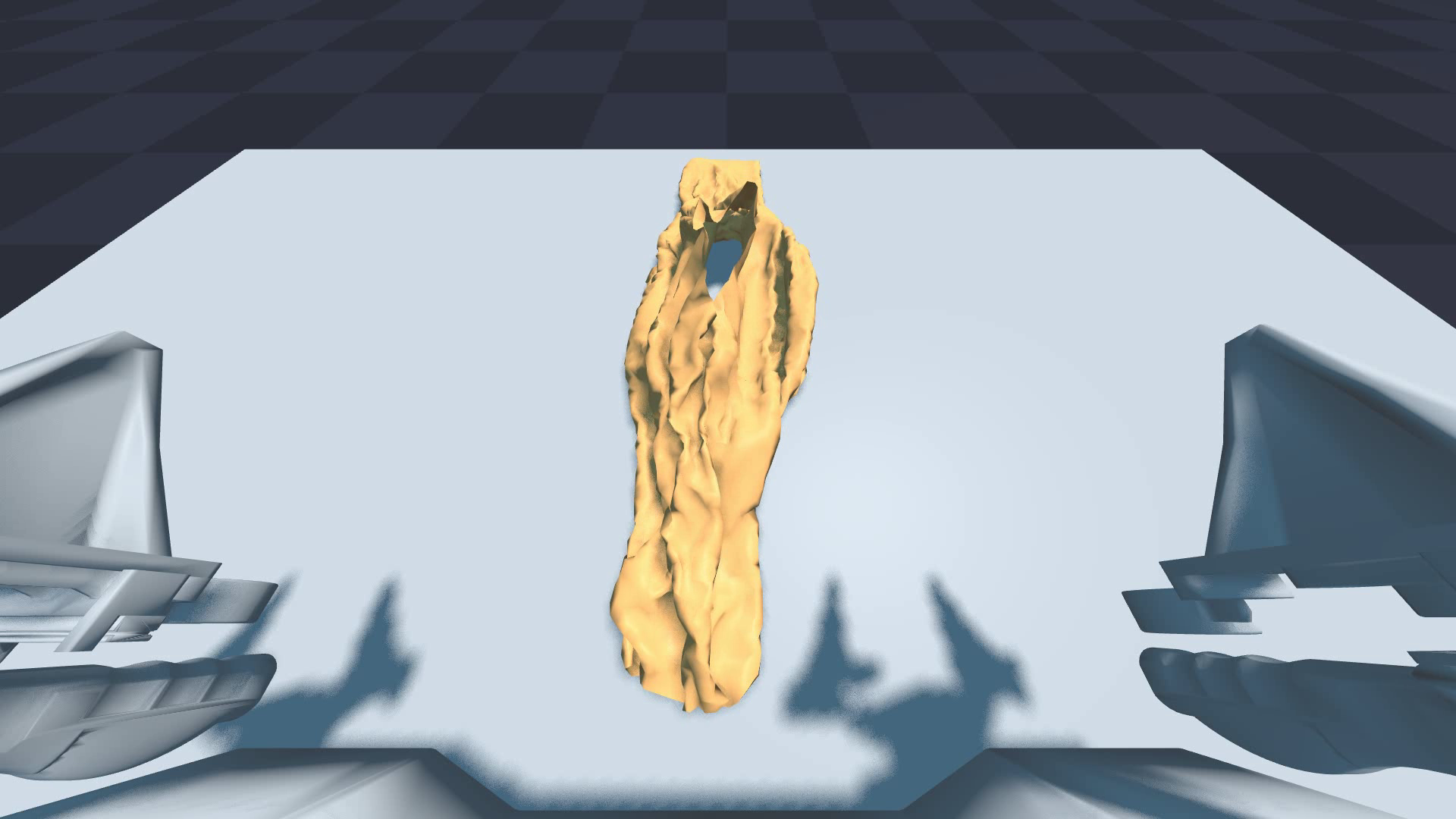 Video |
| Cloth Pose Randomization | Physical Replay | Initial cloth position x/y is translated within ±2 cm, and yaw around z axis rotates within ±15° |
--position-randomize |
Changes physical contact and filtering results; the pipeline first performs EE reachability, then aligned cloth quality | 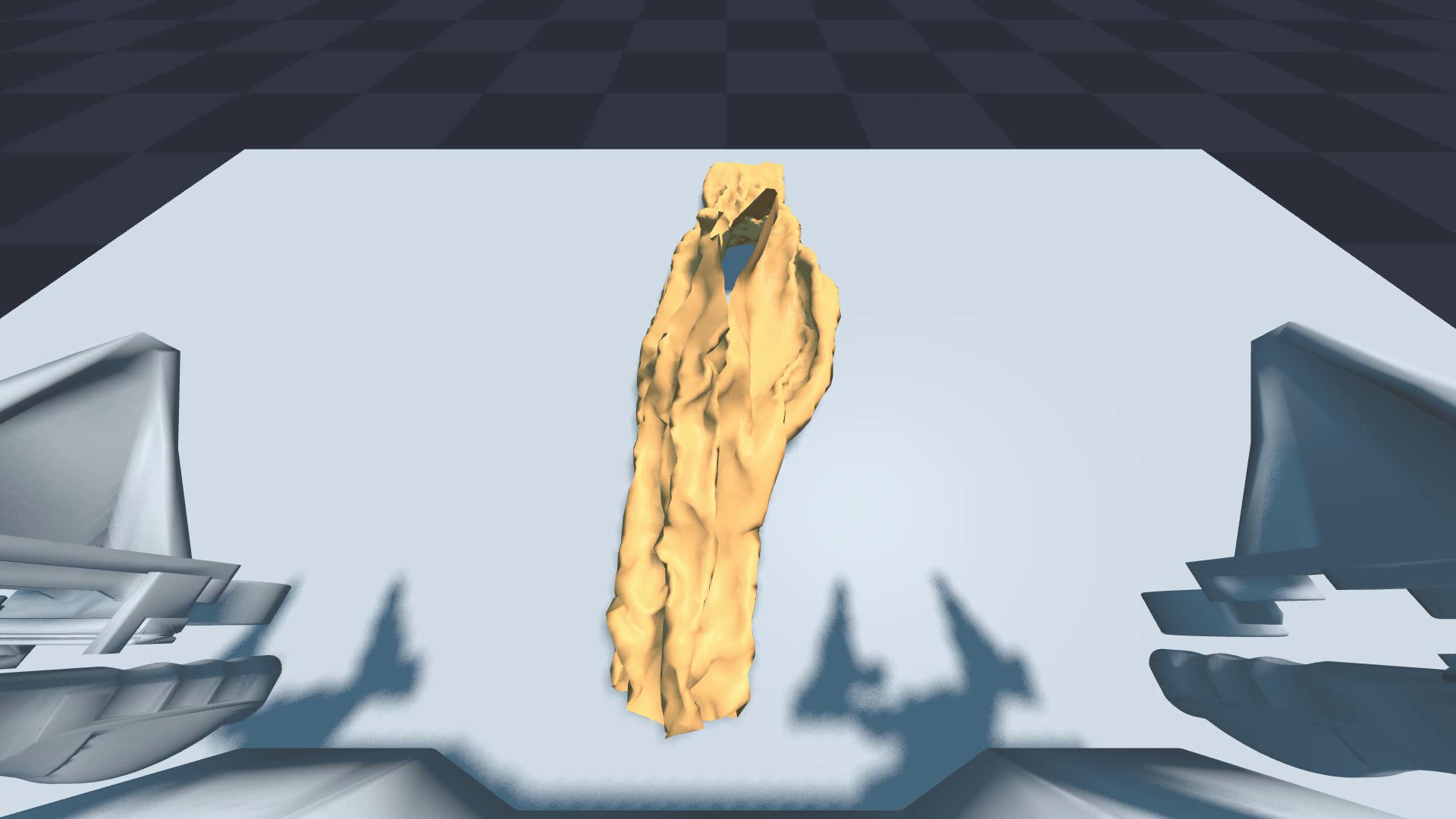 Video |
| Full Render Randomization | Render Step 3 | Random HDRI background, random table model, random cloth material | components\render\main.py --step3 random |
Does not affect physical trajectory; changes final RGB image and LMDB/LeRobot video | 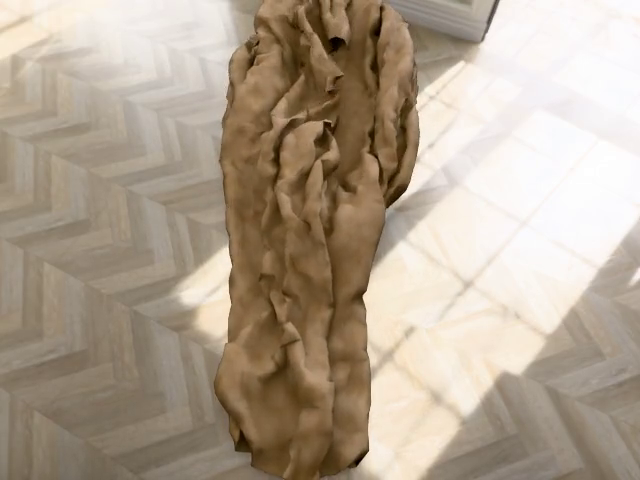 Head / Left / Right |
| Fixed Table Render Script | Render Step 3 | Current --step3 no_random script fixes the table object name to wooden_table_02; but the code still randomly selects HDRI and cloth materials |
--step3 no_random, use SIM1_TABLE_ROOT to restrict the table directory when necessary |
Suitable for reducing geometric variations of the table; not completely random | 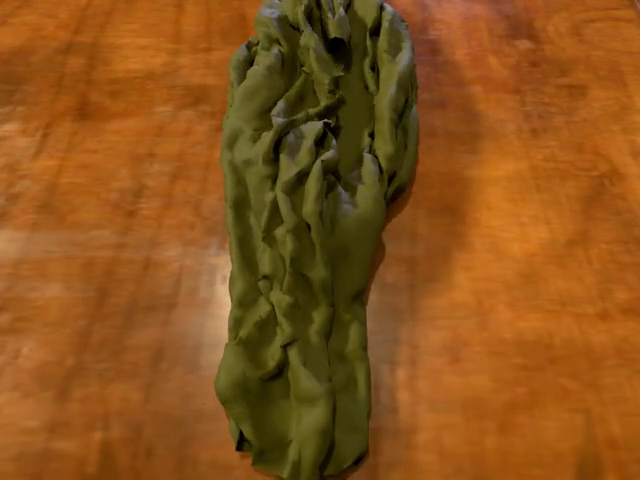 Head / Left / Right |
| Three-Camera Output | Render Step 4 / LeRobot | Three fixed camera streams: head, hand_left, hand_right |
Step 4 automatically outputs images.rgb.* |
Not randomized; different viewing angles of the same trajectory | Demonstrated in the render previews of the above two groups |
| Main Camera Pitch Perturbation | Render Step 2 | There is pitch jitter in the code for the main camera, but currently max_pitch_noise_deg = 0.0, defaultly disabled |
components/render/step2_compute_camera_acone_yourdf.py |
Requires code modification to change the main camera pitch; no CLI switch available | Not enabled in this document |
| Render Asset Directory Constraint | Render Step 3 | Limits the random pool via environment variables instead of adding new randomness | SIM1_BG_ROOT, SIM1_TABLE_ROOT, SIM1_MAT_ROOT |
Can reduce the random range to a specified background/table/material set | The fixed table preview in this document uses SIM1_TABLE_ROOT |
| Language Instructions | Step 4 Meta-Information | Writes language descriptions into meta_info.pkl |
batch_step4.sh <session> "Fold the blue short shirt" |
Does not affect visual results; affects task text in LMDB/LeRobot | No visual difference |
If you only want to see the visual differences, compare --step3 random and --step3 no_random first. If you want to check the trajectory and filtering differences, compare fixed replay and --position-randomize.
Step 5: High-Fidelity Rendering and LMDB
The high-fidelity rendering link reads the paired npz/ and usd/ in the replay session, and completes them in sequence:
textUSD -> Blender scene -> camera/random scene -> MeisterRender -> LMDB
Complete random scene materials are required before rendering:
powershellcd C:\Users\kewei\Documents\2026\07重要学术项目\16SIM1\SIM1
$env:PYTHONNOUSERSITE='1'

micromamba run -n sim1 hf download InternRobotics/Sim1_Assets --include "assets/random/*" --local-dir .
After this machine downloads it, assets/random/ is approximately 4.1 GB. If the rendering dependency was skipped using SIM1_SKIP_RENDER=1 during installation, it needs to be reinstalled:
powershellmicromamba run -n sim1 python -m pip install bpy==4.5 yourdfpy minexr omegaconf opencv-python
You can first perform an import and asset check:
powershellmicromamba run -n sim1 python -c "import numpy,bpy,cv2; from scripts.sim1_asset_paths import validate_render_assets; print(numpy.__version__); print(bpy.app.version_string); print(validate_render_assets())"
The local verification output is:
textnumpy 1.26.4
bpy 4.5.0
asset_problems []
In Windows Chinese paths, Blender/USD may parse .usd as garbled text, and errors are similar to unable to open stage to read ... .usd. In such cases, do not modify the USD file. Instead, simply copy or map the repository to a pure English path and run it. Junction may still be parsed by USD back to a real Chinese path, and the local machine uses the minimal English copy:
powershellC:\sim1_ascii
To quickly verify the rendering chain, this paper uses the smoke session generated from the previous 8 frames replay, instead of a trajectory with a length of 1378 frames:
textreplay/render_smoke_0001/
  npz/000000.npz
  usd/000000.usd
Run Steps 1-3 first:
powershellcd C:\sim1_ascii
$env:PYTHONNOUSERSITE='1'

micromamba run -n sim1 python components\render\main.py --root_dir replay\render_smoke_0001 --step3 random --language_instruction "Fold the blue short shirt"
Key outputs include:
textUSD import completed successfully
Frame range: 0 - 97
Selected BG: brown_photostudio_06_2k.exr
Table: ClassicNightstand_01_1k.gltf
Mat: polar_fleece_1k.gltf
Scene saved to replay\render_smoke_0001\blend_out\000000\*.blend
Run MeisterRender Step 4 again:
powershellmicromamba run -n sim1 "C:\Program Files\Git\bin\bash.exe" components/render/batch_step4.sh replay/render_smoke_0001 "Fold the blue short shirt" 0 1
On the 3060 Laptop GPU of this machine, Step 4 processes 97 frames and 3 cameras, approximately 4 分 50 秒. The log will show:
textOPTIX device: NVIDIA GeForce RTX 3060 Laptop GPU: True
Path tracing 97 frames × 3 cameras
Writing LMDB / MP4 under replay\render_smoke_0001\out_updated\000000
Saved: ... (lmdb/, meta_info.pkl, */demo.mp4)
The output directory is as follows:
textreplay/render_smoke_0001/out_updated/000000/
  lmdb/data.mdb
  meta_info.pkl
  images.rgb.head/demo.mp4
  images.rgb.hand_left/demo.mp4
  images.rgb.hand_right/demo.mp4
The following three videos are from three camera perspectives of the same smoke sample. They are used to verify rendering, LMDB writing, and camera data links, but do not represent the quality of the complete training set.
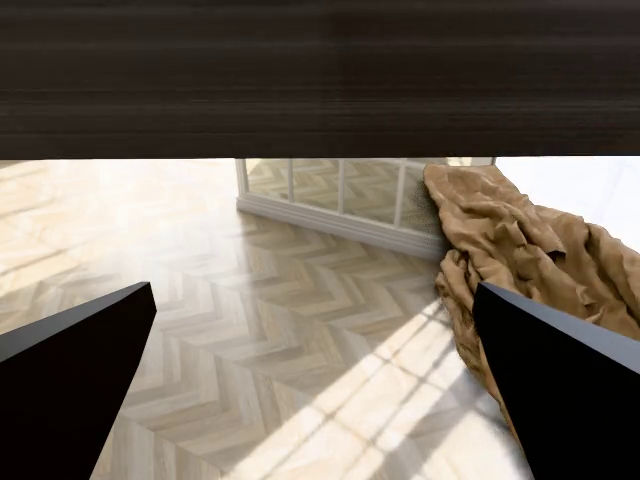
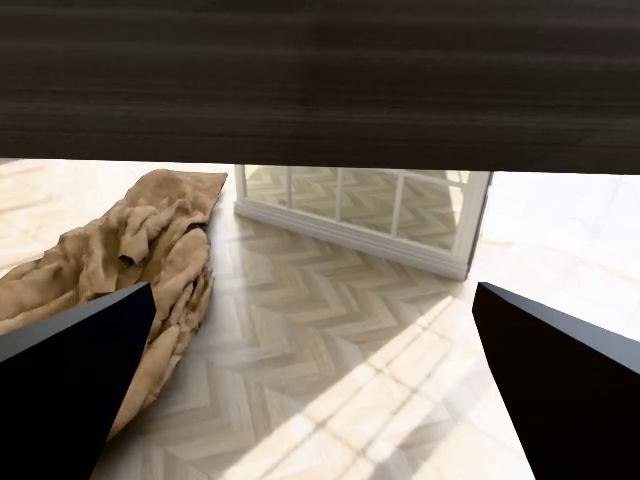
Step 6: LMDB to LeRobot v2
components/lmdb2lerobot/run_local.sh will convert the out_updated/ from Step 4 into the LeRobot v2 dataset, and continue with the default post-processing and static frame deletion for sim2real parquet. All frames can be retained during the smoke verification:
powershellcd C:\sim1_ascii

micromamba run -n py310-lerobot "C:\Program Files\Git\bin\bash.exe" components/lmdb2lerobot/run_local.sh --src ./replay/render_smoke_0001/out_updated --out ./replay/render_smoke_0001/lerobot_dataset --keep-static-frames
If the environment lacks dependencies such as lmdb, scipy, etc., install the dependency files provided by the repository first:
powershellmicromamba run -n py310-lerobot python -m pip install -r C:\sim1_ascii\components\lmdb2lerobot\requirements.txt
This machine conversion log shows:
textFound 1 episode(s)
total_steps: [97, 97, ...]
Finished episode .../out_updated/000000
counter_episodes_uncomplete: 0
Step 2: sim2real (parquet)
Skipped remove_static_frames (--keep-static-frames)
Done. LeRobot dataset: .../lerobot_dataset
Transformed directory structure:
textreplay/render_smoke_0001/lerobot_dataset/
  data/chunk-000/episode_000000.parquet
  videos/chunk-000/images.rgb.head/episode_000000.mp4
  videos/chunk-000/images.rgb.hand_left/episode_000000.mp4
  videos/chunk-000/images.rgb.hand_right/episode_000000.mp4
  meta/info.json
  meta/episodes.jsonl
  meta/tasks.jsonl
This smoke dataset contains 1 episodes and 97 frames. meta/info.json has been saved to assets/sim1/sim1-lerobot-info.json along with the tutorial, used to record the LeRobot meta-information generated during this conversion.
Future Directions
After completing the implementation of this article, mainly do three things:
- Increase
--num, and observe the filtering pass rate and failure types. - Render the long trajectory that passes the filter; if the path contains Chinese characters, prioritize running Blender/USD with pure English paths.
- Remove
--keep-static-framesand delete the process-generated dataset using the default static frames to obtain a dataset closer to training use.
Reference Links
- SIM1 GitHub: https://github.com/InternRobotics/SIM1
- SIM1 Project Page: https://internrobotics.github.io/sim1.github.io/
- SIM1 arXiv: https://arxiv.org/abs/2604.08544
- Newton: https://newton-physics.github.io/newton/
- NVIDIA Warp: https://nvidia.github.io/warp/