
Task 03: Demonstration Practical Operation
1. Learning Overview
In the past two days, you have established a understanding of “what embodied AI is” and “what are the mainstream technical approaches”. What this section aims to do today is to translate these abstract concepts into a realizable development pipeline. Learners often hear terms like “data collection”, “model fine-tuning”, “simulation debugging”, and “deployment verification”, but without experiencing them firsthand, it’s easy to treat them as separate steps. In fact, in embodied AI, these stages are not separate nouns placed side by side, but a tightly coupled production line.
Starting from this section, you will manually perform data collection and model tuning in a simulation environment. Please follow the step-by-step instructions, with diagrams provided for each step. If you have any questions, you can refer to the relevant tutorial 👉🏻 Simulation Environment Tutorial
The simulation training process mainly includes the following steps: Create task → Collect data → Confirm dataset → Create fine-tuning task → Check training status → Export model → Deploy service → Skill debugging. The following sections will describe each step in detail.
Before that, let’s first understand the basic capabilities of the platform: where the data comes from, how models learn a skill, what role the simulation platform plays in between, and how the LeCloud platform organizes these steps for learners to see.
2. How does a robot learn a new skill?
If developing a embodied skill, the typical process is roughly as follows:
flowchart TD
    A[遥操/数据采集] --> B[数据预处理与导出]
    B --> C[构建训练环境]
    C --> D[模型微调 Fine-tuning]
    D --> E[仿真评测]
    E --> F[本体部署与真机测试]
    F -.数据回流.-> A
The challenge of this connection path is that it is not merely a software issue. You cannot rely solely on writing model code, nor can you simply control the robotic arm. It involves remote operation, data, simulation, training, deployment, and hardware. Any problem in any of these aspects will ultimately lead to the question “why can’t the robot function?” For individual learners, the biggest hurdles usually lie in two areas: first, the lack of a real robot makes it difficult to collect high-quality data on your own; second, the absence of a complete environment makes it hard to understand how training, debugging, and deployment are interconnected. Precisely because of this, the LeCloud platform plays a very clear role in this topic: it does not replace all underlying engineering work, but rather presents the entire connection path first.
3. Quick Overview of Features of Leyun Embodied AI Platform
If we consider the LeYue Cloud Platform as a closed loop educational entry point for embodied AI, what is most worth understanding first is not a single isolated function, but how the core modules are divided into roles. The platform mainly consists of three core modules:
| Function Module | Role | What Students Can Do |
|---|---|---|
| Model Plaza | Pre-set models such as π0, RynnVLA, GR00T | Understand and call existing embodied AI models on the platform |
| Data Management | Upload/Manage/Annotate data | View dataset from real robots and simulation (e.g., joint angle curves, videos) |
| Model Services | Model training, optimization, deployment | Experience skill debugging and model deployment processes |
Remember the relationship among the three in one sentence: The Model Square is responsible for “viewing and selecting”, Data Management is responsible for “viewing data”, and Model Services are responsible for “putting skills into action”. Although this statement is short, it reflects a very typical engineering logic. The Model Square lets you know what capabilities the platform provides; Data Management shows you the data format on which the models depend; and Model Services tell you how these capabilities ultimately enter the training, optimization, and deployment processes. For beginners, understanding this relationship among the three is enough to move beyond the stage where “I know many pages of the platform, but I don’t know how they relate to each other”. In other words, this section isn’t about teaching you “where to click”, but about helping you build a engineering map first.
4. Platform Demonstration
(1) Log in and enter the platform
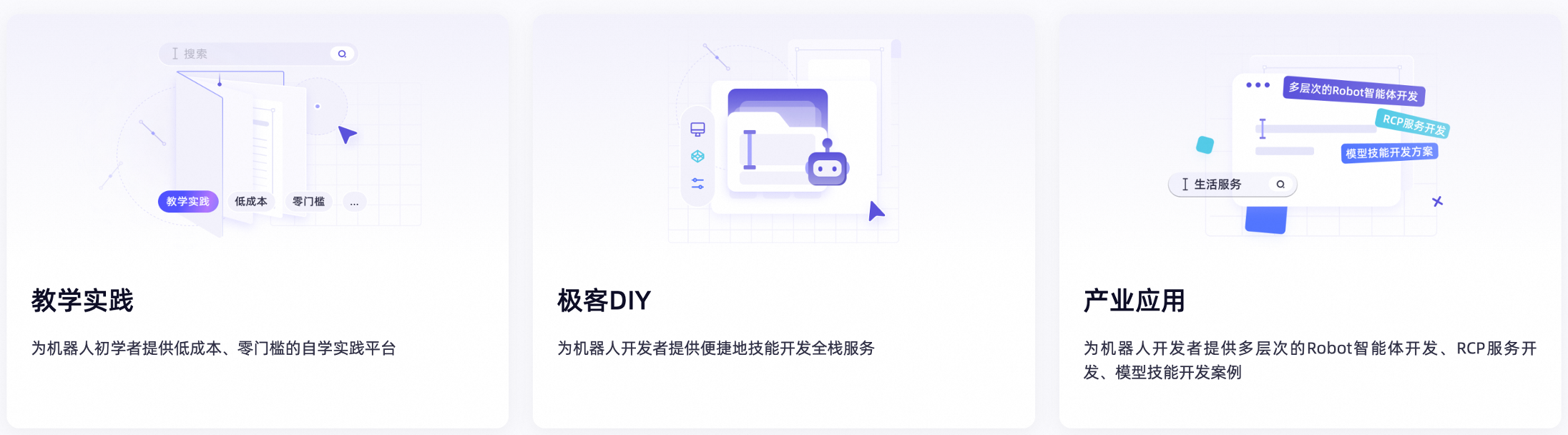
In terms of manipulation, this step is quite simple: first log in to the DAMO Developer Matrix, then click “Experience Now” to enter the Leyun embodied AI development platform. However, from a learning perspective, the true significance lies not in “successful login,” but in starting to connect the abstract topic content with a real platform system. Often, learners consider “platform” as a vague concept; only after actually seeing the entry point, homepage, and module layout does the subsequent content become concrete.
LeCloud Platform: https://developer.damo-academy.com/playground?spm=a1z26upx.zdxx.0.0&from=zdxx
Reference interface:
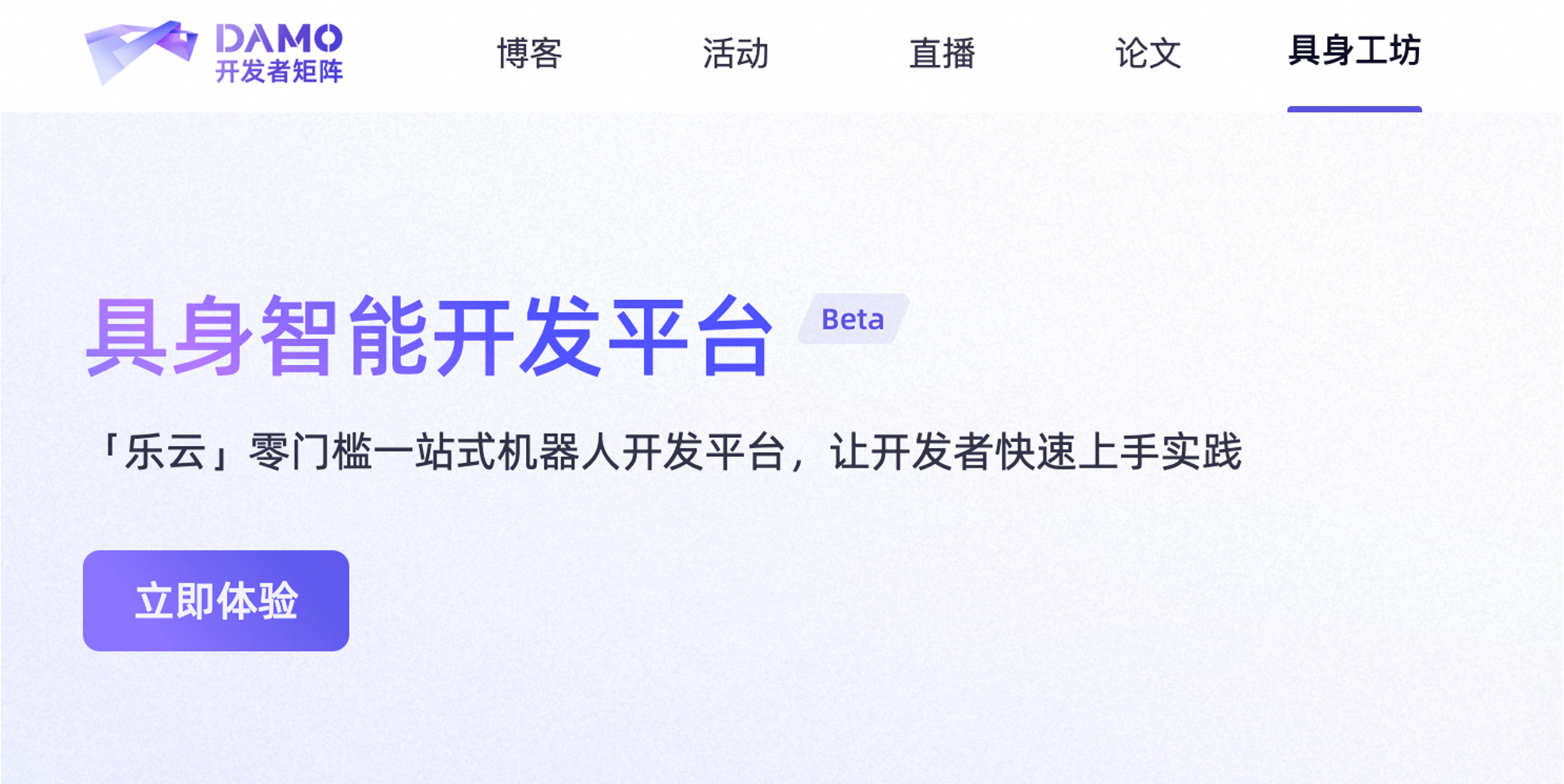
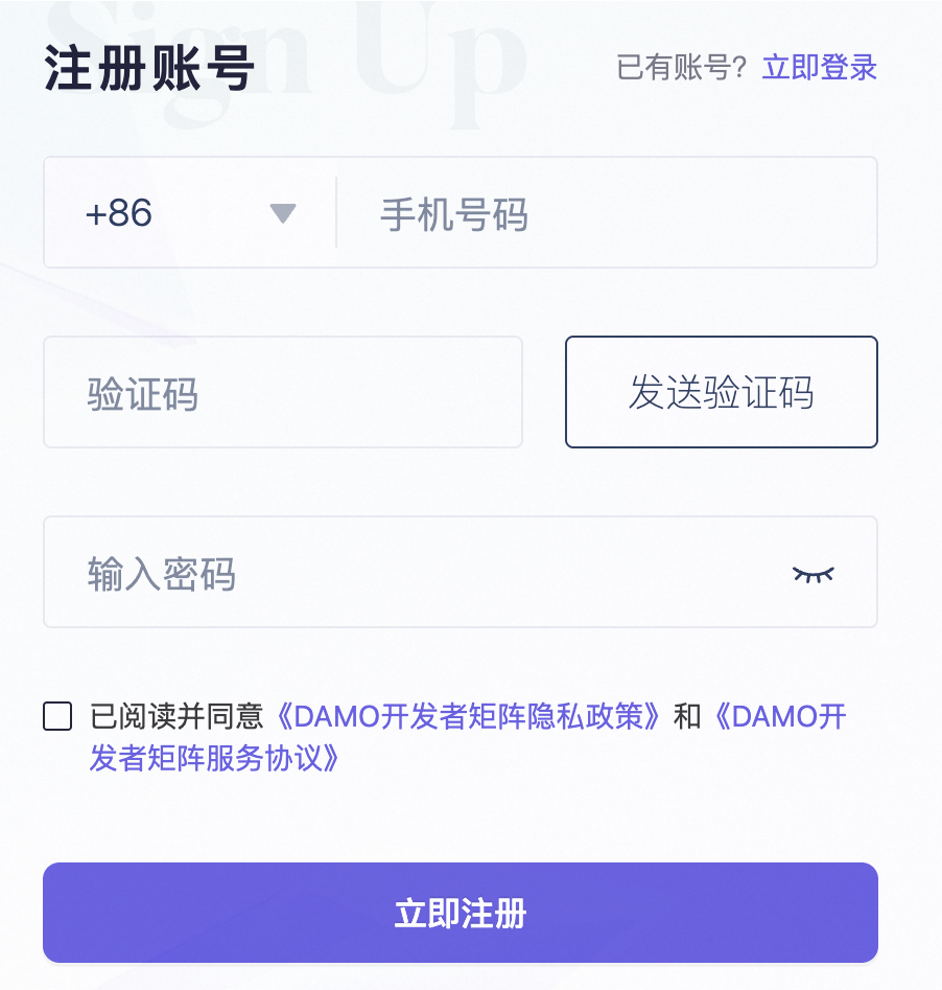
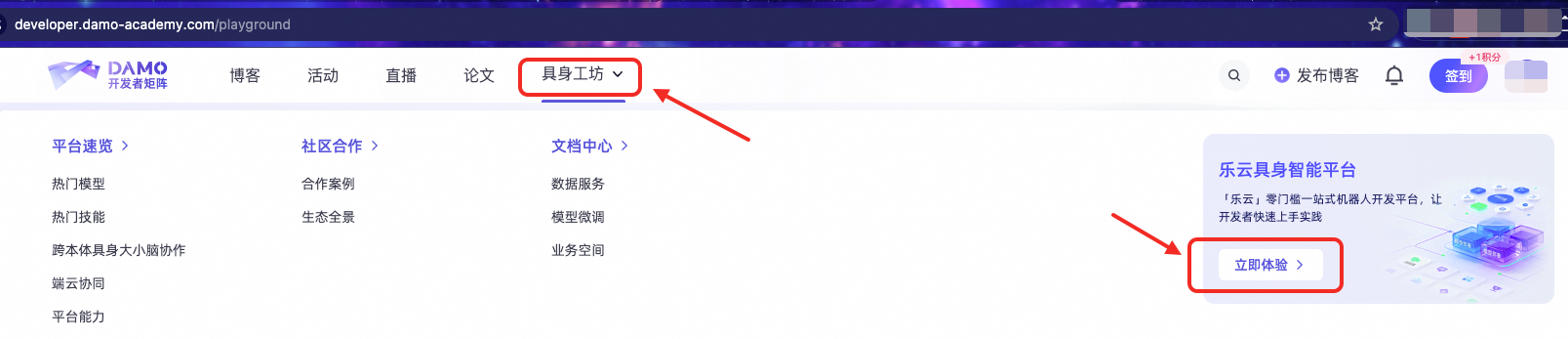
(2) First, assess the platform capabilities; don’t rush into manipulation
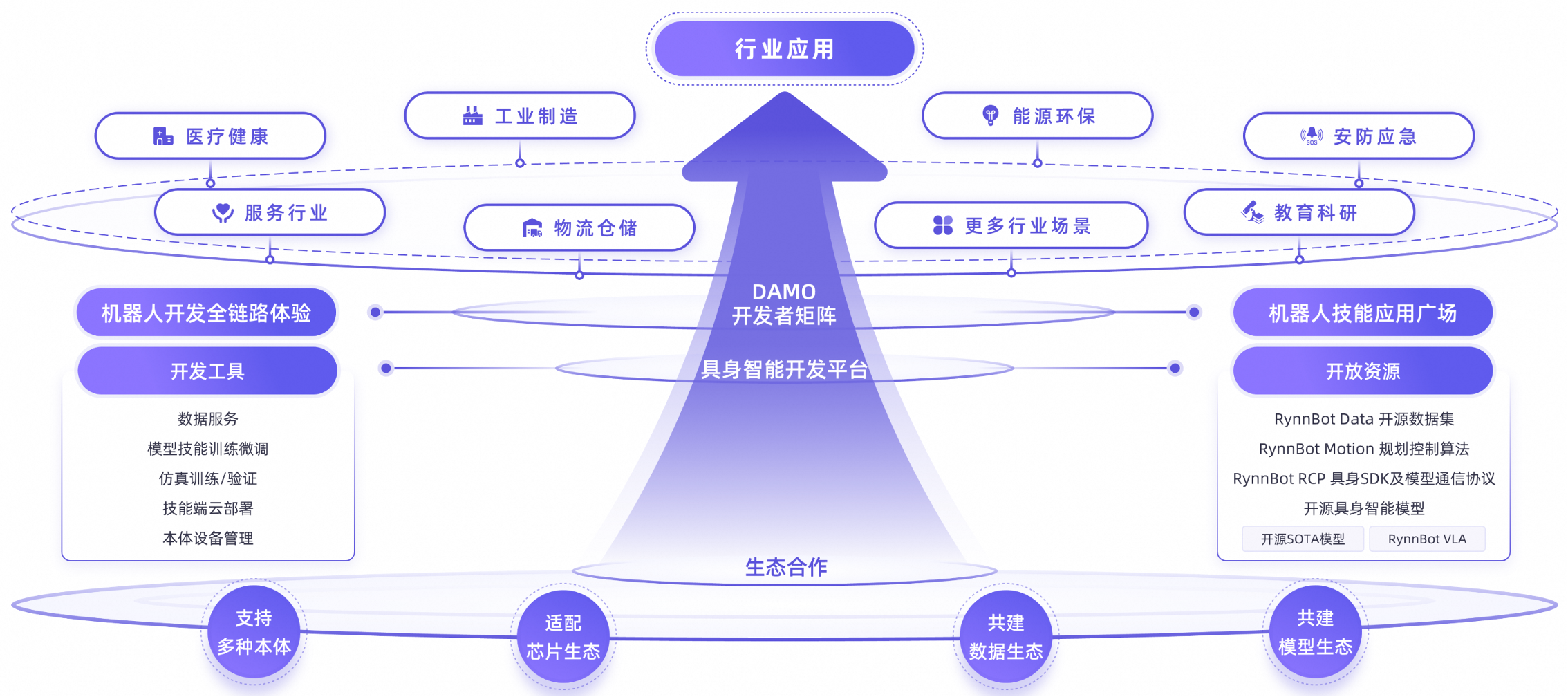
When entering for the first time, it is recommended to have a “map sense” and not rush to click on features. At least, you need to know which parts of the platform correspond to this link:
数据 -> 模型 -> 调试 -> 执行 -> 回看结果
The most important thing during this stage is not to click every button, but to establish a “platform cognitive map” first. You need to know where the Model Plaza, data management, model services, AI agents, and device management are located, and which stage in the entire development process they correspond to. With this map in mind, when moving on to specific modules later, what you see is not a bunch of scattered interfaces, but different aspects of a continuous process.
In other words, this step is about establishing a “platform worldview”. If you get stuck on a specific button from the beginning, it’s easy to assume that the platform is just a stack of functional pages. However, if you understand its overall layout first, you will gradually realize that the platform homepage already implies a complete development process. For textbook readers, this approach of starting with the whole and then breaking down the details is more important than simply memorizing the page names.
Reference interface:
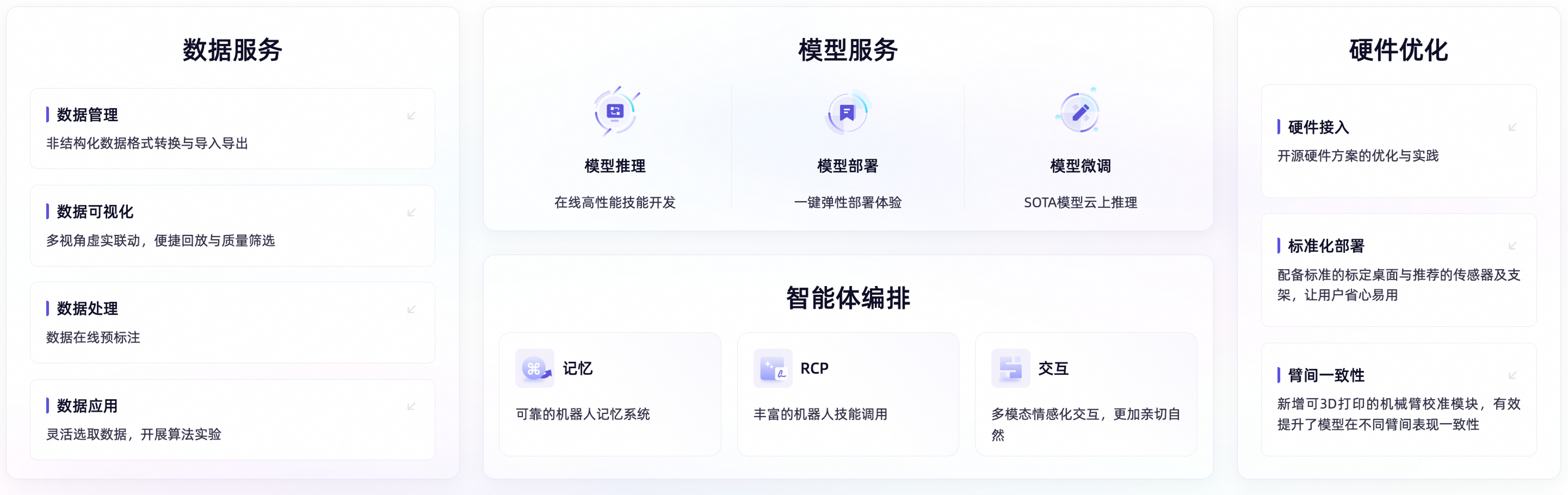
(3) Understand the basic backend pages
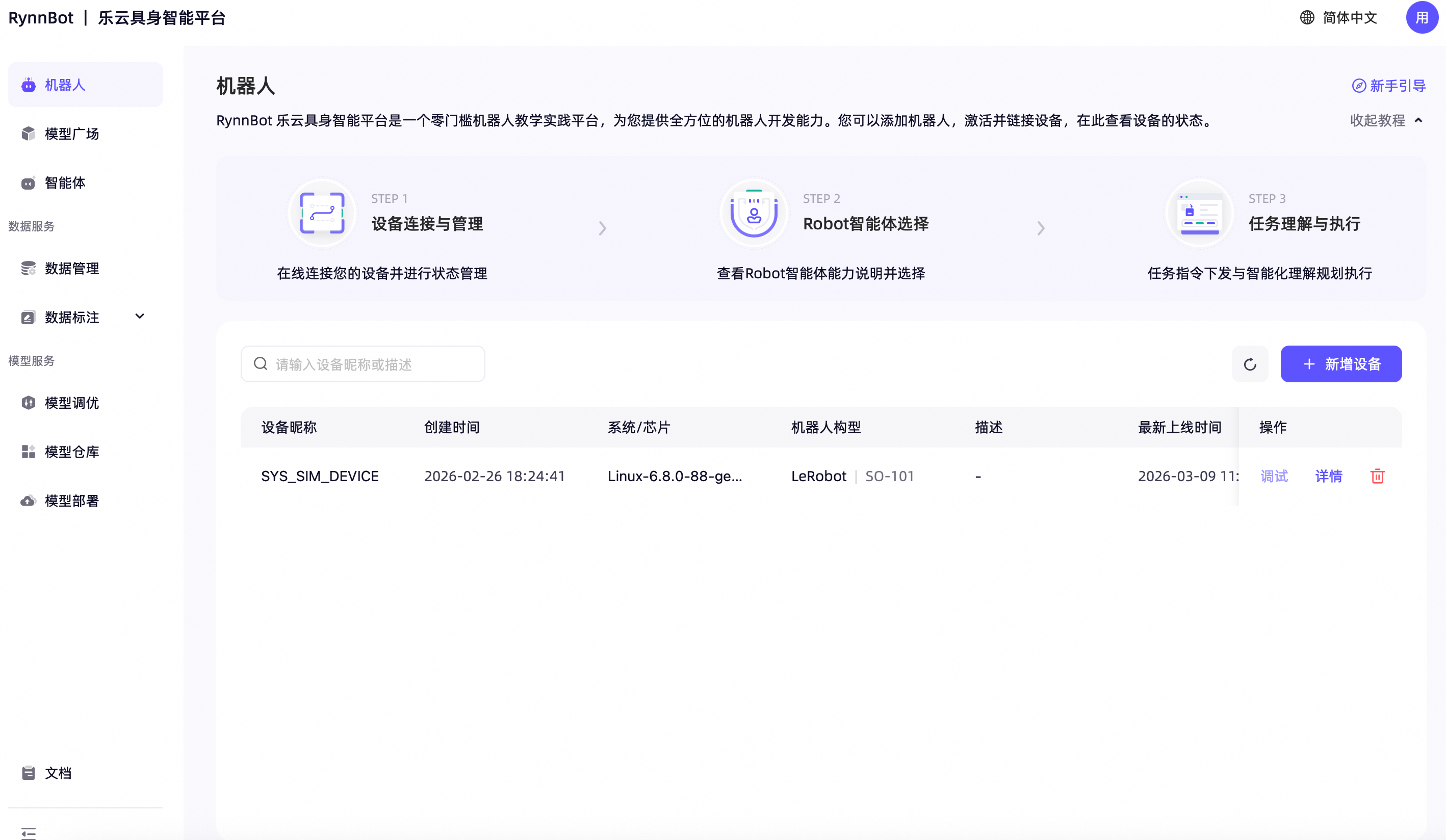
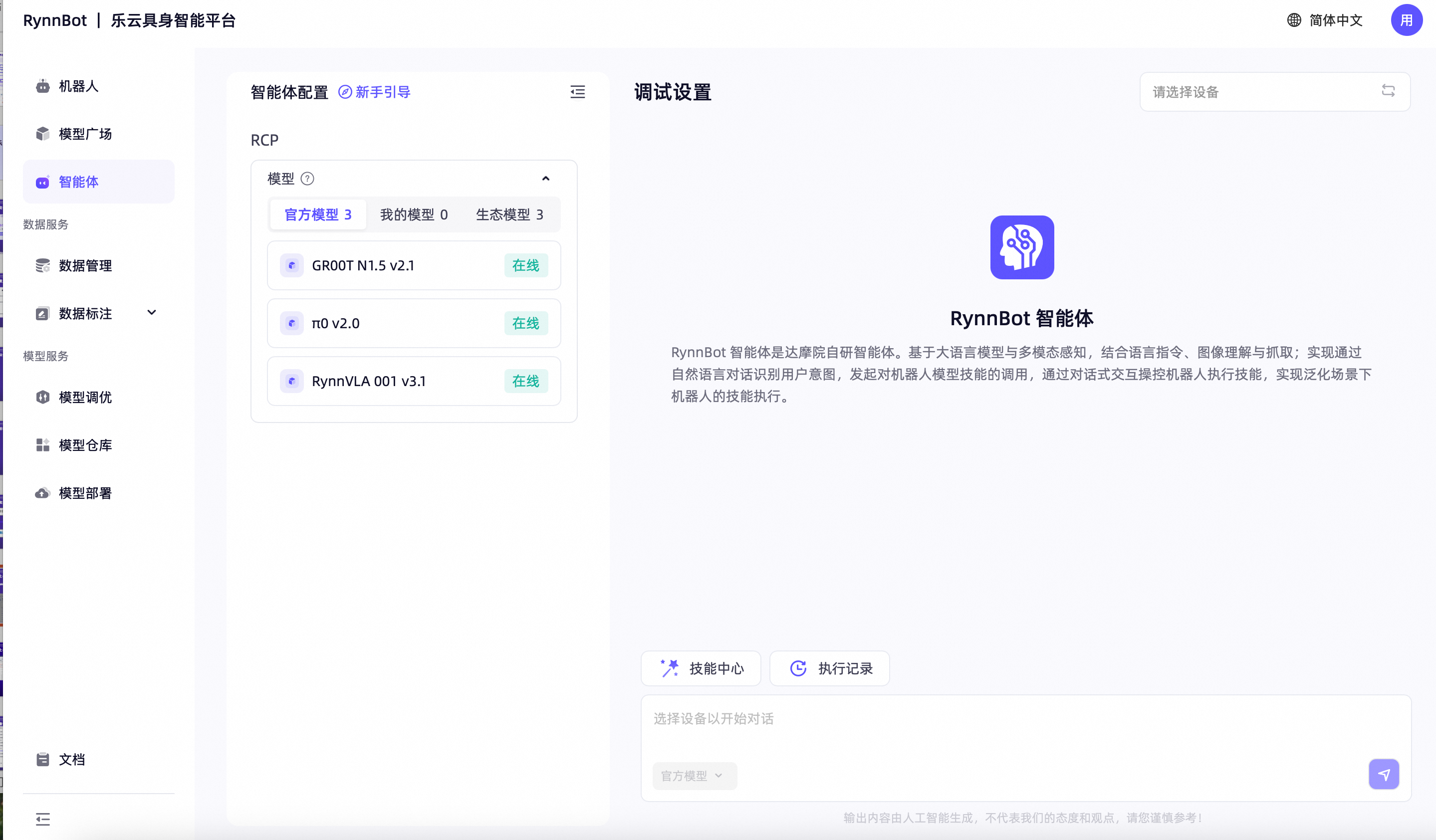
During your first experience, you can get an idea of what these pages are for, but it is not necessary to delve deeply into them all. The device page focuses more on the integration and activation of real robots, while the agent page focuses more on task scheduling and conversational capability invocation. In other words, this part is not the main focus today, but it will help you understand that the platform is not just a collection of model demos; ultimately, it relates to real system issues such as “how to manage robots and how to organize tasks.”
It is particularly worth noting by beginners a often-overlooked fact: the complexity of embodied AI platforms does not stem from the sheer number of “pages,” but rather from their natural position between models and real systems. Device management corresponds to hardware access and operational objects, while agent management relates to task organization and capability orchestration. These may not seem like the most “impressive” aspects, but they are precisely the layers that cannot be bypassed when the system is actually implemented.
Reference interface:
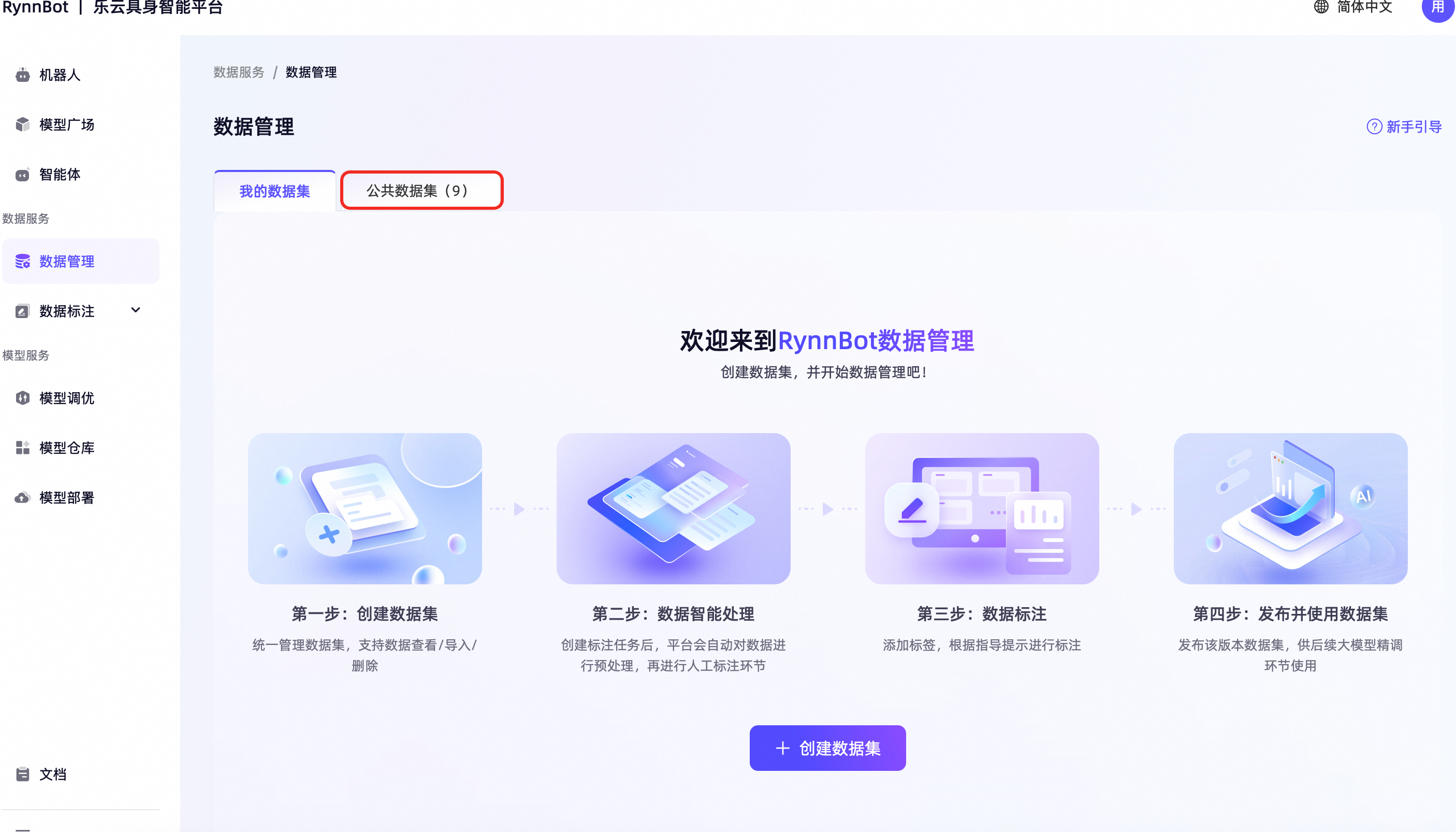
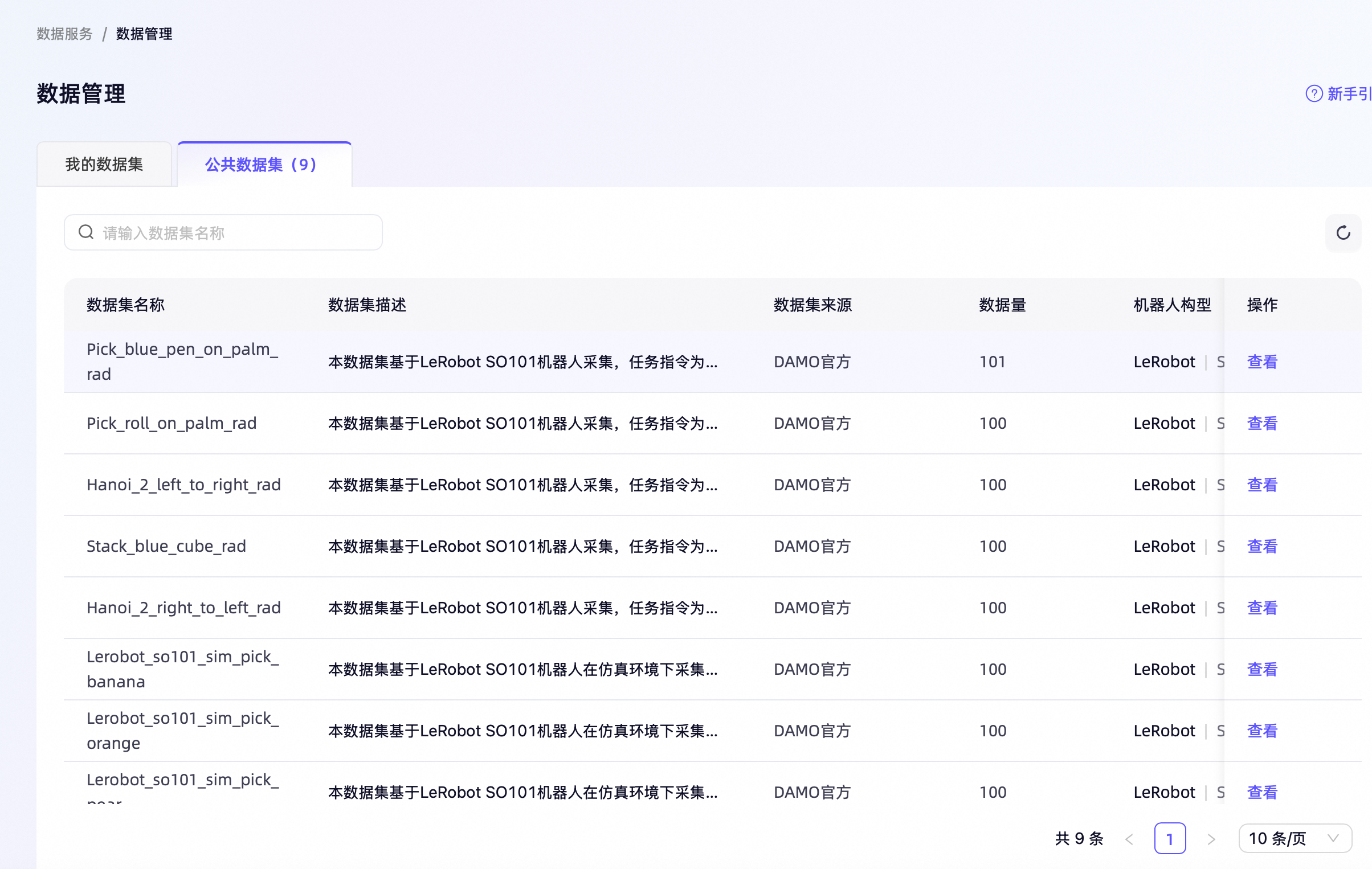
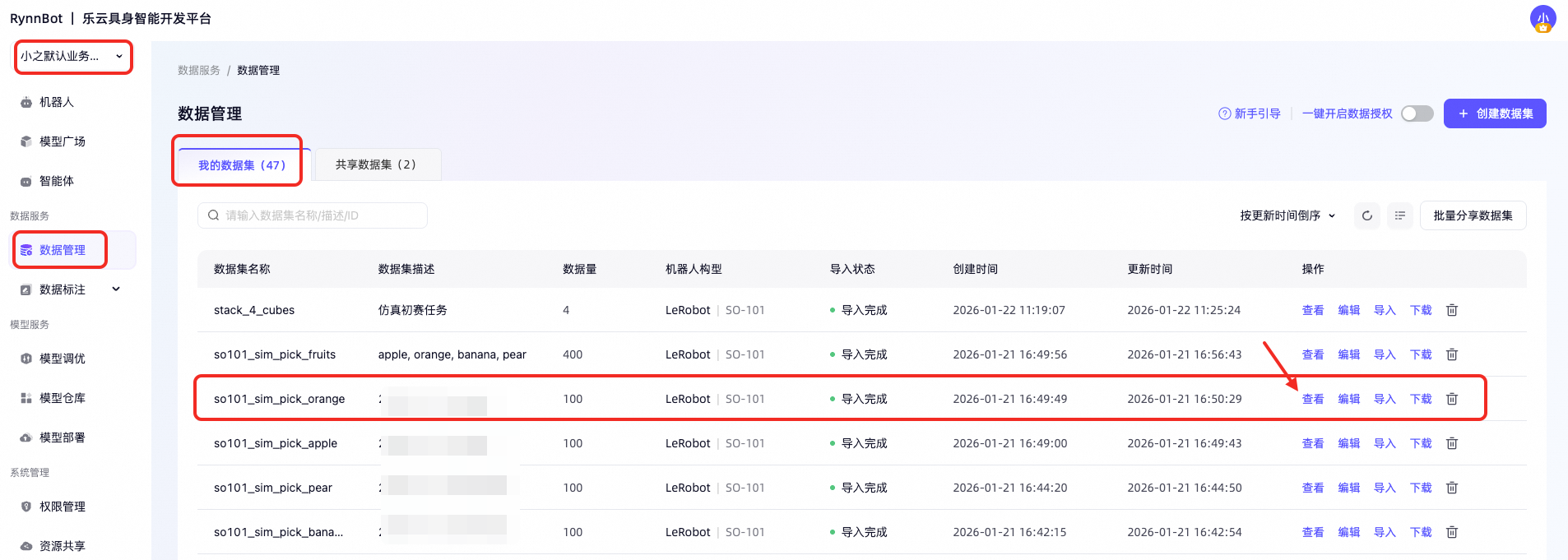
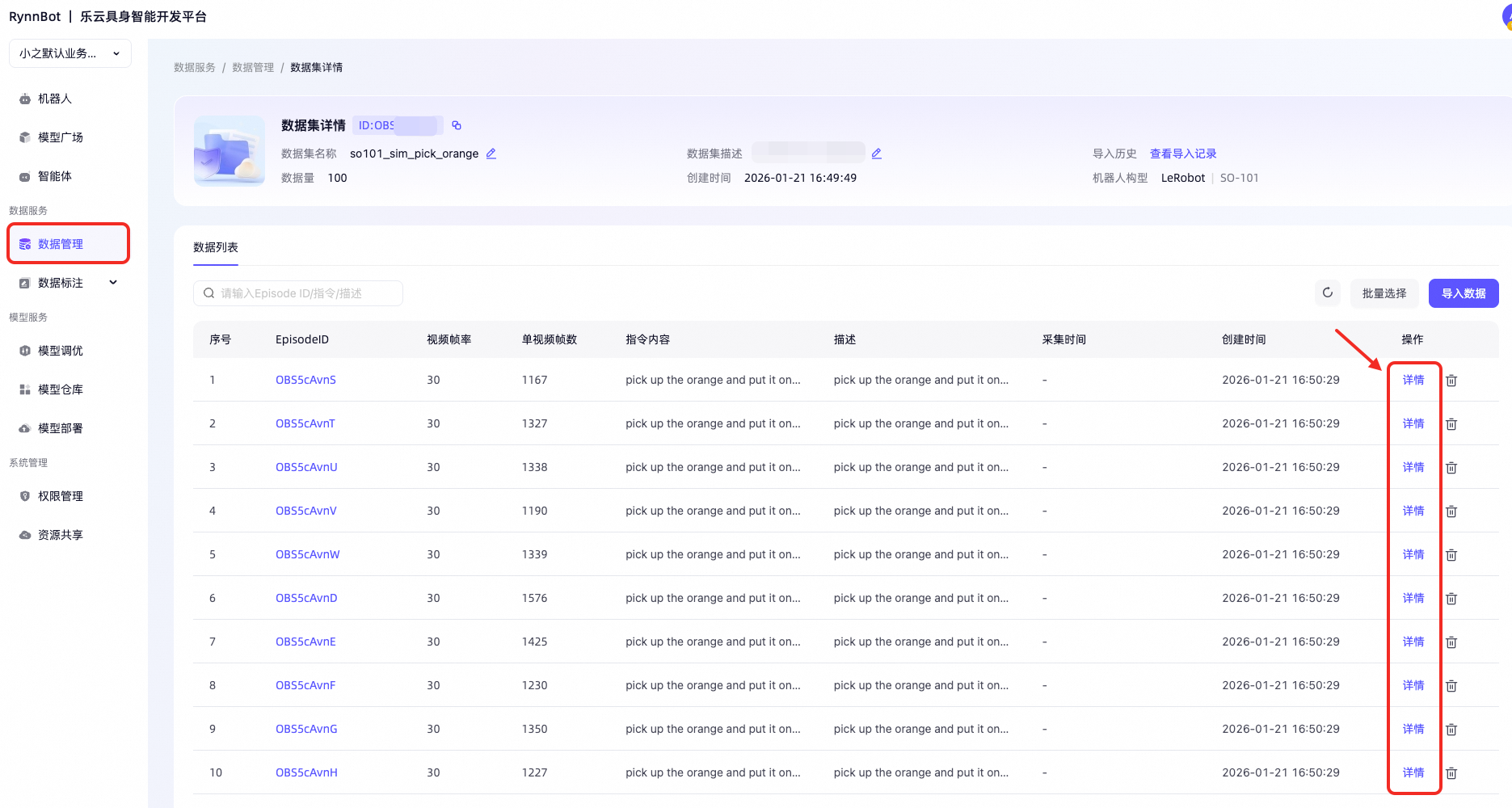
(4) View dataset and data details
Next, check the data management page. Since a model cannot act out of thin air, there must be data, training, and evaluation behind it. When you look at the data management page now, what you see is not just tables and fields, but the basic materials that enable a skill to be trained.
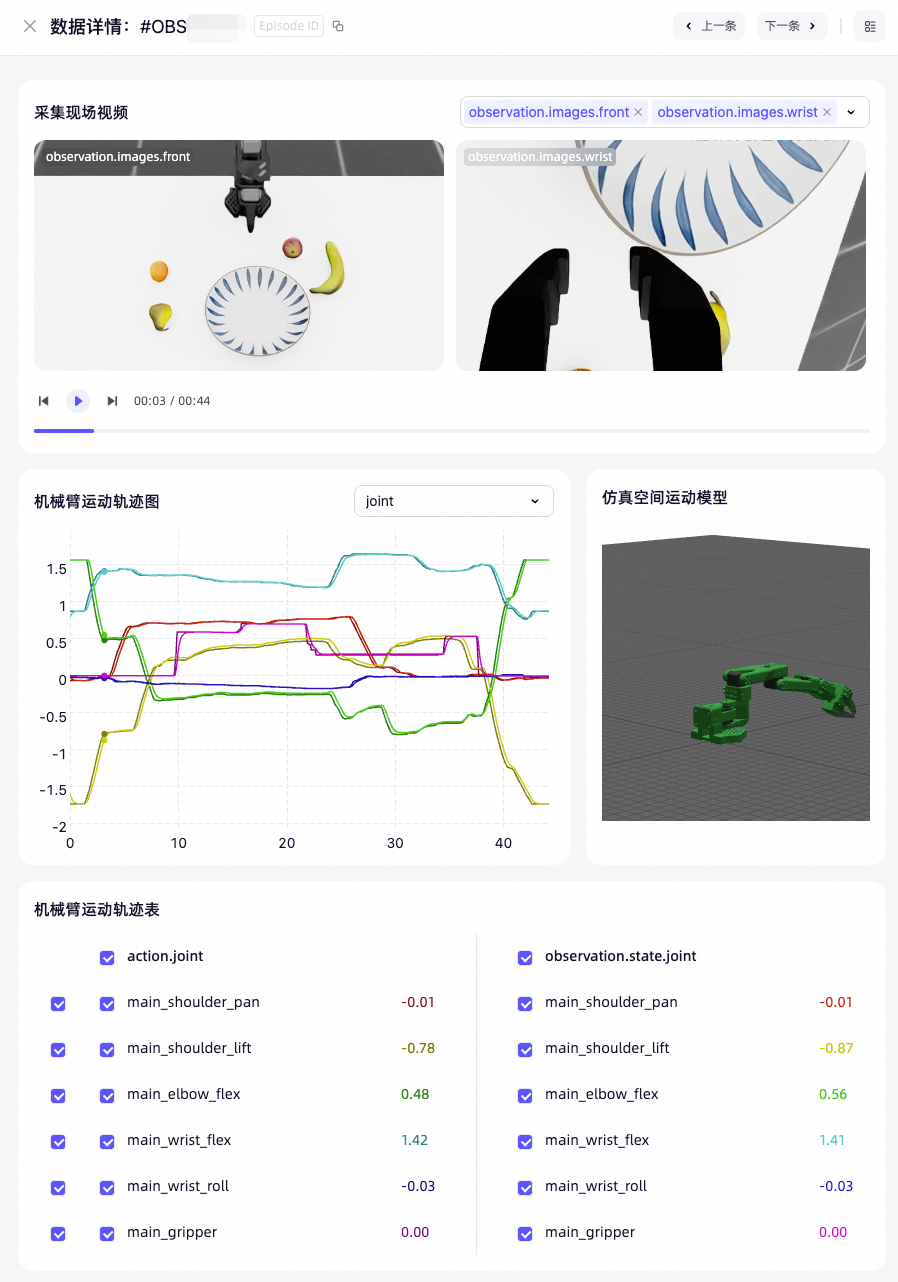
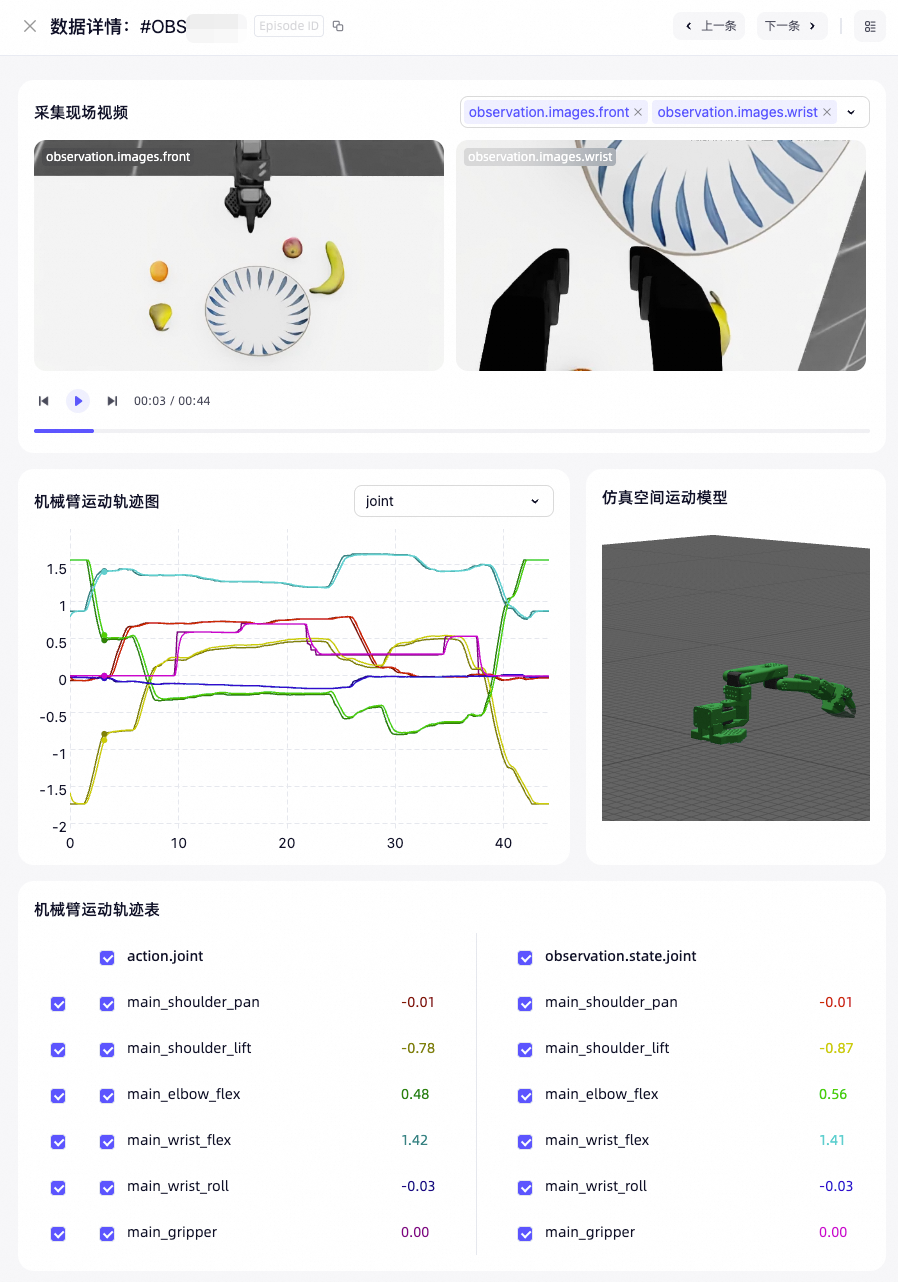
This section suggests focusing on three key aspects: the organization of the dataset, the fields contained in each piece of data, and how the platform combines video, joint angle curves, and numerical information into a single viewing interface. Especially the last point is very important, as it directly reflects the difference between embodied data and ordinary text data. For embodied tasks, the data is not a sequence of sentences, but a time series composed of various information such as vision, motion, and embodied state.
This is also why many people who have worked on large language model projects feel uncomfortable when first encountering embodied data. Text data are often discrete sentences or paragraphs, while embodied data is essentially a continuous process that unfolds over time. The success of an action often requires looking at the entire observation, posture changes, and control signals before and after execution. The platform presenting these pieces of information together is itself a very good teaching method, as it turns the question “why are embodied tasks more difficult” into a visible fact.
Reference interface:
Starting from this section, you will manually perform data collection and model tuning in a simulation environment.
Please perform the operations in the correct order, with diagrams provided for each step. If you have any questions, you can refer to the relevant tutorial 👉🏻 Simulation Environment Tutorial
The simulation training process mainly includes the following steps: Create task → Collect data → Confirm dataset → Create fine-tuning task → Check training status → Export model → Deploy service → Skill debugging. Let’s explain each step in detail below.
5. Experience Objectives
Today’s experience goal is to complete a closed loop simulation exercise:** enter the platform → understand the model → simulation data collection → model training → deployment and debugging**. As long as you truly go through this entire process, you will begin to grasp why embodied AI platforms cannot be simply viewed as a model display page. It is more like an engineering platform that integrates data, models, execution, and results—a layer that many beginners find extremely difficult to imagine from scratch.
Complete Steps of Simulation Practice
Here are the five steps for today’s mainline operation. Please perform them in order.
Step 1: Complete simulation data collection
1.1 Create Task
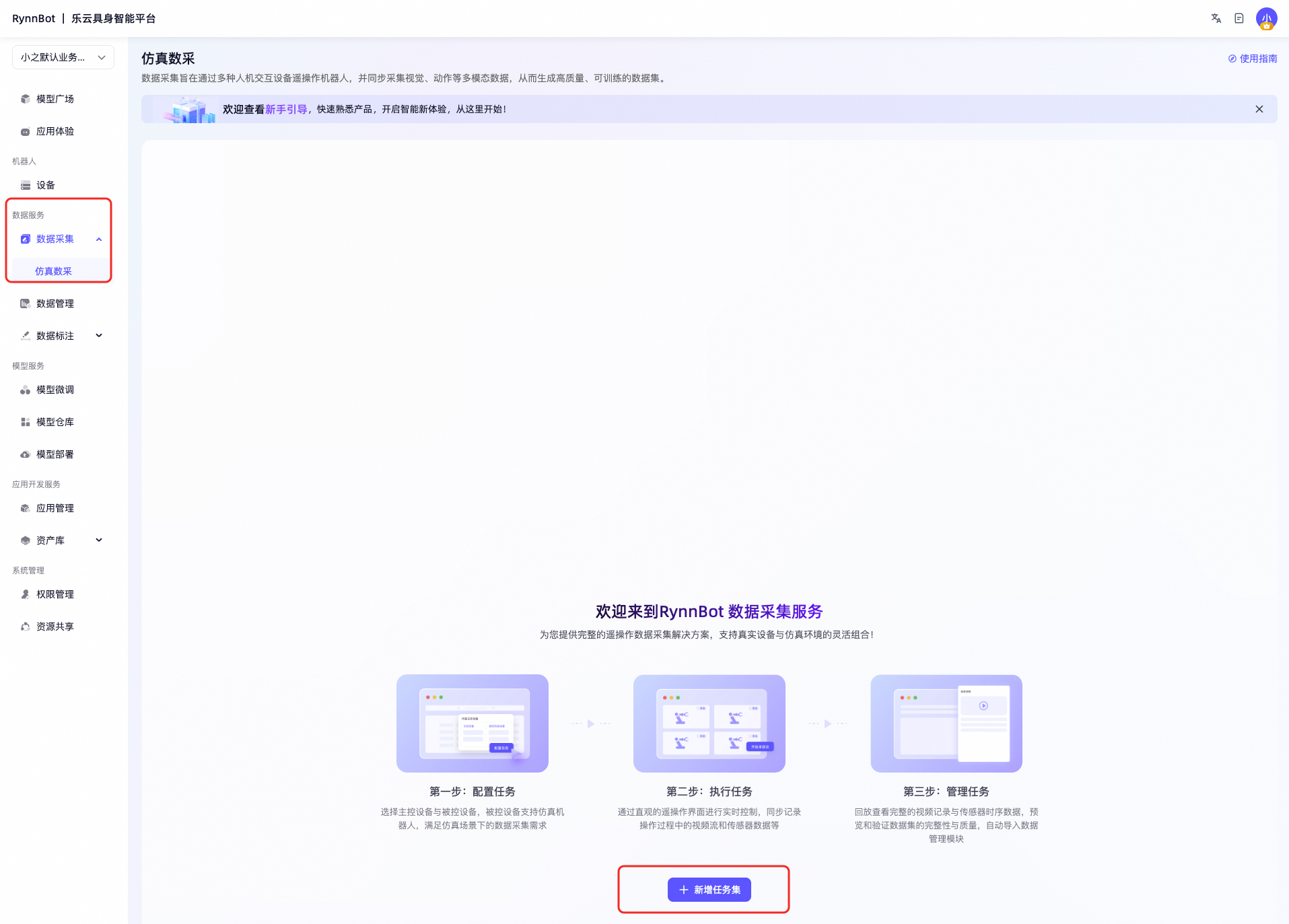
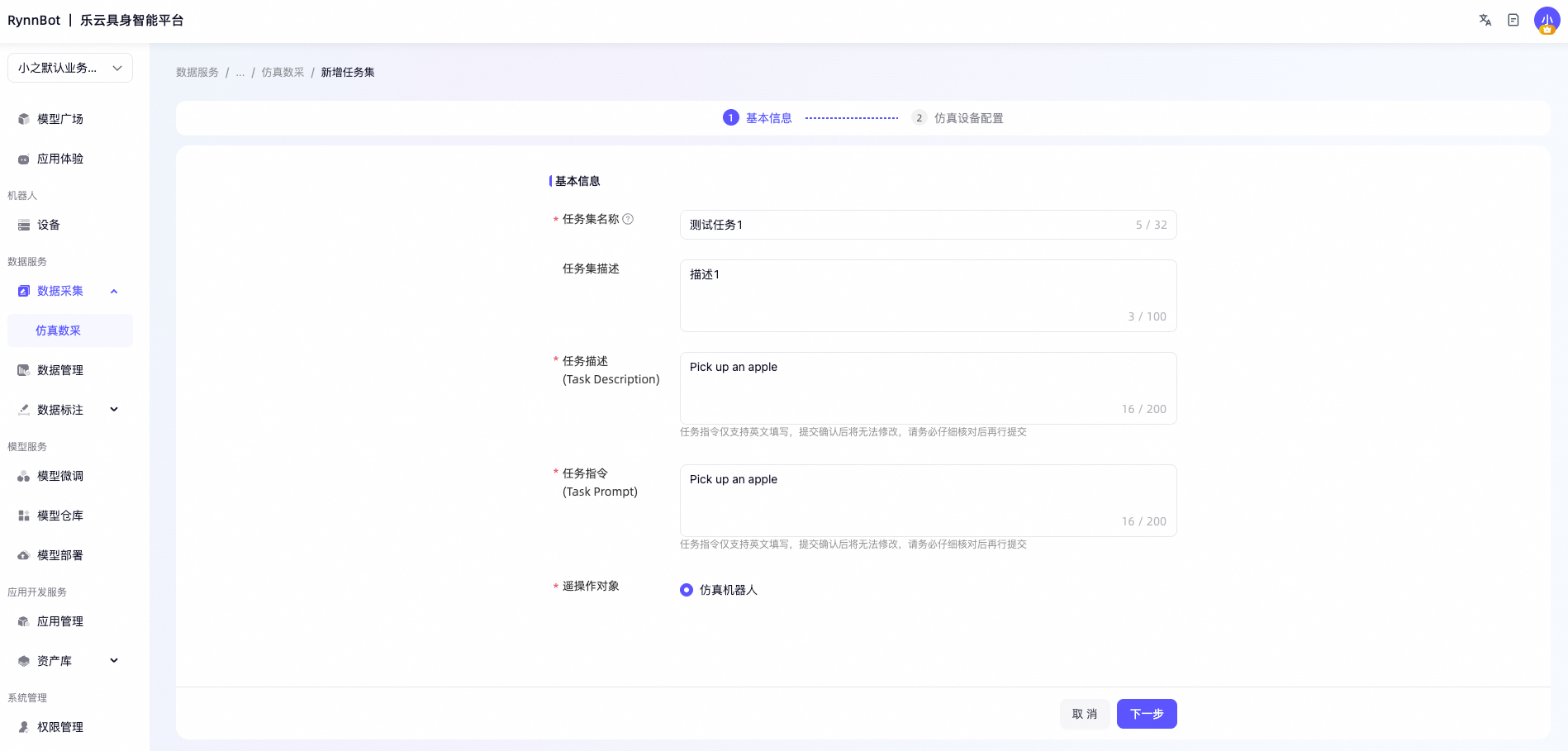
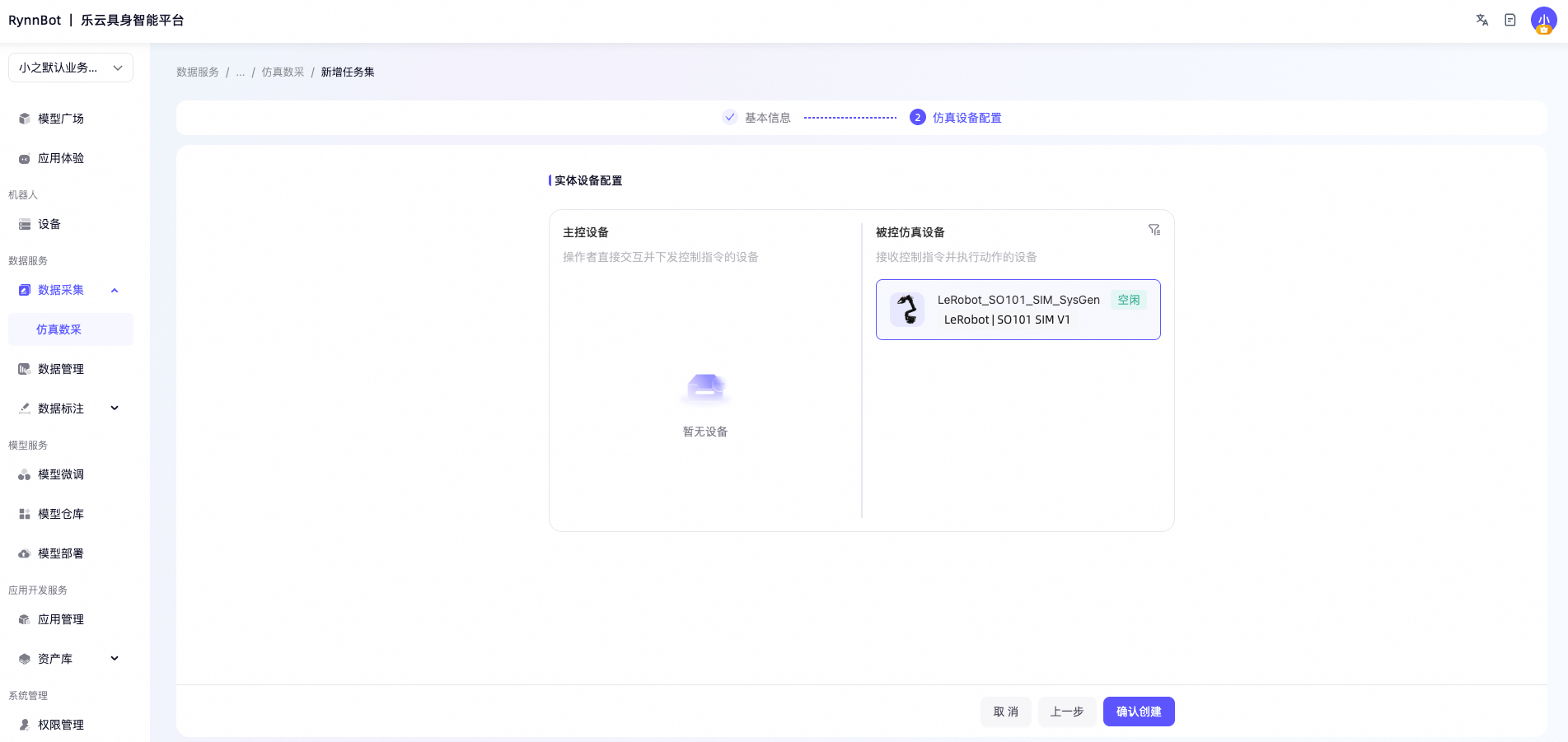
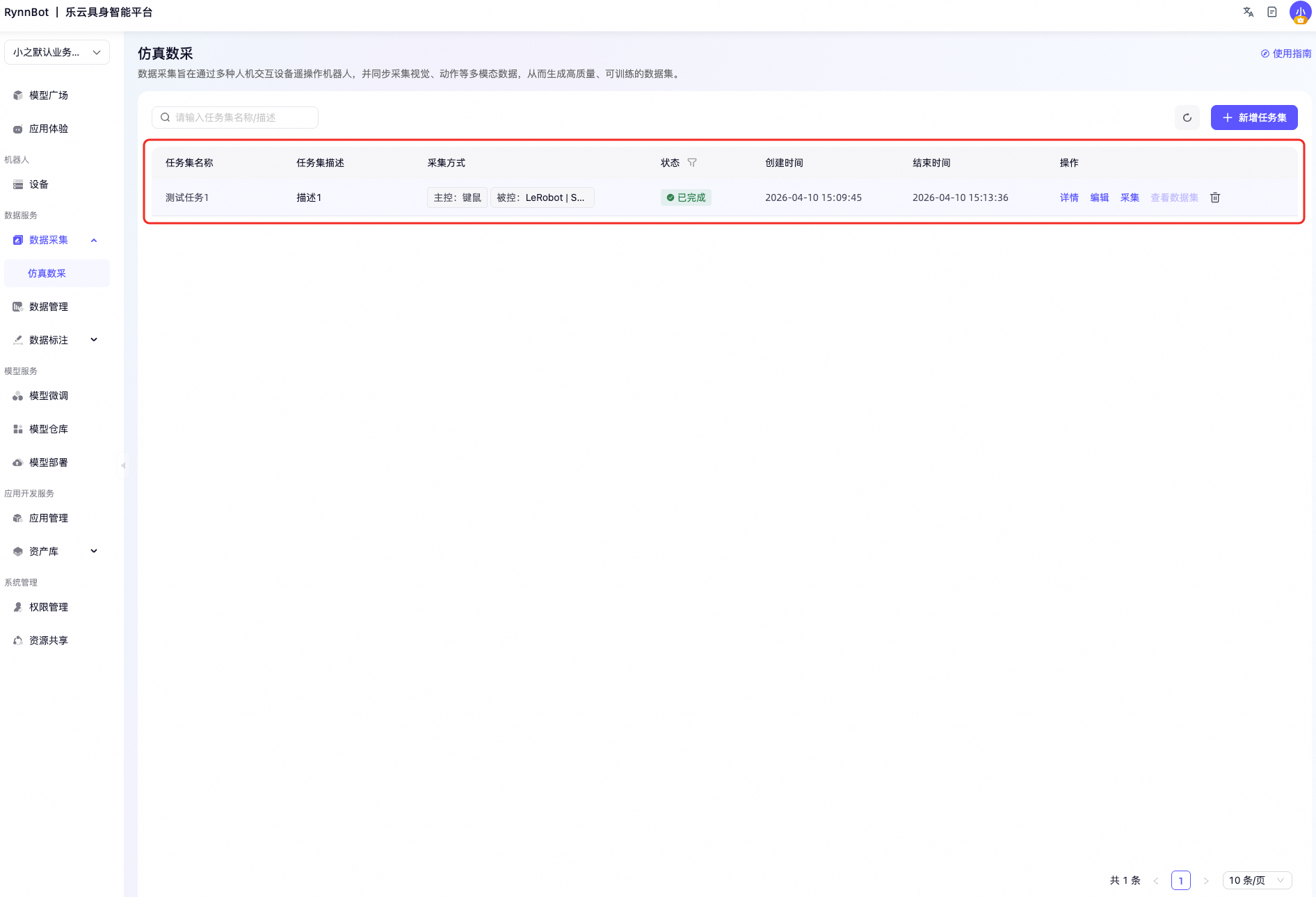
First, enter the Data Collection → Simulation Data Collection page and click “Add Task Set”. In the configuration interface, fill in the task set name, description, task description, and task instructions sequentially, then click Next. Select a real robot device marked with “idle” (you can filter by configuration type). After creation, click Details to enter the collection task details page.
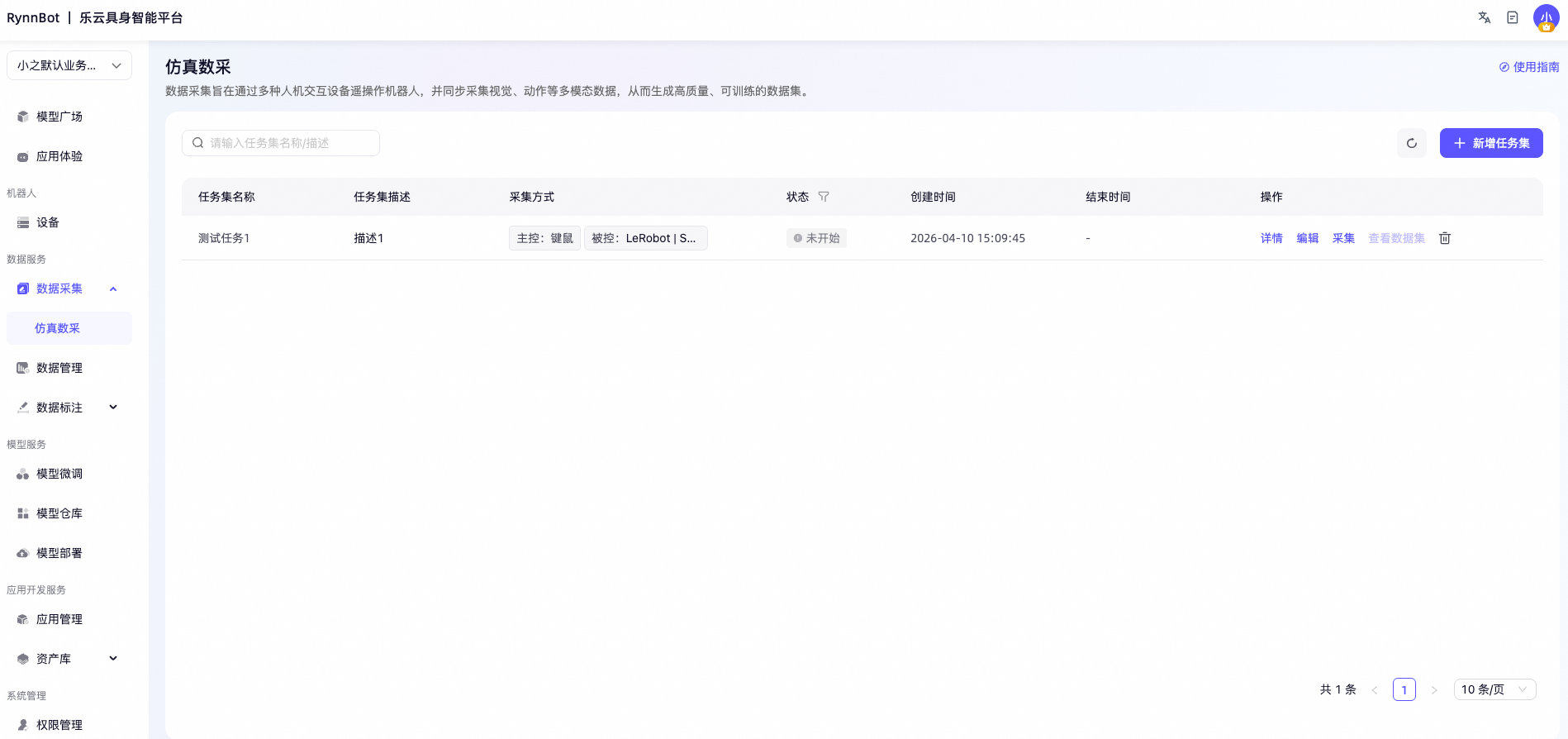
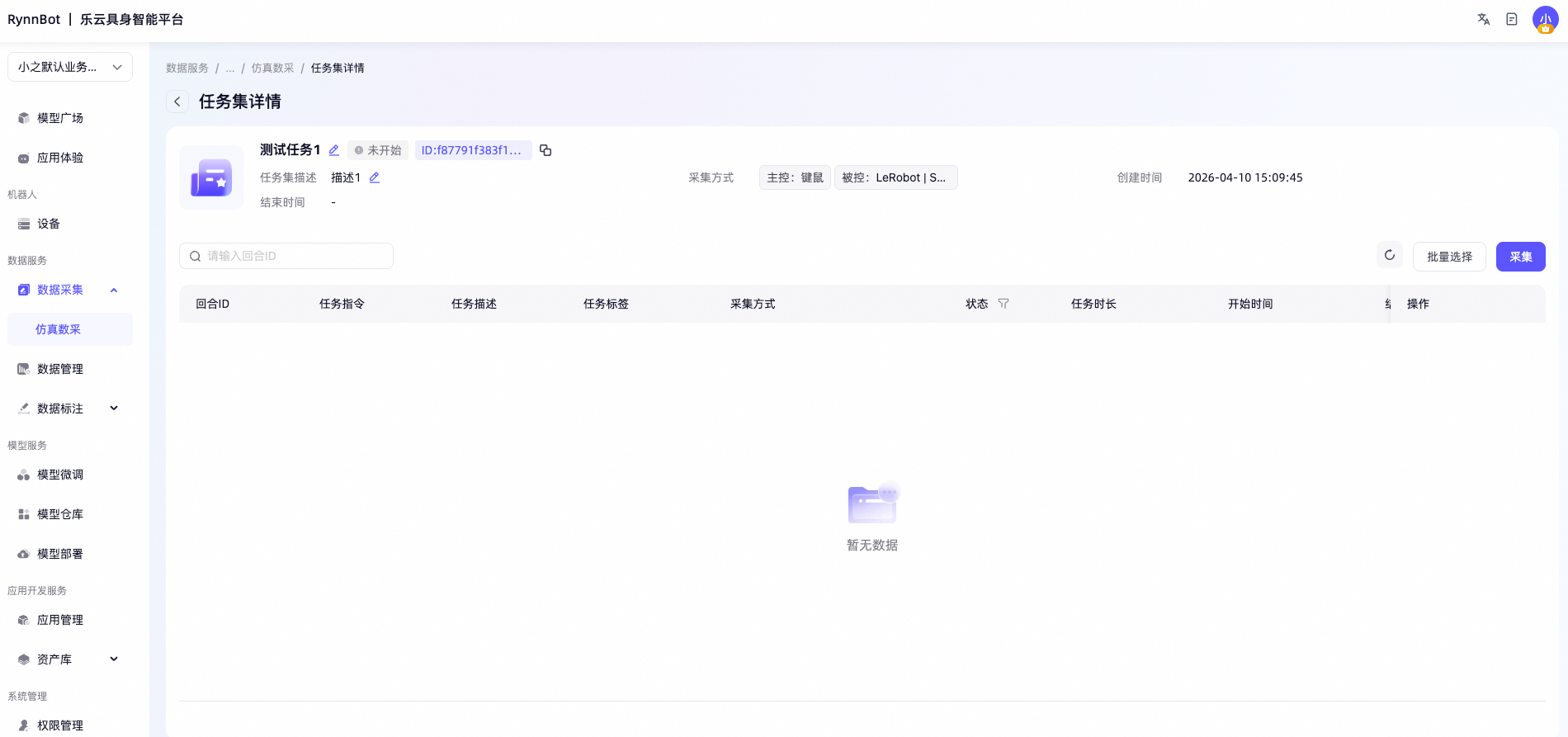
1.2 Start Collection
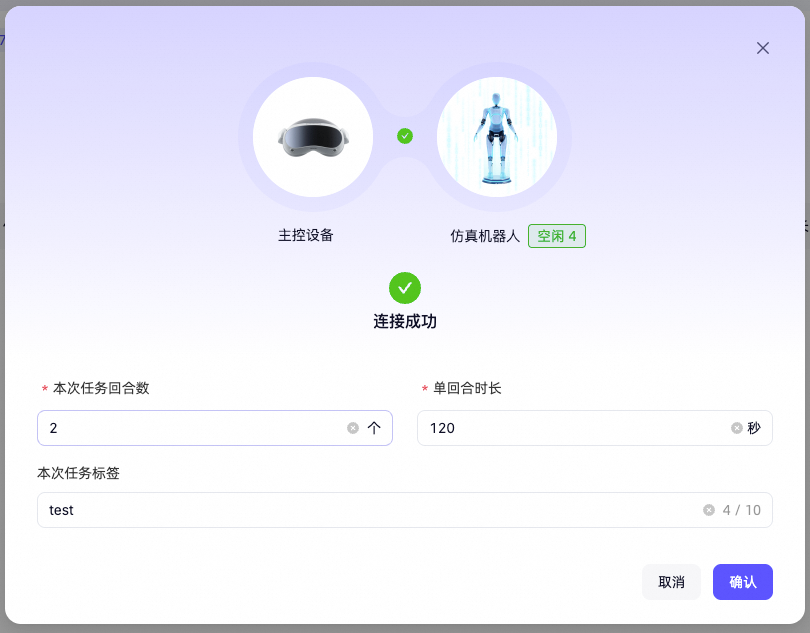
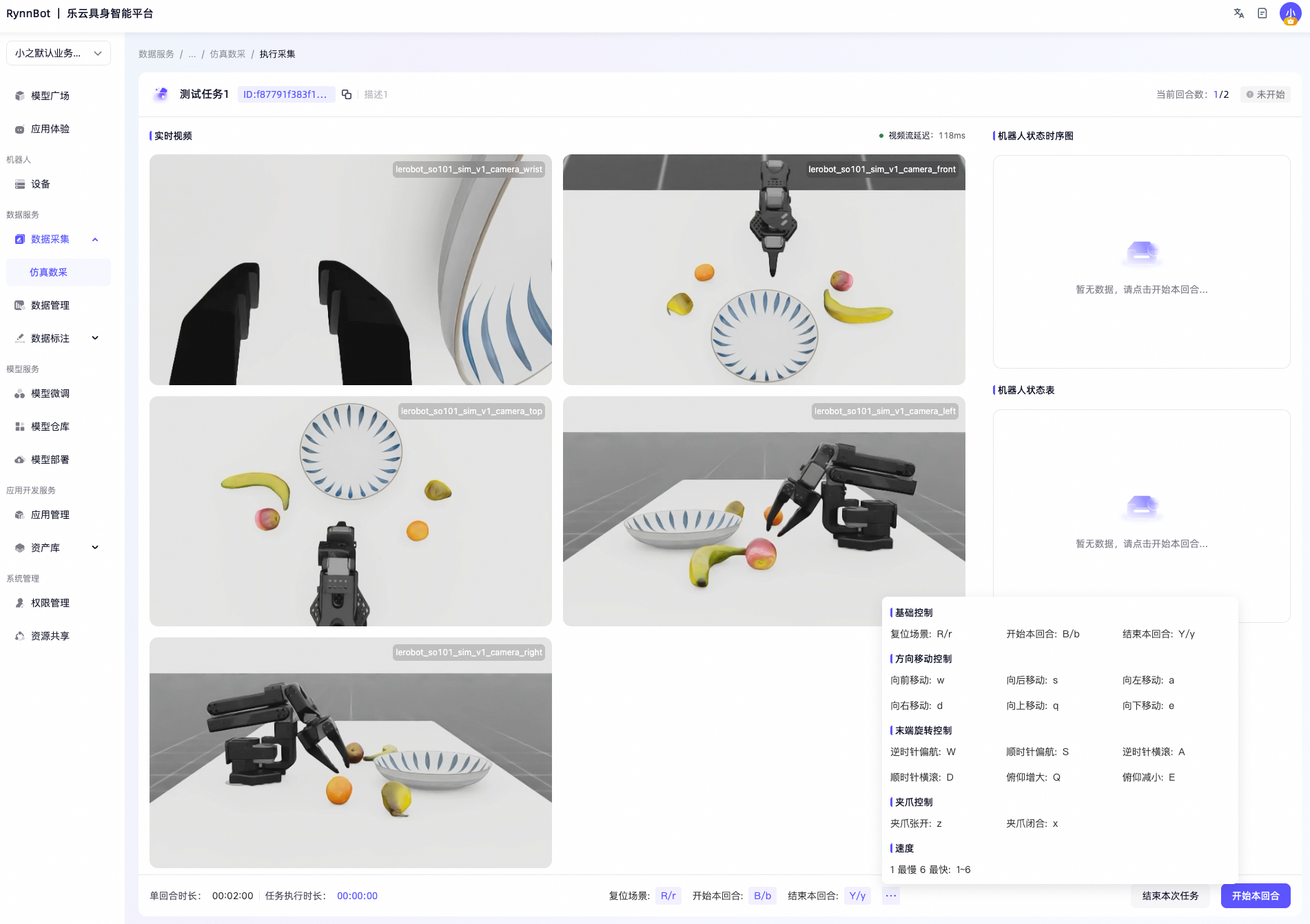
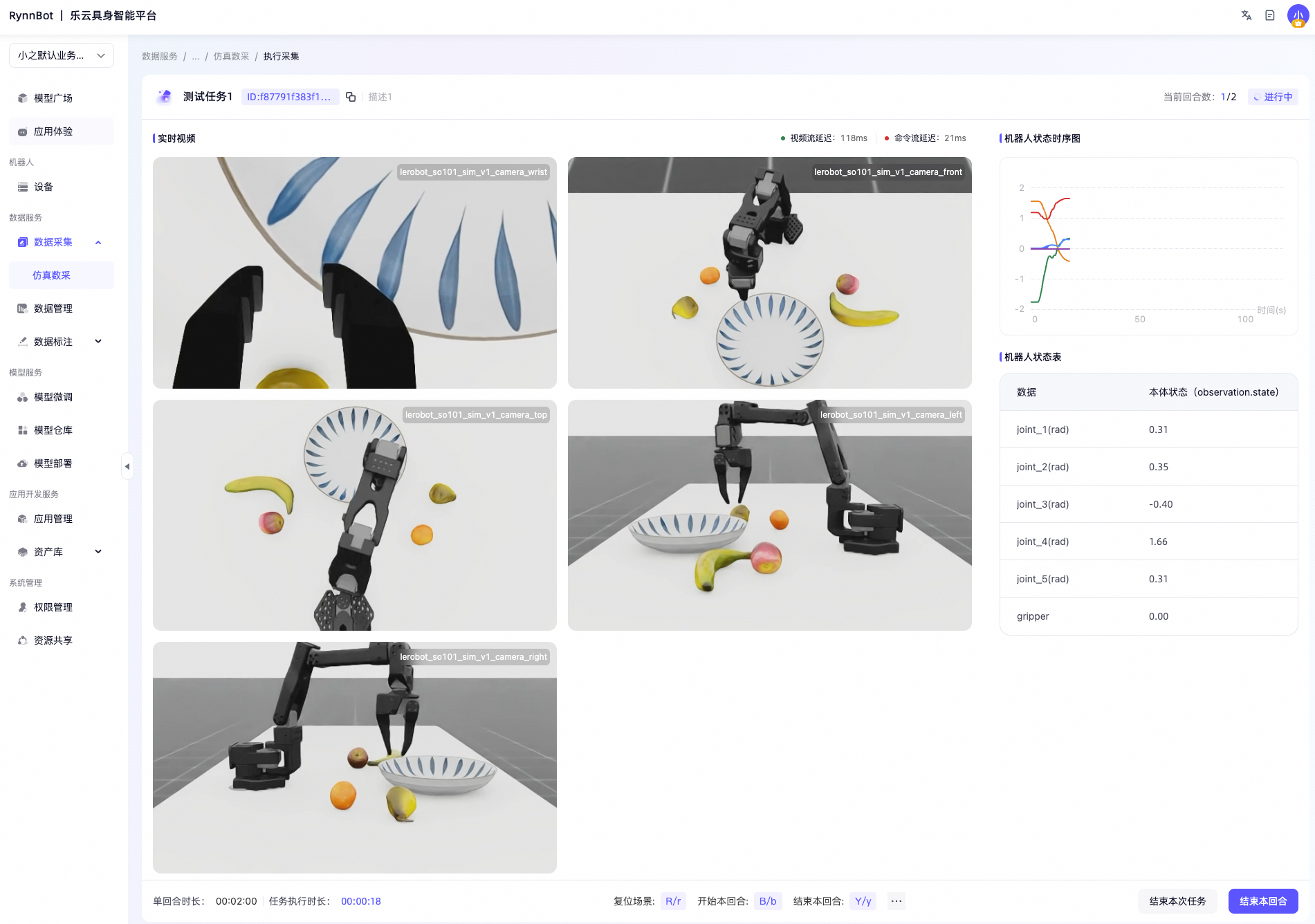
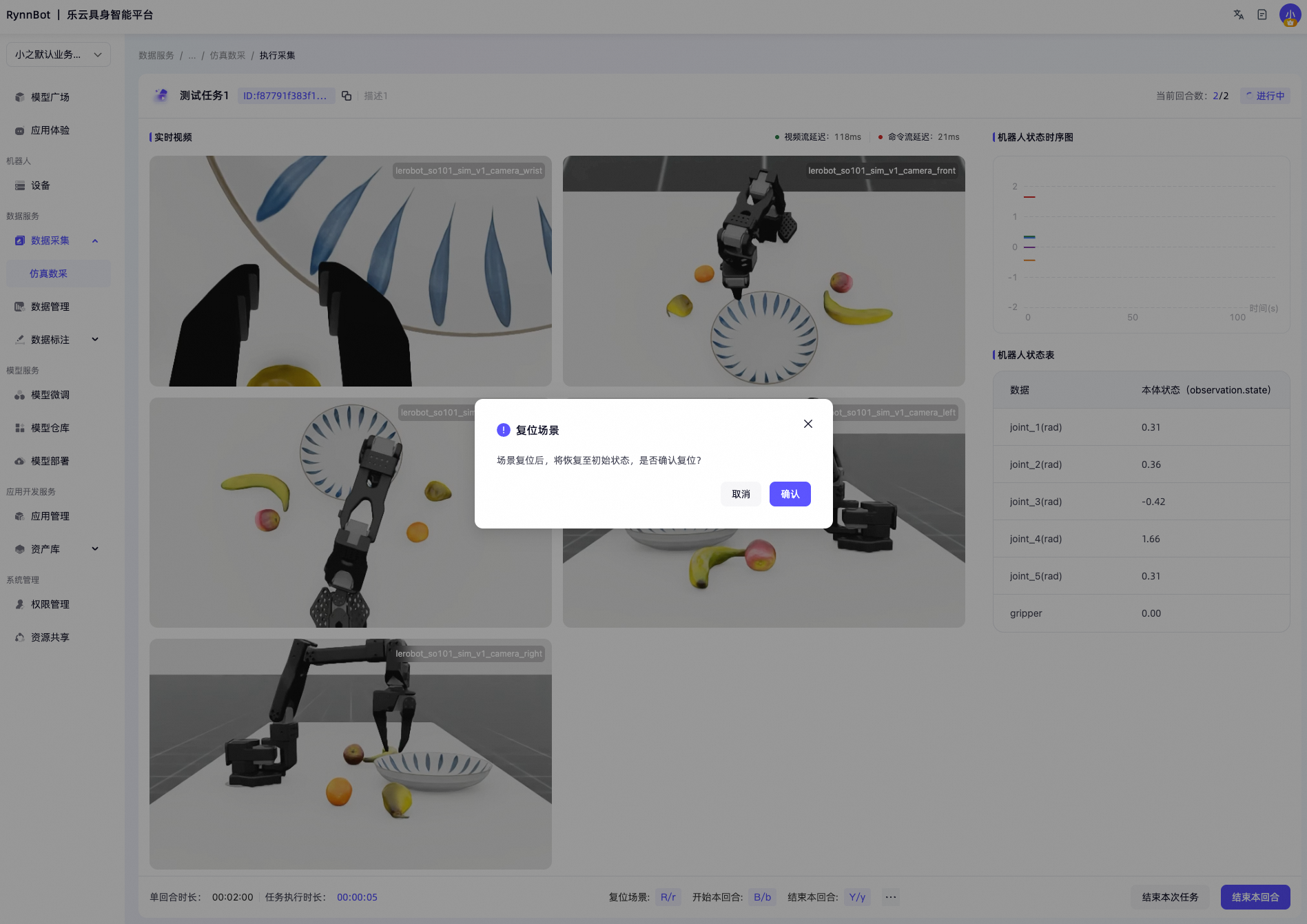
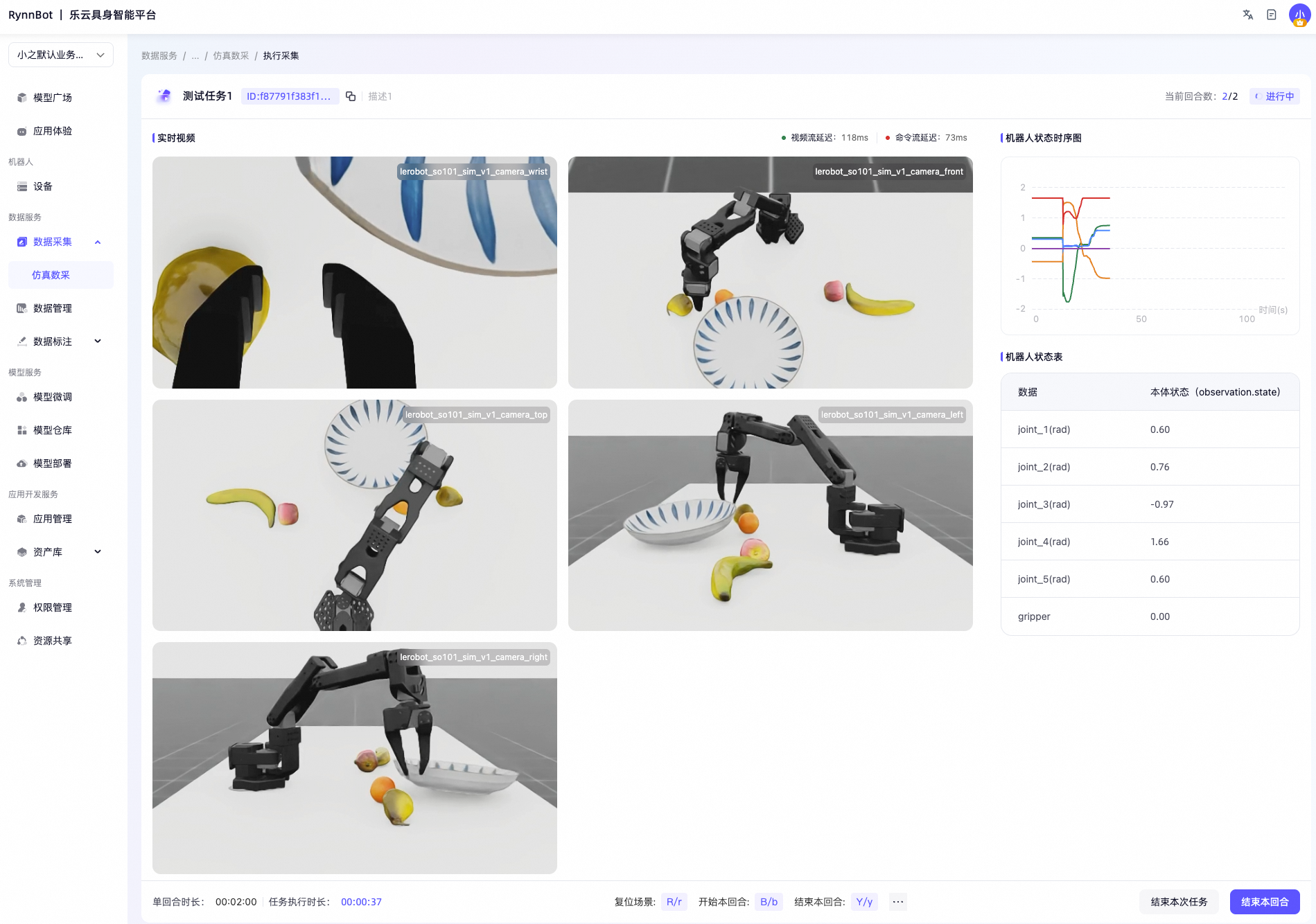
Next, start data collection. On the task details page, click the “Collect” button and wait until the connection to the simulation robotic arm is established. Then configure the number of rounds, single round duration, and task tags, and click confirm. The system will automatically open the data collection page, showing the simulation camera view, number of rounds, collection status, timer, and keyboard operation instructions. Click “Start this round” in the bottom right corner to start the timer. You can manipulate the robotic arm using the keyboard to move it, and joint data will be automatically recorded. After completing the task action, click “End this round” and confirm in the pop-up confirmation window to finish recording one round.
If you need to reset the positions of the scene props, click the “Reset” button. Repeat the above steps until all preset rounds are recorded. After recording is completed, a new collection record will be generated in the task details, containing data from multiple rounds. Click on the details of each record to view the recorded video, joint angle data, and corresponding command content.
Step 2: View the dataset collected by the simulation environment
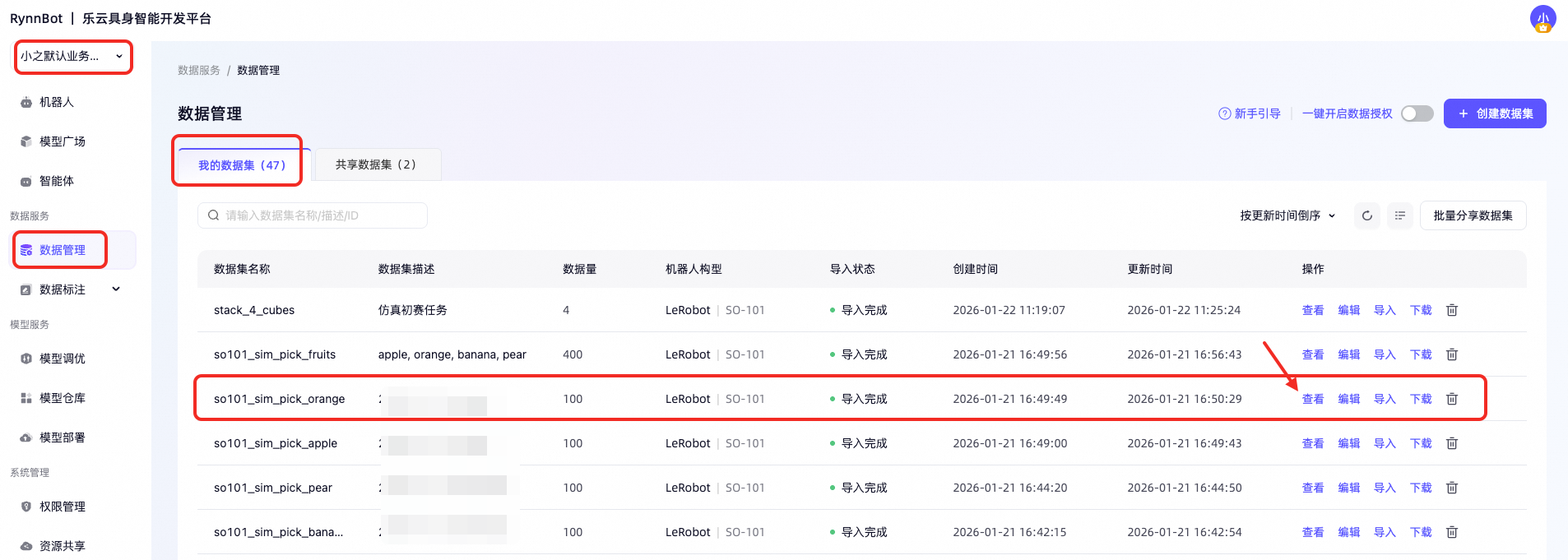
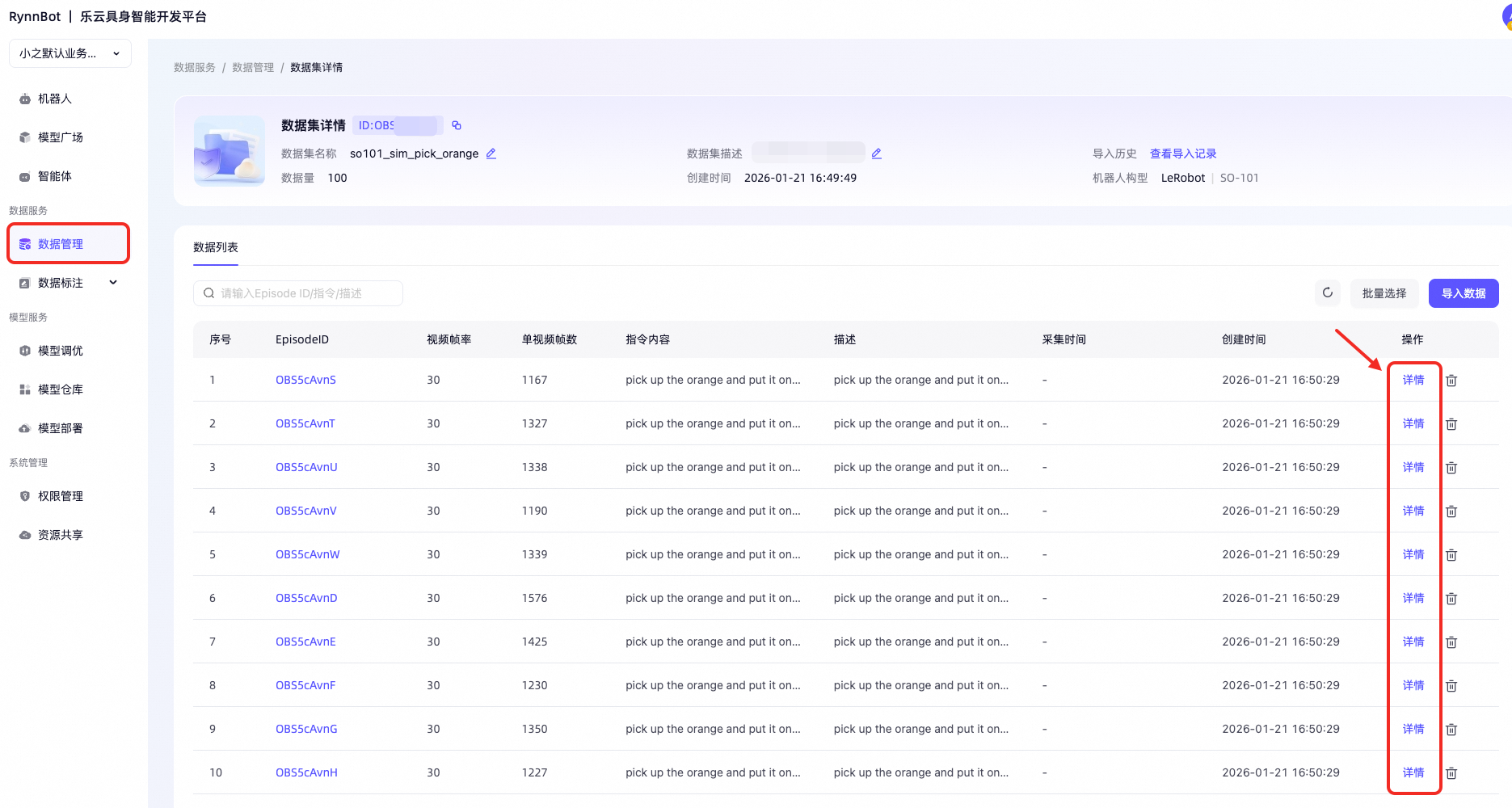
After completing the data collection, verify whether the dataset has been imported correctly. Enter the Data Management page and check “My Dataset”. Each row represents a dataset; click “View” to expand the details and see information such as frame rate, number of frames, and commands for each data entry. Click “Details” again to open a small window that displays the collected video, joint angle curves, and joint angle value tables side by side, allowing you to play and view them online. If there are encoding errors in the browser video, turn off the browser’s hardware acceleration feature and restart the browser.
**Step 3: **Model Fine-tuning and Training
3.1 Create model fine-tuning task
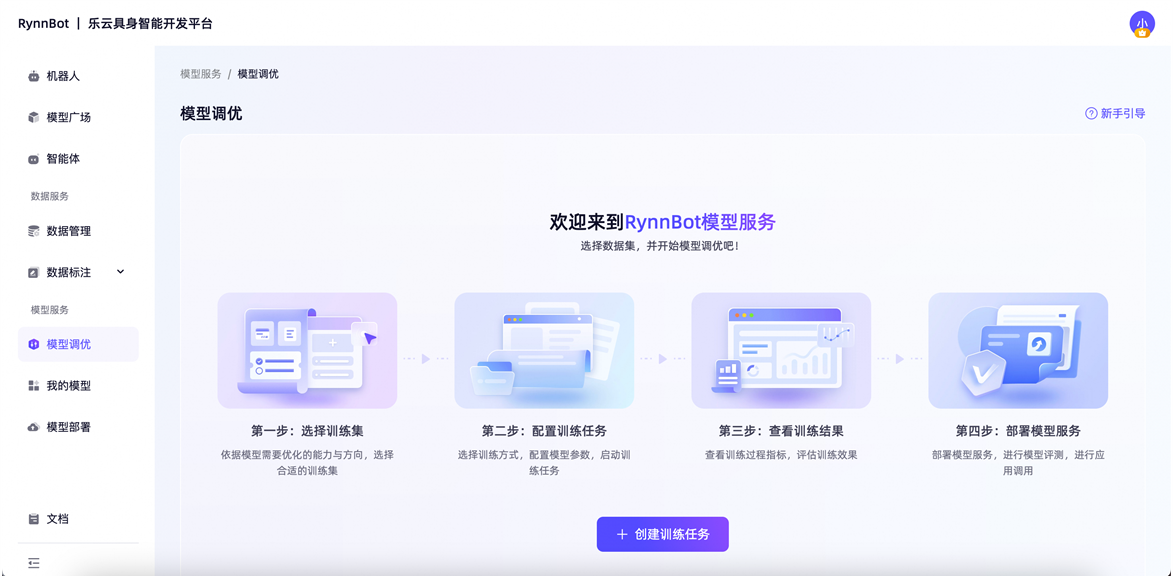
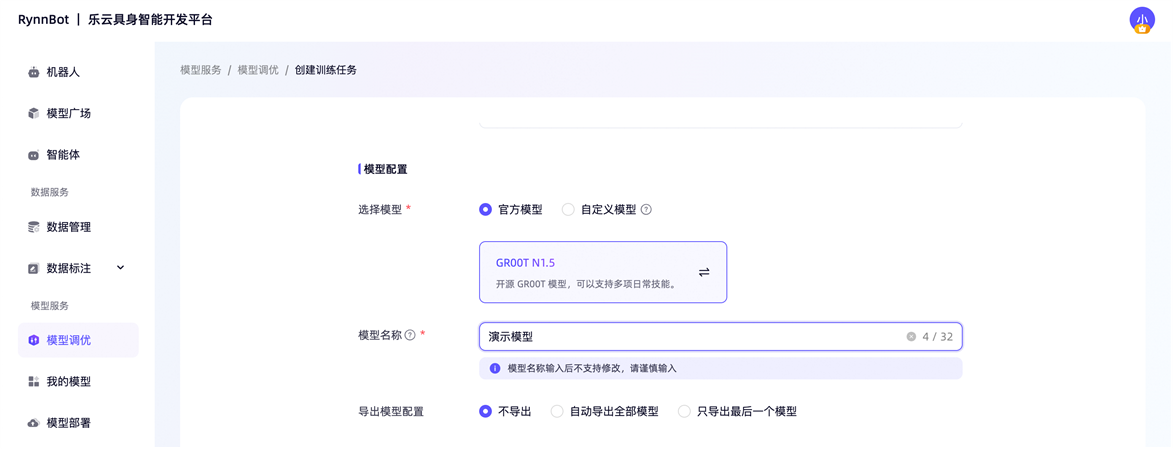
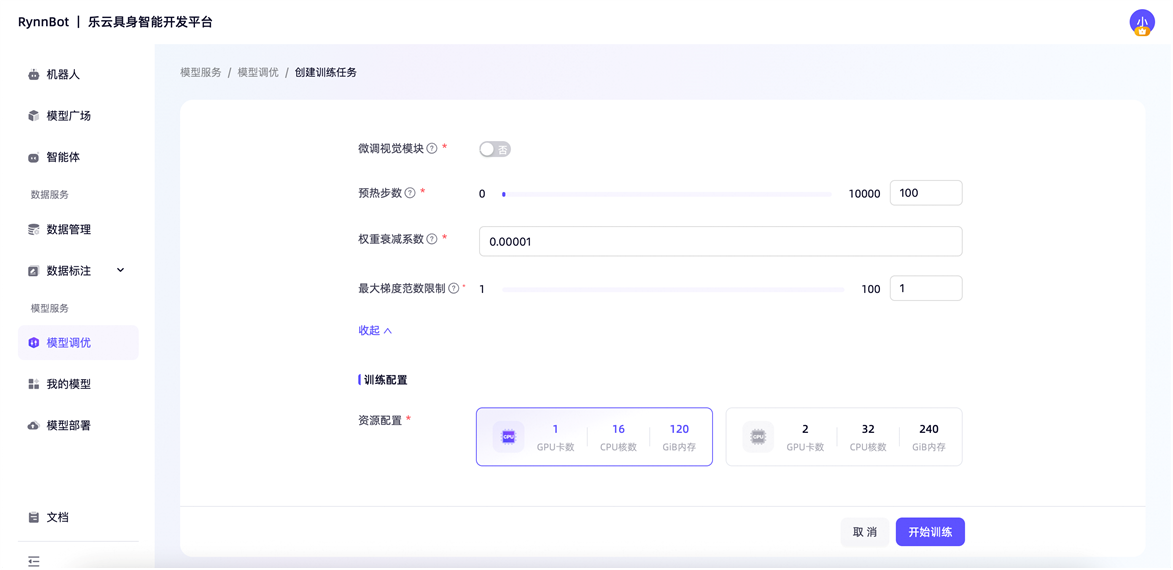
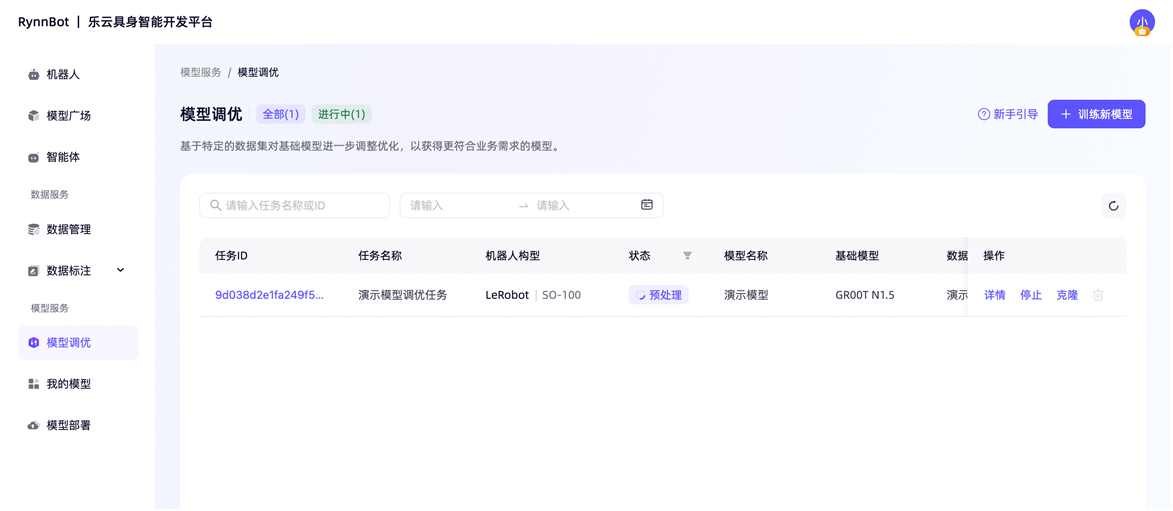
Next, we proceed to model fine-tuning. Enter the Model Optimization page and click “Create Training Task” (note that only one training task can run simultaneously for the same user). First, fill in the basic information. Currently, LeRobot | SO-101 robot configuration and its corresponding dataset are supported. Then, in the model configuration, you can choose either the official preset model or a custom model exported after your own fine-tuning (automatic export will be performed after successful training; if training fails, manual export is required). The hyperparameter settings have been set to recommended values, but you can adjust them according to your needs. After selecting the training configuration, click “Start Training”. At this point, you can see the newly created task in the model optimization task list and track its status.
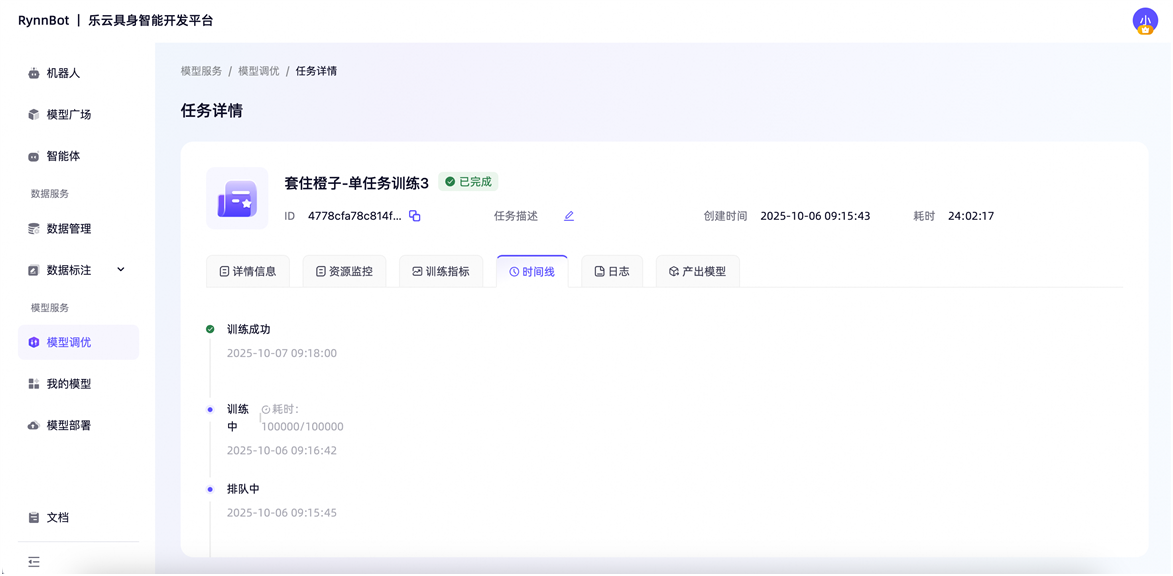
3.2 View Training Status
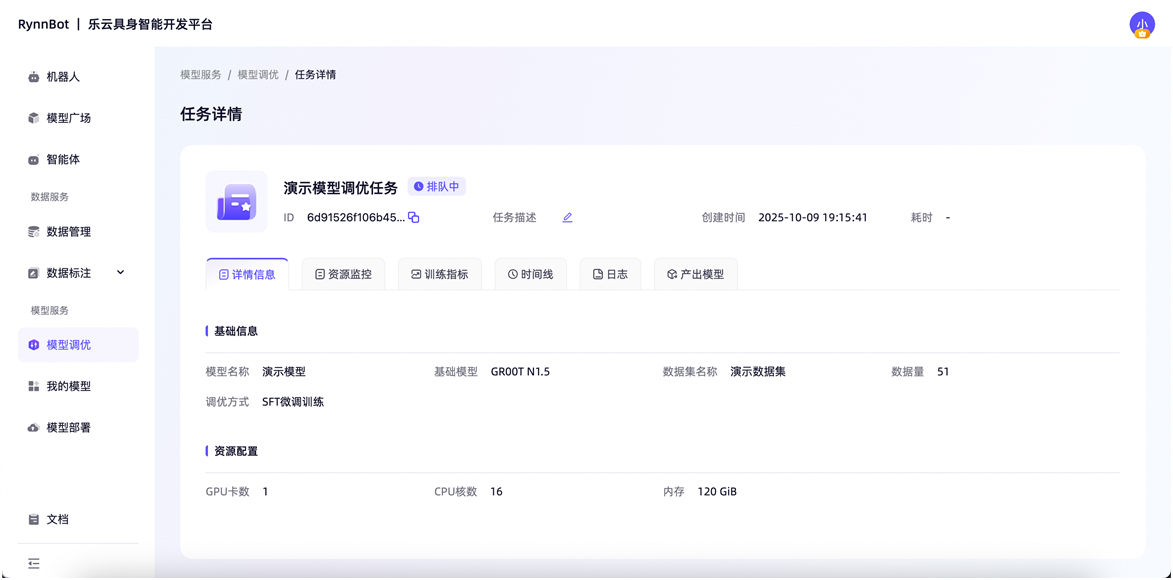
On the task details page, you can view the training progress in multiple dimensions. The details page displays the training configuration; the resource monitoring page shows CPU, GPU, and memory usage; the training metrics page shows the trends of various metrics; the timeline page presents the overall training progress; the log page allows you to view detailed output logs; and the output model page lists the final model files obtained after training.
3.3 Export Model Results
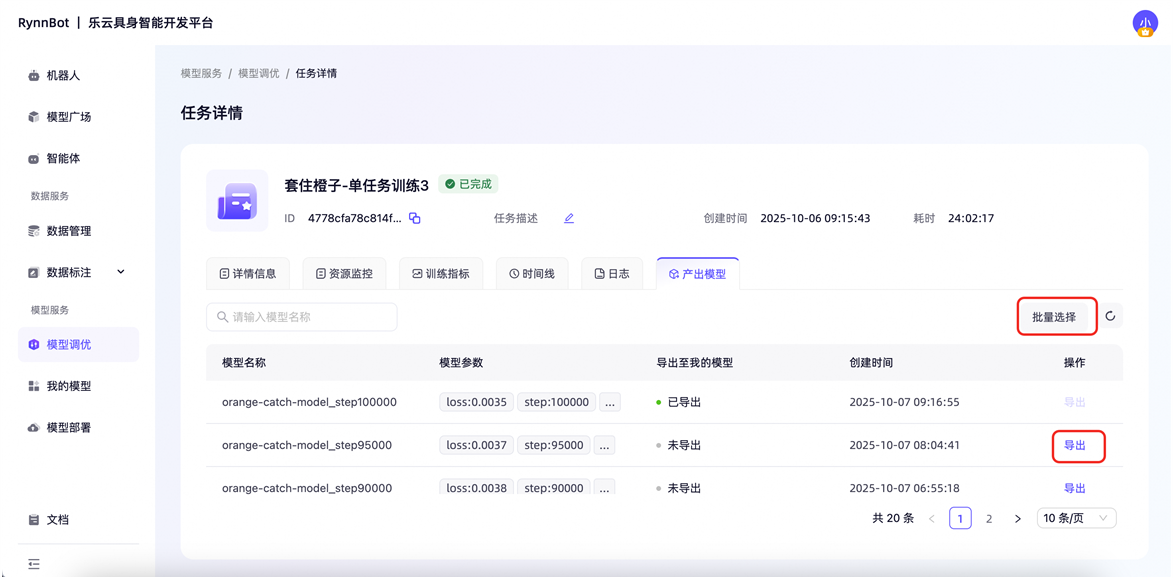
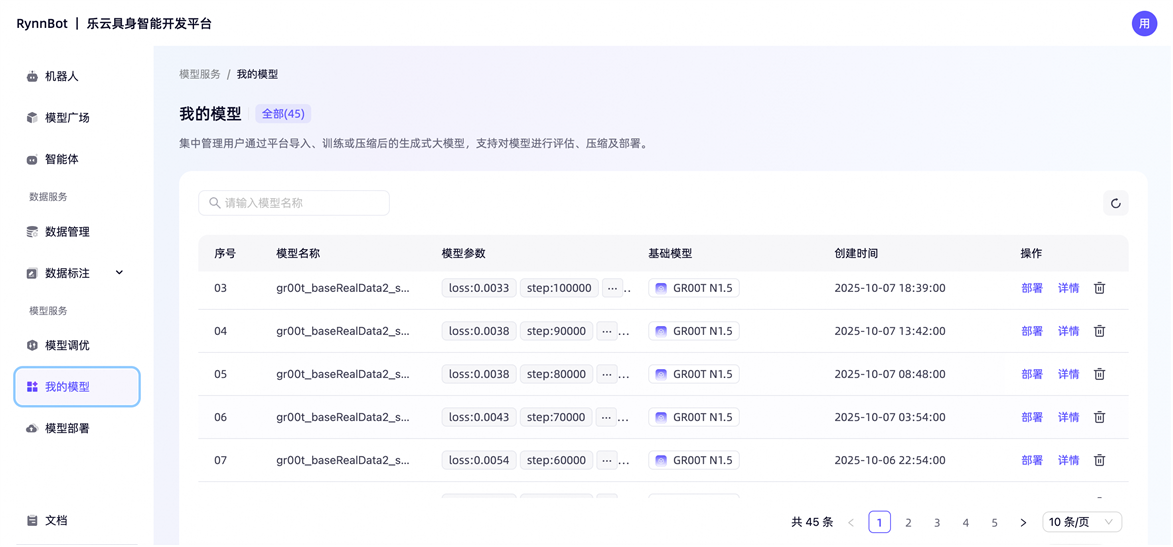
After successful training, it is necessary to export the model. On the “Export Model” page in the tuning task details, you can select models in batches or export them individually. The exported models will appear on the “My Models” page, where you can view all the exported models. If a model is accidentally deleted, you can return to the Export Model page to re-export it.
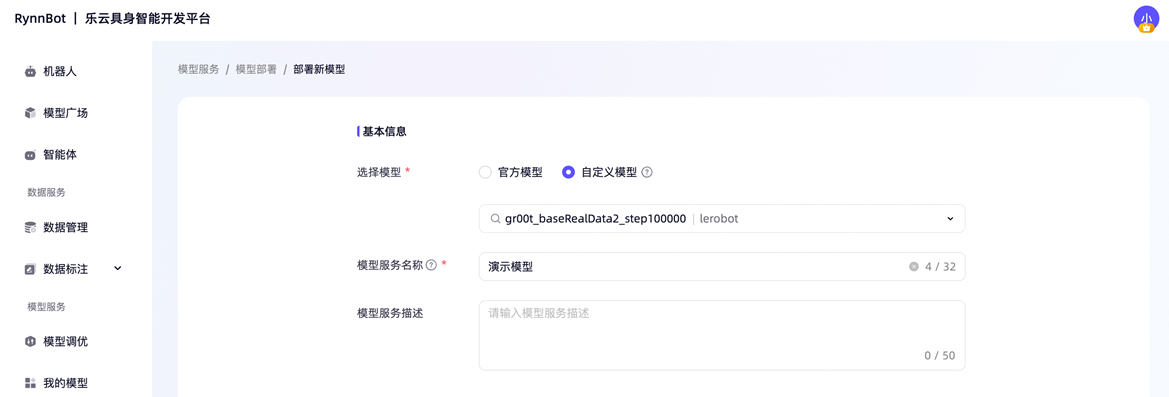
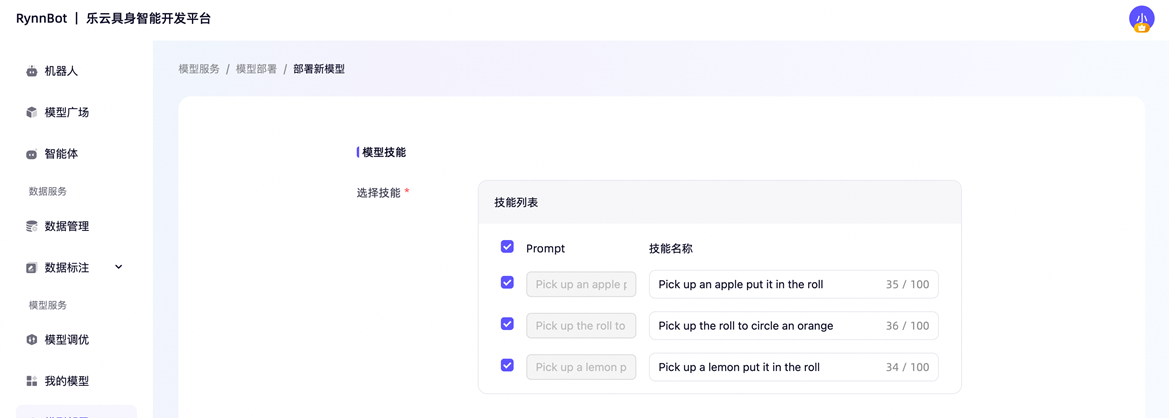
**Step 4: **Model Deployment
After obtaining the model, the next step is to deploy the service.
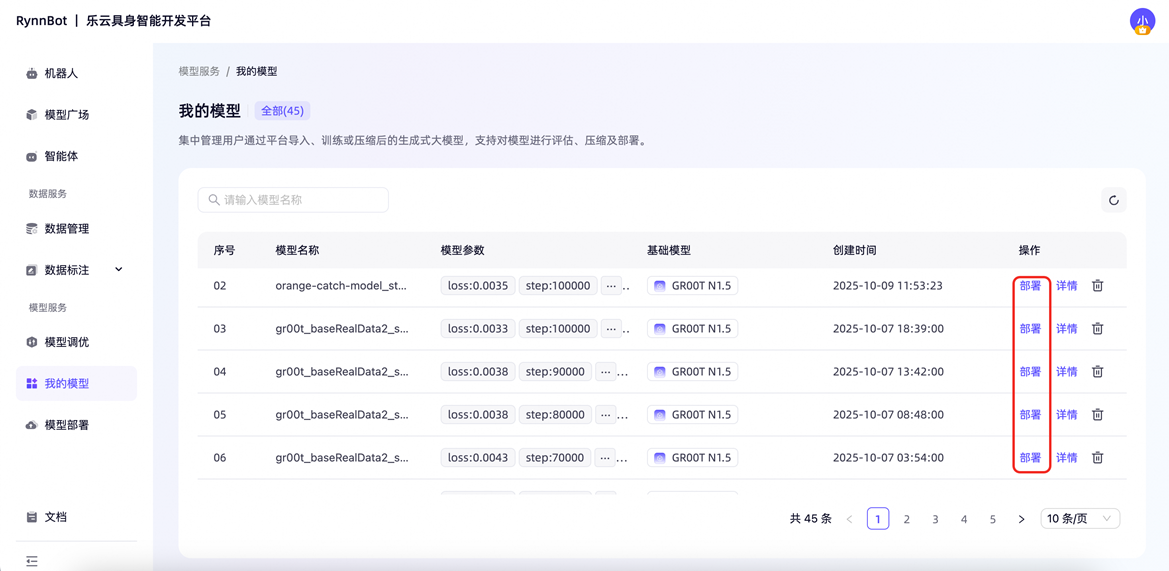
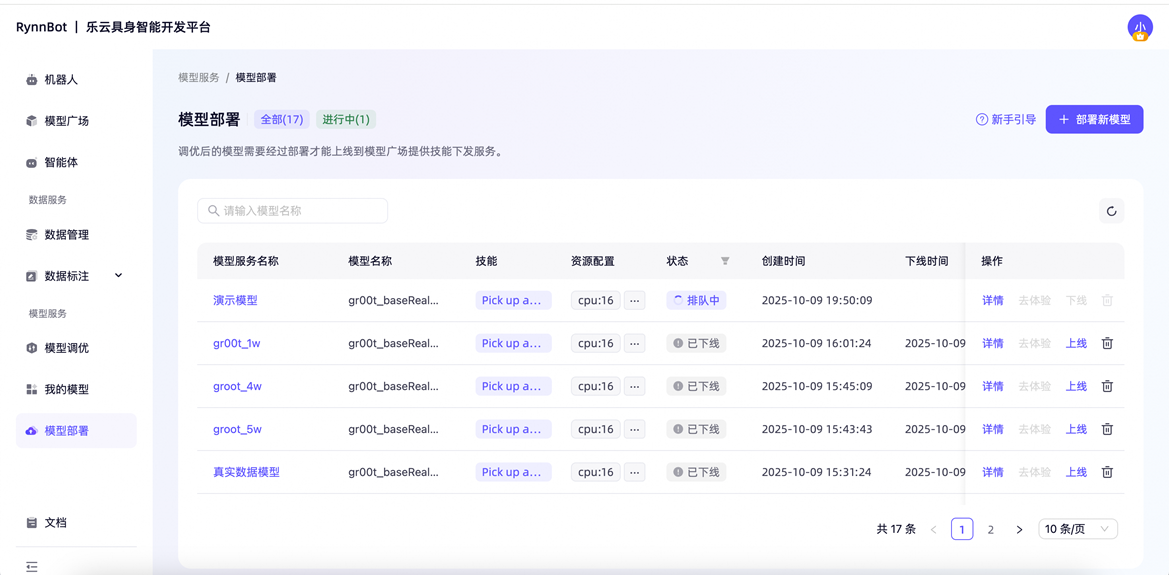
There are two entry points for creating deployment tasks: the My Model page and the Model Deployment page. When creating a task, fill in the basic information, select the model skills (the skill name is defaulted to match the prompt; it is recommended to use Chinese for easier recognition), and then choose the deployment configuration. You can set the online duration of the service, and the service will automatically stop after the timeout. After clicking “Start Deployment”, you can view the deployment status in the deployment task list.
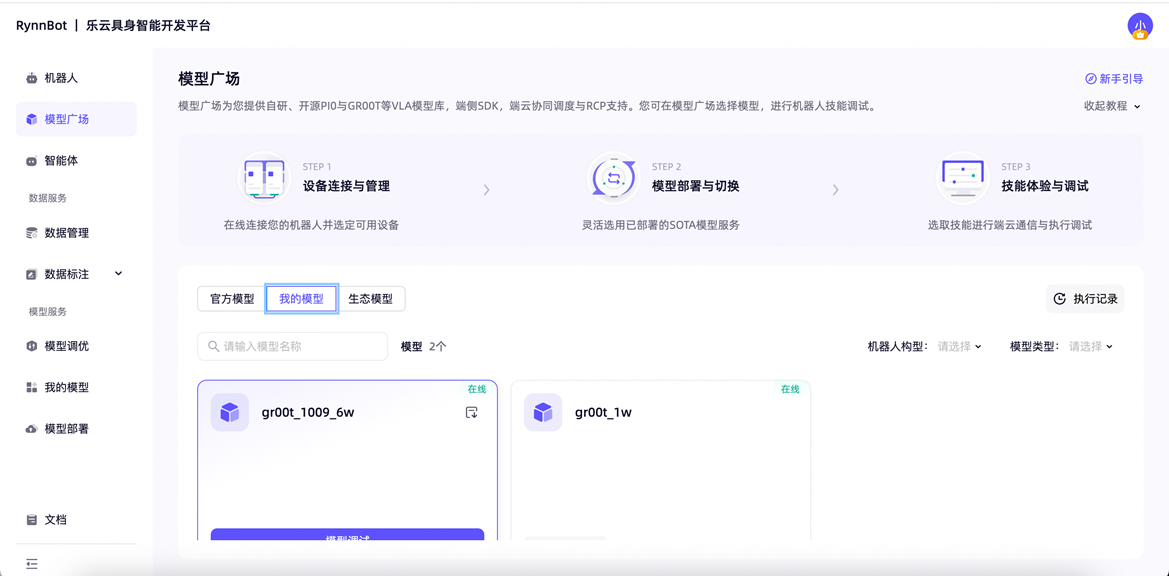
There are three ways to bring a service online: automatic online after deployment; offline services can be re-enabled by clicking a button; manual online can also be done in “Model Square → My Models”. For offline, there are two methods: automatic (when the online duration expires) and manual (by clicking the offline button or the top-right corner of the card). Deployed and running services can be viewed under “Model Square → My Models”.
**Step 5: **Model Debugging
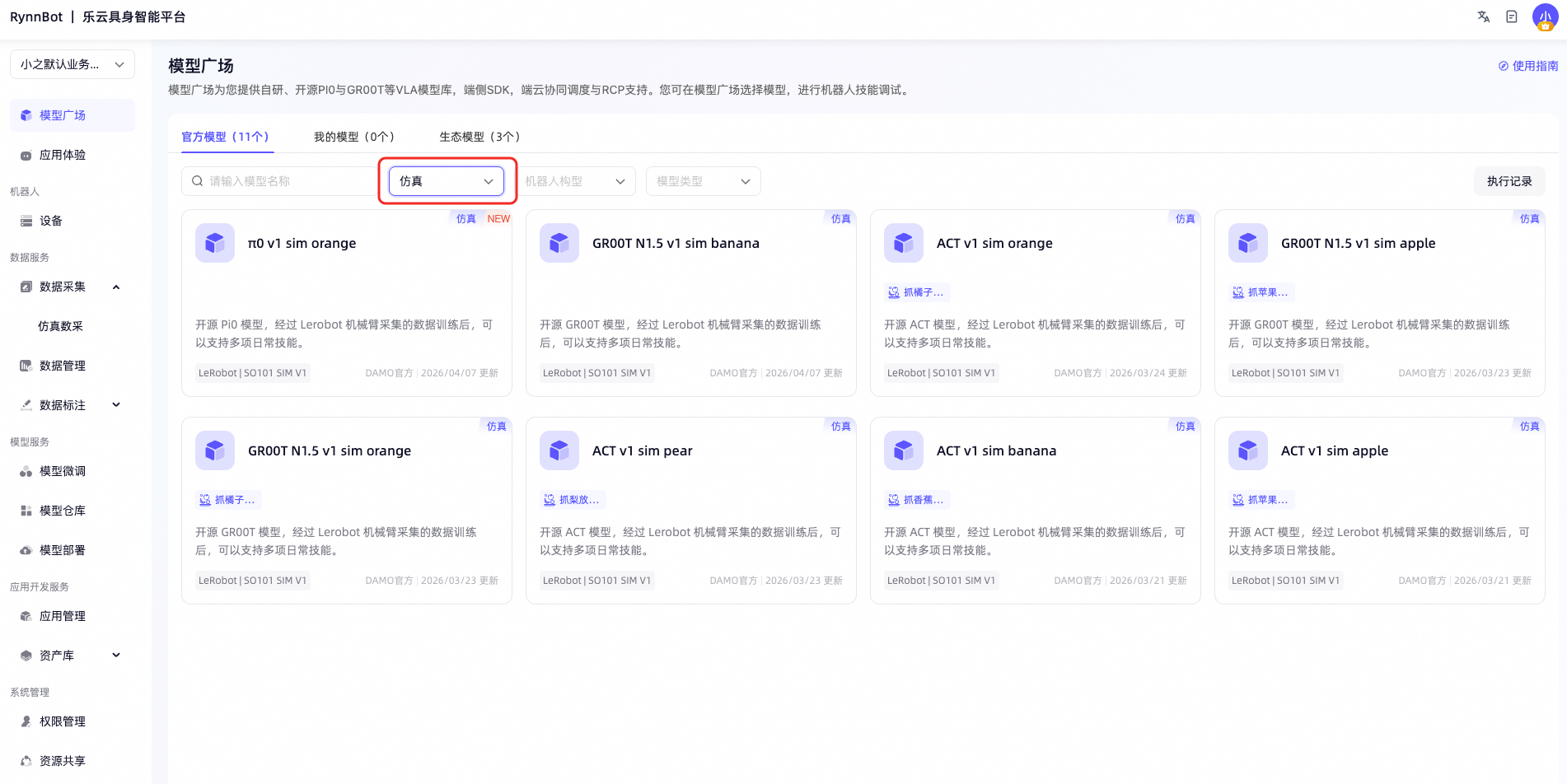
Finally, debug your model in the simulation environment. Enter the Model Square and filter the models available for “simulation” through the debugging interface.
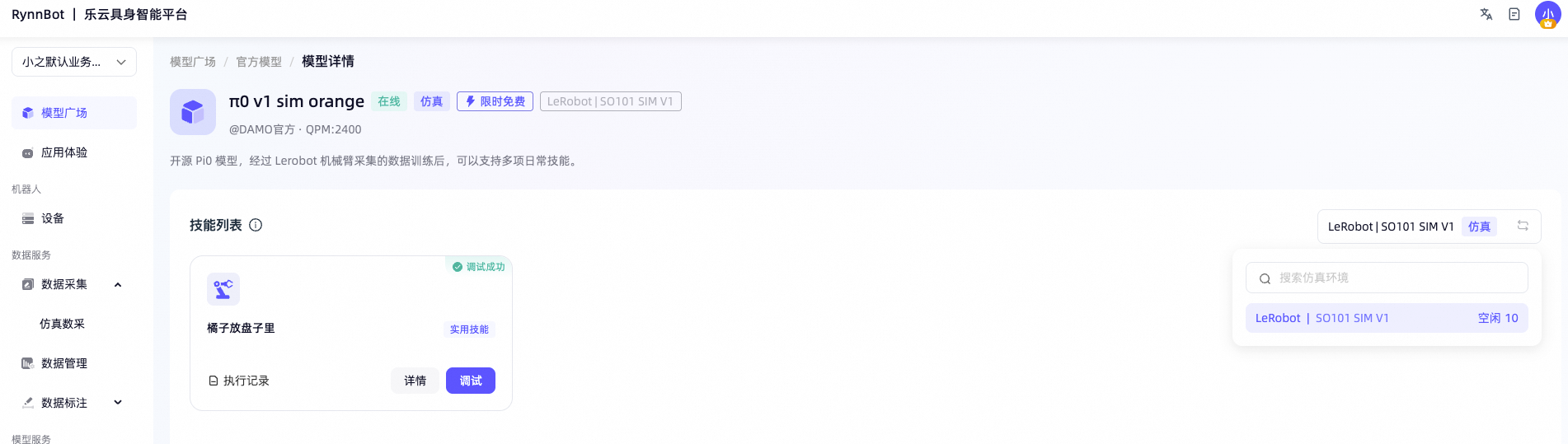
Click “Model Debugging” to enter the model details page, select the device in the corresponding configuration under the simulation environment, and then click “Debug” to enter the simulation debugging page. Click “Start Debugging”, and the backend will load the simulation resources. After the loading is complete, you can observe the process of the robot performing tasks. You can wait for the task to complete automatically, or end the debugging manually. All execution records can be viewed on the page.
What should you really understand in this section?
Today, you have learned how to establish a closed loop for the development of embodied AI from scratch. Remember: robot skills are not achieved suddenly; they are formed gradually through the entire process of data collection → model fine-tuning → deployment → debugging. The development process using real hardware bodies is exactly similar to simulation.
When deploying the trained model, you may find that the performance of the robotic arm is not ideal. This is often related to the quality of the initial data input—the training effectiveness of the final model depends heavily on the input data. If this scenario is applied in a real robot environment, the influencing factors become even more complex, such as insufficient data collection, changes in lighting and shadows during collection, or unreasonable setting of training parameters, etc. You need to reflect on where the issues occurred and adjust the data or parameters accordingly.
Today’s Task (Submission for Check-in)
Please complete the following minor task as proof of your practical learning today:
Task: Complete a “data collection → model fine-tuning → simulation debugging” closed loop experience on the Leyun simulation platform. You can choose either of the following paths (with different difficulty levels):
- Path A (Recommended for beginners): Use the simulation platform to complete one dataset collection. In the simulation environment, try controlling the robotic arm with a keyboard to perform one dataset collection.
- Path B (Challenging): Use the simulation platform to collect a full dataset (e.g., “putting a banana into a bowl”). Then, use the pre-trained model provided by the platform for fine-tuning. Complete one fine-tuning task, export the model, and finally debug the model in the simulation environment to verify whether it can perform the intended function.
Submission content:
- A screenshot: It can be the interface of a successful data collection, the interface of a successful training task completion, the interface of model export, or the execution screen of a successful simulation debugging.
- A 150–200 word description: Describe the process you went through today in your own words, including at least the following three points:
- Which key steps did you take (e.g.: data collection → fine-tuning → deployment → debugging)
- Any minor issues encountered (if any) and how they were resolved
- What do you believe is the most important role of a simulation platform in embodied AI development?
Submission method: Please put the screenshots and text descriptions in a document (or directly post them on the community board). The title should be in the format “Task04 Boarding - Your Name/Username”.