
Appendix to Manipulation Manual for AUP Browser Development Environment
This appendix describes the manipulation of the JupyterHub, Jupyter Notebook, and Code Server interfaces in AUP Learning Cloud. For persistent directories, environment variables, and course execution commands, see the cloud platform and Remote Development chapter .
1. Tool Selection
| Tool | Applicable Tasks | Entry Point |
|---|---|---|
| Jupyter Notebook | Execute code in segments, view charts, play evaluation videos | Notebook image or JupyterHub launcher |
| Code Server | Edit multi-file projects, run terminal commands, debug scripts, use version control | Code Server GPU Environment |
| Browser Terminal | Install dependencies, check devices, start training and evaluation | JupyterLab Terminal or Code Server Terminal |
Scripts for training and batch evaluation; Notebooks are used for explanations, configuration checks, and result playback. Both entry points should share the same persistent working directory.
2. Log in and select the environment
- Open
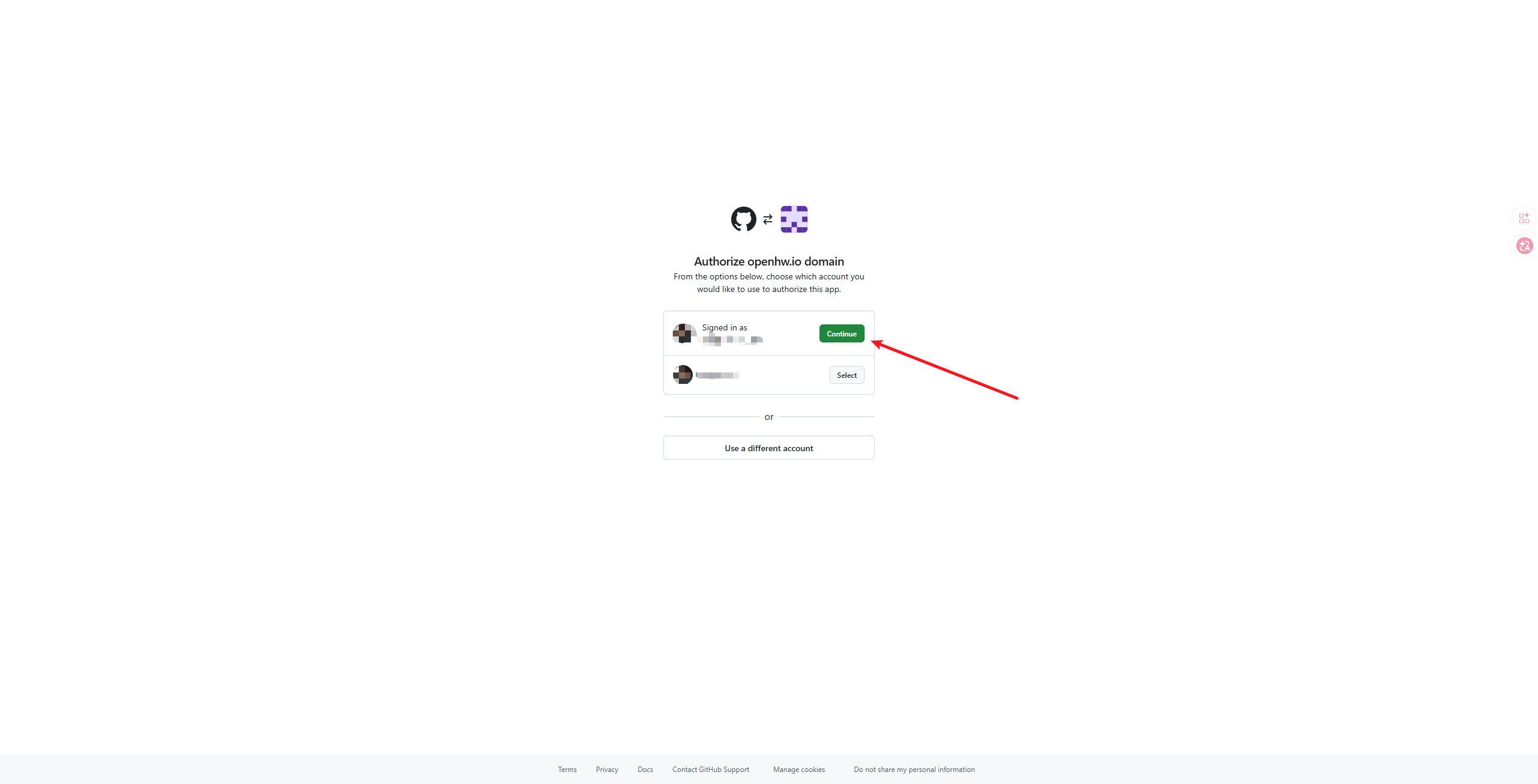
https://tpe.aupcloud.io. - Select Use GitHub Login to complete GitHub authentication.
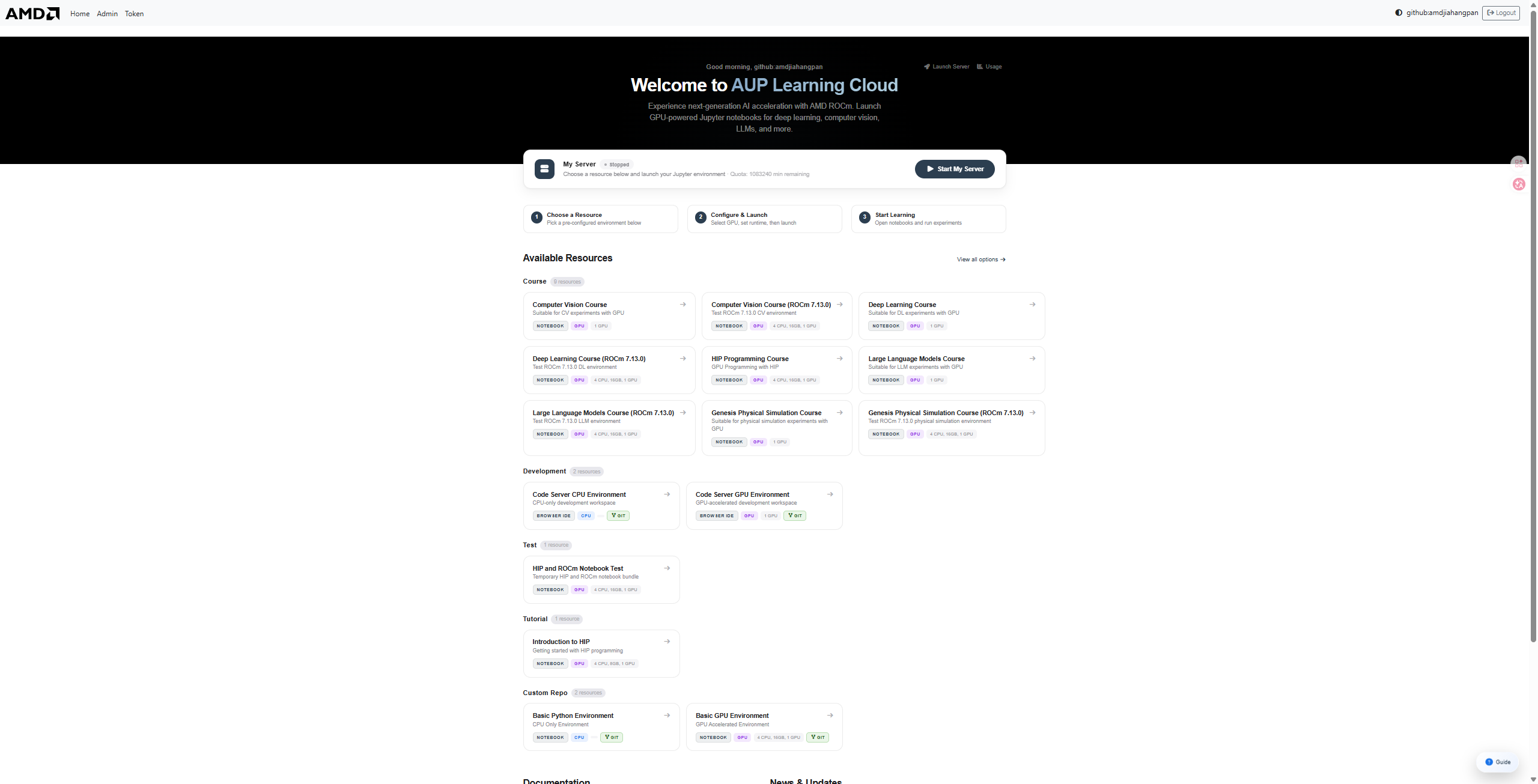
- On the startup page, choose the course image or development image.
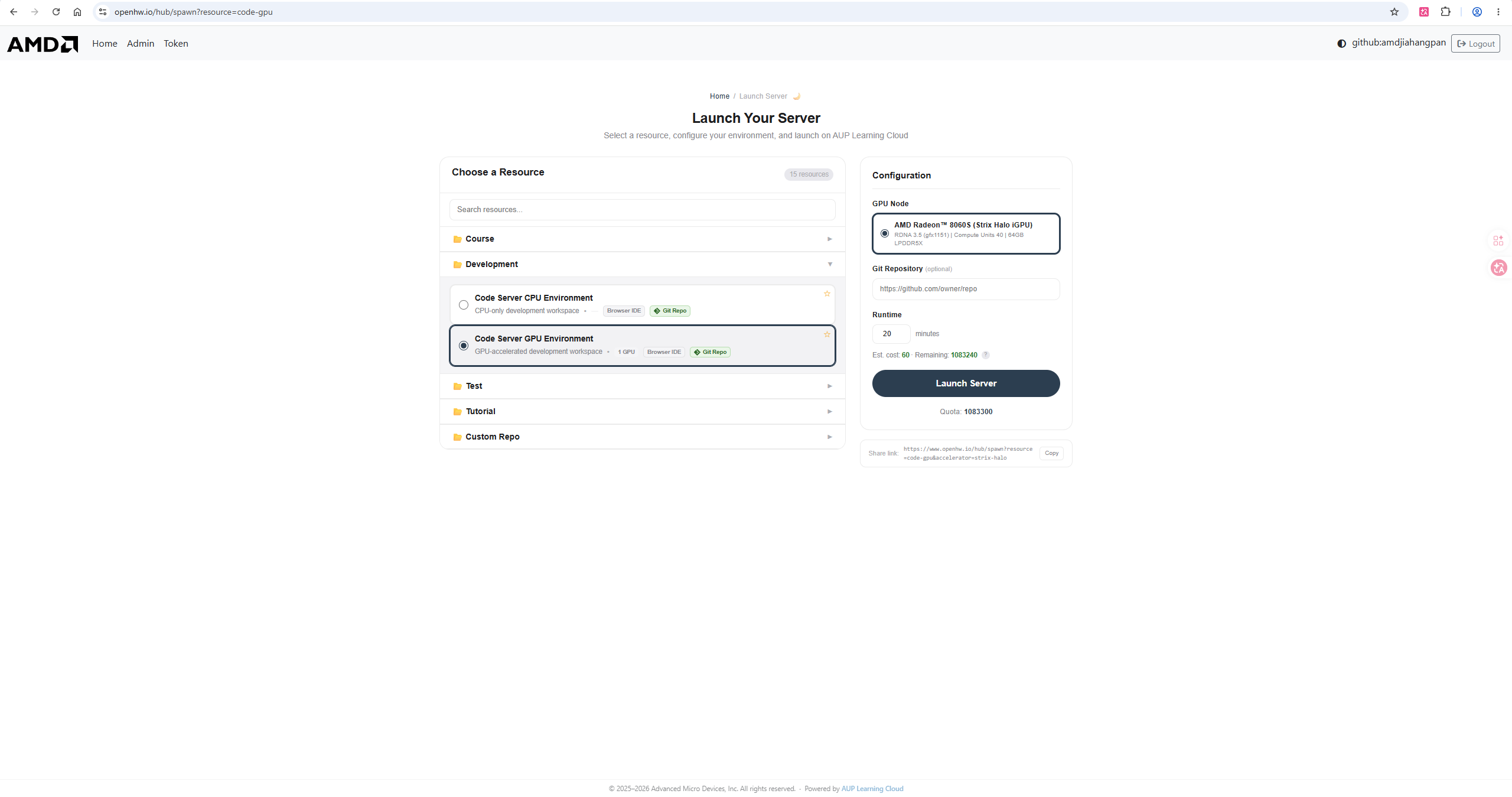
- Set the runtime duration and start the workspace.
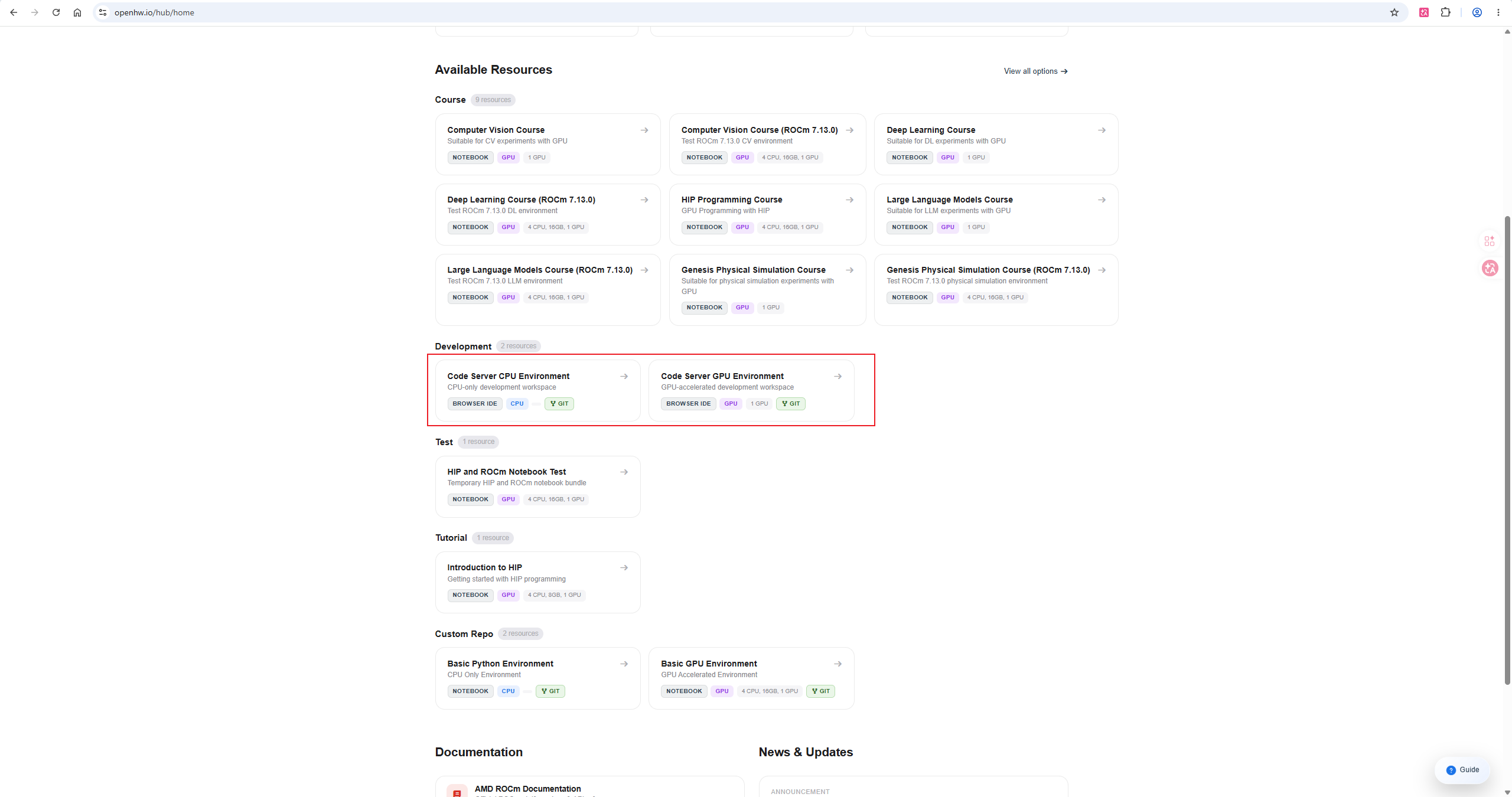
The common entry points of the platform are divided into four categories:
- Course: Teaching image dependencies pre-installed for the course;
- Development: CPU or GPU development environment on Code Server;
- Test: HIP and ROCm runtime checks;
- Custom Repo: Creating a custom environment from a base image.
Before starting, confirm the ROCm, Python, and PyTorch versions of the image. The source code, models, data, and results that need to be retained long-term should be placed in /home/jovyan. /ryzers/notebooks serves as the temporary working directory for this image.
3. Manipulation of Jupyter Notebook
3.1 Creation and Execution
Select Python 3 in the launcher to create a Notebook. Common manipulations are as follows:
| Manipulation | Shortcut Key |
|---|---|
| Run current unit | Shift + Enter |
| Save document | Ctrl + S or Cmd + S |
| Interrupt running | Interrupt in Kernel menu |
| Restart kernel | Restart in Kernel menu |
Minimum device check:
pythonimport torch

print(torch.__version__)
print(torch.cuda.is_available())
print(torch.cuda.get_device_name(0) if torch.cuda.is_available() else "GPU unavailable")
The ROCm version of PyTorch follows the torch.cuda interface. Therefore, when torch.cuda.is_available() returns True, it is necessary to combine the device name and tensor computation to confirm the environment.
3.2 Save to Persistent Directory
bashmkdir -p /home/jovyan/every-embodied
cp -a /ryzers/notebooks/<project-name> /home/jovyan/every-embodied/
It is recommended to open the project directly from the persistent directory to avoid recopying before ending the image:
bashcd /home/jovyan/every-embodied
git clone https://github.com/datawhalechina/every-embodied.git
3.3 Notebook Execution Order
The Course Notebook is executed in the following order:
- Device and directory configuration;
- Dataset and model path verification;
- Single batch forward and reverse;
- Short training;
- Long training;
- Closed loop evaluation;
- Video and statistical result display.
The long training unit is controlled by an explicit switch by default. After starting, the training log and output directory are retained; do not rely on continuous browser connection.
4. Manipulation of Code Server
4.1 Start the development environment
Select Code Server GPU Environment, then choose the desired AMD Radeon GPU configuration and start it.
The interface is divided into four sections:
- Left sidebar: Files, Search, Version Control, Execution and Extensions;
- Middle editing area: Source code and Markdown documents;
- Bottom terminal: Commands, logs and process status;
- Ports panel: Forwarding ports for local services.
4.2 Recommended Extensions
| Extension | Purpose |
|---|---|
| Python | Python syntax, debugging, and environment selection |
| Jupyter | Running Notebooks in the editor |
| Ruff | Python formatting and static checking |
| YAML | Configuration file syntax support |
| GitLens | Version history and commit location |
| C/C++ | HIP or native extension development |
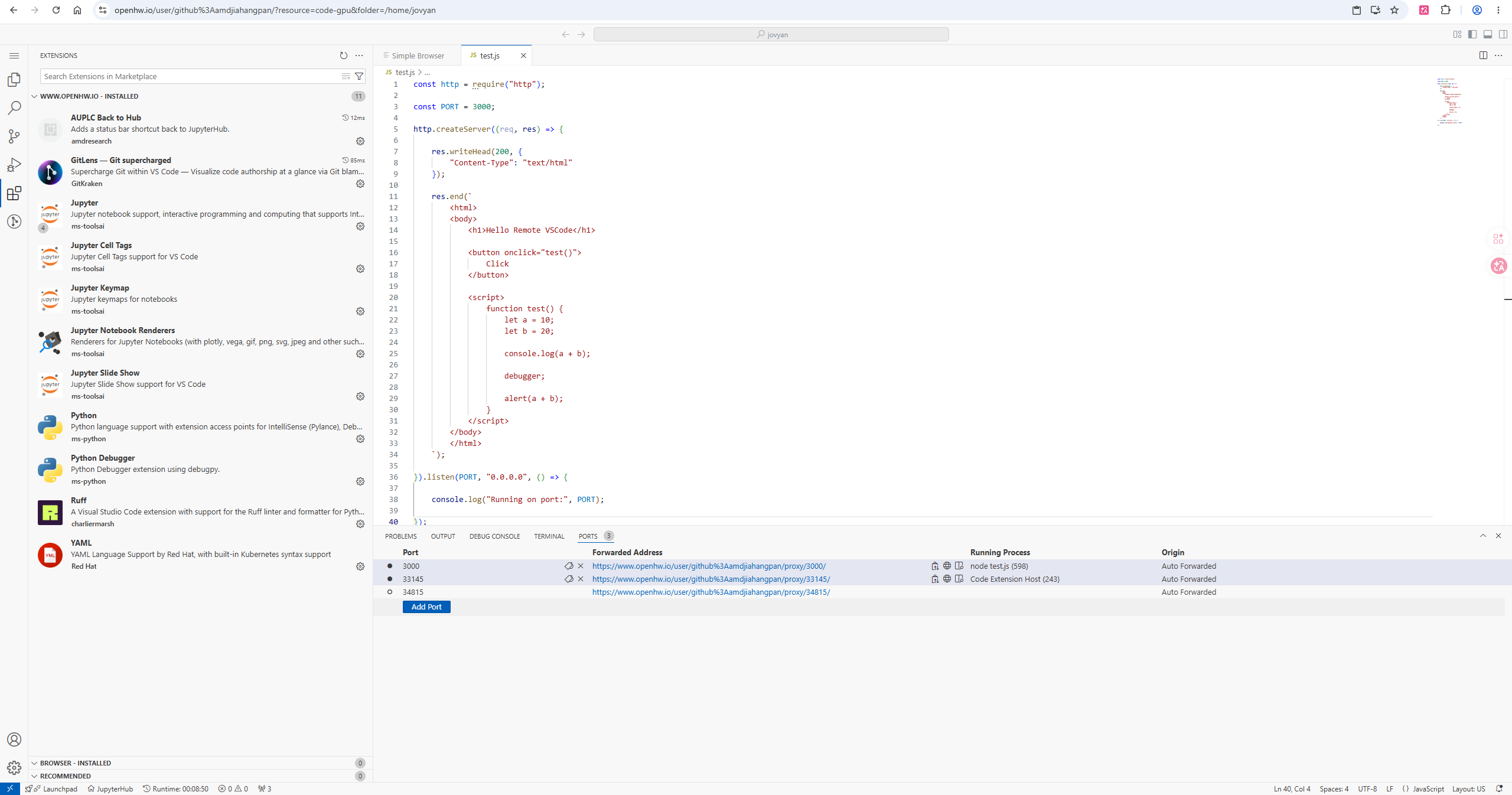
When extending is saved in the image running environment, record the common extension names in the project documentation to facilitate environment reconstruction.
4.3 Terminal Inspection
bashrocm-smi
python -V
python -c "import torch; print(torch.__version__, torch.cuda.is_available())"
df -h /home/jovyan
Check the current directory and output directory again before training:
bashpwd
echo "$WORK_ROOT"
echo "$OUTPUT_ROOT"
5. Port Forwarding
Code Server will detect the HTTP service started in the terminal and create a forwarding entry in the Ports panel.
bashpython -m http.server 8080 --bind 0.0.0.0
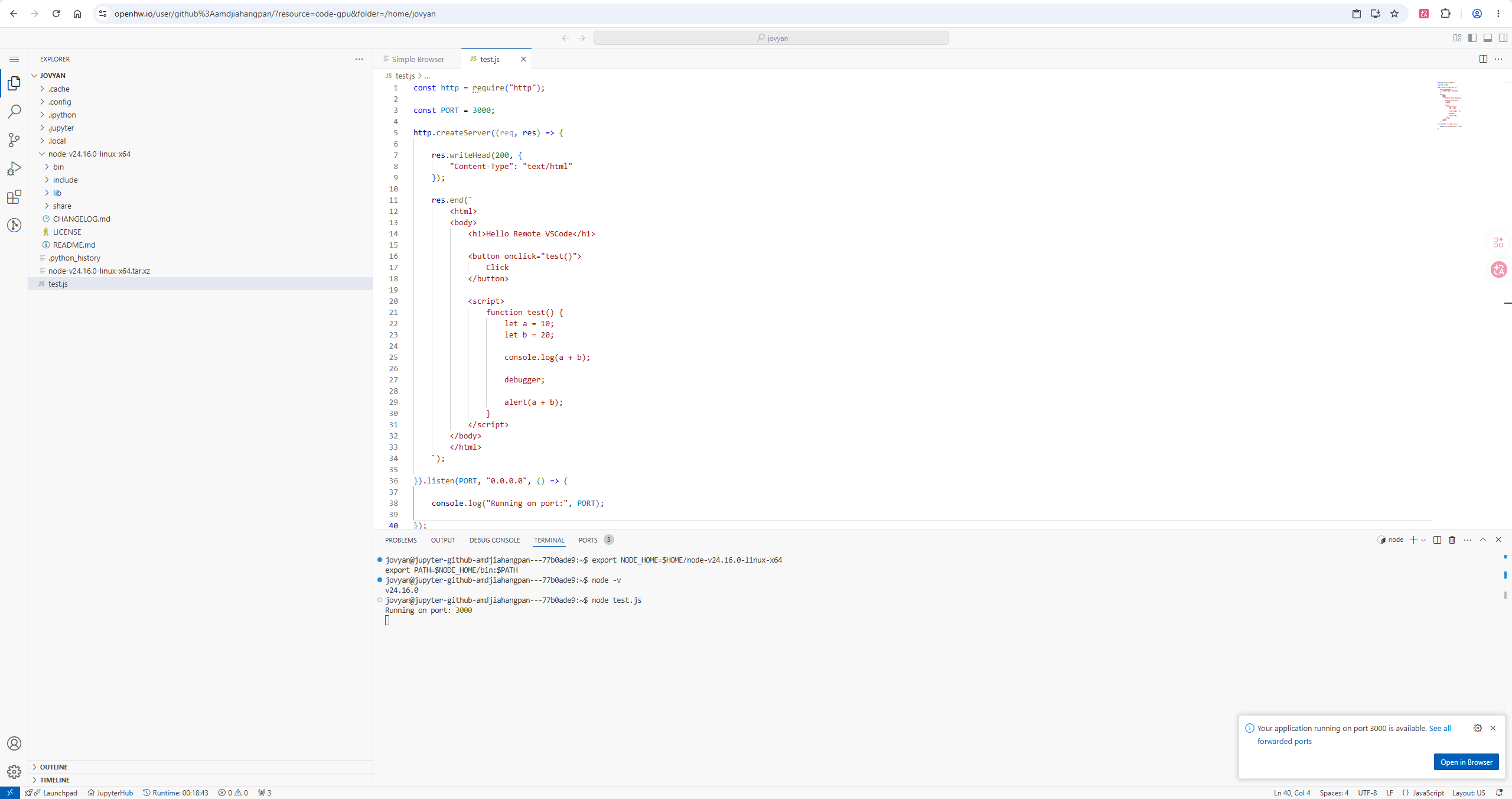
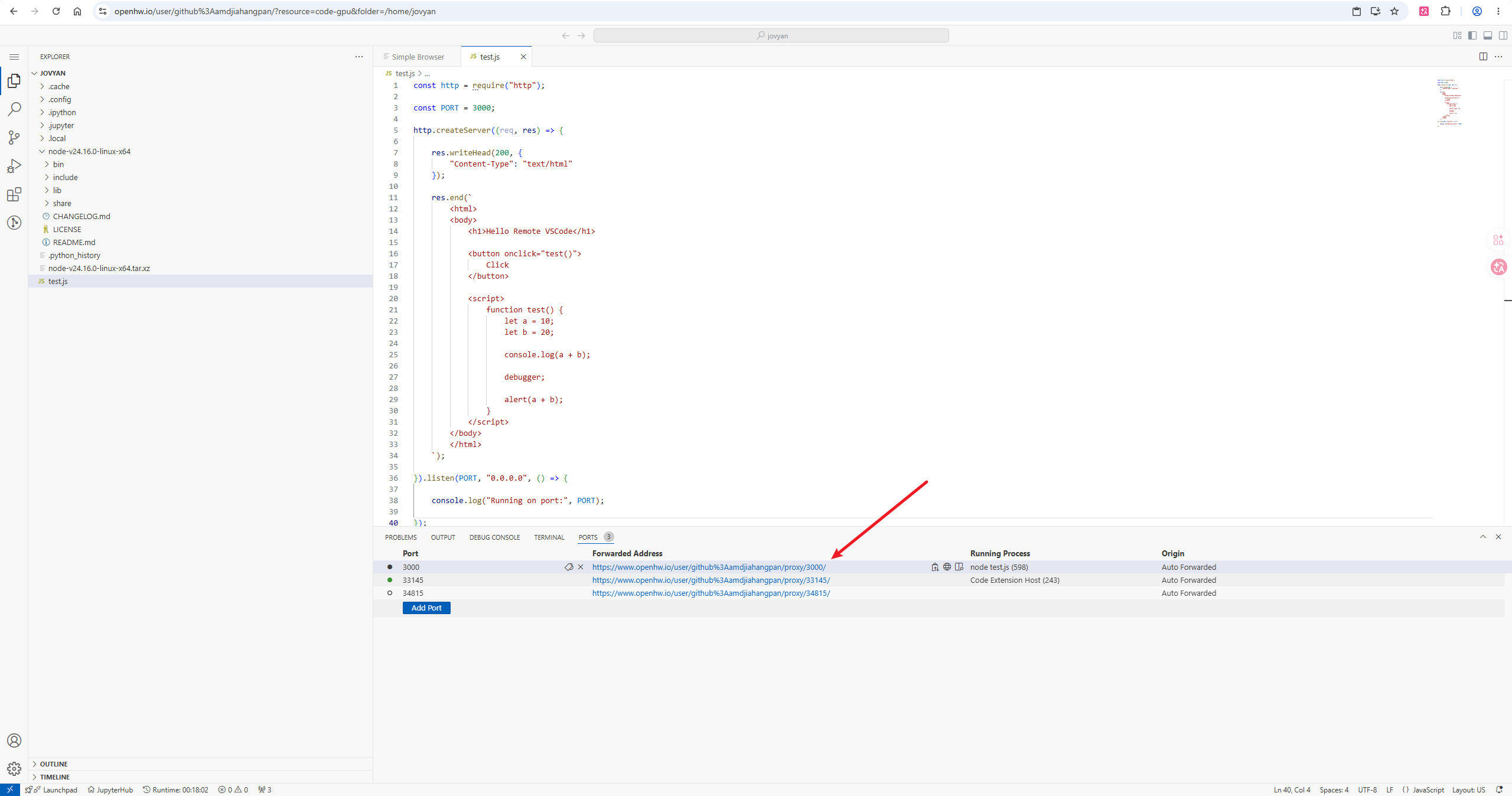
Forwarding addresses usually take the following form:
texthttps://tpe.aupcloud.io/user/<username>/proxy/<port>/
The service must listen on 0.0.0.0 or the interface allowed by the platform. If the page cannot be accessed, check the following in order:
bashss -lntp | grep 8080
curl -I http://127.0.0.1:8080
Then, confirm the port number and forwarding address in the Ports panel.
6. Models, Data, and Authentication
Caching and output are placed in the persistent directory:
bashexport WORK_ROOT=/home/jovyan/every-embodied-work
export HF_HOME="$WORK_ROOT/cache/huggingface"
export TORCH_HOME="$WORK_ROOT/cache/torch"
export DATA_ROOT="$WORK_ROOT/datasets"
export MODEL_ROOT="$WORK_ROOT/models"
export OUTPUT_ROOT="$WORK_ROOT/outputs"
mkdir -p "$HF_HOME" "$TORCH_HOME" "$DATA_ROOT" "$MODEL_ROOT" "$OUTPUT_ROOT"
Hugging Face login information is only stored in the user configuration directory or environment variables. Public Notebooks, Markdown, screenshots, and logs do not record access tokens.
bashhuggingface-cli login
huggingface-cli whoami
After downloading, check the model directory and dataset metadata:
bashfind "$MODEL_ROOT" -maxdepth 2 -type f | head
find "$DATA_ROOT" -maxdepth 3 -type f | head
du -sh "$MODEL_ROOT" "$DATA_ROOT" "$HF_HOME"
7. Switch to a different image and exit the workspace
Follow these steps before switching the image:
- Save the Notebook and source code;
- Ensure that the training output is located at
/home/jovyan; - Record the recovery command for unfinished tasks;
- Stop the current service;
- Select Stop my server on the startup page;
- Start a new image.
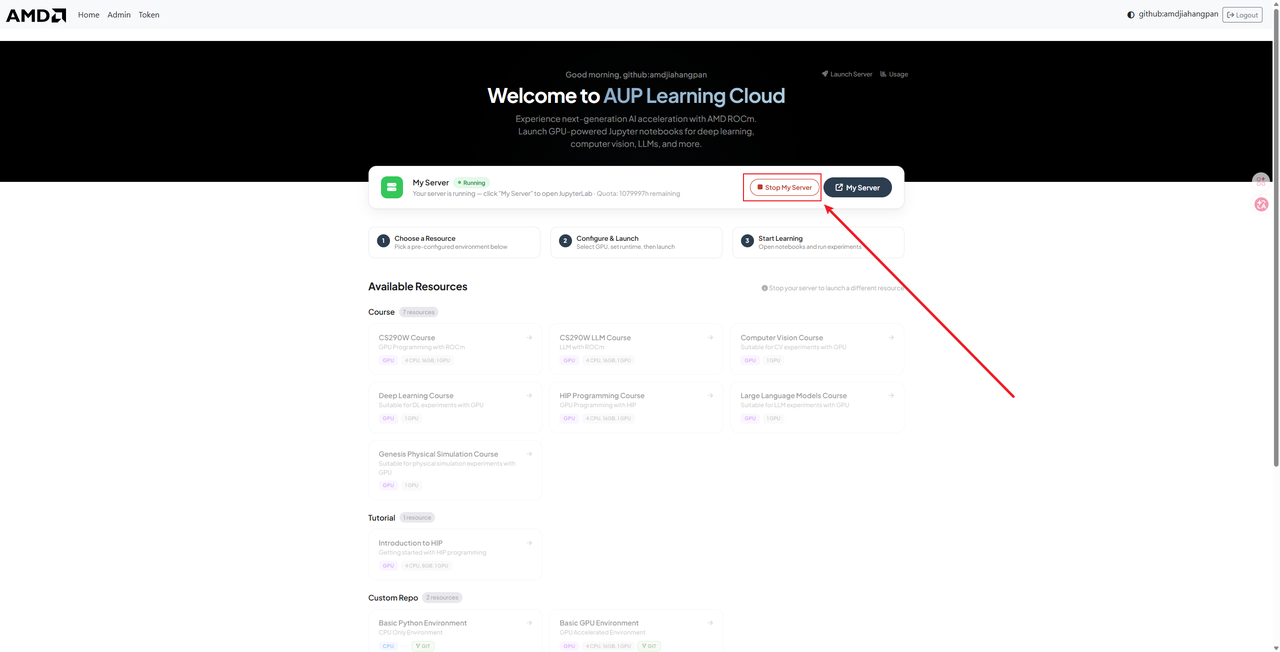
Check the location of large files before ending:
bashdu -sh /home/jovyan/* 2>/dev/null | sort -h
find /ryzers/notebooks -type f -size +100M -print 2>/dev/null
8. Common Questions
Slow page loading
Log in again and check the browser network; after the page recovers, confirm whether the backend process is still running.
Confused execution order of Notebook unit
Restart the kernel and execute the steps in sequence starting from devices, directories, and data inspection units. The long training units use a separate output directory to avoid overwriting existing results.
Failed to install the Code Server extension
Refresh the extended index and retry; use the existing extension in the mirror to complete core operations when the network is limited.
Port does not appear automatically
Confirm that the service is listening, and then manually add ports in the Ports panel. Proxy path access depends on the current user’s login status.
Files disappear after the workspace ends
Check whether the file is written to /ryzers/notebooks. When running again, set the source code, data, model, and output root directory to /home/jovyan uniformly.
9. Return to the main line of the course
After the platform manipulation is completed, proceed in the following order: