
README 05: Algorithm Demo: Speech and LLM
After completing this chapter, readers should be able to independently run the native voice Q&A chain of Magicbox, and clearly understand what models, ROS2 topics, and startup files make up this chain. More specifically, this chapter aims to achieve a complete closed loop: the device hears a sentence, identifies the text, passes it to the board-end LLM for a response, and then broadcasts that response. Whether using OpenClaw or building one’s own desk pet state machine later, it must be based on the premise that this chain is already stable and functional.
1. Before starting this chapter, confirm the four prerequisites first
First, the development board can now be logged in stably via wired connection, and the system time has been calibrated. If the time remains at 2000-01-01, the logs will be difficult to understand, and it will also affect subsequent network and dependency verification. Please confirm first:
bashdate
Second, the speaker and microphone on the development board function properly. It is essential that the board can produce a prompt sound, and the recording device is not disabled by the system. If the voice link fails, the first thing to check is usually not the LLM, but rather the audio capture and playback itself.
Third, the original factory environment remains intact. The first round of verification in this chapter focuses not on the USB drive migration version, but on aligning with the actual path of the original magicbox-start. Only after the original path works properly is it recommended to consider model and dependency migration.
Fourth, the following workspaces and directories already exist on the board:
- Work area root directory:
/userdata/magicbox/app/ros_ws - Original configuration directory:
/userdata/magicbox/config - Original dependency directory:
/userdata/magicbox/dep
All subsequent commands, unless specified otherwise, are executed on the development board by default. sunrise user is preferred over root. This is especially important for audio_io, as root is more prone to interference from user-mode audio services, log paths, and device usage during manual verification. Moreover, the standard factory usage path is also in a regular user environment, and different modes are scheduled by external scripts.
II. What materials and repositories are involved in this chapter
This chapter mainly corresponds to the following content.
- Voice link repository:
./repos/magicbox_audio_io - Board-side LLM repository:
./repos/magicbox_qwen_llm - References for voice-related dependencies:
./repos/sherpa-onnx - Archive of official voice interaction pages:
./page_algorithm-development_voice-interaction.html - Local function structure diagram:
./assets/official_images/Audio-Architecture-Diagram.png
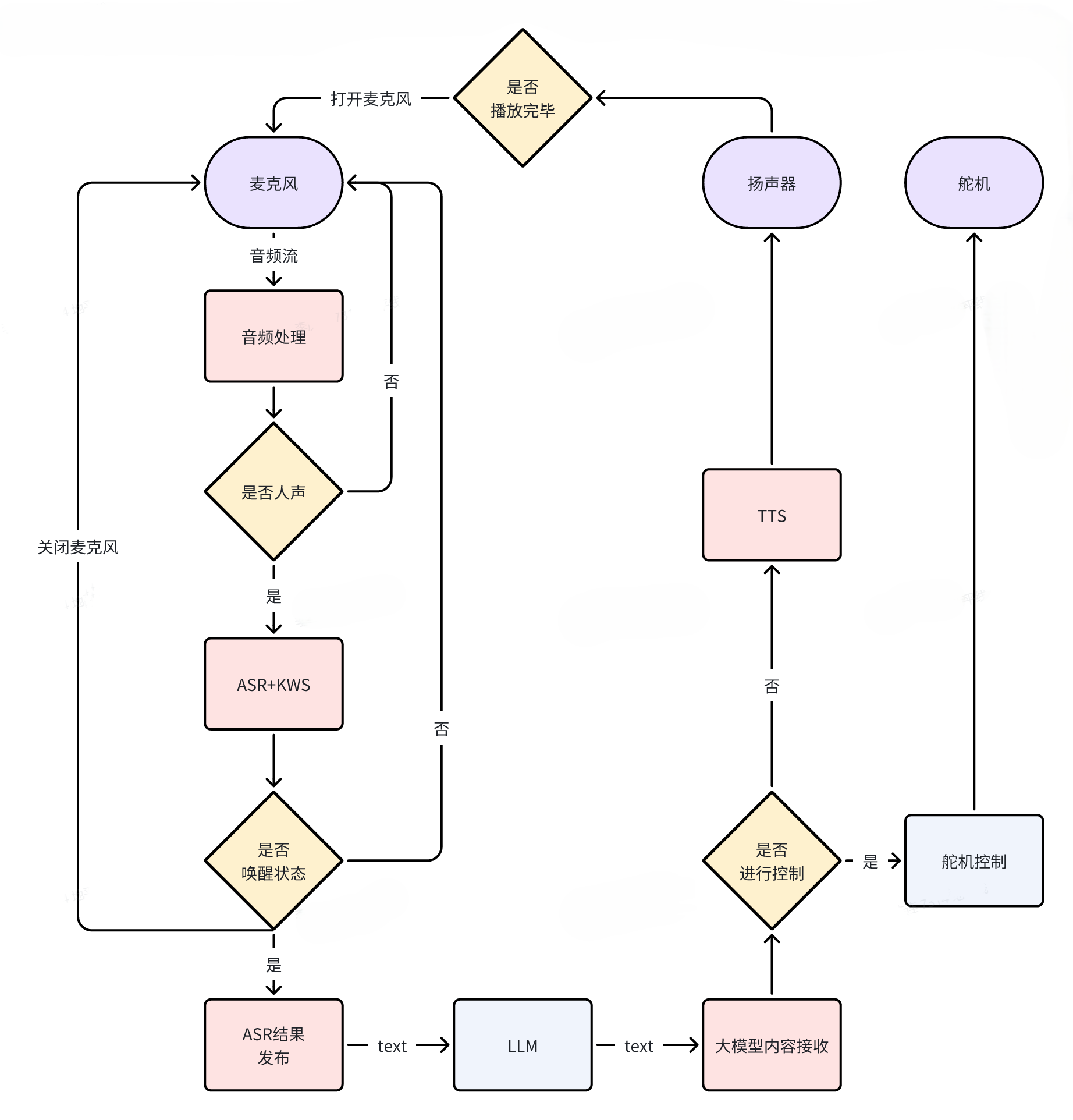
Source: D-Robotics Magicbox voice interaction official documentation. Local images are archived in ./assets/official_images/Audio-Architecture-Diagram.png.
III. First, understand what this link is doing
The native voice chain route of Magicbox consists of four consecutive processes.
The first paragraph is audio input. The microphone continuously collects audio data, and audio_io is responsible for wake word detection, speech recognition, and announcement control.
The second paragraph is the text input boundary. After audio_io identifies valid Chinese content, it publishes the results to /prompt_text.
The third paragraph is LLM inference. qwen_llm subscribes to /prompt_text, performs text inference, and publishes the answer to /tts_text.
The fourth paragraph is voice announcement. audio_io then subscribes to /tts_text, calls up TTS to synthesize speech, and announces it through the speaker.
Therefore, the most important thing in this chapter is not to memorize a specific startup command, but to master two boundary topics:
/prompt_text/tts_text
Once these two topics are established, whether you continue using the native voice link or integrate OpenClaw into the board capabilities, you will know where messages should enter and where they should exit.
IV. Align the real model path of the original script first
The original magicbox-start voice link verified in this tutorial does not read the model from /media/sunrise/..., but uses /userdata/magicbox/config and /userdata/magicbox/dep. Therefore, checking the original configuration path is more reliable than directly investigating the USB drive placeholder path.
I have checked the original script. The current real path is as follows:
textASR 模型: /userdata/magicbox/config/sense-voice-small-fp16.gguf
LLM 模型持久化位置: /userdata/magicbox/config/qwen2.5-1.5b-instruct-q5_k_m.gguf
KWS 依赖目录: /userdata/magicbox/dep/sherpa-onnx/sherpa-onnx-kws-zipformer-wenetspeech-3.3M-2024-01-01
TTS 依赖目录: /userdata/magicbox/dep/matcha-icefall-zh-baker
LLM 运行时位置: /dev/shm/qwen2.5-1.5b-instruct-q5_k_m.gguf
Among them, the core action of /userdata/magicbox/launch/start.sh is:
bashdd if=/userdata/magicbox/config/qwen2.5-1.5b-instruct-q5_k_m.gguf \
   of=/dev/shm/qwen2.5-1.5b-instruct-q5_k_m.gguf
ros2 launch audio_io audio_io.launch.py &
And the path that audio_io.launch.py reads by default is also:
texttts_config_path=/userdata/magicbox/dep/matcha-icefall-zh-baker
asr_model_path=/userdata/magicbox/config/sense-voice-small-fp16.gguf
kws_config_path=/userdata/magicbox/dep/sherpa-onnx/sherpa-onnx-kws-zipformer-wenetspeech-3.3M-2024-01-01
Therefore, the correct order of this chapter is:
- First, verify the voice and LLM connection using the original manufacturer’s path.
- After the original path works properly, decide whether to migrate to a USB drive.
5. First, check whether the original path actually exists
Before starting any node, perform an explicit check first. The purpose of this step is to confirm whether the original resources on your board are complete, rather than letting the reader guess the path after the launch fails.
bashls -ld \
  /userdata/magicbox/config/sense-voice-small-fp16.gguf \
  /userdata/magicbox/config/qwen2.5-1.5b-instruct-q5_k_m.gguf \
  /userdata/magicbox/dep/sherpa-onnx/sherpa-onnx-kws-zipformer-wenetspeech-3.3M-2024-01-01 \
  /userdata/magicbox/dep/matcha-icefall-zh-baker
If any of these four paths is missing, do not proceed with the subsequent voice link debugging.
VI. First, run audio_io independently and it works correctly
Before actually integrating the LLM, verify whether the audio input, speech recognition, and broadcasting link are functioning properly. The reason is straightforward: if the audio_io layer is not working, using qwen_llm afterward will only expand the scope of troubleshooting.
From repos/magicbox_audio_io/launch/audio_io.launch.py, it can be seen that the three paths are crucial during startup:
tts_config_pathasr_model_pathkws_config_path
This indicates whether audio_io can run, which depends first on whether the model and dependency directories actually exist.
1. Execute directory and environment preparation
It is recommended to return to the root directory of the board working area first, and then load the ROS2 environment:
bashcd /userdata/magicbox/app/ros_ws
source /opt/tros/humble/setup.bash
source /userdata/magicbox/app/ros_ws/install/local_setup.bash
2. First, check if the microphone device is in use.
The audio_io default collection device verified by this tutorial is:
textplughw:0,0
The corresponding device should be visible in the actual sound card list:
textcard 0: duplexaudioi2s1, device 0
card 1: duplexaudio, device 0
So if it still shows here:
textalsa_device_init snd_pcm_open plughw:0,0 failed
ret=-16
The meaning is not “the device cannot be found”, but “the device is busy and occupied by another process”. Common occupiers include:
textpulseaudio
Therefore, before manually verifying audio_io, stop the user-mode audio service that uses the microphone first. Execute it using sunrise as a user:
bashpulseaudio -k || true
systemctl --user stop pulseaudio.service pulseaudio.socket 2>/dev/null || true
If you are currently in a root shell, return to a regular user terminal before running the two commands above. Run the following command as root only for temporary troubleshooting:
bashpkill -f pulseaudio || true
After execution, you can perform another minimum recording test:
basharecord -D plughw:0,0 -f S16_LE -r 16000 -c 1 -d 1 /tmp/test.wav
As long as this command no longer reports Device or resource busy, continue to start audio_io.
3. Start command
If you want to verify the audio device separately, you can wait_for_llm Set as False. This way, even if the LLM has not started yet,audio_io You can also start the audio-related operations first. The following set of parameters are aligned with the default values of the original software; they are simply written out explicitly for easier teaching and troubleshooting.
bashexit  # 如果当前在 root shell 中,先退回 sunrise 用户
cd /userdata/magicbox/app/ros_ws
source /opt/tros/humble/setup.bash
source /userdata/magicbox/app/ros_ws/install/local_setup.bash
ros2 launch audio_io audio_io.launch.py \
  asr_model_path:=/userdata/magicbox/config/sense-voice-small-fp16.gguf \
  kws_config_path:=/userdata/magicbox/dep/sherpa-onnx/sherpa-onnx-kws-zipformer-wenetspeech-3.3M-2024-01-01 \
  tts_config_path:=/userdata/magicbox/dep/matcha-icefall-zh-baker \
  wait_for_llm:=False
4. Where should I check the results after starting?
During this stage, there is no need to read web pages first; instead, focus on two types of phenomena.
The first category is terminal logs. You should be able to see audio_io starting up normally, rather than exiting directly during the model path resolution phase.
The second category is device behavior. The board should be able to enter a standby state and respond accordingly when voice input is detected.
If there is already logic related to /prompt_text and /tts_text on the board, you can also open a separate terminal to observe the topic.
Open a new terminal first and execute:
bashsudo su -
cd /userdata/magicbox/app/ros_ws
source /opt/tros/humble/setup.bash
source /userdata/magicbox/app/ros_ws/install/local_setup.bash
ros2 topic list | grep text
If the topic exists, proceed as follows:
bashros2 topic echo /prompt_text
As long as /prompt_text produces a reasonable text after your speech, it indicates that the ASR section is working properly.
VII. Reconnect to qwen_llm to complete the Q&A closed loop
When audio_io can stable publish /prompt_text, then qwen_llm can be integrated. qwen_llm plays a simple role in this chain: it reads and recognizes text, generates responses, and sends these responses to /tts_text.
1. First, copy the model to /dev/shm
The execution directory can still be used in the board terminal workspace. The command is as follows:
bashexit  # 如果当前在 root shell 中,先退回 sunrise 用户
cp /userdata/magicbox/config/qwen2.5-1.5b-instruct-q5_k_m.gguf /dev/shm/
ls -lh /dev/shm/qwen2.5-1.5b-instruct-q5_k_m.gguf
Only after the copy is successful can the subsequent startup continue.
It should be noted that there is a very confusing issue for readers: why does /userdata/magicbox/config already contain a qwen model, and yet another copy needs to be created in /dev/shm?
The reason is not a “missing model”, but a different running location. The original factory solution is:
- The persistent model is placed in
/userdata/magicbox/config - The model is copied to
/dev/shm(https://example.com/ee_keep_0001) when starting up - During actual operation,
qwen_llmreads/dev/shm/qwen2.5-1.5b-instruct-q5_k_m.gguf
The purpose of doing this is to use shared memory to improve loading speed and make the subsequent warmup faster. In other words, /userdata/magicbox/config is the permanently stored source file, while /dev/shm is a runtime copy; there is no unnecessary repetition.
2. Start qwen_llm
If audio_io is already running in the previous terminal, it is recommended to open a second terminal and execute:
bashcd /userdata/magicbox/app/ros_ws
source /opt/tros/humble/setup.bash
source /userdata/magicbox/app/ros_ws/install/local_setup.bash
ros2 launch qwen_llm qwen_llm.launch.py wait_for_audio:=True
3. Where to check the results after startup
There are three observation points for the results of this stage.
First, check the terminal logs of qwen_llm to ensure the node did not exit directly during model loading.
Second, see if a response text appears in /tts_text. You can open a third terminal and execute:
bashcd /userdata/magicbox/app/ros_ws
source /opt/tros/humble/setup.bash
source /userdata/magicbox/app/ros_ws/install/local_setup.bash
ros2 topic echo /tts_text
Third, check whether the device actually broadcasts the answer.
When you say a simple question, such as “Hello, who are you?”, the ideal order should be:
audio_ioidentifies the text and posts it to/prompt_textqwen_llmreceives the prompt and generates a response- The response is posted to
/tts_text audio_iothen broadcasts the response
As long as these four steps are completed, it indicates that the closed loop of “hear -> understand -> speak” has been successfully implemented.
VIII. Where are the original sound cues, blue light, and button startup logic?
If you are experiencing voice interaction through the original right-click mode, rather than starting it manually individually, audio_io, so the phenomenon you observe is not just as simple as “starting the voice node”. The original factory button logic is:
/userdata/magicbox/launch/start.py
This file clearly states:
- In the right-click mode, the LED strip is set to blue first.
- Then,
ros2 launch qwen_llm qwen_llm.launch.pyis called.
In addition, start.py will also play automatically during initialization:
/userdata/magicbox/voice/wakeup.mp3
And it causes the lamp strips to flicker. In other words, the original startup alert sound and some lighting effects do not belong to the audio_io node itself, but rather to the more outer-level button scheduling and light control scripts.
This also explains why you only run it manually:
bashros2 launch audio_io audio_io.launch.py ...
When this happens, it does not naturally reproduce the complete product experience of “boot sound + blue light + mode switch”. Because these phenomena are not entirely included in audio_io.
As for “what to say to start recording”, this part of the wake-up phrase is not directly written in the verified start.py and launch file. What can be confirmed is:
- The right-click mode plays the original audio prompt by itself.
- After speech recognition is successful, the text will be stored in
/prompt_text. - The broadcast text will return from
/tts_texttoaudio_io.
The specific wake-up words are part of the KWS model configuration. They need to be verified further from sherpa-onnx-related configurations or official documents before a definite conclusion can be reached in the tutorial. Currently, this cannot be treated as a confirmed fact.
Nine. Which errors can be ignored, and which cannot
Error reports on the voice and LLM connection cannot be generalized. Some logs are merely warnings, while others indicate that the entire connection failed to start.
The following situations should not be ignored.
First, the model path does not exist, for example:
textNo such file or directory
If any of the ASR, KWS, TTS, or GGUF model paths is missing, the subsequent logic should not be continued.
Second, the node exits directly during the startup phase. As long as the audio_io or qwen_llm process ends immediately after starting, it is not a “poor performance,” but rather a “linking issue.”
Third, /prompt_text and /tts_text do not exist at all. If these two topics are not established either, it indicates that the problem lies at the node startup level.
The following situations can usually be remembered first, but are not necessarily considered as the main issue.
First, the model loading speed is slow. When a GGUF model is copied to /dev/shm for the first time or during the initial startup, it may be slower than the button demo.
Second, some performance warnings or version reminders exist, such as when the model build version does not fully match the runtime SDK version. If the functionality still works smoothly, these warnings can be recorded first, and then decided whether to perform a unified upgrade later.
Third, the occasional wake word is unstable. If /prompt_text produces text correctly but the wake experience is not smooth, adjustments can be made after the system works properly, rather than considering it a total system failure from the start.
Ten. From the source code, how do these two parts work together?
If readers want to truly understand this link, it is recommended to first read the two entry files.
First is:
repos/magicbox_audio_io/src/hb_audio_io.cpp
This file splits the entire audio link into multiple threads. The microphone capture thread is responsible for continuously reading audio data, while the speech engine handles ASR and KWS. The TTS thread converts text into voice cache, and the speaker thread is responsible for actually outputting sound. More importantly, this file also implements dialogue round control: after valid content is recognized, microphone capture is paused first, and only after the broadcast ends and an end signal is received, the microphone is reopened. This is why the board-side dialogue appears as a complete round, rather than the microphone and speaker competing with each other.
Second is:
repos/magicbox_qwen_llm/launch/qwen_llm.launch.py
This launch file clearly defines the boundaries on the large model side. By default, it takes /prompt_text as input and /tts_text as output, and supports extended gateways such as enable_function_call. In other words, this package is designed not just to provide “pure text responses,” but also to leave an interface for “continuing to trigger device capabilities after the response.”
From a data flow perspective, the entire link can be summarized as:
text麦克风输入
-> audio_io
-> /prompt_text
-> qwen_llm
-> /tts_text
-> audio_io
-> 扬声器播报
By following this link and then reading the implementation details, the source code will become much clearer.
XI. If the result is incorrect, which items should be checked first?
If your results do not match the description in this chapter, it is recommended to check in the following order.
First, check the original model and dependency paths instead of the prompt. Execute:
bashls -ld \
  /userdata/magicbox/config/sense-voice-small-fp16.gguf \
  /userdata/magicbox/config/qwen2.5-1.5b-instruct-q5_k_m.gguf \
  /userdata/magicbox/dep/sherpa-onnx/sherpa-onnx-kws-zipformer-wenetspeech-3.3M-2024-01-01 \
  /userdata/magicbox/dep/matcha-icefall-zh-baker
Second, confirm whether the qwen model has been actually copied to /dev/shm:
bashls -lh /dev/shm/qwen2.5-1.5b-instruct-q5_k_m.gguf
Third, confirm whether both nodes are running:
bashps -ef | grep -E "audio_io|qwen_llm" | grep -v grep
Fourth, confirm that the microphone device is no longer in use. Execute:
bashlsof /dev/snd/* 2>/dev/null || fuser -v /dev/snd/* 2>/dev/null
If pulseaudio still holds control devices, do not continue to check the LLM for now.
fifth, confirm whether key topics exist:
bashcd /userdata/magicbox/app/ros_ws
source /opt/tros/humble/setup.bash
source /userdata/magicbox/app/ros_ws/install/local_setup.bash
ros2 topic list | grep -E "prompt_text|tts_text"
Sixthly, examine specifically whether it is because ASR failed to produce text, LLM did not respond, or TTS did not broadcast. Do not immediately label all issues as “poor voice output”.
XII. What should be done if migration to a USB drive is needed later?
After ensuring that the original factory path version works smoothly, consider migrating the large model and dependencies to a USB drive. The goal is not to change the path on the first attempt, but to reduce the usage of the system drive and create space for subsequent OpenClaw, more repositories, and experimental logs.
When migrating, follow this principle: first maintain a clear directory structure, and then replace default values with explicit parameters. The following set of paths should be used only when they actually exist:
bashexport USB_ROOT=/media/sunrise/MAGICBOX_DATA
ls -ld \
  "$USB_ROOT/models/sense-voice-small-fp16.gguf" \
  "$USB_ROOT/models/qwen2.5-1.5b-instruct-q5_k_m.gguf" \
  "$USB_ROOT/dep/sherpa-onnx-kws-zipformer-wenetspeech-3.3M-2024-01-01" \
  "$USB_ROOT/dep/matcha-icefall-zh-baker"
After verification, audio_io was changed to:
bashros2 launch audio_io audio_io.launch.py \
  asr_model_path:=$USB_ROOT/models/sense-voice-small-fp16.gguf \
  kws_config_path:=$USB_ROOT/dep/sherpa-onnx-kws-zipformer-wenetspeech-3.3M-2024-01-01 \
  tts_config_path:=$USB_ROOT/dep/matcha-icefall-zh-baker \
  wait_for_llm:=False
qwen model should also be copied from the USB drive to /dev/shm first:
bashcp "$USB_ROOT/models/qwen2.5-1.5b-instruct-q5_k_m.gguf" /dev/shm/
If the USB drive mount point is not /media/sunrise/MAGICBOX_DATA, you must first change USB_ROOT to the actual mount point, and then execute this set of commands.
XIII. Why this chapter must come before OpenClaw
From a presentation perspective, many readers might want to jump directly to OpenClaw, as it is more popular and gives a sense of a finished product that has already integrated into the AI assistant ecosystem. However, from an engineering standpoint, it is safer to first ensure that Magicbox’s native topics, actions, lighting, and reporting mechanisms work properly.
The reason is simple. Only when the boundaries of the board itself are clear can the external gateway know where the message should be sent. For this project, the two most important boundaries are:
/prompt_text/tts_text
Once this chapter is completed successfully, when integrating OpenClaw later, readers will no longer be “forcing an external system into it,” but instead will connect a new entry layer above the clear local capability boundaries.
14. What should readers know after this chapter
By the end of this chapter, readers should not just “run through a voice command once,” but should truly master the following five things.
First, understand which segment of the link audio_io and qwen_llm are responsible for.
Second, know that the original factory paths verified in this tutorial are located at /userdata/magicbox/config and /userdata/magicbox/dep, rather than a default USB drive path.
Third, know where to look for results: /prompt_text, /tts_text, terminal logs, and device alerts.
Fourth, understand that when problems occur, one should first check the original factory model path, node status, and key topics, rather than simply attributing the issue to “the LLM not working”.
Fifth, recognize that USB drive migration is an additional step after the link is functional, not the default assumption during the first verification of the native link.
If these five points are established, then this chapter is truly explained clearly.