
README 01: Environment Preparation and Flashing
The task of this chapter is not as simple as “burning the image in”, but rather bringing the Magicbox from a hardware device just opened up to a stable state at the starting point for further development. If this chapter is handled thoroughly, the subsequent wired connections, button experiences, basic peripherals, voice links, and algorithm debugging will go much more smoothly.
I. Materials Used in This Chapter
This project has archived the relevant official pages and download entries locally. Even if the official website pages are adjusted later, this chapter can still be read separately.
It is recommended to refer to the following local files first:
./assets/official_pages/resource-download.html
./assets/official_pages/rdk_x5_magicbox_images_index.html
The original online address is as follows:
https://d-robotics.github.io/magicbox_doc/resource-download
https://archive.d-robotics.cc/downloads/rdk_x5_magicbox/images/
The installed files saved locally are located at:
./相关文件下载/
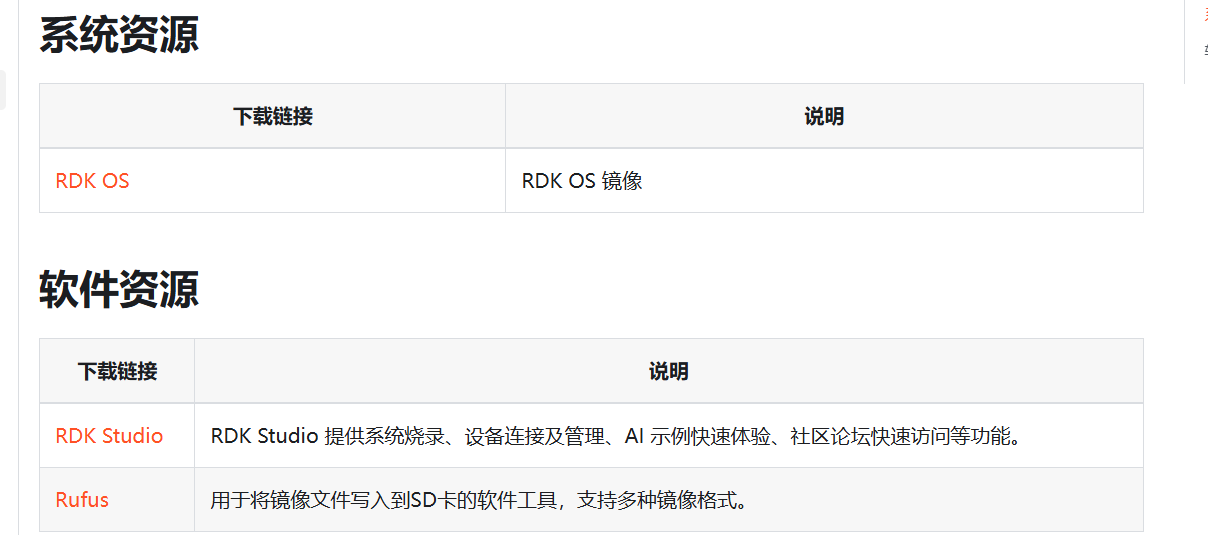
These include Mirrors, RDK Studio, and Rufus.
II. Confirm the hardware status before starting up
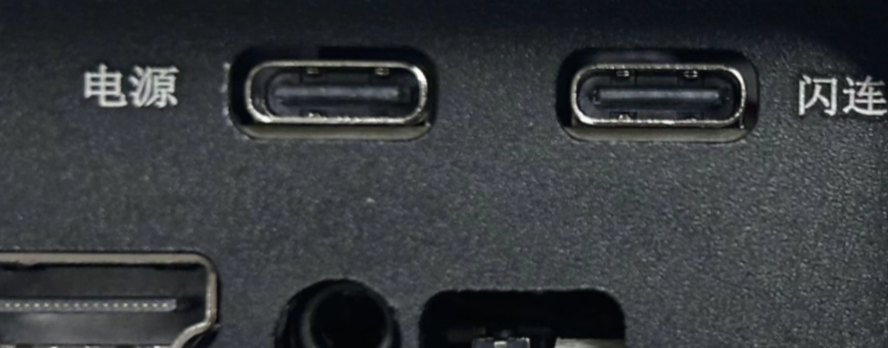
When performing the first manipulation of the Magicbox, it is recommended to use only the minimum connections. That is, connect only the power supply, necessary data cables, and the storage card. Do not connect too many external devices at the same time. This ensures that there are no power or startup issues with the board itself, preventing later complications such as cable problems, image issues, and peripheral compatibility problems from occurring together.
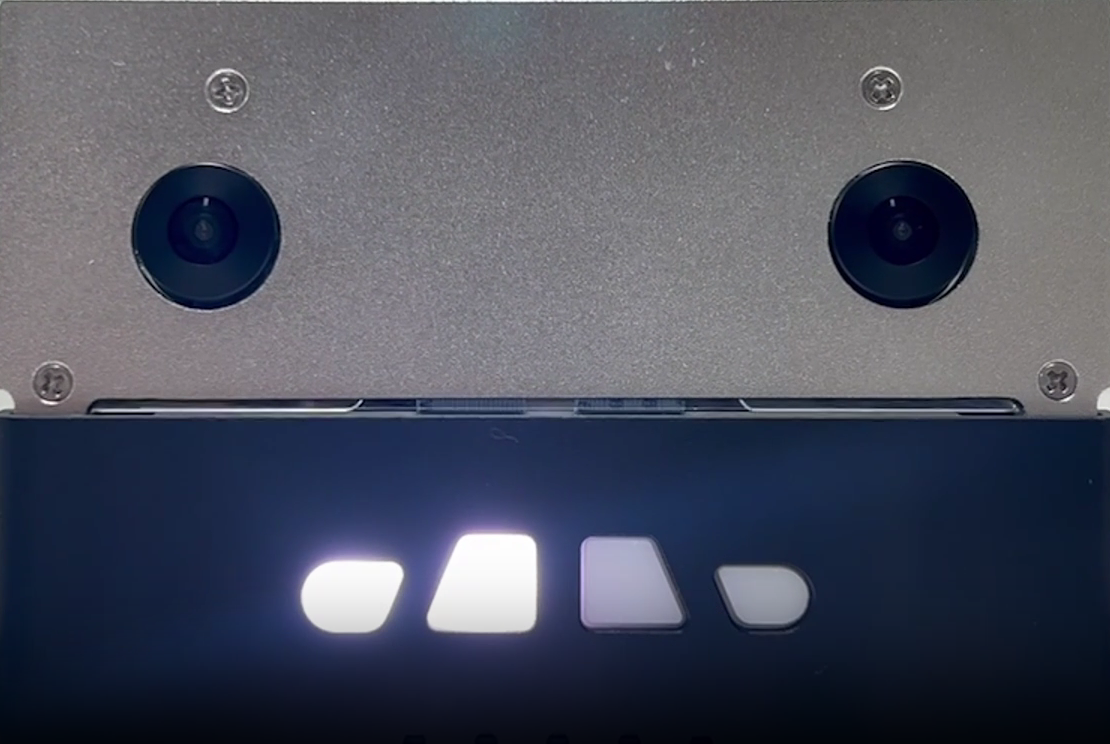
This device uses a Type-C power interface, so it is recommended to use a stable PD power adapter. After powering on, the LED lights will turn on sequentially, followed by a prompt sound. If there are any abnormalities in the lighting, no sound for a long time, or repeated restarts, it is not advisable to start burning and connecting to the network immediately. Instead, you should first check the power supply and wiring.
III. Why it is still recommended to prepare the image fully first
Although some devices come with built-in systems, it is best not to rely entirely on the “ready-to-use” state when starting formal learning. There are three reasons for this.
First, the version of the factory image may not be exactly consistent with the current official documentation. Second, subsequent steps require reproduction, so it is necessary to make the image version, burning path, and tool version as traceable as possible. Third, if any issues arise during debugging later on, re-burning an image in a “known state” usually saves time rather than continuing to guess the configuration.
Therefore, the standard approach in this chapter is to keep the official image, burning tools, and description pages intact first, and then prepare the system.
IV. Mirrors, Tools, and Download Entries
The official resource download page has been saved locally:
./assets/official_pages/resource-download.html
The key files actually saved by this tutorial are as follows:
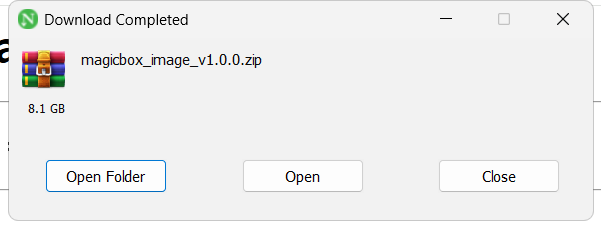
./相关文件下载/magicbox_image_v1.0.0.zip
./相关文件下载/rdk-20260305-1933.img
./相关文件下载/RDKStudio_signed_Setup.exe
./相关文件下载/rufus-4.13.exe
From a practical implementation perspective, the flashing paths can be divided into two categories.
The first method involves burning the device using RDK Studio. This approach aligns more with the official toolchain, making it suitable for a complete experience of the Guava ecosystem and facilitating the connection of additional example applications later on.
The second method is to directly write the image into the SD card using Rufus. This is usually more straightforward and stable for scenarios where tutorials are created regularly, cards are burned repeatedly, or environments are restored frequently.
To make the process easier to reproduce, this tutorial uses Rufus + SD 卡烧录 as the main path, while keeping RDK Studio as a fallback option. This makes it easier for readers to perform a stable burn-in test, and subsequent maintenance is also simpler.
5. What to note when burning with RDK Studio
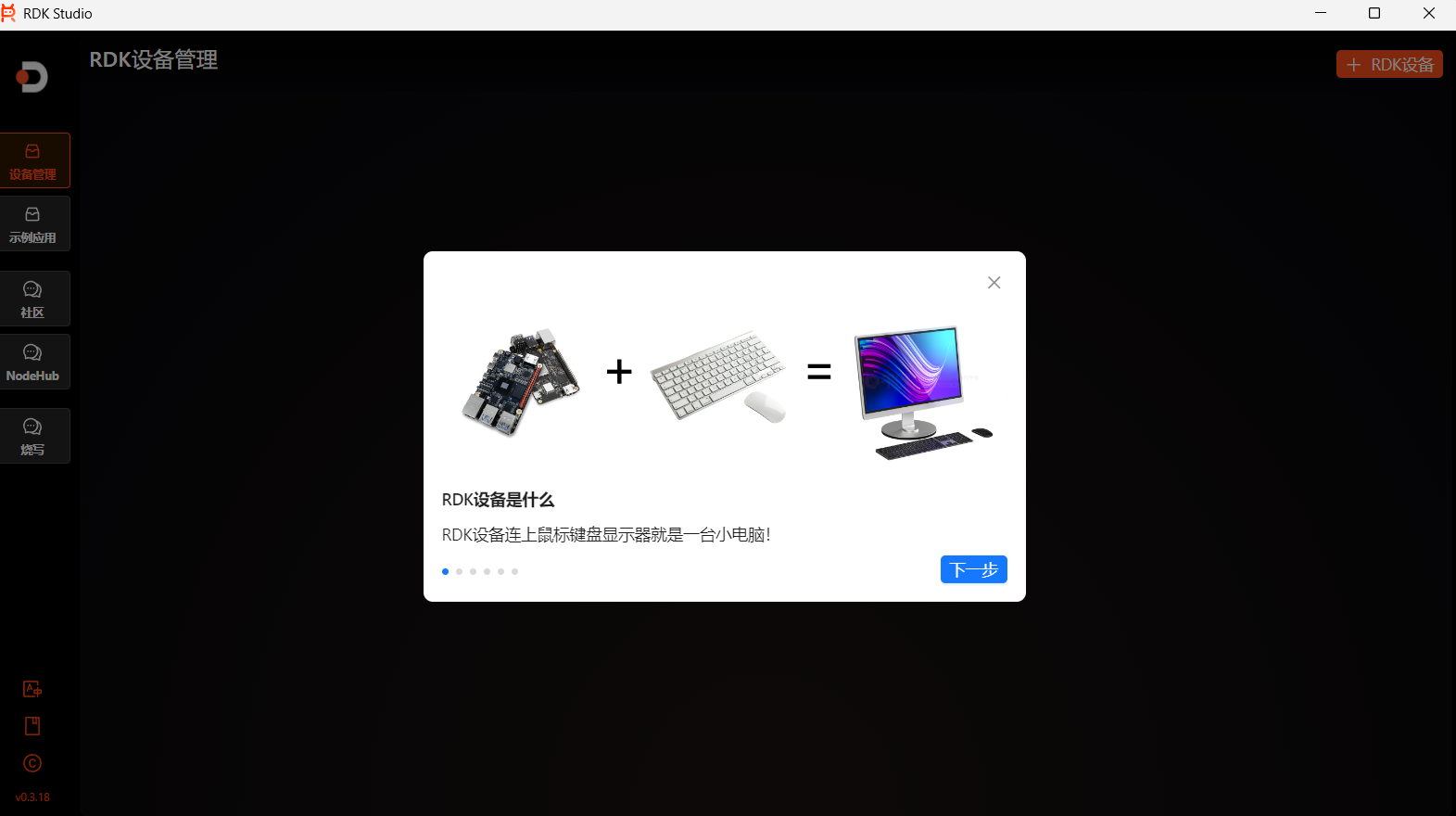
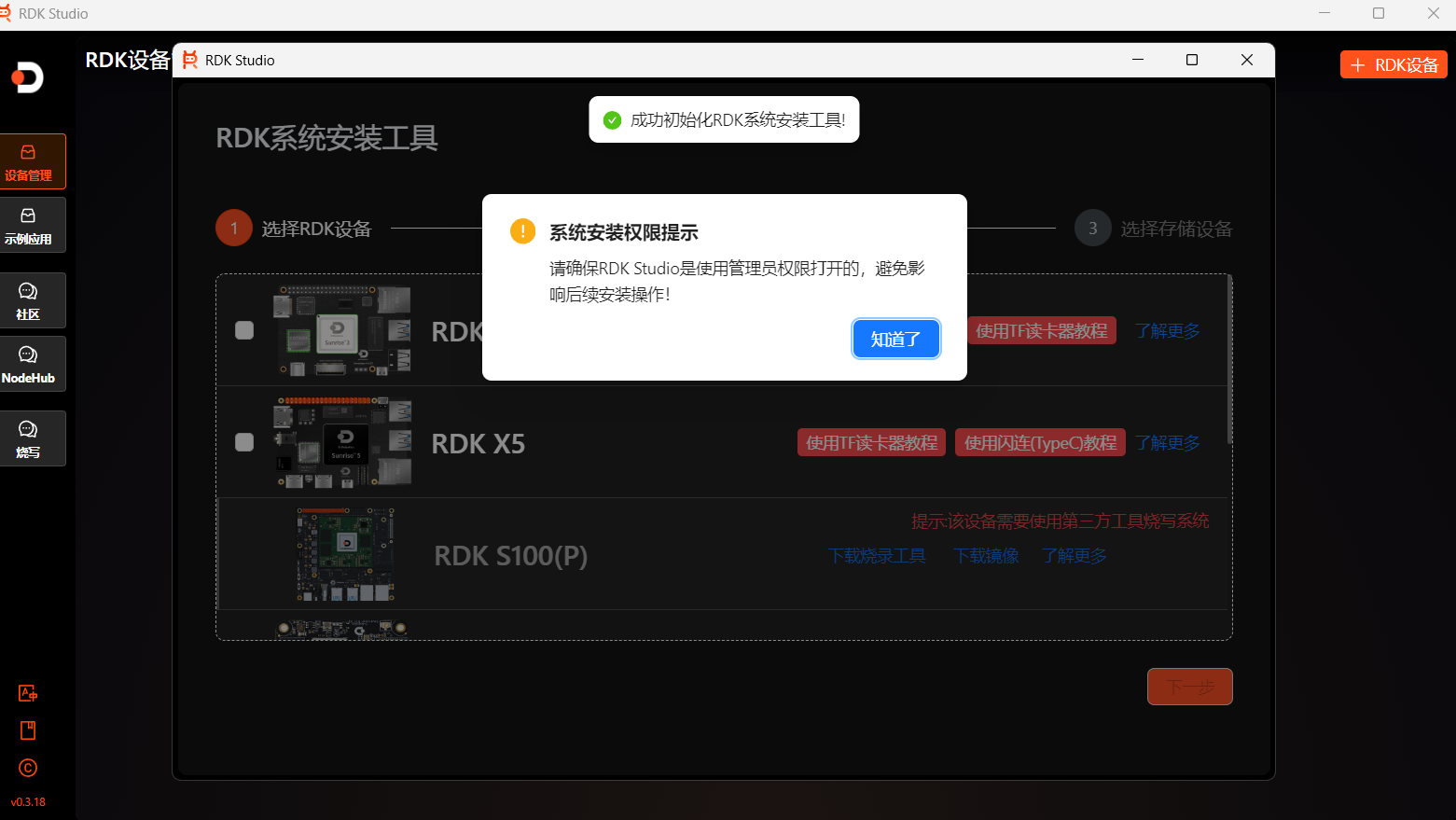
When using the RDK Studio option, the key is not which button to click, but the sequence required to enter flashing mode. Follow this procedure:
First, power off the development board. After inserting the SD card, use USB 2.0 Type-C to connect the device to the computer. Then press and hold the Sleep button, then power on the development board. Wait for about five seconds to enter the burning mode of the device. Only in this mode can the burning tool on the PC reliably identify the device.
RDK Studio is best launched with administrator privileges. Otherwise, even if the software is turned on, permission-related errors may occur during device recognition or writing stages.
VI. Why Rufus is More Recommended as the Main Line
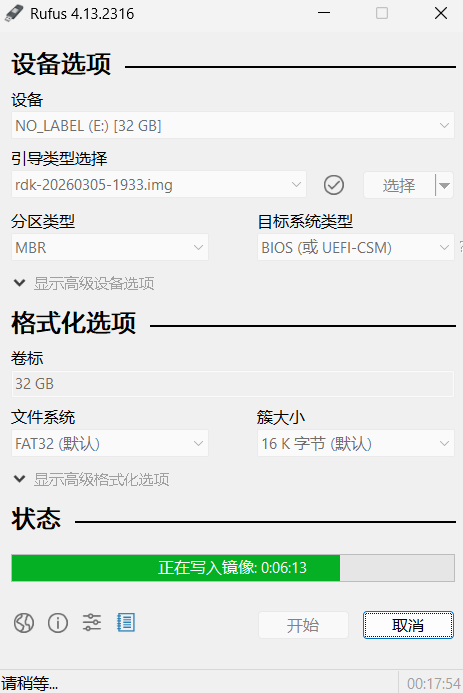
Rufus is more focused on the goal of “just writing the image into the card”, with a shorter process and fewer failure points. If there is already a card reader on the reader’s computer, or if the SD card is prepared separately, using Rufus to directly write .img into the SD card is usually the most convenient solution.
This chapter follows the following main process:
Step 1: Verify that the image file is complete.
Step 2: Use Rufus to select the .img image.
Step 3: Confirm that the target device is a SD card to be burned.
Step 4: Start writing and wait for completion.
Step 5: Insert the card back into the development board and power on the device.
This is clear enough and more in line with the needs of long-term maintenance tutorials.
VII. Correct Check Sequence After First Power-On
After the first re-loading and power-on, do not immediately run algorithms, install repositories, or modify the system as soon as the device starts. A more reliable order is as follows.
First, ensure the device can start up properly. Next, check if the LED lights and sound alerts are functioning correctly. Then, determine whether to use wireless or wired network connection for the subsequent setup. Finally, begin logging in, connecting to the network, and testing the application experience.
The main line of this project has been clearly set up to use a wired network port. Therefore, the network address is no longer written as an uncertain expression like “192.168.128.10 或 192.168.127.10”. For this tutorial, they should be handled separately:
Flash connect mode uses 192.168.128.10.
Wired network port direct connection mode uses 192.168.127.10.
For the specific login process, please refer directly to:
./README_02_有线网口连接与登录.md
VIII. Interfaces and Safety Considerations
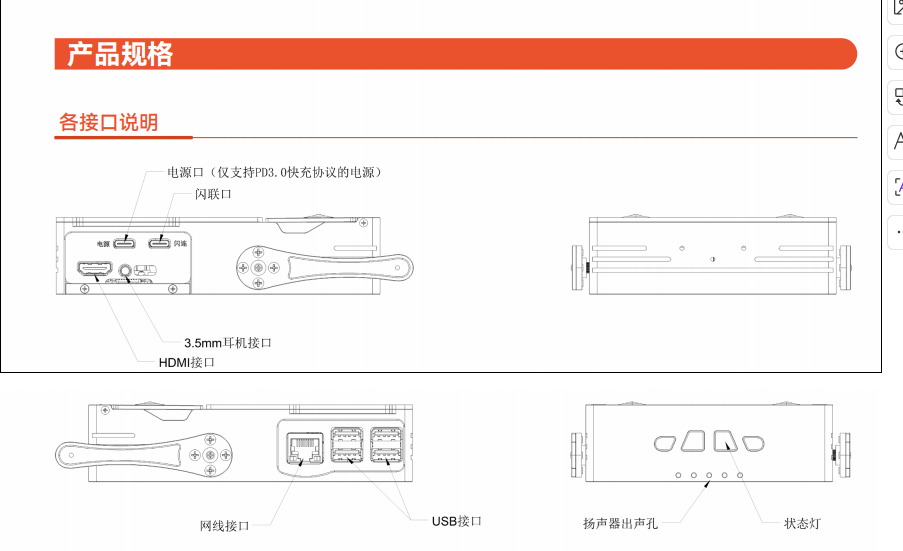
Devices like Magicbox are prone to being subconsciously frequently manipulated, lifted, or pressed by users after they become “functional and operational”. The real issues usually arise not from the program, but from the camera folding mechanism, support legs, and memory card insertion methods. Therefore, it is best to keep the safety instructions in the tutorial, rather than deleting them entirely.
The following content is a textbook-style reminder that should be retained.
The device should be placed on a stable, flat, and non-conductive surface. Do not force the support feet with hands; keep them parallel to the casing during non-action demonstrations. Do not twist the camera folding structure forcefully, and avoid exceeding the officially allowed angle. When installing the SD card, pay attention to the card slot position to prevent it from getting stuck in the gaps of the casing. Before connecting peripheral devices, make sure the power supply and interface standards are compatible.
9. State to be Achieved at the End of this Chapter
After completing this chapter, the ideal state is not “I have seen the download page,” but rather all four of the following conditions must be met:
First, you already have a set of reusable images and tool files. Second, the development board has successfully started up once. Third, it is clear that a wired connection will be used instead of a flash connection in the future. Fourth, you are ready to move on to the next chapter, setting up the correct wired connection address for the computer network card and logging into the board.
If one of these four items is unstable, do not proceed to the subsequent sections on experience and algorithms. The most important value of Chapter 1 is to provide a reproducible starting point for the entire tutorial.