
README 03: Quick Start and Basic Peripherals
This chapter continues from the previous two chapters, aiming to clearly explain the three “ready-to-use” functions pre-set by Magicbox and the underlying basic peripherals. In this chapter, readers should not only know how to press buttons and view web pages, but also understand which types of programs, ROS links, and hardware control codes correspond to these phenomena.
To avoid creating a record that says “just following the official button prompts”, the following content is presented in a textbook-style structure. First, we discuss the phenomena; then, the commands; next, the directory structure; and finally, the source code logic and USB deployment recommendations.
I. Local materials used in this chapter
The local archive of the official page is as follows:
./assets/official_pages/magicbox.html
./assets/official_pages/quickstart.html
./assets/official_pages/basic-peripherals.html
The official external link images referenced in this chapter have also been downloaded to the local directory:
./assets/official_images/Depth-Estimation.png
./assets/official_images/Gesture.png
./assets/official_images/audio-io.png
./assets/official_images/Steering-Gear.png
./assets/official_images/light.png
In addition, there is a very important supplementary material in this project:
./README_03_快速入门与基础外设补充材料.md
This supplementary material preserves the original content of several Python scripts in the basic_function_demo directory on the board, which is very helpful for understanding peripheral control.
II. First, understand what “quick start” actually does
The biggest feature of the official quick start is that users hardly need to write code first. By simply pressing different buttons, they can switch between various demonstration modes on the device. In terms of user experience, it is like “three buttons corresponding to three demos”. However, from a system structure perspective, it is more like a pre-configured application scheduling entry point.
The startup auto-start control command provided on the official page is:
shellsystemctl enable magicbox-start
systemctl disable magicbox-start
This indicates that a systemd service has been pre-configured at the board end, with the service name being magicbox-start. Based on the currently confirmed device directory structure, the relevant entry is located at:
text/userdata/magicbox/launch/start.py
/userdata/magicbox/launch/start.sh
Now, this link has been verified on the device, and it is no longer just a guess at the directory level. The original startup logic is as follows: magicbox-start triggers start.sh, and start.sh is responsible for setting up the ROS2 environment and workspace. Then start.py listens to button presses and switches between different modes. Therefore, the left, middle, and right-click modes mentioned later in this chapter can be directly matched with the original startup files.
III. Correct Usage of the Three Button Functions
In the following description, the left and right directions of the button are based on the perspective from which the light strip is facing the user.
1. Left button: Binocular depth estimation
After pressing the leftmost button, the light will switch to red. At this time, when the browser accesses the device’s 8000 page, a display entry related to binocular depth estimation can be seen.
If using flashlink mode, the address is:
texthttp://192.168.128.10:8000
If using the wired direct connection mode, the address is:
texthttp://192.168.127.10:8000
This tutorial uses a wired method, so the second address should be accessed first.
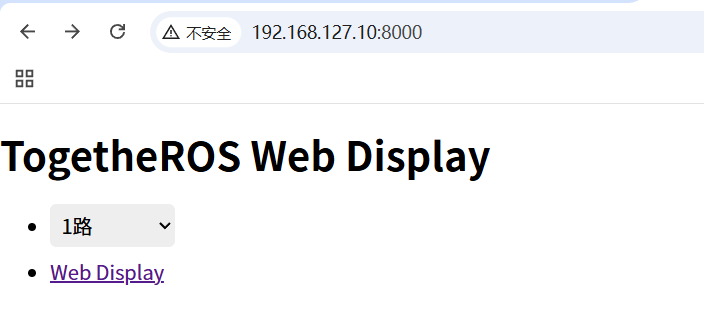
After selecting the available data stream in the web page, click Web display to view the display result.
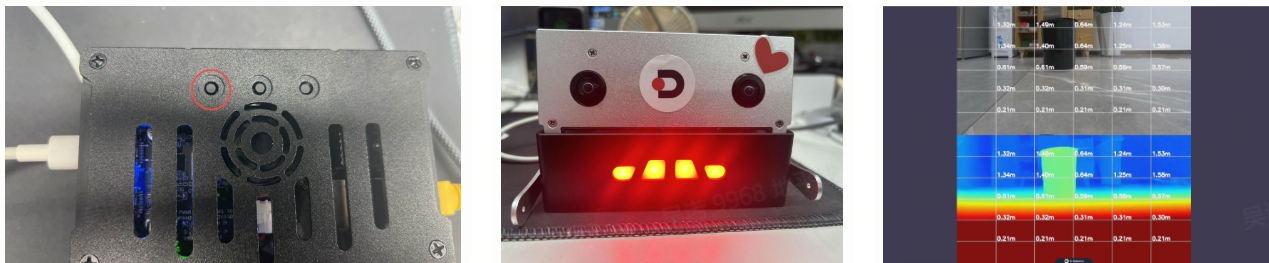
The repository for the core algorithm behind the dual-eye depth feature is already cloned locally:
./repos/hobot_stereonet
One of the very typical X5 startup entries is:
./repos/hobot_stereonet/launch/x5/stereonet_model_web_visual_v2.4_int16.launch.py
This startup file itself is not responsible for all the details; its role is quite limited: it first specifies the model file DStereoV2.4_int16.bin, and then includes a more general stereonet_model_web_visual.launch.py. However, for the Magicbox finished product form, the left-click actually refers not to “the user manually typing this launch command”, but to the original button chain:
textmagicbox-start
-> /userdata/magicbox/launch/start.sh
-> /userdata/magicbox/launch/start.py
-> app/ros_ws/src/magicbox/hobot_stereonet/script/run_stereo.sh
run_stereo.sh continues to call the general launch file of hobot_stereonet. In other words, the left-click mode is essentially a complete application chain consisting of “original environment setup + binocular algorithm + web visualization”, rather than just a single web program.
In other words, the button on the left triggers not just a simple frontend, but an entire application chain involving “camera input, depth inference, result publishing, and web display”.
2. Middle button: Gesture interaction
After pressing the middle button, the light turns green and the system enters gesture interaction mode. This mode also activates mipi_cam, hobot_codec_republish, and websocket. Therefore, when accessing 8000 on the browser, you can also observe the interactive interface and recognition rendering results.
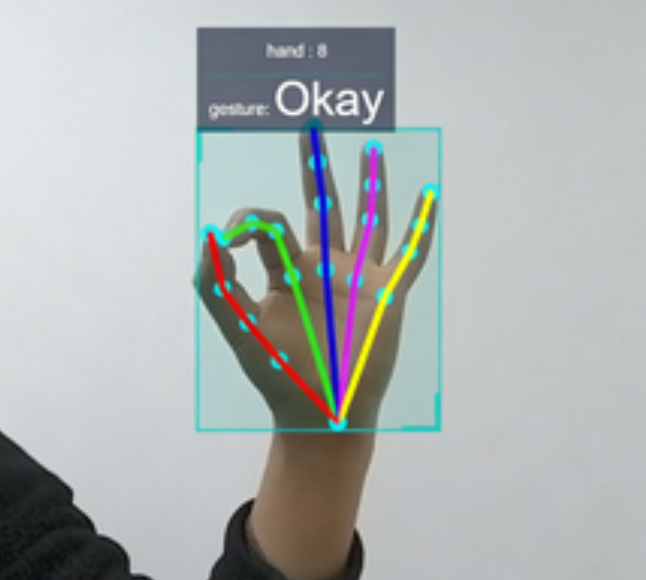
The relationship between gestures and actions is as follows:
| Gesture | Meaning | Trigger Action |
|---|---|---|
| ThumbUp | Raise thumb | Shake ears |
| Victory | V gesture | Stand on both feet |
| ThumbLeft | Thumb pointing left | Raise left hand |
| ThumbRight | Thumb pointing right | Raise right hand |
| Okay | OK gesture | Light flicker |

This part of the source code has the most solid basis, as the corresponding repository is already local:
./repos/magicbox_gesture_interaction
There are three types of files that require special attention.
The first category is the program entry:
./repos/magicbox_gesture_interaction/src/main.cpp
This file is very simple. It only initializes ROS2, creates GestureControlNode, and then enters spin. This indicates that the core of the gesture logic is concentrated within the node class itself.
The second type is the main logic for mapping gesture recognition results to actions:
./repos/magicbox_gesture_interaction/src/gesture_control_node.cpp
This file does three key things. First, it subscribes to perception messages of the ai_msgs::msg::PerceptionTargets type. Second, it extracts gesture values from the messages and applies simple smoothing using a queue to avoid direct triggering of incorrect actions due to frame-by-frame jitter. Third, it maps the final gesture numbers to action control types. For example, ThumbLeft corresponds to lifting the left leg, Victory corresponds to raising both feet, and Okay corresponds to flashing a light.
The third category is the action execution layer:
./repos/magicbox_gesture_interaction/src/actuators_control.cpp
This file actually controls the steering gears and lights. For example:
standStraight() is responsible for lifting both feet.
shakeEars() simulates ear movement by rapidly swinging the left and right rudder mechanisms.
flashingLight() is responsible for clearing the light, waiting, and then activating the green light effect.
Additionally, the startup link for the original factory middle key mode has been verified. It does not call a separate run_gesture.sh, but rather:
textmagicbox-start
-> /userdata/magicbox/launch/start.sh
-> /userdata/magicbox/launch/start.py
-> ros2 launch gesture_interaction gesture_interaction.launch.py
Therefore, the nature of the middle button is not “web page gesture recognition,” but rather “after the original environment is set up, the visual perception results continue to drive the servo and lighting actions.” The web page is just an entry point; the real interaction comes from the execution of actions.
3. Right-side button: Voice interaction
After pressing the rightmost button, the light switches to blue, and the device displays “Hello, how can I help you?” before entering a conversation mode.
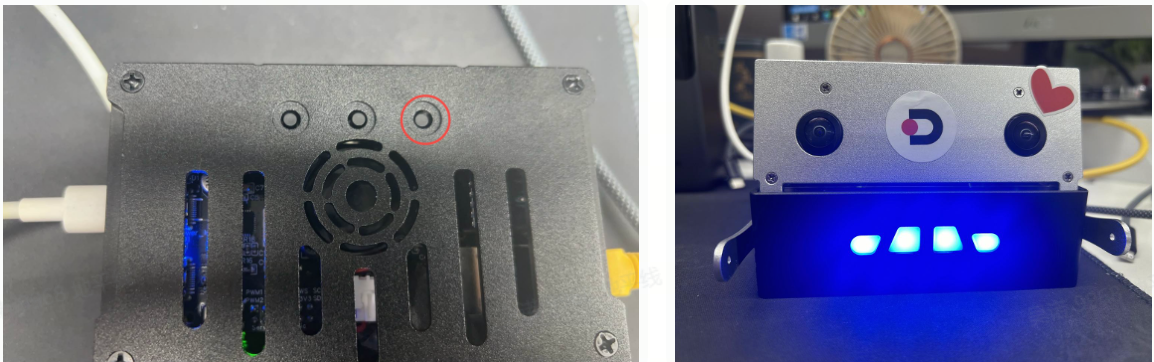
The official user manual mentions two important voice commands:
First, “End Conversation” will put the system into sleep or standby mode. Second, “Hello Sweet Potato” is used to wake up the system again.
This link involves at least two repositories at the source code level.
The voice front end and the logic related to TTS/KWS/ASR are located at:
./repos/magicbox_audio_io
Its startup entry file is:
./repos/magicbox_audio_io/launch/audio_io.launch.py
From this startup file, several important facts can be directly read out.
The default microphone device is plughw:0,0.
The ASR results are published in /prompt_text.
The text required for TTS is received through subscribed topics.
The default directory for the TTS model is /userdata/magicbox/dep/matcha-icefall-zh-baker.
The default directory for the KWS model is /userdata/magicbox/dep/sherpa-onnx/....
The default path for the ASR model is /userdata/magicbox/config/sense-voice-small-fp16.gguf.
The more fundamental thread and topic logic is located at:
./repos/magicbox_audio_io/src/hb_audio_io.cpp
This file indicates that the audio node maintains microphone capture threads, TTS threads, and speaker playback threads simultaneously. It publishes the recognition results and then waits for downstream components to return the text to be broadcast.
And the dialogue reasoning section corresponds to:
./repos/magicbox_qwen_llm
Its README clearly states that the default text input topic is /prompt_text, and the text output topic is /tts_text. This exactly matches the design of audio_io, forming a closed loop of “speech recognition -> large model inference -> voice announcement”.
Therefore, the preset demo corresponding to the right-side button is, from a source code perspective, likely not a single voice program, but at least combines:
audio_io + qwen_llm
Although this requires direct reading of the board-side start.py to be fully confirmed, based on official phenomena, preset directory structures, default values of launch parameters, and repository design, this judgment is highly consistent.
IV. Why it is recommended to disable auto-start after use
The Quick Experience mode is ideal for beginners, but it may not be suitable for continuous long-term development. The reason is not complicated. The three functions of dual eyes, gestures, and voice are not pure static pages; they consume resources from the camera, microphone, speaker, ROS2, as well as part of the CPU/BPU/NPU or memory. If you plan to compile projects, run custom scripts, or debug the integration logic later, keeping these built-in services active will only increase the variables.
Therefore, after the experience is completed, it is recommended to turn off auto-start first:
shellsudo systemctl disable magicbox-start

5. Why the Resource Monitoring Page Should Be Preserved
Even if we stop running the preset demo, the 7999 resource monitoring entry is still worth retaining, as it helps you quickly determine whether the issue is “the program didn’t start” or “the program started but the resources are already full”.
If using flashlink mode, access:
texthttp://192.168.128.10:7999
If using wired mode, access:
texthttp://192.168.127.10:7999
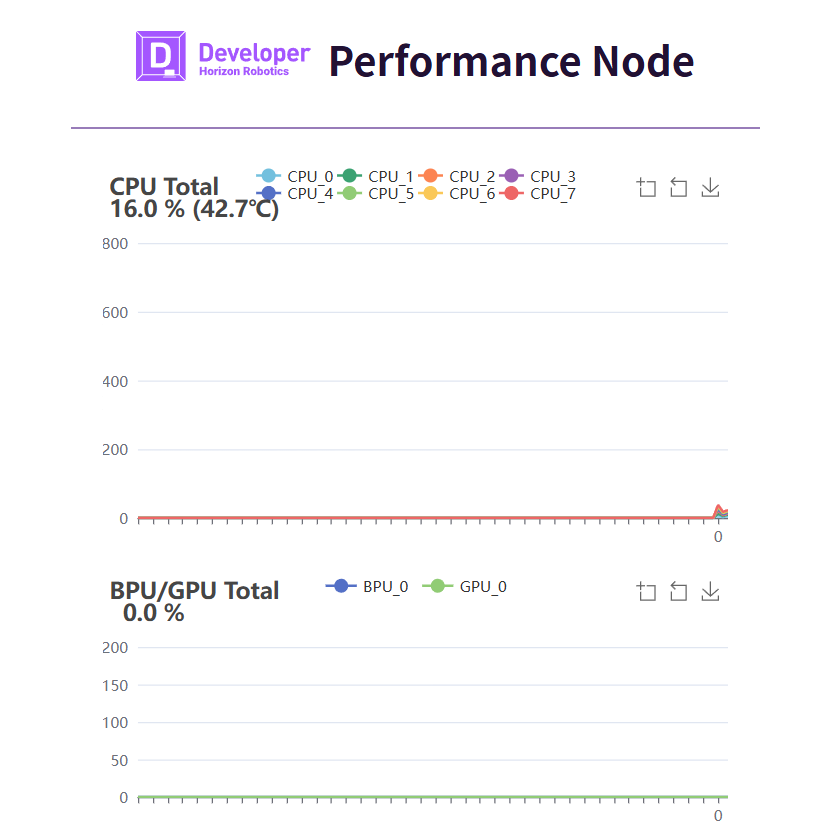
This page is very suitable as a troubleshooting entry, as it is more intuitive than simply viewing logs.
VI. How to Understand the Board Directory Structure
Understanding the directory structure on the board helps locate scripts, configurations, and running logs later. Let’s first clarify the roles of some common directories.
text/userdata/magicbox
├── app
│   ├── ros_ws
│   └── Web_RDK_Performance_Node
├── basic_function_demo
│   ├── button.py
│   ├── imu.py
│   ├── servo.py
│   └── ws2812b.py
├── config
├── dep
│   ├── llama.cpp
│   ├── matcha-icefall-zh-baker
│   └── sherpa-onnx
├── launch
│   ├── lamp
│   ├── start.py
│   └── start.sh
├── log
└── voice
This structure indicates that the Magicbox system design does not put everything into a single ROS2 package, but is divided into several layers.
basic_function_demo is a single-file script layer, suitable for quick hardware validation.
app/ros_ws is an application workspace that supports more comprehensive ROS2 features.
dep stores models and third-party dependencies.
launch is responsible for organizing multiple functions into launchable and switchable applications.
voice and log respectively handle media resources and runtime logs.
After understanding this, it will be much clearer about what to put in the USB drive and what to keep on the system disk.
VII. Basic peripheral scripts are not just for show, but the best hardware entry point
This section corresponds to the saved supplementary materials:
./README_03_快速入门与基础外设补充材料.md
1. Actuator script servo.py
Run command:
pythonpython3 /userdata/magicbox/basic_function_demo/servo.py
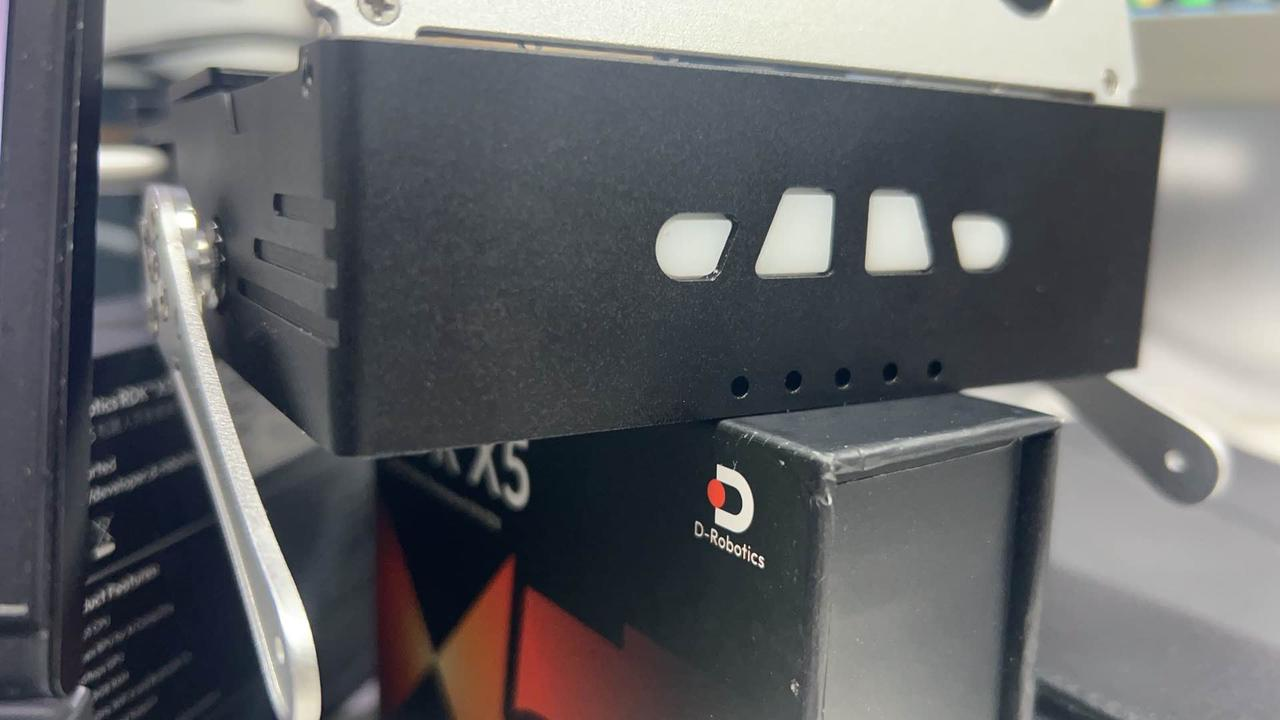
As can be seen from the source code in the supplementary material, this script utilizes the PWM capabilities of Hobot.GPIO, operating two pins 32 and 33 under BOARD, with a frequency of 50Hz. The script sets the duty cycles of the two channels to 5 and 11 respectively, waits for about two seconds, then stops and clears the GPIO.
In other words, this script is not designed to keep the servo running continuously, but rather to perform a minimum action test. Its value lies in verifying two things: whether the PWM channel is functioning properly, and whether the support leg moves as expected.
2. LED strip script ws2812b.py
Run command:
pythonpython3 /userdata/magicbox/basic_function_demo/ws2812b.py
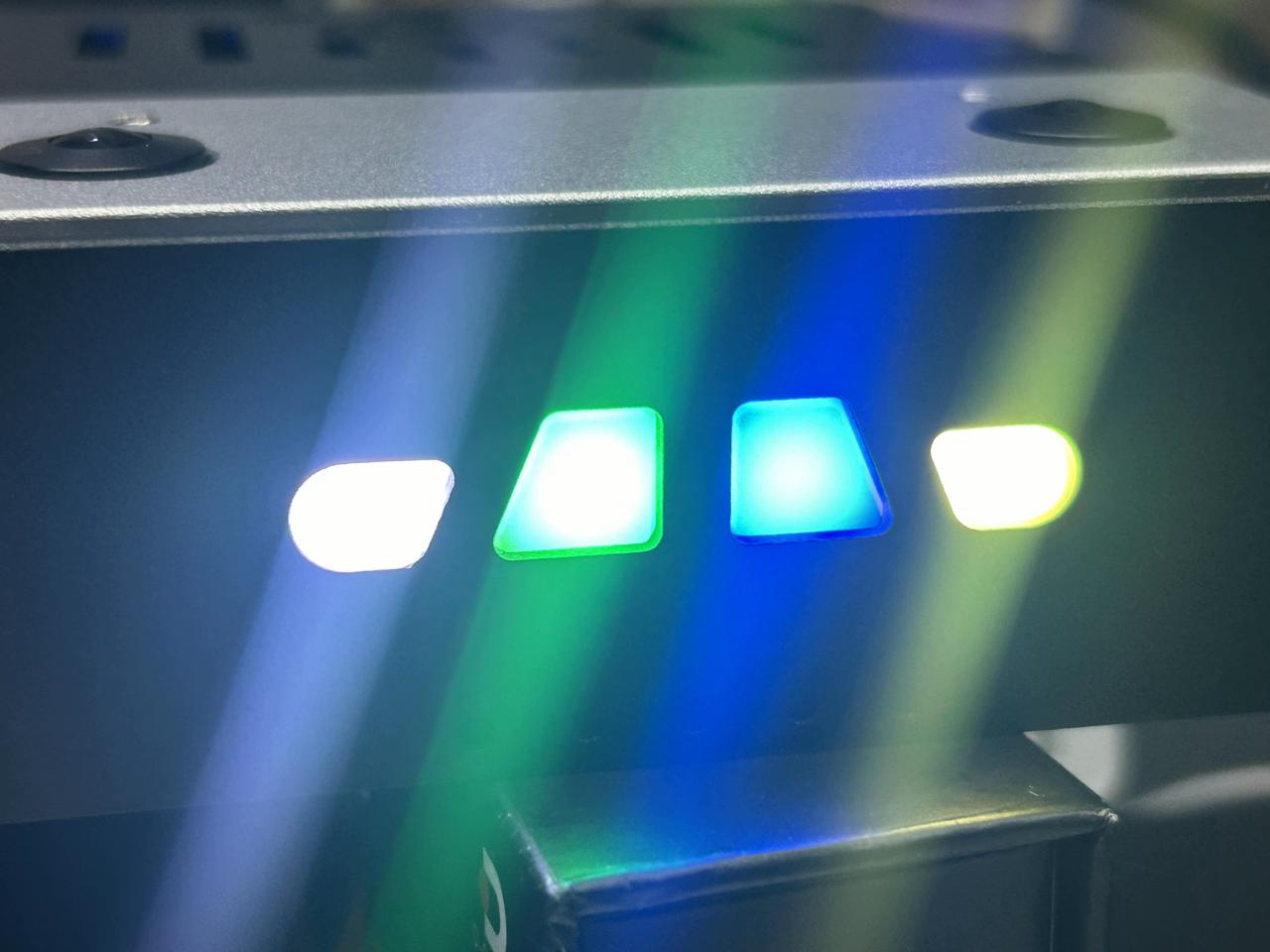
This script is more worth discussing than it seems on the surface. It doesn’t simply call a ready-made LED library; instead, it converts the bit encoding of WS2812B into a SPI bitstream and outputs it via spidev. The script clearly describes the SPI three-bit mode corresponding to 0 and 1 of WS2812B, as well as the order of GRB and the final byte concatenation. For readers, this kind of code is ideal for explaining “why a seemingly RGB light strip can still be driven by SPI at a lower level.”
3. IMU script imu.py
Run command:
pythonpython3 /userdata/magicbox/basic_function_demo/imu.py
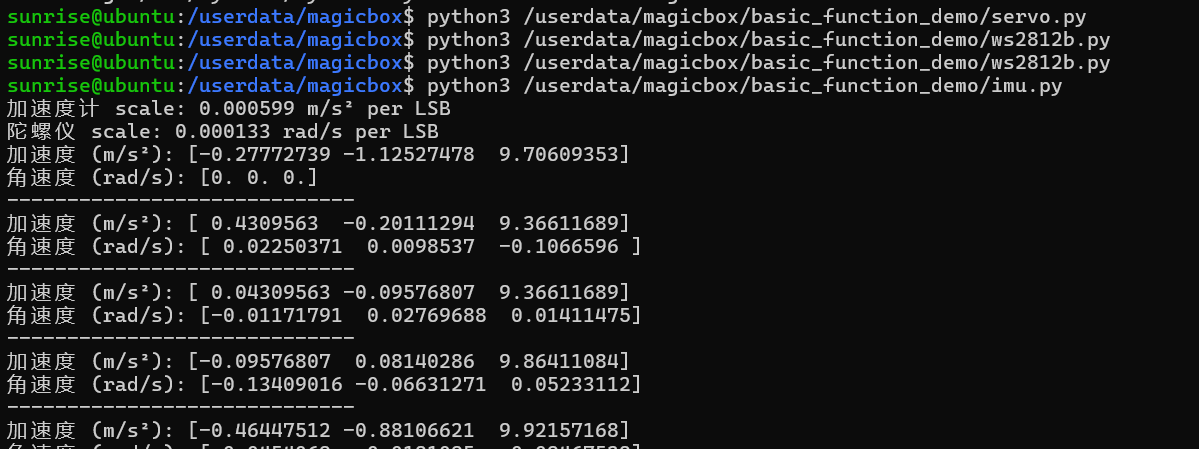
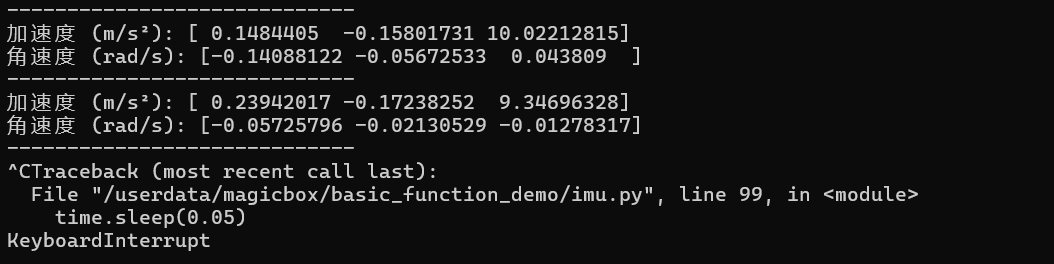
In the supplementary material, imu.py is used to access ICM20948 with smbus2, the device address is 0x68, and the bus number is 5. The script first switches the register bank, then reads the accelerometer and gyroscope configurations, calculates the range scaling factor, and finally continuously outputs the converted acceleration and angular velocity.
The teaching value of this code is that it clarifies the fact that “IMU data does not have units directly”. The raw register values must be converted in conjunction with the range configuration to obtain usable data such as m/s² and rad/s.
4. Button script button.py
Run command:
pythonpython3 /userdata/magicbox/basic_function_demo/button.py
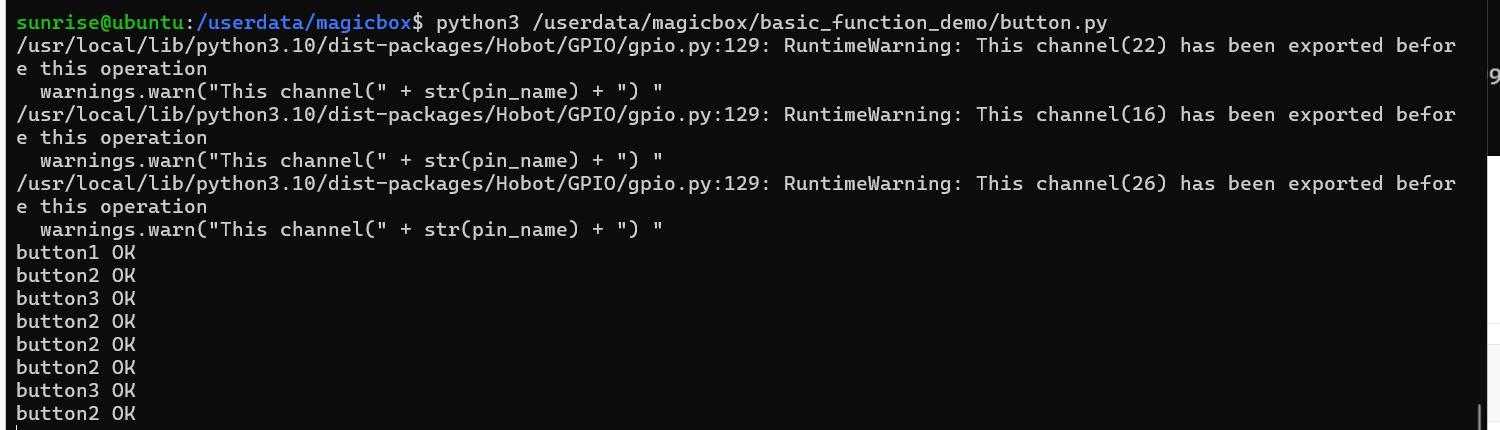
This script monitors the three button pins 22, 16, and 26 under the BCM number. The behavior of the script is simple: it waits for a falling edge, and after triggering, it prints button1 OK, button2 OK, and button3 OK. This indicates that it is a low-level input validation script, rather than a complete application scheduling script.
This precisely helps readers understand the structure of the quick experience mode: button.py is responsible for proving that the key hardware is available; while the logic that actually maps “keys” to “start depth, gestures, and voice modes” should be found in higher-level scripts such as launch/start.py.
VIII. How should the source code structure be written for the three-functional button feature?
The most valuable section to be retained in this chapter is not about “how to press the button,” but rather “the program flow behind the button.” Let’s expand it according to this structure:
First, after the system starts up, the magicbox-start systemd service brings up the pre-installed application entries.
Second, launch/start.sh and launch/start.py are responsible for handling the application switching logic.
Third, the three buttons do not directly control the web page; instead, they switch between different application modes.
Fourth, each mode further calls the underlying programs for binocular vision, gesture, and voice recognition.
Based on the materials currently available, we can obtain the following relatively reliable source code structure:
Left-click mode corresponds to binocular depth estimation, and its algorithm core is consistent with hobot_stereonet.
Middle-click mode corresponds to gesture interaction, and its action mapping can be directly interpreted from magicbox_gesture_interaction.
Right-click mode corresponds to voice interaction. Its audio and announcement logic comes from magicbox_audio_io, while the large model dialogue logic comes from magicbox_qwen_llm.
This part also requires further verification of the actual content of start.py at the board end. The current description regarding “how start.py schedules the three modes” comes from confirmed directory structures, button behaviors, and related ROS packages. Therefore, it is an inferred conclusion based on evidence, rather than a result obtained through line-by-line verification. After obtaining SSH access rights, it is recommended to further verify start.py and the corresponding systemd service file.
9. What should be placed on the USB drive, and what should remain on the system drive
After executing df -h on the device, the results show that there is approximately only 29G in the system root partition, with 18G used, and about 9.1G remaining; while the USB drive has been automatically mounted:
text/media/6745-2301
Moreover, the space is approximately 118G. This indicates that the subsequent deployment policy should not focus on whether there is enough space on the system disk, but rather on what must remain on the system disk and what should be migrated to a USB drive as soon as possible.
Contents that are recommended to be retained on the system drive include:
Pre-configured /userdata/magicbox/launch directories.
Scripts of the type basic_function_demo that are small in size and tightly coupled with hardware.
systemd service files and essential local configurations.
The minimum running entry currently used by the system.
Contents that are recommended to be migrated to a USB drive first include:
Image packages, installation packages, and download caches.
Source code repositories cloned by oneself.
build, install, log of self-built work areas.
Speech models, third-party dependency directories, and large file resources.
Screenshots of tutorials, experiment logs, and export results.
If arranged according to current usage habits, more specifically, the following content should be prioritized and saved on a USB drive:
/userdata/magicbox/dep/matcha-icefall-zh-baker
/userdata/magicbox/dep/sherpa-onnx
/userdata/magicbox/config/sense-voice-small-fp16.gguf
The reader’s own source code working area and compilation output
For the model path /dev/shm/qwen2.5-1.5b-instruct-q5_k_m.gguf that qwen_llm uses by default, a more reasonable approach is not to store the model on the system disk for long-term use. Instead, the persistent model file should be placed on a USB flash drive and copied to /dev/shm before startup. This ensures fast startup speed without occupying the system disk for a long time.
Ten. What should you truly have mastered after this chapter
After completing this chapter, readers should not just remember which lights correspond to each button, but truly understand how the entire device works. More specifically, readers should know that magicbox-start is the unified entry point for the system’s preset demonstrations. They should understand that the left click, middle click, and right click activate three capabilities: dual eyes, gestures, and voice. They should also know which local repositories and underlying hardware these capabilities are associated with, as well as why the basic peripheral scripts are not just “test files” but essential first-hand materials for understanding the overall control mechanism of the device.
Meanwhile, readers should also make an important engineering decision: the system disk has limited space. Future additional repositories, models, logs, and experimental results are not suitable to be stored on the system disk; they should be migrated to external storage such as USB drives instead. This decision will directly affect the subsequent deployment of voice models, OpenClaw integration, and long-term maintenance methods.