
README 04: Algorithm Demo: Binocular Depth and Gesture Interaction
After completing this chapter, readers should be able to run the two visual demos independently. The first demo is binocular depth, which answers the question of “can the device perceive spatial distances”; the second demo is gesture interaction, which answers the question of “can the device understand human gestures and trigger onboard actions”. In this chapter, we first run the functions, and then explain the corresponding source code entries, data flow, and observation methods for each.
1. Before starting this chapter, confirm the four prerequisites first
By default, you have completed the first three chapters and meet the following four conditions in this chapter.
First, the development board has started up normally, and you can log in via SSH, for example:
bashssh sunrise@192.168.127.10
Second, the system time has been corrected to the current real time. If the system time remains at 2000-01-01, many logs will be distorted, and the subsequent networking capabilities will also be affected. Please confirm first:
bashdate
If the time is incorrect, it is recommended to perform the following on the Windows side:
powershellpowershell -ExecutionPolicy Bypass -File "C:\Users\kewei\Documents\2026\202603\06地瓜机器人新版教程桌宠\openclaw_magicbox\tools\sync_magicbox_time.ps1"
Third, the dual-eye camera is properly connected, and there are no reversed left and right lines. For RDK X5 Magicbox, the dual-eye demo is not just a software issue; the connection status of the camera directly determines the outcome.
Fourth, it is recommended that you perform the manipulation using the regular user sunrise, and use sudo when necessary. The commands in this chapter are executed by the sunrise user by default.
II. Why this chapter does not require pressing a button first
Many readers, when encountering Magicbox for the first time, start with the three preset modes: left click, middle click, and right click. This approach is suitable for experimentation, but not ideal as the main focus of this chapter. The reason is not complicated.
The advantage of the button mode is its speed. After the system boots up, pressing the left button allows you to try entering the dual-eye mode; pressing the middle button allows you to try entering the gesture mode. This experience is great for those who are using it for the first time.
However, the learning algorithm Demo cannot only focus on “speed”, but must also ensure “reproductionability, troubleshooting capability, and source code interpretability”. Behind the button mode is not a single algorithm command, but a complete pre-configured startup chain. The system first has magicbox-start service initiate /userdata/magicbox/launch/start.sh, then start.sh sets up environment variables, loads the workspace, and starts the basic module. Finally, start.py determines which function script to execute based on the key events.
In other words, the button mode is more like a “product entry point”, while this chapter uses an “learning entry point”. The learning entry point must let readers know where commands are executed, who sets the environment variables, which script actually starts the algorithm, and which level to check first after a failure. Therefore, the path used in this chapter is:
First, discuss manual startup, as it is more suitable for learning and troubleshooting. Then, explain the relationship between manual startup and button mode. After you complete this chapter, when you look back at button mode, you will understand that it simply packs these steps together.
III. What materials and repositories are involved in this chapter
This chapter mainly corresponds to two official documents and two local repositories.
- Archive of the Dual Eye Depth official page:
./page_algorithm-development_stereo-depth.html - Archive of the Gesture Interaction official page:
./page_algorithm-development_gesture-interaction.html - Dual Eye Depth repository:
./repos/hobot_stereonet - Gesture Interaction repository:
./repos/magicbox_gesture_interaction
If you only intend to get it working initially, there is no need to read the source code from the beginning. It is recommended to run the functionality first and confirm that the results are correct, then look at the source code entry later.
IV. Dual-eye depth Demo: Run it through first, then check the results
The input for dual-eye depth is images from left and right camera lenses, and the output is a depth map and web visualization results. For beginners, the most important thing is not to understand the principle of stereo matching first, but to establish a clear workflow: dual-camera input, algorithm inference, and web display.
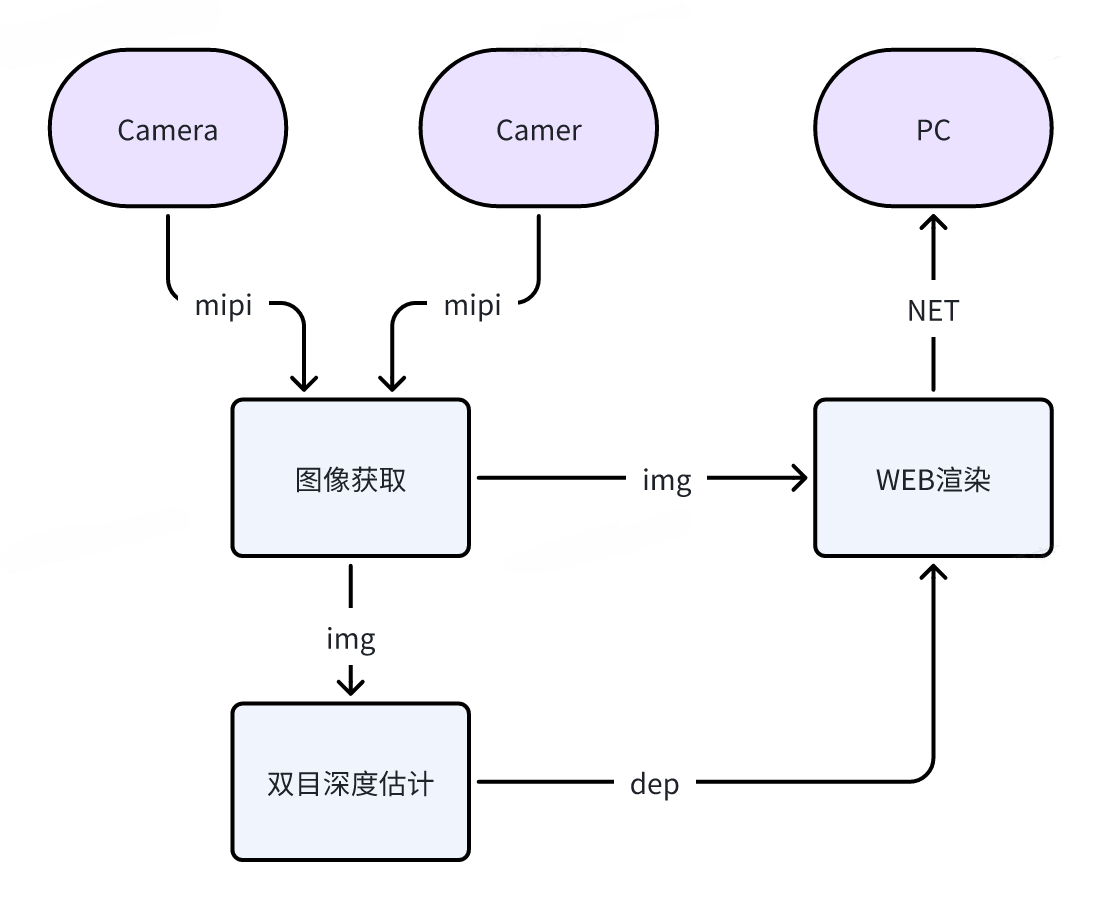
Source: D-Robotics Magicbox dual-eye depth official documentation. Local images are archived in ./assets/official_images/Depth-Estimatio-Architecture-Diagram.png.
1. First, fix the permissions of the log directory
You have verified during this actual run that the general launch file for hobot_stereonet will fix the ROS log directory to /userdata/.roslog. The corresponding source code is:
repos/hobot_stereonet/launch/stereonet_model_web_visual.launch.py
One line of it:
pythonos.environ['ROS_LOG_DIR'] = '/userdata/.roslog'
If this directory does not exist, or the sunrise user does not have write permissions, the process will exit directly due to the inability to create the log file. Execute first:
bashsudo mkdir -p /userdata/.roslog
sudo chown sunrise:sunrise /userdata/.roslog
If this step is not performed, even if the subsequent dual-eye commands are written correctly, an error will be reported:
textFailed opening file /userdata/.roslog/... Permission denied
2. What exactly is activated in the original factory button mode?
The original factory button mode does not directly execute a simple ros2 launch, but follows this path:
textmagicbox-start
-> /userdata/magicbox/launch/start.sh
-> /userdata/magicbox/launch/start.py
-> app/ros_ws/src/magicbox/hobot_stereonet/script/run_stereo.sh
In this, the left-click mode is called in start.py:
bashbash app/ros_ws/src/magicbox/hobot_stereonet/script/run_stereo.sh \
  --mipi_rotation 0.0 \
  --stereonet_version v2.4_int8 \
  --camera_info_topic /image_combine_raw/right/camera_info
This is very important. Because it explains a confusion that many readers will encounter: why pressing a button can execute a command, while typing a ros2 launch ... manually does not be fully equivalent. The answer is that the button mode already goes through the start.sh environment preparation, whereas when you type the command manually, this context does not exist automatically.
3. Which manual startup method is recommended?
For tutorials, the safest approach is not to write a shortest command directly, but to describe a manual startup method that is “equivalent to the factory button mode.” It is recommended to execute it in the following directory:
bashcd /userdata/magicbox
Then execute it completely:
(It is recommended to execute all these commands with root privileges.)
bashsudo su -
export RMW_IMPLEMENTATION=rmw_fastrtps_cpp
export LD_LIBRARY_PATH=/userdata/magicbox/app/ros_ws/install/qwen_llm/lib:$LD_LIBRARY_PATH
export HOME=/userdata/magicbox
export ROS_LOG_DIR=/userdata/magicbox/log
mkdir -p /userdata/magicbox/log
source /opt/tros/humble/setup.bash
source /userdata/magicbox/app/ros_ws/install/local_setup.bash
bash app/ros_ws/src/magicbox/hobot_stereonet/script/run_stereo.sh \
  --mipi_rotation 0.0 \
  --stereonet_version v2.4_int8 \
  --camera_info_topic /image_combine_raw/right/camera_info
This set of commands is recommended because it tries to restore the environment on which the original button mode truly depends, rather than just invoking a single launch file.
4. Why not use sudo ros2 launch ... directly?
I have actually tested the following format:
bashsudo -E env "PATH=$PATH" ros2 launch hobot_stereonet stereonet_model_web_visual_v2.4_int16.launch.py
It will report ros2cli not found. This error is not due to a damaged algorithm package, but because the ROS2 command environment on the Python side was not fully inherited after sudo, resulting in:
textimportlib.metadata.PackageNotFoundError: No package metadata was found for ros2cli
Therefore, this chapter does not recommend writing “running ros2 directly with sudo” as the standard answer. A more reliable approach is to use a regular user to load the correct environment and then run scripts that are consistent with the original ones.
5. Where to view the results after startup
The web entry for dual-eye depth is usually:
texthttp://192.168.127.10:8000
In some versions, it may also automatically jump to:
texthttp://192.168.127.10:8000/TogetherROS/
Both addresses belong to the same visualization entry. As long as the camera link and backend image stream are functioning properly, the page will display depth-related results.
6. Why the web page is purple but has no content
The purple page you see is not because the web service is not running, but because the front-end of the web page has loaded, yet the backend has not received the image stream.
The log behind you clearly states the reason:
text[init]->cap capture init failture.
[init]->mipinode init failure.
Error opening GPIO direction file for writing
Failed to set GPIO direction
Expected Chip ID ... Actual Chip ID Read ...
create_and_run_vflow failed, ret -10
This indicates that the real problem lies not in the browser, but during the camera initialization phase. mipi_cam failed to start, and subsequent hobot_codec_republish and websocket keep reporting “No image data received within 5 seconds”.
Therefore, this chapter must clearly inform the reader:
If the web page is a purple empty shell with no images, do not suspect that the web address is incorrect first. Instead, check in the terminal whether mipi_cam has exited.
7. What should readers see after the process is successful?
After the dual-eye depth is fully implemented, at least three things need to be confirmed.
First, mipi_cam, stereonet_model_node, hobot_codec_republish, and websocket in the terminal will no longer exit due to permissions or initialization issues.
Second, the browser can open http://192.168.127.10:8000, and the page is no longer just a purple blank shell, but begins to display continuously updated image results.
Third, when the camera is aimed at objects at different distances, the depth effect changes visibly, rather than remaining constant.
As long as these three conditions are met, it can be considered that the dual-eye depth Demo is actually running.
8. If the result is incorrect, which items should be checked first?
If your result is different from this, check it in the following order first.
First, verify whether the permissions of the log directory are correct:
bashls -ld /userdata/.roslog /userdata/magicbox/log
Second, confirm whether the camera is actually recognized by the system:
bashi2cdetect -r -y 4
i2cdetect -r -y 6
Third, confirm whether mipi_cam has exited. If it exits, the web page will not display any normal images.
Fourth, look at the web page entry instead of suspecting the front-end page first.
5. How to Understand the Main Line of the Dual-eye Depth Source Code
If readers want to understand why it works, it is recommended to focus on three layers.
The first layer is the original factory main entrance:
/userdata/magicbox/launch/start.sh/userdata/magicbox/launch/start.py
They illustrate how the button mode connects the underlying environment with specific function scripts.
The second layer is the binocular script entry point:
/userdata/magicbox/app/ros_ws/src/magicbox/hobot_stereonet/script/run_stereo.sh
This script is not just a simple command forwarding, but is responsible for organizing a whole set of parameters before calling the actual ROS2 launch.
The third layer is where the universal algorithm is launched:
repos/hobot_stereonet/launch/x5/stereonet_model_web_visual_v2.4_int16.launch.pyrepos/hobot_stereonet/launch/stereonet_model_web_visual.launch.py
From this perspective, binocular depth is not just “clicking a button to show an image,” but a complete data chain: camera input, depth inference, image encoding, and web display.
VI. Gesture Interaction Demo: From Recognition Results to Physical Actions
Gesture interaction and stereo depth are very different. Stereo depth focuses on “perceiving the space,” while gesture interaction focuses on “recognizing human actions and driving devices to act.” Its value lies in that readers can immediately see the connection between visual algorithms and servos and lights.
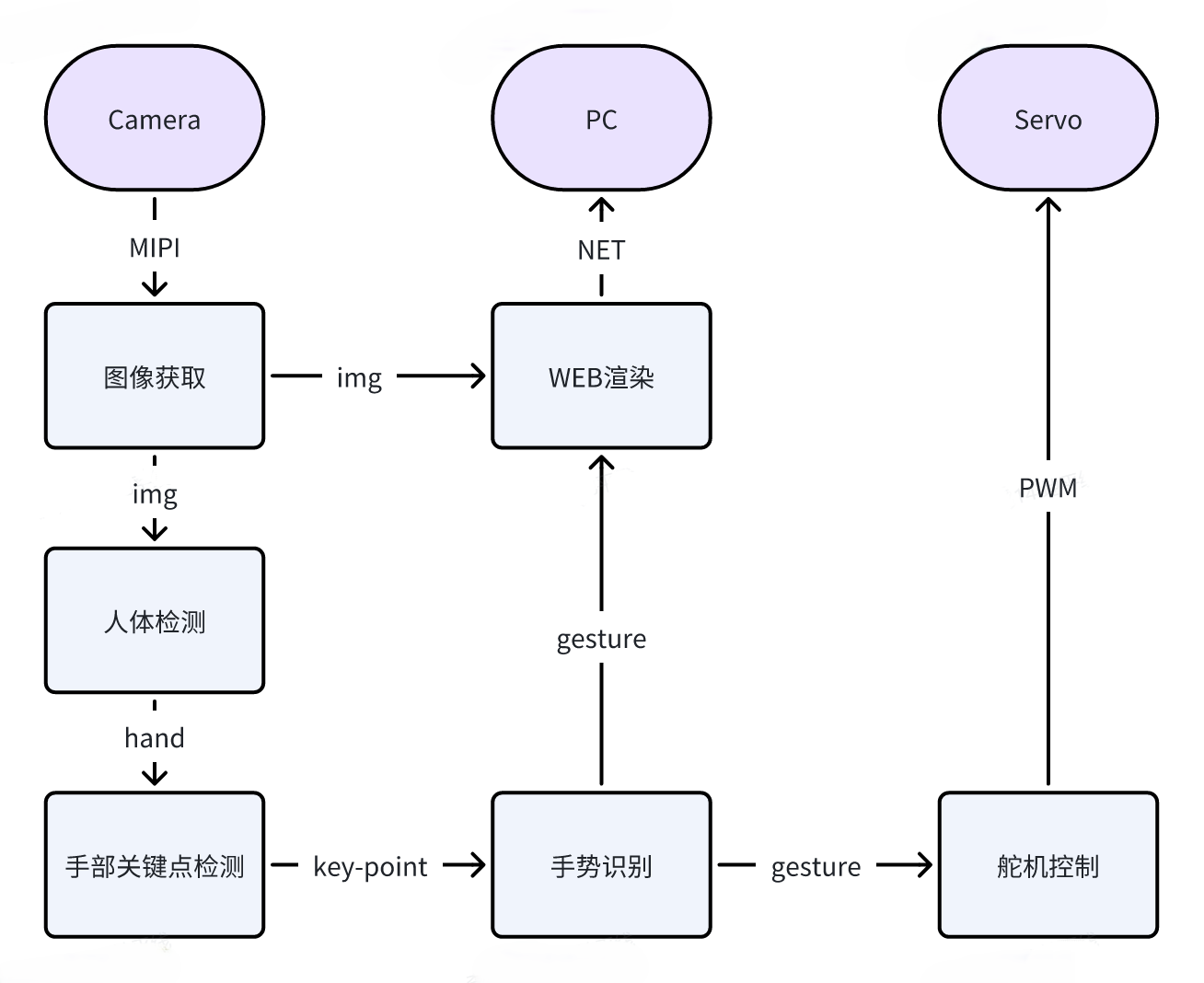
Source: D-Robotics Magicbox gesture interaction official documentation. Local images are archived in ./assets/official_images/Gesture-Architecture-Diagram.png.
1. What exactly is the original factory middle key mode doing?
The gesture mode and the dual-eye mode are not exactly the same. In the original firmware, there is a separate run_stereo.sh script for the dual-eye mode, while the gesture mode does not have a corresponding run_gesture.sh. The original firmware middle button mode actually uses this link:
textmagicbox-start
-> /userdata/magicbox/launch/start.sh
-> /userdata/magicbox/launch/start.py
-> ros2 launch gesture_interaction gesture_interaction.launch.py
In other words, the original gesture mode is essentially:
First, set up the environment using start.sh, and then start.py directly executes ros2 launch gesture_interaction gesture_interaction.launch.py.
Therefore, the correct way to present this section is not to invent a non-existent “original gesture-specific script,” but rather to clearly explain both “environment preparation” and “direct launch.”
2. Where should these commands be executed
If there is an existing working area on the board, the gesture interaction compilation directory is:
bash/userdata/magicbox/app/ros_ws
It is recommended to switch back to the running directory:
bash/userdata/magicbox
3. Manual startup method equivalent to the original factory mode
If you want to keep the original key mode as close as possible, it is recommended to execute the following in order under root privileges:
bashsudo su -
cd /userdata/magicbox
export RMW_IMPLEMENTATION=rmw_fastrtps_cpp
export LD_LIBRARY_PATH=/userdata/magicbox/app/ros_ws/install/qwen_llm/lib:$LD_LIBRARY_PATH
export HOME=/userdata/magicbox
export ROS_LOG_DIR=/userdata/magicbox/log
mkdir -p /userdata/magicbox/log
source /opt/tros/humble/setup.bash
source /userdata/magicbox/app/ros_ws/install/local_setup.bash
ros2 launch gesture_interaction gesture_interaction.launch.py
The difference between this set of commands and the original OEM key mode is minimal. The only difference is that the OEM calls it indirectly via start.py, while here, for teaching and troubleshooting purposes, the launch command is executed directly.
There is a simple detail to avoid: do not execute this set of commands in multiple unrelated shell sessions. source /opt/tros/humble/setup.bash and source /userdata/magicbox/app/ros_ws/install/local_setup.bash only affect the current shell. Once you start a new root shell, PATH and the ROS2 environment generated by source will disappear. If you then enter ros2, you might see:
text-bash: ros2: command not found
Therefore, the safest approach is: after entering a sudo su -, execute the entire command set sequentially without switching to a different shell in between.
Another issue that has been reproduced on a real machine is that although the gesture_interaction chain points ROS_LOG_DIR to /userdata/magicbox/log, if this directory is still root:root and regular users do not have write permissions, then ros2 launch will exit before actually starting the node, as the launch framework itself cannot create the log directory. The typical error message is as follows:
textPermissionError: [Errno 13] Permission denied: '/userdata/magicbox/log/...'
If you plan to manually debug with the sunrise user instead of running with root all the time, correct the directory permissions once:
bashsudo mkdir -p /userdata/magicbox/log
sudo chown -R sunrise:sunrise /userdata/magicbox/log
sudo chmod 755 /userdata/magicbox/log
After correction, re-run the previous startup command set. This board has been verified: in the original equivalent environment, gesture_interaction.launch.py can properly activate the mipi_cam, hobot_codec_republish, websocket, hand_gesture_detection, tros_perception_fusion, and gesture_interaction units.
If you modify the source code, you need to recompile it and run it separately:
bashsudo su -
cd /userdata/magicbox/app/ros_ws
source /opt/tros/humble/setup.bash
colcon build --packages-select gesture_interaction
cd /userdata/magicbox
source /opt/tros/humble/setup.bash
source /userdata/magicbox/app/ros_ws/install/local_setup.bash
ros2 launch gesture_interaction gesture_interaction.launch.py
The reason for changing it to local_setup.bash uniformly is that the actual source of the original start.sh is also:
bashsource /userdata/magicbox/app/ros_ws/install/local_setup.bash
Therefore, this section should be consistent with the original version.
3.1 Why pasting the entire paragraph causes problems, but executing it step by step works normally
This is not an exception to the Markdown structure itself, but a problem caused by the shell interaction method. The most problematic part is exactly the first line sudo su -. This command immediately switches to a new root login shell, and when the Windows terminal or SSH client pastes the entire line, the subsequent commands may be sent before the new shell is fully ready. As a result:
- Some commands are executed in the old shell.
- Some commands are executed in the new shell.
- The shell where
sourcetakes effect is not the same as the shell whereros2 launchis entered later.
In this case, two very “mystical” phenomena will occur: either ros2: command not found, or it seems like “the whole paragraph is pasted without any reaction, but each item is executed normally”.
Therefore, it is not recommended in the tutorial to directly paste the entire command containing sudo su - as a “no-thinking block paste version”. There are two safer approaches.
The first method is to execute it separately:
bashsudo su -
After confirming that the prompt has turned into root@ubuntu:~#, paste the subsequent commands in their entirety:
bashcd /userdata/magicbox
export RMW_IMPLEMENTATION=rmw_fastrtps_cpp
export LD_LIBRARY_PATH=/userdata/magicbox/app/ros_ws/install/qwen_llm/lib:$LD_LIBRARY_PATH
export HOME=/userdata/magicbox
export ROS_LOG_DIR=/userdata/magicbox/log
mkdir -p /userdata/magicbox/log
source /opt/tros/humble/setup.bash
source /userdata/magicbox/app/ros_ws/install/local_setup.bash
ros2 launch gesture_interaction gesture_interaction.launch.py
The second method is to use a single command to include the entire environment and launch within a single root shell. This approach is most suitable for copying the entire execution, and it is also least likely to cause the environment to be lost due to shell switching:
bashsudo bash -lc '
cd /userdata/magicbox
export RMW_IMPLEMENTATION=rmw_fastrtps_cpp
export LD_LIBRARY_PATH=/userdata/magicbox/app/ros_ws/install/qwen_llm/lib:$LD_LIBRARY_PATH
export HOME=/userdata/magicbox
export ROS_LOG_DIR=/userdata/magicbox/log
mkdir -p /userdata/magicbox/log
source /opt/tros/humble/setup.bash
source /userdata/magicbox/app/ros_ws/install/local_setup.bash
exec ros2 launch gesture_interaction gesture_interaction.launch.py
'
If you need to repeat the same set of commands, use the second method first. It maintains consistency with the original environment and is more stable than typing each command individually first sudo su - and then line by line.
4. Where to view the results after startup
The main results of gesture interaction are displayed on the device itself, but there is still some web content to view. Based on the actual content of the original gesture_interaction.launch.py, this launch will also bring up:
mipi_camhobot_codec_republishwebsocket- Nodes related to gesture recognition
gesture_interaction
Therefore, after the gesture mode is activated, it can also be accessed through a browser:
texthttp://192.168.127.10:8000
Or:
texthttp://192.168.127.10:8000/TogetherROS/
The purpose of this page is to help you verify whether the visual input, rendering, and front-end display process are functioning properly. However, whether the gesture mode is truly successful ultimately depends on whether the device itself performs the gesture action.
The README and source code of the current repository can both correspond to the following set of action relationships.
ThumbUp: Ear shakingVictory: Feet raisedThumbLeft: Lifting the left leg or left-side movementThumbRight: Lifting the right leg or right-side movementOkay: Light flickering
Therefore, the evaluation method for this demo cannot be based solely on the web page or device actions, but on both aspects together. More precisely:
- The browser page is used to verify whether the image and perception link are functioning properly.
- The actions of the device body and lighting feedback are used to confirm whether the interaction link is truly in a closed loop.
If the 8000 page has no content at all, first check the terminal for whether mipi_cam, hobot_codec_republish, and websocket have come online; if there are images on the web page but the device does not respond, then check the action execution chain from /tros_perc_fusion to gesture_interaction.
5. What should be checked first if there are no actions?
Gestural interaction essentially involves two chains. The first is the visual recognition chain, and the second is the action execution chain. If either chain is broken, what the reader sees will be “the recognition seems to move, but the device doesn’t.”
It is recommended to check the following three items first.
First, has the startup command pulled up hand_gesture_detection together? gesture_interaction.launch.py does not just start one node; it also includes:
hand_gesture_detection/launch/hand_gesture_fusion.launch.py
Second, whether the topics subscribed by gesture control nodes are normal. In the source code, GestureControlNode is subscribed to:
text/tros_perc_fusion
Third, check whether the hardware execution layer is functioning properly. gesture_control_node.cpp will continue to send the recognition results to ActuatorsControl, and the servos and lighting strips will perform the specific actions.
Fourth, if you are concerned about permission issues, it is better to use the root privilege startup method mentioned in the previous section. This is because the GPIO, LED strips, and some underlying device nodes on this board are indeed more suitable for being started with root privileges in a real environment.
Fifth, if you see “the prompt returns immediately after the command is executed, with almost no output”, do not assume it is just a blank run of the program. First, check two things. First, whether ros2 actually exists in the current shell:
bashcommand -v ros2
Second, is /userdata/magicbox/log writable:
bashls -ld /userdata/magicbox/log
On this board, the gesture mode has been verified in real machine to start properly. The most common reason for “no output” is not that the package is broken, but that the environment variables are not retained in the current shell, or the launch log directory lacks write permissions.
VII. How to Understand the Main Source Code Line for Gesture Interaction
For this section, there are three files that are most worth reading first.
The first file is the original factory main entrance:
/userdata/magicbox/launch/start.sh/userdata/magicbox/launch/start.py
In their descriptions, the key mode does not bypass any special black box; instead, after the environment is prepared, it directly calls ros2 launch gesture_interaction gesture_interaction.launch.py.
The second file is the launch entry:
repos/magicbox_gesture_interaction/launch/gesture_interaction.launch.py
It indicates that this Demo includes two parts as soon as it starts: gesture recognition and action control, rather than a separate action program.
The third file is the core control node:
repos/magicbox_gesture_interaction/src/gesture_control_node.cpp
The logic of this file is very clear. It first subscribes to PerceptionTargets(/tros_perc_fusion), then extracts the recognition value, filters out invalid gestures, and performs majority voting using a queue of 25 elements to minimize false triggers caused by recognition jitter. Finally, the stabilized gesture value is mapped into a specific action.
The fourth file is the header file definition:
repos/magicbox_gesture_interaction/include/gesture_interaction/gesture_control_node.h
Here, the gesture encoding and its meaning are defined directly. For example, ThumbUp=2, Victory=3, Okay=11, ThumbRight=12, and ThumbLeft=13. This allows the tutorial to correlate “gesture name, numerical encoding, and physical action,” rather than just relying on verbal descriptions.
VIII. What Should Readers Actually Master in This Chapter
After reading this chapter, the reader should not only have “run two demos”, but also develop three sets of understandings.
The first understanding is: the button mode and manual mode are not conflicting with each other; rather, they are two different levels of entry points. The button mode is suitable for experience, while the manual mode is suitable for learning and troubleshooting.
The second understanding is: the complete pipeline for dual-eye depth is camera input, depth model inference, image encoding, and web visualization output. If the web page is a purple shell, don’t blame the browser first; instead, check whether mipi_cam has exited.
The third understanding is: in the original mode, gesture interaction does not have any additional special startup script. Instead, after the start.sh environment is set up, ros2 launch gesture_interaction gesture_interaction.launch.py is run directly.
Article 4: Cognition is that gesture interaction also triggers its own web display process. Therefore, the 8000 page is not solely associated with monocular mode. However, for gesture mode, the web page can only indicate whether the visual and rendering processes are normal; it cannot replace the inspection of the device’s actual actions.
After completing this chapter, readers will know which script chain is actually called behind the original factory button mode, where to look for the dual-eye page, what phenomena should be observed in the gesture demo on the device, and which startup file and core source code file each of these functions corresponds to.