
README 02: Wired network port connection and login
This chapter focuses on solving a very practical problem: how to connect a Windows computer and a Magicbox stably via Ethernet cable without relying on Thunderbolt, and complete the first login. For long-term development, this method is usually more stable than Thunderbolt and better fits real workflows.
I. Network prerequisites used in this chapter
This tutorial uses the following connection method by default:
The computer connects to the campus network or the Internet via WLAN.
The computer is directly connected to the Magicbox via 以太网.
As a standalone private network device, the Magicbox communicates with the computer through a fixed address.
As long as your campus network uses Wi-Fi, changing the 以太网 network card to a static address usually does not affect the connection to the campus network. The reason is that only the wired network card directly connected to the development board is modified, and no default gateway is set for it. In this way, Windows will still prioritize accessing the network through WLAN, while 以太网 is only responsible for communicating with the development board.
The local archive of the official quick-start page is as follows:
./assets/official_pages/quickstart.html
The online address is as follows:
https://d-robotics.github.io/magicbox_doc/quickstart
II. Clearly define two addresses; do not mix them up
In the network experience of Magicbox, the most confusing aspect for beginners is mixing wireless addresses and wired addresses into one concept. In fact, the official documentation has already made this clear.
If you use the flash link method, the development board address is:
text192.168.128.10
If you use a wired network port for direct connection, the development board address is:
text192.168.127.10
This chapter only discusses the second method, namely wired direct connection. Therefore, all subsequent ping, browser access, and ssh logins should be based on 192.168.127.10 in priority.
III. First, determine whether the change you made to the network card is correct
Your computer may have Wi-Fi, Ethernet, VPN virtual network cards, and other software network cards simultaneously. What really needs to be modified is just the physical wired network card.
Execute in PowerShell:
powershellGet-NetAdapter | Sort-Object Status -Descending | Format-Table -Auto Name, InterfaceDescription, Status, LinkSpeed
If you see results similar to the following:
text以太网 Realtek Gaming 2.5GbE Family Controller Up
So, this is usually the network card connected directly to the development board.
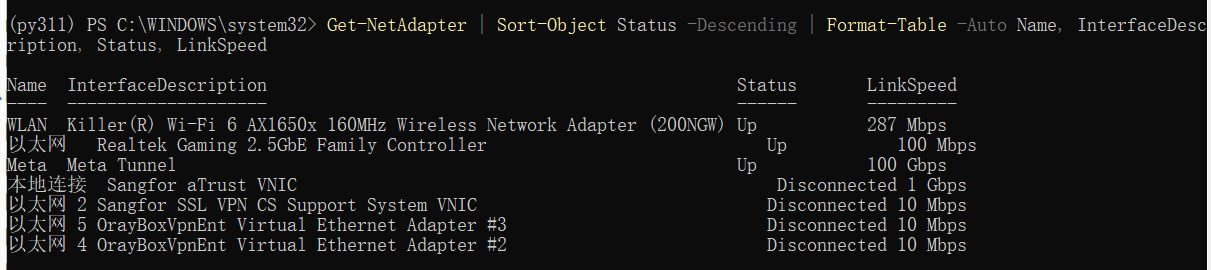
This step is crucial. Because if the network card is misconfigured, either the connection to the board will fail, or the normal network environment will be disrupted.
IV. Why the computer needs to be manually changed to a static address
When the computer is directly connected to the Magicbox via a network cable, there is usually no router, DHCP server, or campus network authentication device between the two ends to automatically assign addresses. If the computer remains in “auto-IP acquisition” mode, Windows often assigns itself a link-local address of 169.254.x.x. This address range is not the same as the default wired address of the Magicbox, 192.168.127.10, so direct communication between them is not possible.
Therefore, the wired network card on the computer must be manually changed to the 192.168.127.x IP range.
5. Correct wired configuration method on Windows
This step must be performed with administrator privileges. If the network configuration is modified with ordinary permissions, the system will directly report an error: The requested operation requires elevation.
If the network card name is 以太网, you can directly execute it in Administrator PowerShell or Administrator CMD:
cmdnetsh interface ip set address name="以太网" static 192.168.127.100 255.255.255.0 none
netsh interface ip set dns name="以太网" dhcp
The meaning here is very simple:
Set the computer address to 192.168.127.100.
Set the subnet mask to 255.255.255.0.
Leave the default gateway blank.
DNS remains automatic.
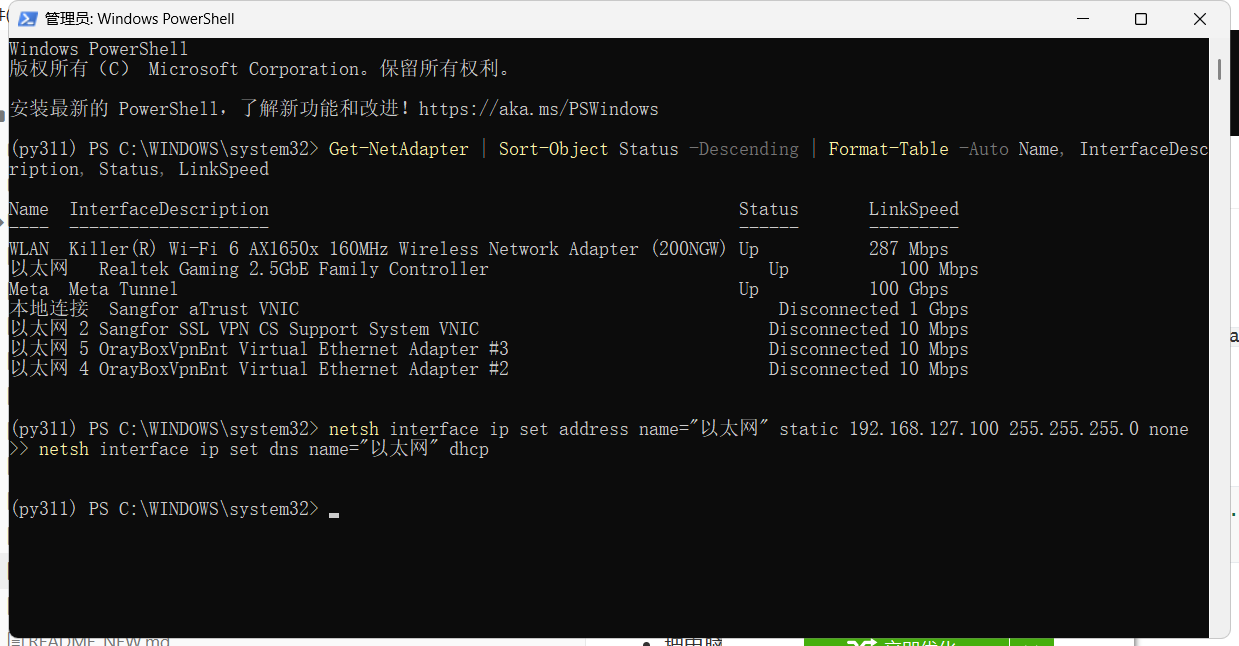
If your network card name is not “Ethernet”, execute first:
powershellGet-NetAdapter
Then replace the "以太网" in the command with the actual name.
VI. How to verify that the link is established after modification
After the modification is completed, the first step is not to open the browser, but to perform the simplest network probing:
powershellping 192.168.127.10
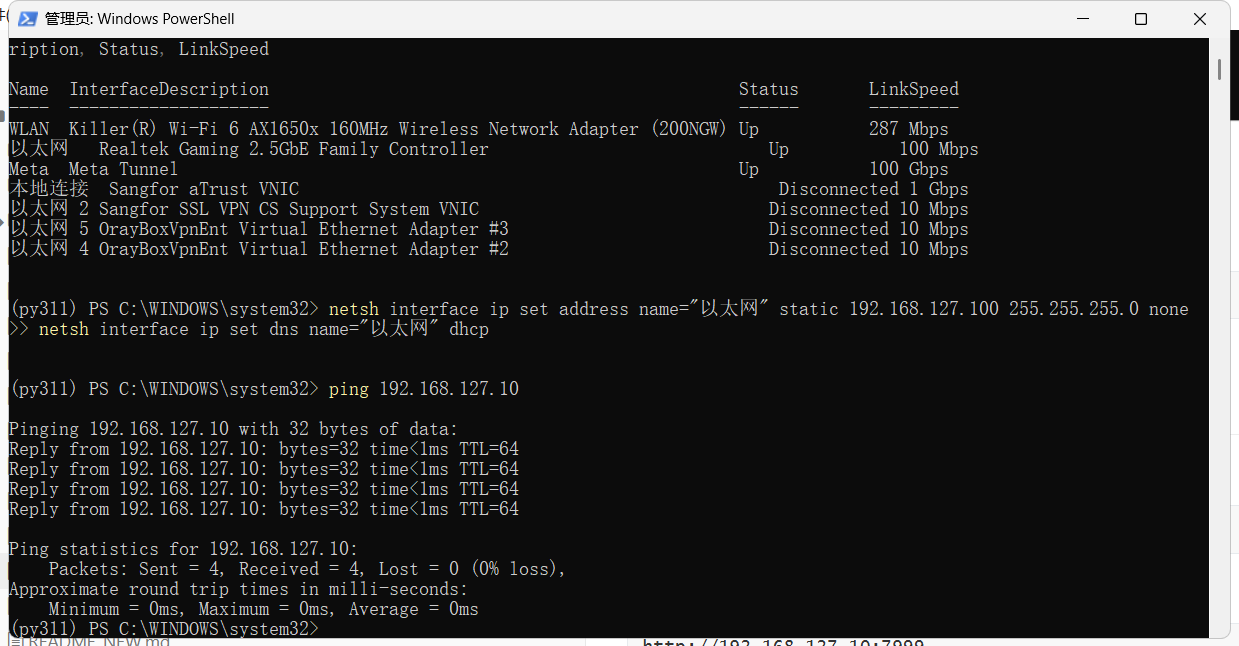
If ping works, it indicates that the two-layer and three-layer communication between the computer and the development board has been established. Next, you can verify the two web entry points:
texthttp://192.168.127.10:7999
http://192.168.127.10:8000
Among them, 7999 is the resource monitoring page, and 8000 is the example display page.
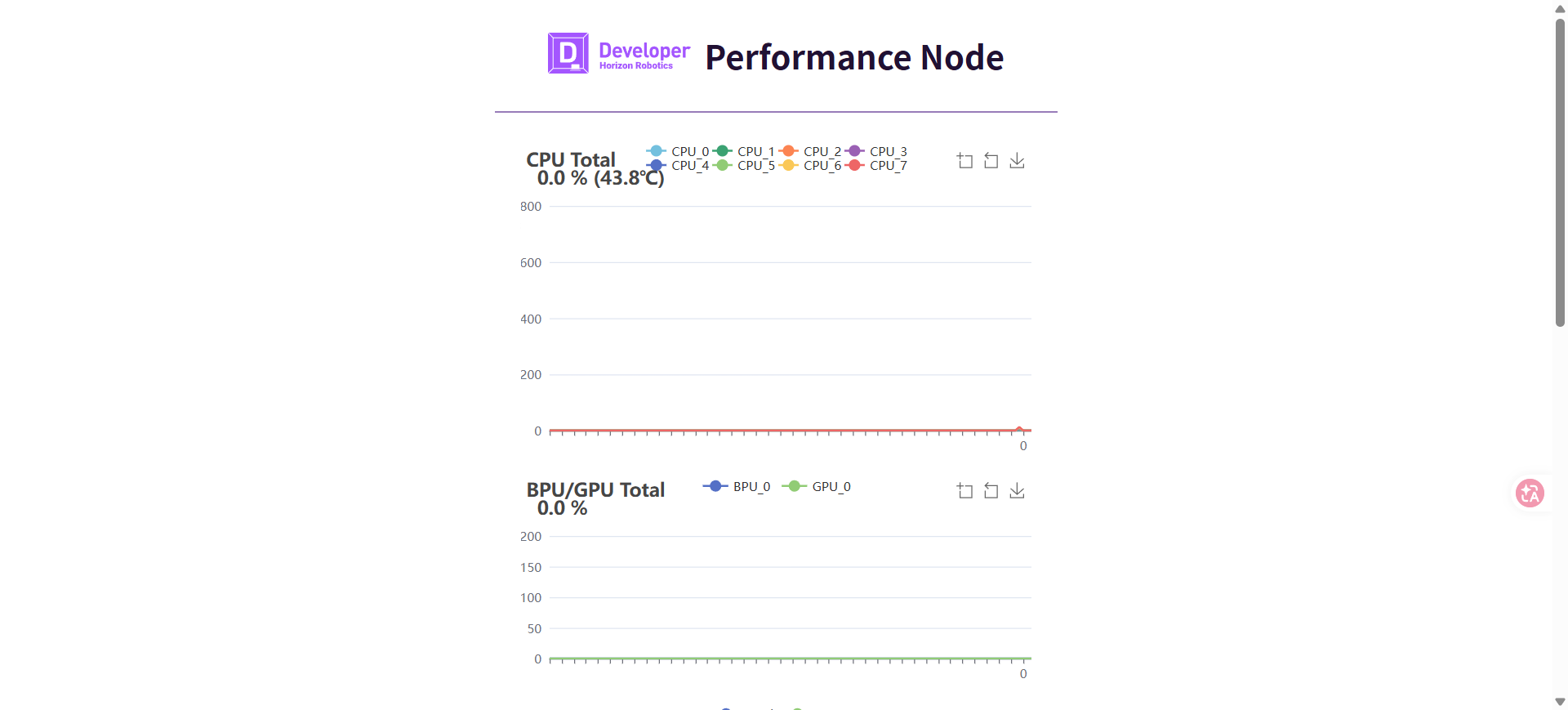
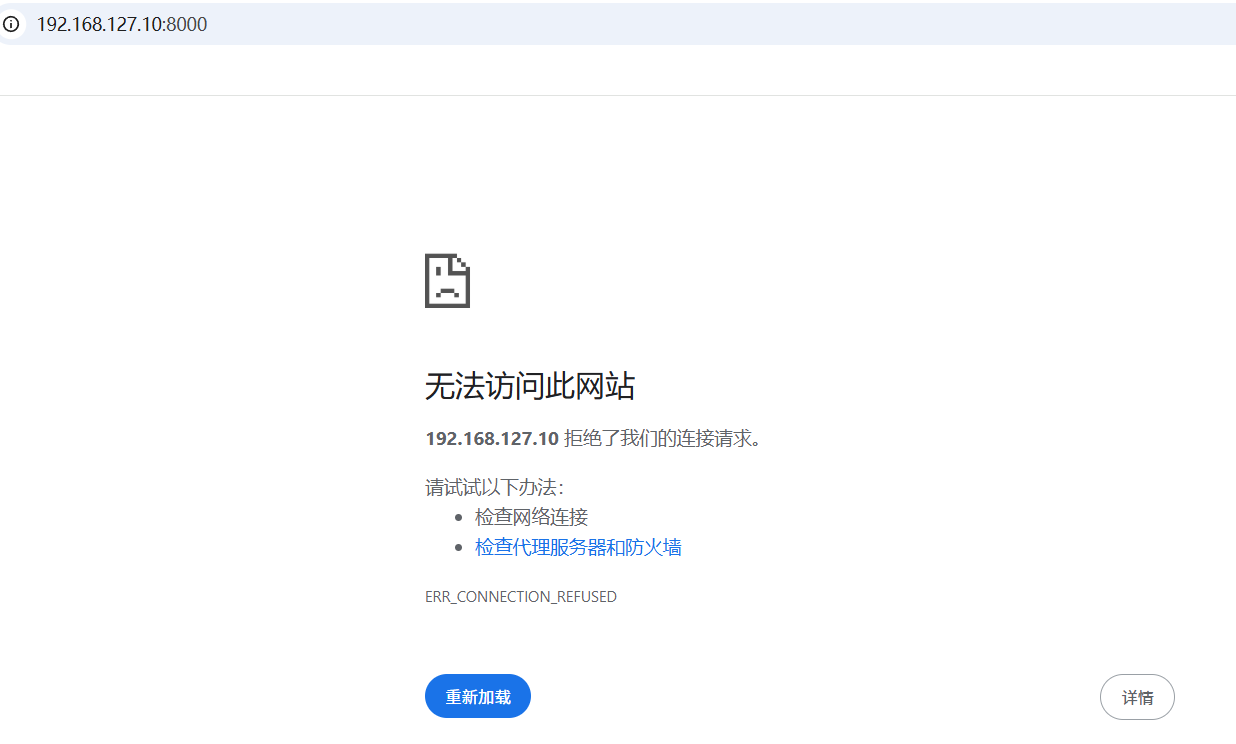
Here, a more accurate statement is needed: 8000 does not always display content. It usually depends on the corresponding example application being launched. Therefore, if you can ping it works, 7999 opens, but 8000 has no content, you should not assume there is a device malfunction immediately. Instead, you should continue reading the button startup process in Chapter 3.
VII. How to log in via SSH for the first time
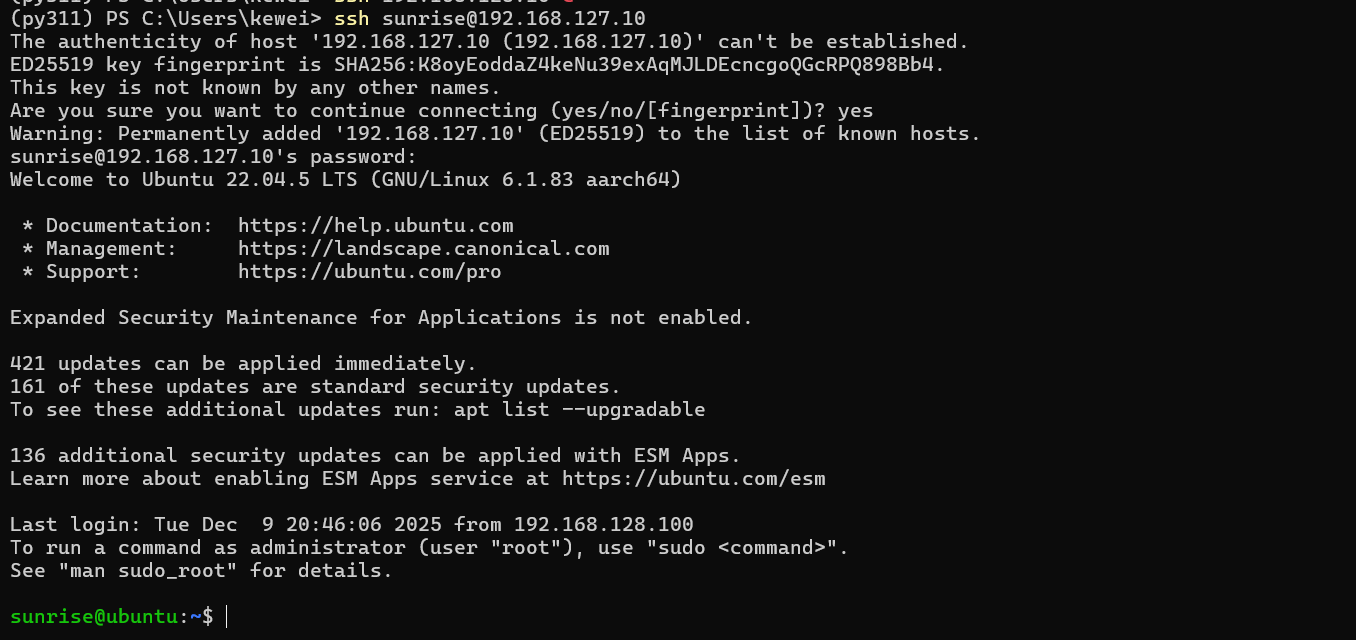
In most official pre-configured systems, it is recommended to use regular users for login instead of directly accessing root. This is because when writing tutorials, installing dependencies, pulling repositories, and debugging scripts, using regular users in conjunction with sudo aligns more closely with the standard Linux development process and is also safer.
Recommended to execute first:
bashssh sunrise@192.168.127.10
Common default credentials are as follows:
text用户名: sunrise
密码: sunrise
If direct login as root is indeed necessary, use:
bashssh root@192.168.127.10
Common default root credentials are as follows:
text用户名: root
密码: root
VIII. How to Choose Between Ordinary Users, root, and sudo
In actual development, it is better to clearly define the responsibilities of these three aspects rather than simply assuming that “any one can be used”.
The standard user sunrise is suitable for daily development, including logging in, viewing directories, pulling source code, running regular commands, and maintaining the work area.
sudo is suitable for scenarios where administrator privileges are required but standard workflows still need to be maintained, such as installing software, modifying system configurations, or manipulating services.
root is more suitable for system-level maintenance, permission troubleshooting, and a few tasks that require direct access to the superuser environment.
Therefore, the default path recommended by this tutorial is:
bashssh sunrise@192.168.127.10
sudo -v
sudo -i
If the system has granted sunrise sudo privileges, you can gain privilege escalation by entering its own password:
textsunrise
9. How to verify if sudo permissions are functioning properly
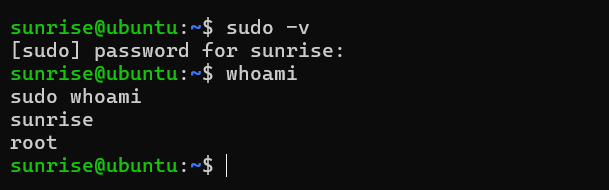
After logging in, execute first:
bashsudo -v
Execute again:
bashwhoami
sudo whoami
If the outputs are respectively:
textsunrise
root
This indicates that the normal user privilege escalation process is normal.
Ten. How to restore automatic address acquisition if no direct connection to the development board is made later?
Sometimes, after debugging the development board, you want to restore the wired network card to a regular network card. In this case, there is no need to manually click through many interfaces. Just execute the following two commands via the admin terminal:
cmdnetsh interface ip set address name="以太网" dhcp
netsh interface ip set dns name="以太网" dhcp
There are also two auxiliary scripts in the root directory of this project that can be used directly:
./set_magicbox_wired_static.cmd
./reset_magicbox_wired_dhcp.cmd
11. The state that should be achieved at the end of this chapter
If the manipulation in this chapter is done correctly, you should have the following abilities.
First, you can accurately distinguish flash addresses from wired addresses, and no longer mix 192.168.128.10 with 192.168.127.10.
Second, you can reliably use ping on the development board from the Windows side.
Third, you can log in to the system using ssh sunrise@192.168.127.10.
Finally, you have the necessary conditions to enable the button-start function and view the preset directory structure.
At this point, Magicbox truly enters a state where it is “manipulable, debuggable, and ready for further development”.